


Table of contents
- What Are Fields and How Are They Used?
- What Field Types Are Available in Joomla 5 and 6?
- How to Create a Field for a Joomla Article
- Field Groups: Why Are They Needed?
- Fields for Joomla Categories
- Common Custom Field Parameters
- Detailed Description of Field Types
- Calendar (calendar)
- Checkboxes (checkboxes)
- Colour (color)
- Editor (editor)
- Integer (integer)
- Number (number)
- List (list)
- List of Images (imagelist)
- Media (media)
- Audio (media_audio)
- Video (media_video)
- Document (media_document)
- Note (note)
- Radio (radio)
- SQL (sql)
- Subform (subform)
- Text (text)
- Text Area (textarea)
- URL (url)
- User (user)
- User Groups (usergrouplist)
- How to Output a Field in an Article
- Fields and Smart Search
- Third-Party Extensions for com_fields
- Where Does Joomla Store Field Values?
- What to Check When Migrating from Joomla 3 to Joomla 5 or 6
- Practical Recommendations
- Conclusion
Joomla custom fields allow you to turn a regular article, category, contact, or user profile into a structured record: add an event date, price, specifications, link, images, option list, and other data. You don't necessarily need to install a separate CCK component — the core custom fields system is built into Joomla and managed by the com_fields component.
Fields first appeared in Joomla 3.7, but the system has changed significantly since then. In Joomla 4, the legacy repeatable field was replaced with the more flexible Subform field. In Joomla 5, the interface and display options were redesigned. Joomla 6.0 introduced the Number and Note fields, while Joomla 6.1 added separate media field variants for audio, video, and documents.
fields plugins are installed.What Are Fields and How Are They Used?
Fields (the com_fields component) is a core Joomla component for creating, grouping, assigning, and storing custom fields. The input form and value formatting for each type are handled by plugins in the fields group.
In the standard installation, fields can be added to the following objects:
- Content: articles and article categories.
- Contacts: contacts, contact categories, and the contact email form.
- Users: user accounts and, with appropriate settings, the registration and profile editing forms.

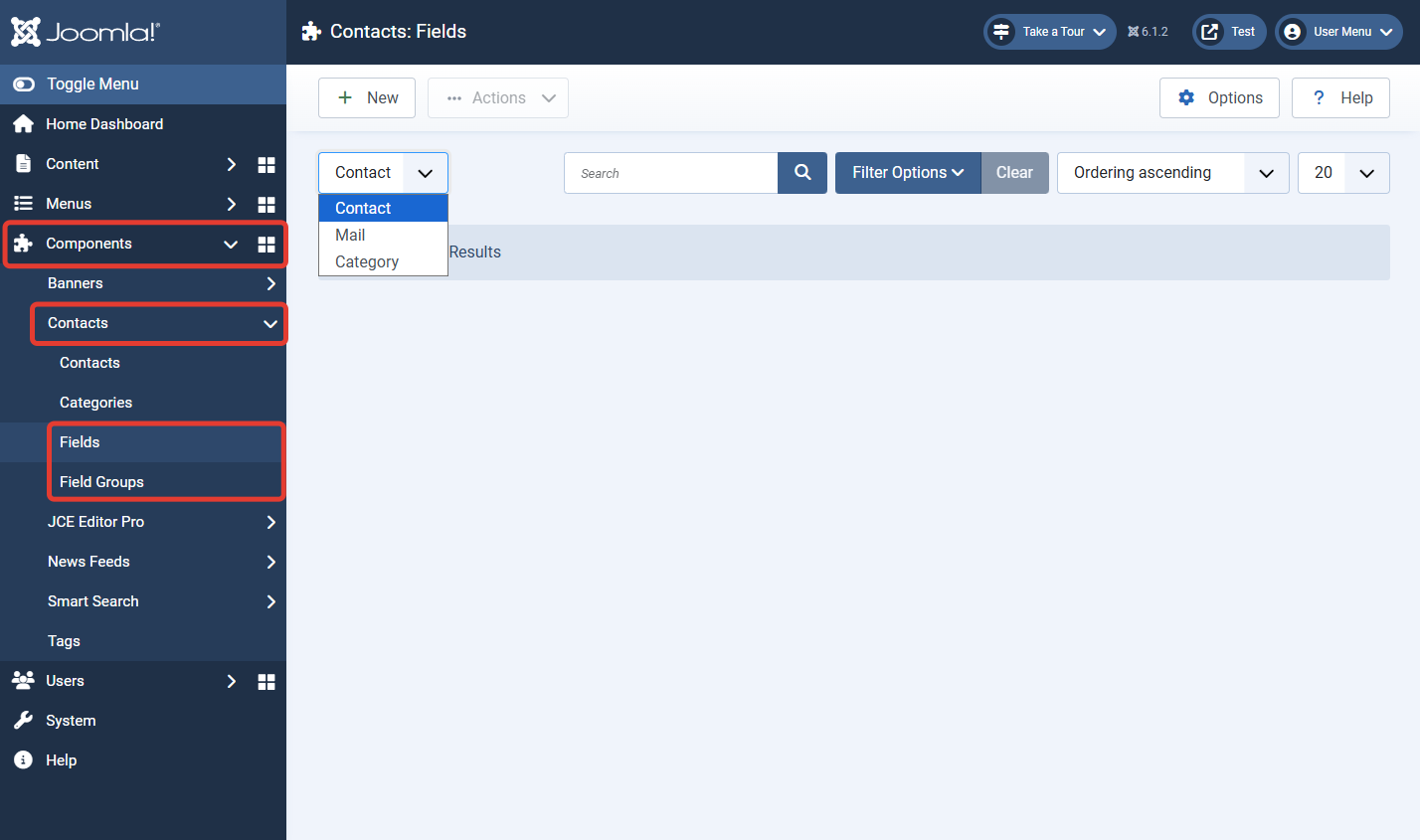
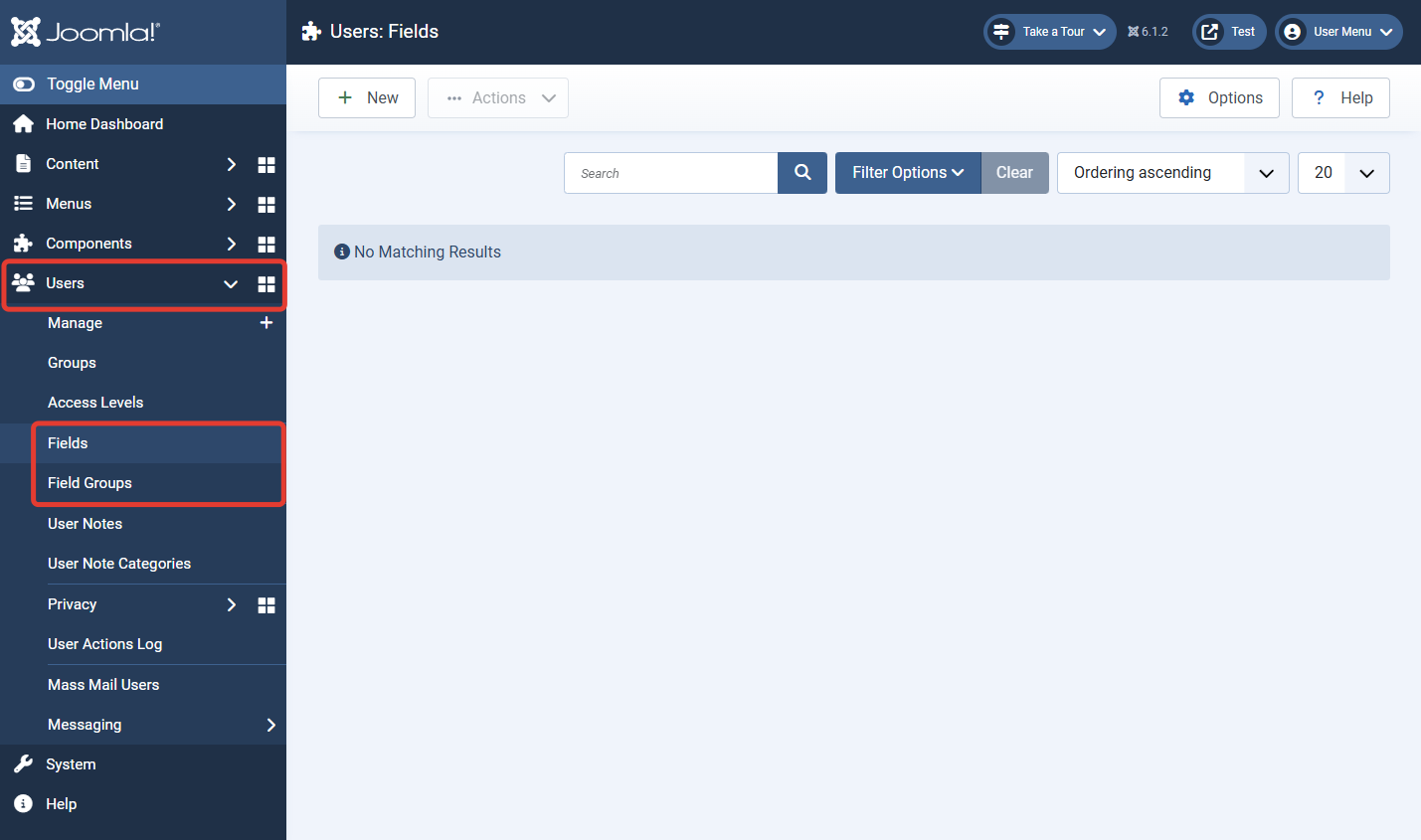
Third-party extensions can also integrate with com_fields and create their own contexts.
What Field Types Are Available in Joomla 5 and 6?
| Joomla | Count | What's New |
|---|---|---|
| 5.x | 16 | Calendar, Checkboxes, Color, Editor, Integer, List, Imagelist, Media, Radio, SQL, Subform, Text, Textarea, URL, User, and Usergrouplist. |
| 6.0 | 18 | Added "Number" with decimal values and formatting, and "Note" for instructions within the form. |
| 6.1 | 21 | The media plugin received separate "Audio", "Video", and "Document" types. |
In older articles about Joomla 3.7, you'll often see Email, Telephone, and Timezone fields. These are not present in the current standard custom field set of Joomla 5/6. For email addresses, the "Text" field with appropriate filtering or a third-party field type is typically used. Timezone and telephone can also be stored as text or implemented via a separate plugin.
fields group. If a needed type is missing, check System → Manage → Plugins and filter plugins by the "Fields" type. If there are more types, they were added by an installed extension.How to Create a Field for a Joomla Article
- Open Content → Fields.
- In the context filter, ensure Articles is selected, not categories.
- Click New and choose the field type.
- Specify the title, system name, description, and type-specific parameters.
- If needed, select a field group and the article categories where the field should be available.
- On the parameters tab, configure the input form and frontend display.
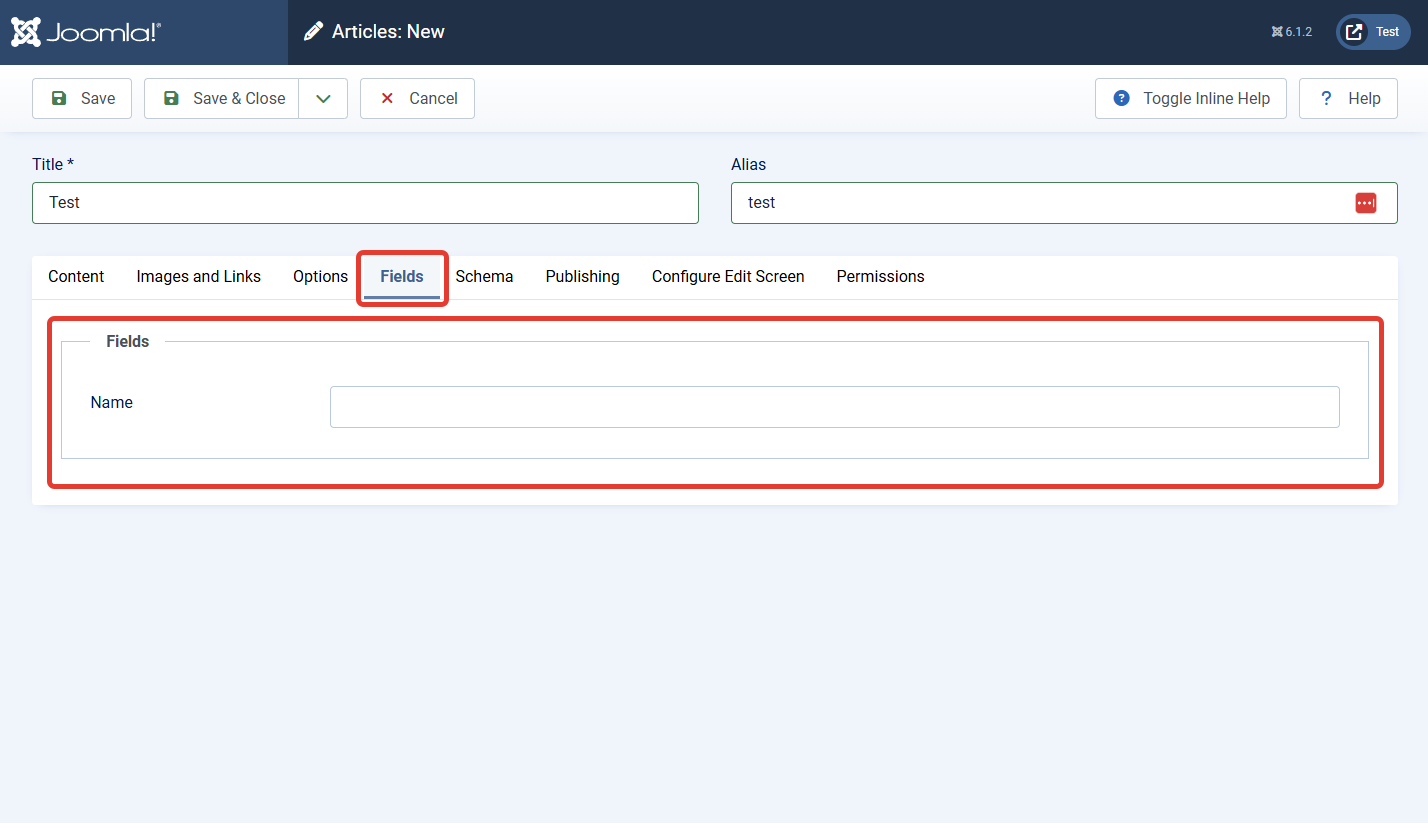
- Publish the field and open an article in the appropriate category. The field will appear on its group's tab or the general Fields tab.
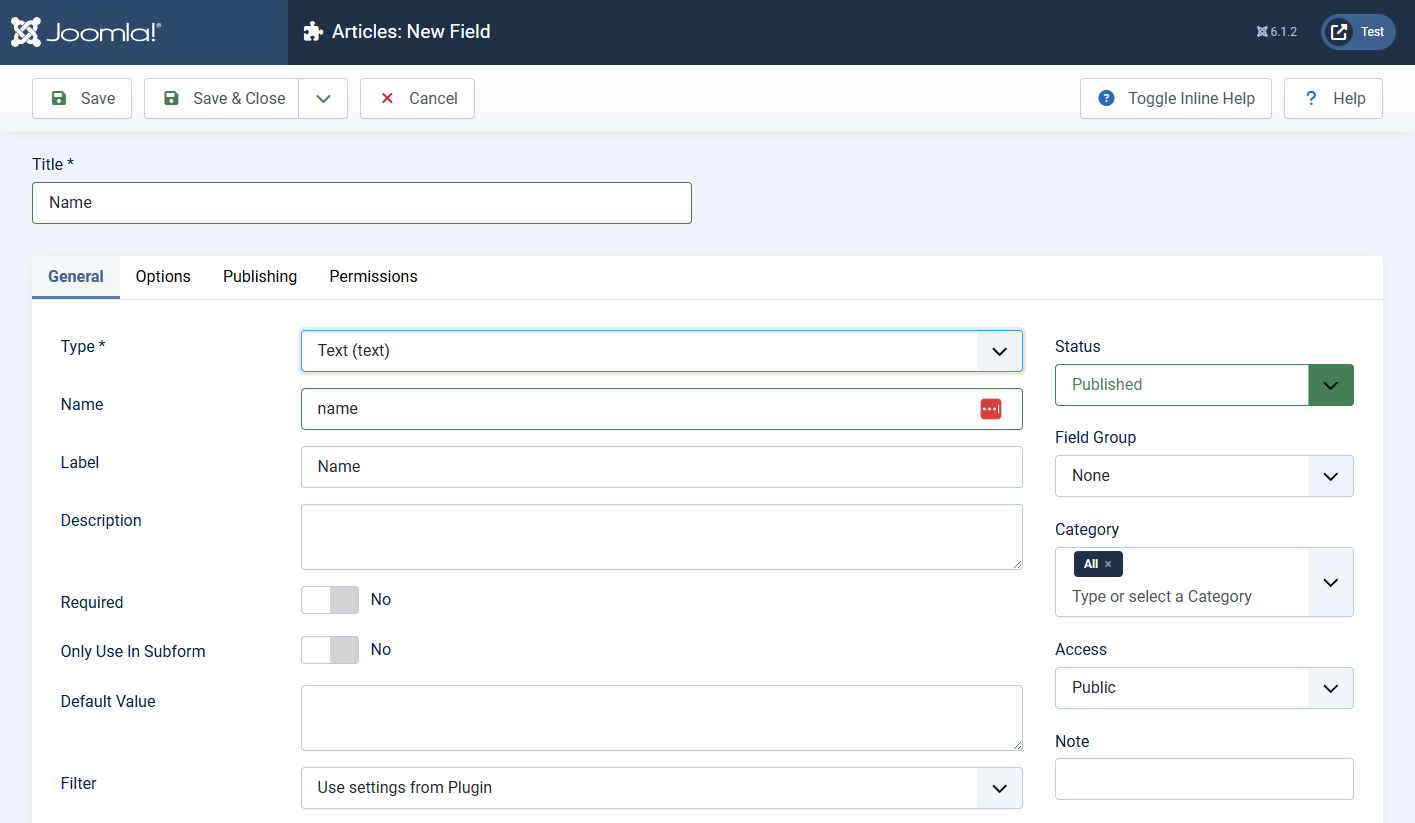
It's best to set the field name in Latin characters from the start, e.g., event-date, price, or speaker. It's convenient for referencing in template overrides and remains understandable even after changing the title.
Field Groups: Why Are They Needed?
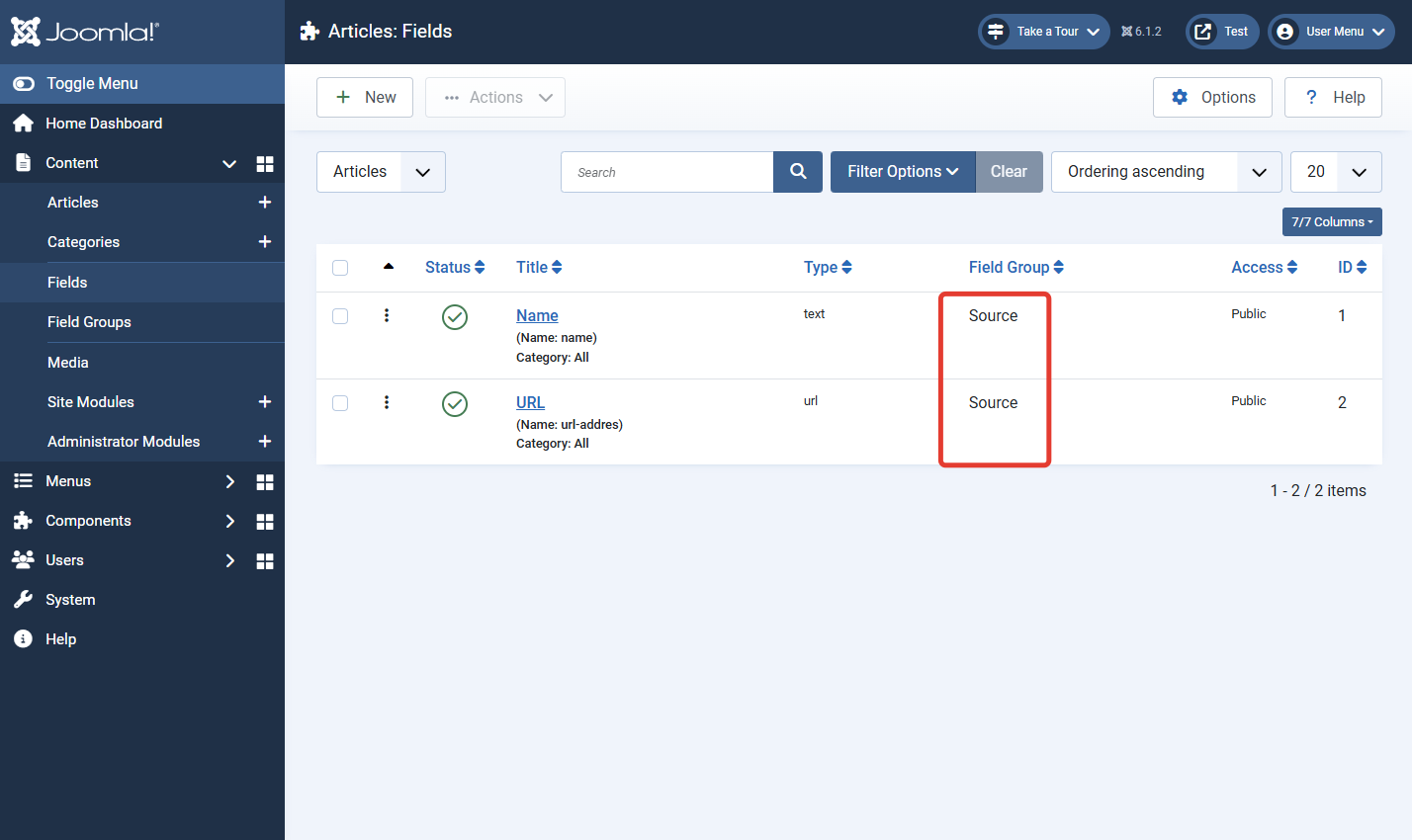
A group combines related fields and creates a separate tab for them in the edit form. For example, for a course catalog, you could create groups like "Pricing", "Schedule", and "Instructor".
- Fields without a group appear on the general Fields tab.
- The order of groups and fields can be changed by drag-and-drop or order values.
- For a group, you can configure state, access level, language, and permissions.
- A group organizes the interface but does not change how values are stored.


Fields for Joomla Categories
In Joomla 5 and Joomla 6, fields can be created not only for articles but also for categories. This is useful when each category needs its own data: a banner, subtitle, branch coordinates, design color, additional description, document link, or responsible person's name.
How to Create a Category Field?
- Go to Content → Fields.
- In the context dropdown, select Categories. In some admin menu configurations, there is a direct Content → Category Fields option.
- Create the field and configure it the same way as an article field.
- Open Content → Categories and edit the desired category.
- Fill in the value on the field group tab or the Fields tab.
Where Are Category Fields Displayed?
Automatic display depends on the component view, field position, and whether the template supports content events. For precise placement — such as next to the category title or inside a category card — it's more reliable to create a com_content layout override.
Practical use cases:
- Branch catalog: address, phone, coordinates, and working hours stored in the branch category;
- Catalog sections: a separate banner, icon, and color for each category;
- Documentation: product version, download link, and section responsible person;
- Events: common venue or organizer for all articles in the category.
Common Custom Field Parameters
Individual setting names may vary slightly between translations and between Joomla 5 and Joomla 6, but the logic remains the same.
Basic Parameters
- Title: the field name in the administrative list.
- Type: the field type; the list of settings may change depending on your selection.
- Name: a unique machine identifier for code and layouts.
- Label: the label next to the value in the form if enabled.
- Description: an explanation for the content editor.
- Required: prevents saving the object without a value.
- Only in Subform: hides the standalone field and allows it to be used as a Subform element.
- Default value: the initial value for new objects.
- Status: allows publishing, unpublishing, archiving, or trashing.
- Field group: the tab where the field will appear during editing.
- Category: restricts the field to one or more content categories.
Form Options Parameters
- Placeholder: the
placeholdertext inside the empty element. - Field Class: CSS classes for the edit form.
- Label Class (Form): CSS classes for the
labeltag in the edit form. - Editable In: site, administrator panel, or entire site.
- Showon attribute: conditional display of the field based on the value of another field.
Display Options
- Display Class: CSS classes for display on the site.
- Value Class: CSS classes for the field value on the site.
- Label: show or hide the field label.
- Label Class (Output): CSS classes for the
labeltag on the site. - Automatic Display: after the content title, before the content block, after the content block, or do not display automatically.
- Prefix and Suffix: text before and after the value, e.g.,
fromandUSD. - Layout: standard or overridden field layout.
- Display When Read-Only: behavior for a non-editable field.
- Search index: whether to include the value in the Smart Search index and how.
Detailed Description of Field Types
Calendar (calendar)
A field for selecting a date or date and time from a calendar. Suitable for date of birth, event date, expiration date, document publication date, or deadline.
- you can enable or disable time;
- customizable date display format;
- the value can be limited by minimum and maximum date;
- a "Today" button and filling with the current date are available, depending on the version settings.
The storage format and display format are not the same. For sorting and programmatic processing, use the raw value; for visitors, use the formatted one.
Checkboxes (checkboxes)
A set of independent checkboxes allowing multiple selections. For each option, you set a display text and a stored value.
Suitable for product options, available delivery methods, room features, or service lists. Values must be unique and stable: changing the stored value after filling articles can break existing data.
Colour (color)
Opens a graphical palette and saves a color, usually in HEX format, e.g., #0d6efd. Useful for category color, marker, card background, or infographic element.
style attribute without validation. In a custom template, ensure the value matches a valid color format.Editor (editor)
A full WYSIWYG editor area for formatted HTML. You can configure width, height, button set, and content filtering.
Use for an additional formatted block: technical description, terms and conditions, author biography. For short characteristics, choose "Text" or "Textarea": they are simpler, safer, and produce more predictable markup.
Integer (integer)
Creates a list of integers within a specified range. You can set the first and last value, step, and multi-select option.
This is not a regular string for entering numbers: Joomla generates a sequence of options. Useful for number of rooms, year, age, rating from 1 to 5, or fixed step values.
Number (number)
A field for entering integer and decimal numbers. Unlike "Integer", the user enters a value rather than selecting from a pre-generated list.
- supports minimum and maximum values;
- allows setting a decimal step, e.g.,
0.01; - supports negative numbers;
- can format the value as currency or add a symbol before or after the number;
- allows specifying the number of decimal places.
Suitable for price, weight, temperature, area, percentage, and any measurable characteristics.
List (list)
A dropdown list with predefined options. Can allow single or multiple selections. For each item, you set a display text and a stored value.
A list saves form space and is suitable for status, object type, district, manufacturer, or any characteristic with a limited set of options. If the editor needs to see all options constantly, "Checkboxes" or "Radio" are more convenient.
List of Images (imagelist)
Displays images from a specified directory and allows selecting one or multiple. You can restrict the folder, include subdirectories, and set an image CSS class.
This type is useful when files are pre-uploaded and the editor must choose only from a prepared set: icons, logos, diagrams, or cover variants. For free upload via the Media Manager, use "Media".
Media (media)
Opens the Joomla Media Manager and allows selecting or uploading an image, if the user has appropriate permissions. The field can store not only the path but also additional image data, so when developing a template, do not assume without checking that the value is a simple string.
- you can restrict the allowed directory;
- parameters for alt text and CSS class are available;
- allowed extensions and upload capability also depend on Media Manager settings and user permissions.
Starting from Joomla 5.3, file and media fields default to the /files directory unless another path is specified in the parameters. After updating your site, check custom directories and overrides.
Audio (media_audio)
A specialized media field variant for audio files. On the site, the value is output through an HTML5 <audio> element. Suitable for podcasts, audio guides, pronunciation examples, and music clips.
The actual ability to upload a file depends on allowed MIME types, extensions, and file size in the Media Manager and web server settings.
Video (media_video)
Allows selecting a video file and displaying it with an HTML5 <video> player. This field is intended for local media files. For YouTube, Vimeo, and other external services, it's often more convenient to store the URL or video ID and create a custom output layout.
Document (media_document)
Intended for PDFs, spreadsheets, archives, and other allowed documents. On the site, it typically generates a link to the file. Used for price lists, instructions, attachments, certificates, and downloadable materials.
Note (note)
An informational block inside the form. It is not intended for entering an individual value: with it, the administrator adds a heading, instruction, explanation, or warning between other fields.
- you can set a heading, text, CSS class, and heading level;
- the
alert alert-infoclass creates a standard Bootstrap informational block; - you can add a close button;
- optionally, the note can be displayed on the site.
This is a convenient way to split a long form and explain to the editor how to fill in the next set of fields.
Radio (radio)
A group of radio buttons for selecting exactly one option. Suitable for a small set of mutually exclusive values: "Yes / No", tariff, status, contact method.
With a large number of options, the form becomes cumbersome — in that case, use "List".
SQL (sql)
Forms a dropdown list based on an SQL query to the Joomla database. The query must return columns for the stored value and the displayed text. The table prefix is specified as #__ so the field works with any database prefix.
An SQL field is useful for selecting a record from a custom table or a related reference table, but it requires understanding of the database structure and SQL language.
Subform (subform)
Combines several pre-created fields into a repeatable set of rows. For example, one row could contain an employee image, name, position, and link; the editor adds as many employees as needed.
- Create child fields and enable the Only in Subform parameter for them.
- Create a "Subform" field.
- Add the prepared child fields to it.
- Configure the minimum and maximum number of rows, repeatability, and output layout.
The subform value has a complex structure. For a non-standard card or table, a layout override is usually required. Do not nest subforms within each other without thorough testing.
Text (text)
A single-line field for a short value: SKU, subtitle, phone, code, name, index, or brief characteristic. You can set maximum length, filter, placeholder, and other limits.
Do not use a text field for HTML markup. If formatting is needed, choose "Editor"; if multiple lines without WYSIWYG, choose "Textarea".
Text Area (textarea)
Multi-line plain text. You can set the number of rows and columns, maximum length, filter, and line break conversion.
Suitable for address, brief summary, editor's note, or unformatted description. This is not a WYSIWYG editor.
URL (url)
A field for a web address that, in standard output, becomes a link. You can restrict allowed schemes and configure link behavior.
Use for manufacturer website, registration page, documentation, or external profile. Do not allow dangerous or unnecessary URL schemes and do not disable filtering without reason.
User (user)
Opens a selection of registered users and saves their ID. In standard Joomla output, it converts the ID to the username.
Suitable for assigning a manager, expert, review author, or responsible employee. If the account is deleted, the associated value should be checked.
User Groups (usergrouplist)
Allows selecting one or more Joomla user groups and saves their IDs. Can be used for displaying a responsible group or classifying a record.
How to Output a Field in an Article
There are three main ways.
Method 1: Automatic Output
In the Automatic Display parameter, choose one of the positions:
- After Title;
- Before Display Content;
- After Display Content;
- Do not automatically display.
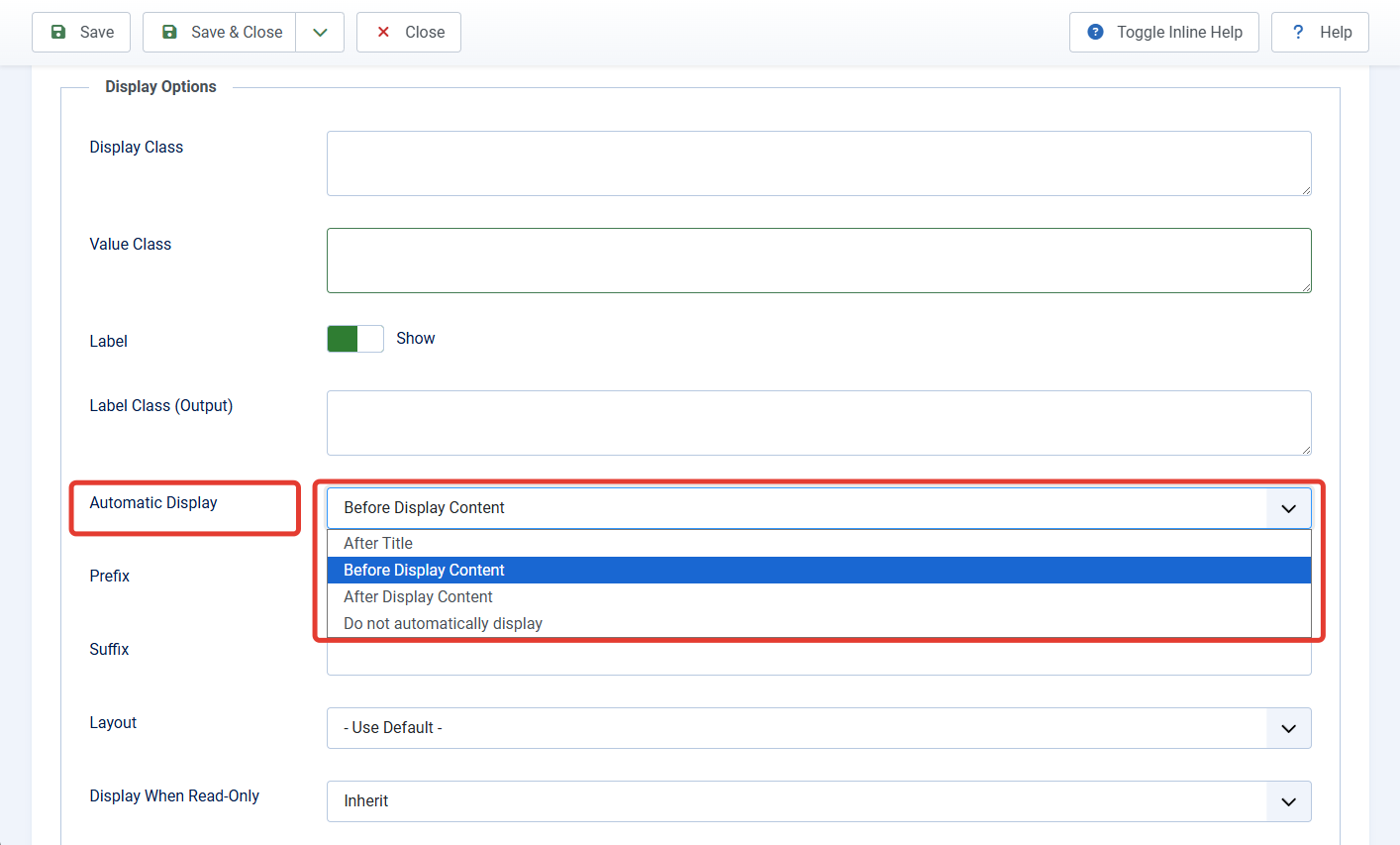
The template must output the corresponding content events. Most modern Joomla templates support this, but a third-party template may remove or move the positions.
Method 2: Insert the Field Directly into the Text
The published Content — Fields plugin allows inserting the value into the article text:
{field:12}
{field:event-date}
The first uses the field ID, the second its system name. The name is usually more convenient: it's human-readable and doesn't change when moving content between sites, if fields are created consistently.

Method 3: Template Override
All prepared fields of the current object are usually available in the $this->item->jcfields array. For precise placement, it's convenient to first index them by system name:
<?php
foreach ($this->item->jcfields as $field) {
    $this->item->jcFields[$field->name] = $field;
}
?>
After that, you can get the raw value:
<?php echo $this->item->jcFields['event-date']->rawvalue ?? ''; ?>Or the formatted value:
<?php echo $this->item->jcFields['event-date']->value ?? ''; ?>rawvalue contains the raw data, while value is the value after processing by the field plugin. For media, subform, and multi-select, the data type can be more complex than a string.
rawvalue yourself, apply escaping appropriate to the context: text, HTML attribute, URL, number, or JSON. Even the prepared value should not be blindly placed inside HTML attributes.Fields and Smart Search
In the field parameters, you can control whether its value is indexed by the Smart Search (com_finder) component. After changing the setting or batch-filling fields, it's recommended to clear the index and run indexing again.
However, standard custom fields do not turn the article list into a faceted catalog with filters. Filtering by price, color, multiple characteristics, and ranges requires a compatible extension, a custom module, or a specialized catalog component.
Third-Party Extensions for com_fields
The capabilities of com_fields can be extended by plugins in the fields group. After installing such an extension, the new type appears in the standard field creation window and usually maintains compatibility with groups, categories, access levels, automatic output, and Joomla overrides.
Advanced Custom Fields by Tassos Marinos
Advanced Custom Fields, or ACF, is one of the largest custom field sets for the core com_fields. The current branch is compatible with Joomla 4, Joomla 5, and Joomla 6. The extension is available in free and Pro editions; availability of specific types and advanced parameters depends on the edition.
At the time of writing, the developer claims 29 field types:
- File Upload: drag-and-drop file upload, size and format limits, directory configuration.
- Gallery: image set upload with Grid, Masonry, Justified, or Slideshow display.
- Video: YouTube, Vimeo, Dailymotion, Facebook, and local video files with a player.
- Map: interactive map based on OpenStreetMap, Google Maps, or Bing Maps with one or multiple markers.
- Articles: selection of related Joomla articles and output as a list of links.
- FAQ: repeatable list of questions and answers for an FAQ section.
- Address Autocomplete: address search with autocomplete and structured location data storage.
- PayPal Button: a PayPal payment or donation button.
- Chained Fields: dependent dropdowns where the next list's options depend on the previous selection.
- Module Loader: output a selected Joomla module as a field value.
- Progress Bar: a visual progress scale or completion percentage.
- Audio Player: an HTML5 player for a local audio file.
- URL: a link with additional parameters and input mask.
- Telephone: a telephone link, number mask, and country code selection.
- SoundCloud: embed a SoundCloud track or playlist.
- Twitter: a follow button for an X/Twitter account.
- Countdown: a countdown timer to or from a specified date.
- Facebook: embed a public Facebook page.
- True/False: a simple "Yes / No" boolean toggle.
- Time Picker: convenient time selection separate from the calendar date.
- Currency: a currency list.
- Country: country selection, including automatic visitor country detection.
- IFrame: embed an external page via
<iframe>with size and loading settings. - Email: a clickable email address with simple spam-bot masking.
- Download Button: a styled file download button.
- Gravatar: display a Gravatar avatar by email address.
- WhatsApp: a link to start a WhatsApp chat.
- QR Code: generate a QR code from text, URL, phone number, and other values.
- PHP: dynamic output of PHP code results.
The most practical types for catalogs and corporate sites are file upload, gallery, map, related articles, FAQ, chained lists, telephone, and time picker. YOOtheme Pro Dynamic Content support allows using ACF values as dynamic sources in YOOtheme layouts.
Articles Field by Regular Labs
Articles Field adds the articles type for creating relationships between Joomla articles. The latest version supports Joomla 4, Joomla 5, and Joomla 6, and is available in free and Pro editions.
Free version features:
- selection of one or multiple articles;
- restriction of the list to specific categories;
- custom order of selected articles;
- several output options, including title or another field's value;
- links to selected articles.
The Pro version adds advanced filtering of available articles by tags, language, authors, and other field values, custom layouts, and the articleslinked field. This creates a reverse relationship: if a "Movie" article links to an "Actor" article, on the actor's page you can automatically display all movies that reference it.
This extension is suitable for "Related articles" blocks, "product — manufacturer", "movie — actor", "course — instructor", "book — author" relationships, and other links between entities created as Joomla articles.
Custom Fields Plugins by Joomill
Joomill Custom Fields Plugins is a compact set of specialized plugins with claimed support for Joomla 5 and Joomla 6. It adds the following types:
- YouTube: display YouTube videos by link or ID;
- Vimeo: embed Vimeo videos;
- QR Code: generate a QR code from the field value;
- Spotify: a Spotify player or follow button;
- User Dropdown: enhanced user selection.
There is a free version and an affordable Pro bundle with additional display settings. This is a reasonable choice when you don't need the large ACF package but require one specific field type.
TF Any by Joomla Fry
TF Any is a free plugin for Joomla 5 and Joomla 6 that extends the standard field types and their display methods. It works with calendar, single and multi-select, email, numbers, image lists, SQL, subform, text, URL, and user group lists.
The main feature is the ability to render the value as a block, string, list, table, button-link, image, date, progress bar, or QR code. Additionally, the data source can be a Joomla database table. This is interesting for developers who need additional rendering and retrieval options without installing a large set of separate plugins.
Add-ons for Field Output and Filtering
The following extensions do not add full-fledged new data types but solve common tasks around com_fields:
- Alter Fields: displays field values in administrative lists of articles, users, contacts, and categories. The Pro edition adds sorting, search, and filtering. Compatible with Joomla 5 and Joomla 6, but the latest release requires a modern Joomla and PHP version — check requirements before installing.
- JL Content Fields Filter: an AJAX module for filtering category articles by Text, Radio, List, and Checkboxes fields, including ranges and sorting. Claimed compatibility with Joomla 4, 5, and 6.
- netzSINN Custom Fields Filter: filters and sorts articles in the standard category view by values of up to three fields. Supports Joomla 4, 5, and 6.
- netzSINN Custom Fields Radius Search: searches for articles by distance based on latitude and longitude fields; suitable for small catalogs of branches, stores, and locations. Supports Joomla 5 and Joomla 6.
com_fields does not guarantee support for filtering any third-party type. Maps, galleries, subforms, and related articles store complex values. Before purchasing, check support for the needed field on the developer's demo site.How to Choose an Extension
- Need a large universal set — consider Advanced Custom Fields.
- Need full relationships between articles — Articles Field.
- Only need video, Spotify, or QR code — Joomill's compact plugins.
- Need additional display options for standard values — TF Any.
- Need a consent checkbox with a link — PrivacyCheckbox.
- Need catalog filters — choose a separate filtering extension and first check support for the field types you use.
Before making a final choice, create a test article and check four operations: input on the site and in the administrator panel, saving, standard display, and display in your template. For multilingual sites, additionally check label translation, routing of related articles, and language filter behavior.
Where Does Joomla Store Field Values?
Field and group definitions are stored separately from the values themselves. The main tables:
#__fields— field definitions;#__fields_groups— field groups;#__fields_values— field values for objects;#__fields_categories— field assignments to categories.
Editing these tables manually is not recommended: Joomla performs validation, triggers plugin events, and maintains relationships. For programmatic manipulation, use the Joomla API and events.
What to Check When Migrating from Joomla 3 to Joomla 5 or 6
- Remove references to non-existent extensions. Old field plugins may have been abandoned or replaced by core features.
- Check Repeatable. The old Repeatable field has been removed; modern versions use "Subform".
- Check field types. Email, Telephone, and Timezone from early reviews are not part of the current standard custom field plugin set.
- Check media directories. Paths and the default file directory may have changed.
- Check template overrides. An old override may not account for current markup and Joomla namespaces.
- Re-index Smart Search. Especially if field names, parameters, or types have changed.
- Check permissions. The access level for display, the right to edit a field, and the right to upload files are different settings.
- Make a backup. Always perform structural migration and batch value conversion on a copy of the site first.
Practical Recommendations
- Use clear and stable system names in Latin characters.
- Store atomic data: price separately, currency separately or in formatting parameters, not as a string "from 5000 rubles".
- Do not create multiple fields with the same meaning in different groups.
- For a small fixed set, use "Radio"; for a large set, use "List"; for multi-select, use "Checkboxes".
- For decimal values in Joomla 6, use "Number" instead of text.
- For repeatable cards, use "Subform", but plan the layout in advance.
- Do not use the public media directory for confidential documents.
- Do not rely on CSS classes as a security or access control mechanism.
- After changing stored values, check already filled articles.
Conclusion
The modern com_fields in Joomla 5 and Joomla 6 is no longer an experimental feature from Joomla 3.7. It is a full-fledged content structuring tool. It supports articles, categories, contacts, and users, grouping, conditional display in forms, display control, Smart Search integration, and extension via plugins.
For a simple directory, service catalog, knowledge base, event site, or extended profile, the core capabilities are often sufficient. However, if you need complex relationships, faceted filtering, calculations, secure file uploads, or specific business logic, custom fields remain a good data layer but will require custom template code or a specialized extension.


