



Table of contents
- What Helix Ultimate includes
- Versions and compatibility
- Installing and opening the settings
- Basic: headers and site appearance
- Presets: the colour palette
- Layout: structure and module positions
- Menu: navigation and mega menus
- Typography: fonts and readability
- Blog and article settings
- Page Title and breadcrumbs
- Custom Code and Advanced
- Checks before launch
- Conclusion
Helix Ultimate helps you configure a Joomla site's design, including the header, module layout, navigation, typography and blog pages. This guide explains the Template Options sections, how the template differs from a page builder and what to check before installing or updating it.
What Helix Ultimate includes
Helix Ultimate is a free Joomla template and a framework used by other templates. The template provides the design, while the Helix Ultimate Framework system plugin supplies the settings panel and additional features. Both elements are needed for the full feature set.
Helix Ultimate and SP Page Builder serve different purposes. Helix defines the site's overall structure. SP Page Builder creates the content of individual pages. You do not need a page builder to display a standard Joomla article, menu or module.
| Tool | Responsibility |
|---|---|
| Joomla | Articles, categories, menu items, modules, users and access permissions. |
| Helix Ultimate | Site design, headers, the module position grid, navigation and additional blog settings. |
| SP Page Builder | Page content built from sections, columns and builder elements. |
A third-party template based on Helix may include its own styles, overrides and features. The same framework version therefore does not guarantee identical settings or appearance.
Versions and compatibility
As of 27 November 2026, the latest release in the official repository is Helix Ultimate 2.2.11. It includes security and bug fixes. Check the version of the downloaded package before installing it, then check both the template and plugin versions in Joomla.
The developer lists Joomla 4.4, 5 and 6 compatibility for the current branch. This does not guarantee that every older template will work with every CMS version. Check the requirements of the specific package and the combination of Joomla, PHP, the framework and your extensions. Separate maintenance packages for Joomla 3 must not be confused with the current Helix Ultimate branch.
Installing and opening the settings
For an existing site, install the template package intended for your Joomla version. A Quickstart package deploys a separate demonstration site with the CMS and sample data. It is not a normal update package for a live site.
- Download the current package from the official source and check its requirements. You can get the CMS itself from the Joomla downloads section.
- Install the package through Joomla's extension installation screen. Make sure that the Helix Ultimate Framework system plugin is installed and enabled.
- In Joomla 5 or 6, open System → Site Template Styles and select the required Helix Ultimate style.
- Click Template Options to open the settings panel with its preview.
- Save your changes and check the pages assigned to this style.
A template style can be assigned to individual menu items. If a change does not appear on the intended page, check the style assignment before checking the cache. Desktop, tablet and mobile preview controls help assess the layout, but you should also test the actual page at different window widths.
The screenshots show Helix Ultimate 2.2.11 in Joomla 6.2.0.

Basic: headers and site appearance
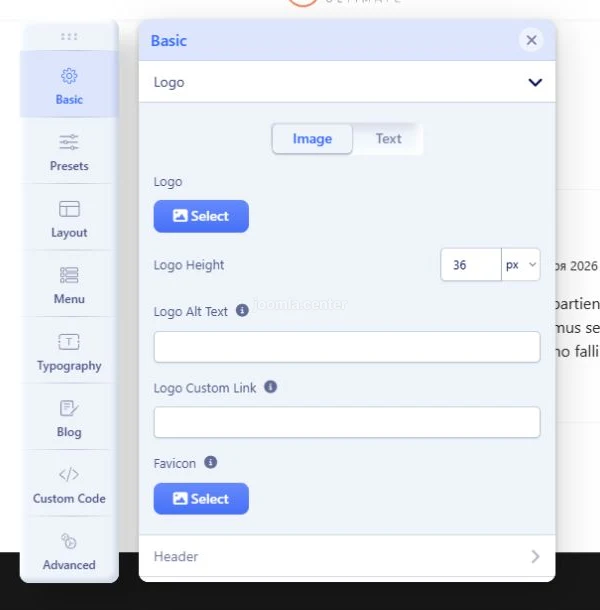
Basic groups the logo, header, footer and utility page settings. Start with the site's key visual elements, including the logo, header height and main navigation.
- Logo controls an image or text logo, its size and device variants. Separate settings are available for the sticky header.
- Header provides predefined header layouts, height, sticky behaviour, search and login elements.
- Body controls the overall page layout and appearance. A preloader shows a waiting animation, but does not make the page load faster by itself.
- Footer controls the copyright text and its placement. You can also build the footer with standard Joomla modules.
- Social Icons and Contact Info provide social links and contact information.
- Coming Soon and Error Page configure the appearance of the coming soon and error pages.
If you enable a predefined header, avoid adding another Layout row with the same elements. Otherwise, the page may display two logos or two menus.
Coming Soon mode should not be treated as access protection. Use Joomla's access permissions to restrict content. For an error page, check both its appearance and the actual 404 response for a nonexistent URL.
Presets: the colour palette
Presets lets you select a predefined colour scheme or enable Custom Style to define your own colours. The settings cover the main template areas, including backgrounds, text, links and navigation.
After changing the palette, check text contrast, the active menu item, links and button states. An individual Layout row or extension may define its own colours, so one setting will not necessarily change the whole site.

Layout: structure and module positions
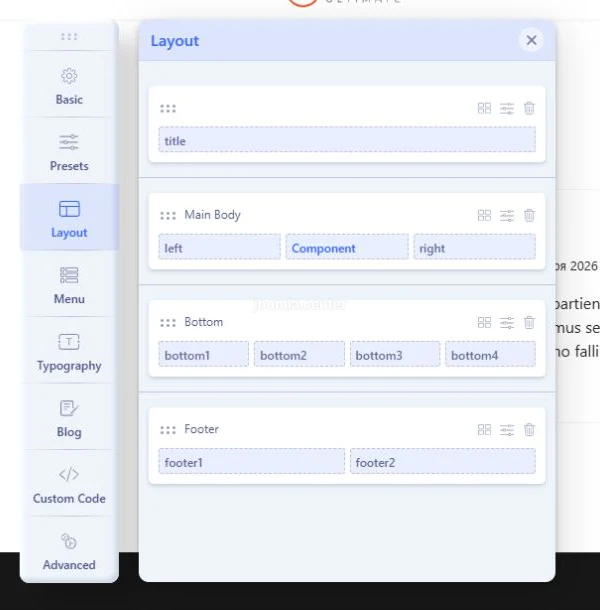
The Layout builder controls the template's page structure. It consists of rows and columns based on Bootstrap's 12-column grid. A column contains either the component area or a module position.
Rows and columns
Row settings control width, backgrounds, spacing, additional CSS classes and visibility. Column settings define its role and width at different screen sizes. For example, the main content might use eight columns and a sidebar four.
The component area displays Joomla articles, category blogs and other component output. Keep it in the layout whenever the page needs component content. Assigning a module position to a column does not create a module. Publish the module separately, select that position and configure its menu assignments.
Responsive layouts and sidebars
On small screens, the main column and sidebar are usually stacked. Check each column's settings to ensure that the combined widths produce the intended layout. Recent Helix versions also provide a sticky sidebar column for desktop layouts.
Hiding a row or column with Responsive settings changes its visibility through CSS. The content remains in the HTML. This does not restrict access to data or guarantee that related resources will stop loading.
Menu: navigation and mega menus
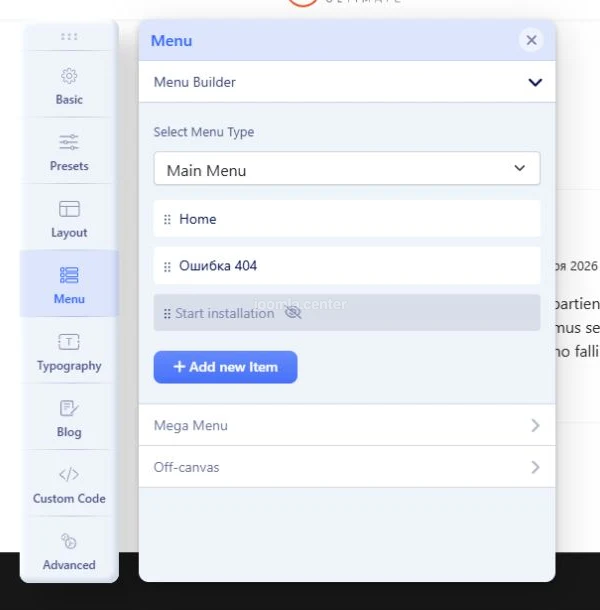
The Menu section configures navigation and its presentation. Create a clear Joomla menu hierarchy before styling it.
Menu Builder and Mega Menu
Menu Builder lets you work with menu items and change their order. For more complex dropdowns, enable Mega Menu and create rows and columns containing child items and modules.
You can configure dropdown width and animation. Keep the number of columns manageable so that items remain readable and the dropdown fits the window. Test keyboard access and links to nested items.
Off-canvas
Off-canvas is a sliding panel commonly used for mobile navigation. Here you select the menu, opening direction and additional elements such as a logo, search or contact information.
Check that the correct menu is selected, nested levels are accessible and the panel can be closed after use. On a multilingual site, also check that menus and modules match the current page's language.
Typography: fonts and readability
Typography sets fonts for body text, headings and navigation. You can use system fonts or Google Fonts, with additional assignments for specific elements.
For multilingual sites, check the required character sets and font weights. Assess text sizes in different preview modes, then check heading wraps and long menu labels. Avoid loading unnecessary font families and weights.
If you want to avoid external font requests, use a system family or configure local font files separately. Selecting a font from the list does not automatically mean it is hosted on your server.

Blog and article settings
Blog controls additional presentation options for article lists and individual articles. Joomla's standard settings, menu item options and template overrides also affect the result.
Lists and article pages
The List subsection controls the list layout, images and additional elements. Recent versions include Masonry and estimated reading time. Details configures the article image, author information, social sharing buttons, related articles and reading progress bar.
Helix can add Open Graph metadata. If another extension already handles it, use one metadata source and inspect the output to avoid duplicate values.

Images and Blog Media
In Helix Ultimate 2.2.11, the plugin adds the Blog Media tab to the article editing screen. Earlier versions called this tab Blog Options. Helix's additional image and media formats use the framework's own mechanism. They differ from Joomla's standard image fields.
The image sizes in Blog apply to images processed through that mechanism. Changing a size should not be assumed to regenerate every existing file. Choose an approach that editors can follow and check which image field the template actually uses in lists and full articles.

Page Title and breadcrumbs
The Page Title options in a menu item control a separate title area, including its heading, subtitle and background. This area does not automatically replace the article heading or the browser's SEO title.
Choose the heading level in the context of the entire page. Check which headings Joomla and the template already display to avoid unnecessary duplication. Having a Page Title area does not make a page inherently unsuitable for search engines.
Breadcrumbs are displayed by a Joomla module. Check its published state, position, language and page assignments. In a predefined layout, its output may be tied to the Page Title area. For another placement, create a suitable position in Layout and assign the module to it.

Custom Code and Advanced
Use these sections when built-in design settings are insufficient or you need to add custom code.
Custom styles and scripts
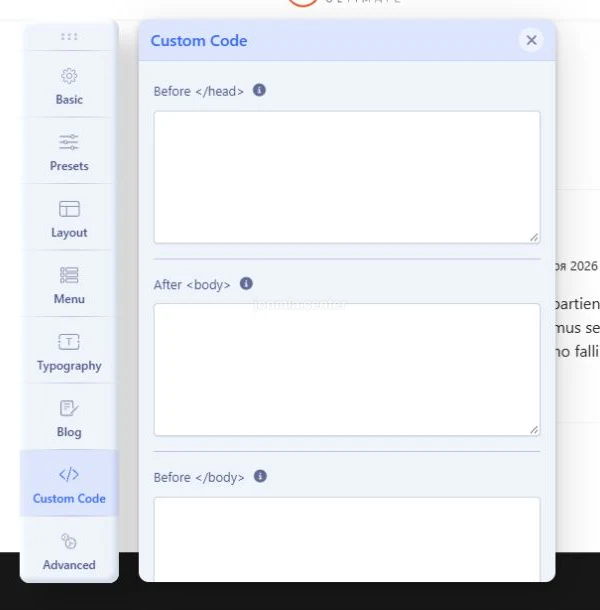
Custom Code provides fields for code in the head and body areas, plus separate Custom CSS and Custom JavaScript fields. Enter the corresponding language in these fields without wrapping HTML tags. These settings do not execute PHP.
Custom CSS is convenient for small changes. For a larger set of rules, use a dedicated custom file. Avoid editing generated styles or package files without a plan to preserve your changes, because updates or compilation may replace them. Keep the original code and test the result.
Optimisation and settings transfer
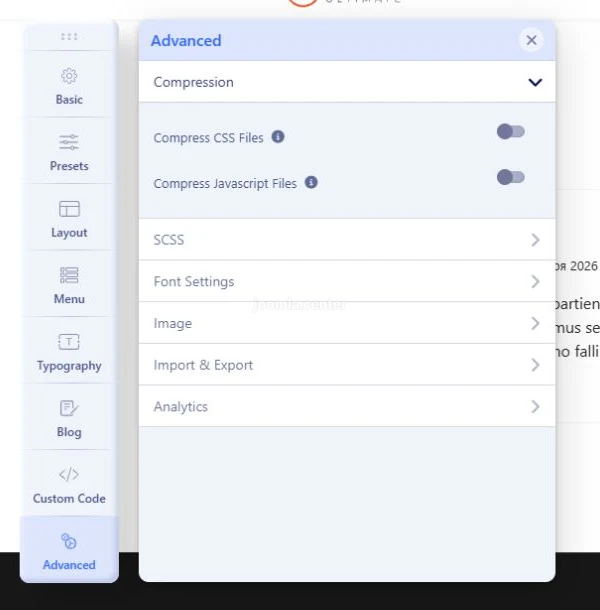
Advanced contains CSS and JavaScript compression, font settings, image lazy loading, SCSS compilation, analytics, and settings import and export.
Enable optimisation after configuring the design, then test menus, forms and interactive elements. Avoid applying the same file processing through both Helix and another optimiser. A switch being enabled does not prove a speed improvement. The result depends on the site and requires measurement.
Export saves template settings as JSON. Images are not included in that file, only references to them. Moving a complete site also requires its files and database.
Checks before launch
Test real user journeys. A successful home page preview does not confirm that every other section works.
- Open the home page, an article, a category blog, search, a form and a nonexistent URL.
- Test desktop and mobile menus, nested items and keyboard navigation.
- Check images, headings, sidebars and long titles.
- On a multilingual site, test language switching, menus and style assignments.
- After enabling compression, test forms and scripts again.
- Back up the accepted configuration.
When moving to Joomla 6, follow JoomShaper's guidance on the backward compatibility plugin. Decide after testing the complete site copy, because other extensions may depend on that plugin. Removing one template's dependency does not confirm that all other components are ready.
Conclusion
Helix Ultimate helps configure Joomla's overall appearance without building a template from scratch. Its main tools are the module layout builder, header and menu settings, typography and blog presentation options.
Start with the structure and module assignments, then configure colours and fonts. Add custom code and optimisation as needed. A site's capabilities depend on the template version, its overrides and installed extensions as well as Helix itself.
Terms used:
Quickstart, Article, Module, Package, Module position, Template style, Template, Bootstrap, CMS, CSS, HTML, JavaScript, Open Graph, PHP, SEO, Backup, Menu, Helix Ultimate, SP Page Builder, URL, Database, JSON, User, Layout


