

Table of contents
Akeeba Backup creates a Joomla backup that can help you recover your website after a failure or move it to another server. This guide covers version compatibility, initial configuration, full backups, off-site storage and restoration with Akeeba Kickstart. It also explains why a successful backup message does not prove that your website can be restored.
Versions and compatibility
As of 30 September 2026, the latest stable releases are Akeeba Backup 10.4.0 and Akeeba Kickstart 9.1.0.
Choose the backup component according to both your Joomla version and your PHP version. The latest package is not suitable for every older website.
| Joomla version | Compatible PHP branches |
|---|---|
| Joomla 4.4 | PHP 7.4–8.3 |
| Joomla 5.0–5.2 | PHP 8.1–8.3 |
| Joomla 5.3 | PHP 8.1–8.4 |
| Joomla 5.4 | PHP 8.1–8.5 |
| Joomla 6.0–6.1 | PHP 8.3–8.5 |
This table describes component compatibility. For a production website, use supported Joomla and PHP versions with current security updates. Before changing PHP, check your template and other extensions too.
The developer’s compatibility matrix lists the older Akeeba Backup 8.4.1.1 branch for Joomla 3.10, with PHP 7.2–8.1. Akeeba Backup 10.4.0 is not compatible with it. Backing up an older website requires a separate plan alongside preparation for upgrading Joomla.
Kickstart 9.1.0 supports PHP 5.6–8.5. However, being able to run Kickstart does not prove that the restored website is compatible with that PHP version. Joomla 6, for example, requires PHP 8.3 or later.
Free and paid editions
The free Akeeba Backup Core edition is sufficient for manually creating a full website backup. Professional adds automation, remote storage and restoration tools.
| Feature | Core | Professional |
|---|---|---|
| Manual full website backup | Yes | Yes |
| JPA and ZIP archives | Yes | Yes |
| Profiles and file and database exclusions | Yes | Yes |
| Built-in scheduling methods, including CLI and Joomla tasks | No | Yes |
| Automatic transfer to supported remote storage | No | Yes |
| Encrypted JPS archives | No | Yes |
| Integrated restoration and site transfer wizard | No | Yes |
Core does not automatically upload backups to cloud storage. You must transfer the archive to your chosen storage yourself. Joomla’s task scheduler does not add Professional features to Core.
You can restore Core archives with the free Kickstart application. You do not need Professional simply to restore a standard JPA archive.
Initial configuration
Install a compatible Akeeba Backup package through Joomla’s extension installer. If you use a language pack, its version may lag behind the component, leaving some newer labels in English.
Open Components → Akeeba Backup and check the active profile. Configuration settings and exclusions apply to the selected profile.
- Run the Configuration Wizard.
- Wait for the server analysis to finish. Keep the page open during the process.
- Open the profile’s configuration.
- Check the backup type, output directory, archive format and exclusions.
The wizard adjusts processing settings to suit the server. It does not test restoration. After running it again, recheck the profile settings, especially the archive format and remote storage options.
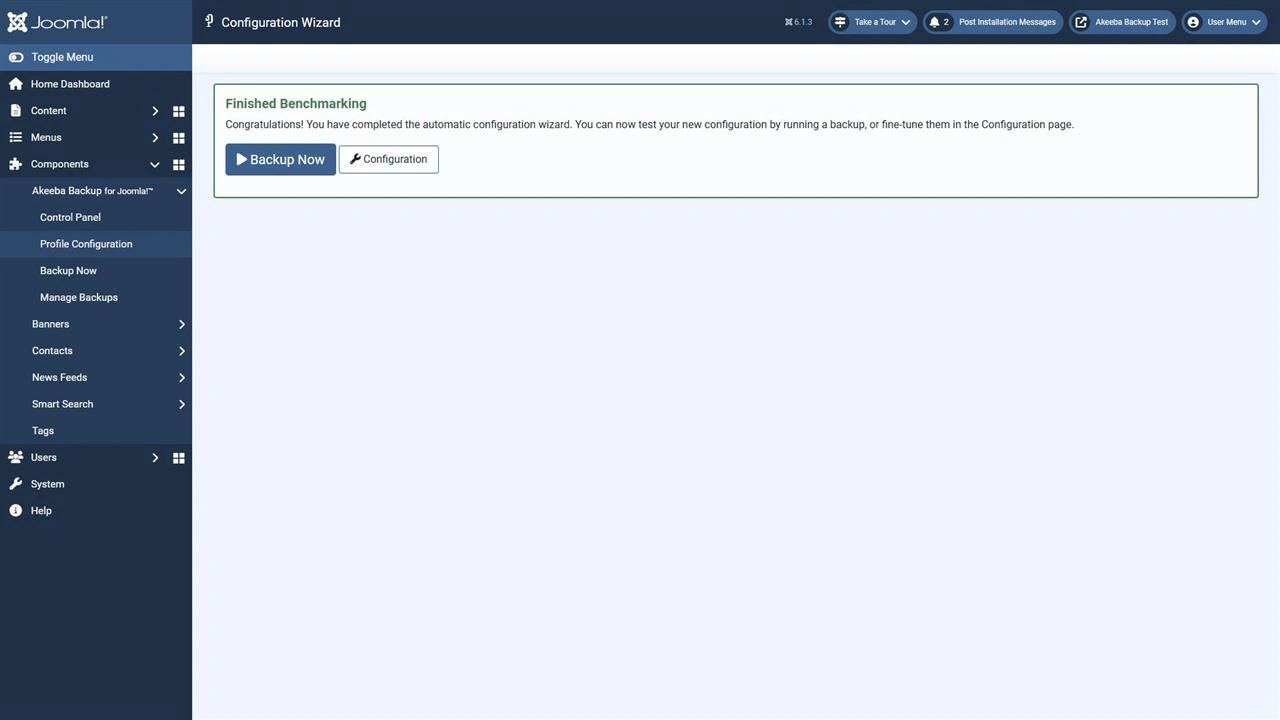
For a standard backup, select Full site backup. This includes the website files and its main database within the configured profile. Excluded directories and tables will not be included. External directories, separate databases and data held by other services need their own configuration or separate backups.
Do not exclude the images directory simply to reduce archive size: the restored website may lose photographs and other content.
In the current component, the default output directory is administrator/components/com_akeebabackup/backup. It may appear as [DEFAULT_OUTPUT] in the configuration.
Where possible, choose a writable directory outside the website’s public directory. Do not select the Joomla root directory as the output location: Akeeba excludes its archive directory from the backup.

A directory outside the website prevents direct downloading through the web server, but it is still on the same server. Keep another copy in independent storage to protect against server loss.
Creating a full backup
Before starting, check the available disk space and active profile. If orders or other important data change continuously, choose a suitable backup time and consider how to keep the data consistent.
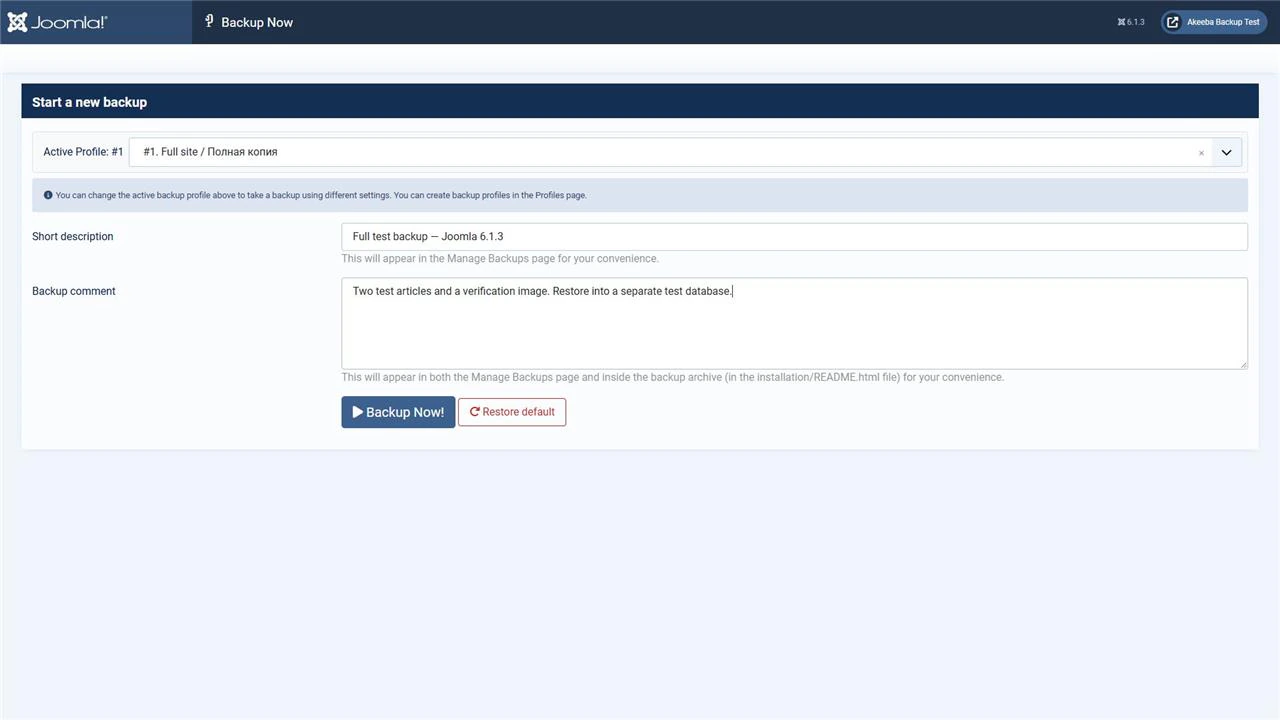
- Click Backup Now.
- Enter a useful description, including the date, Joomla version and reason for the backup.
- Add a comment if needed.
- Start the backup and wait for completion.
- Open Manage Backups and check the result.
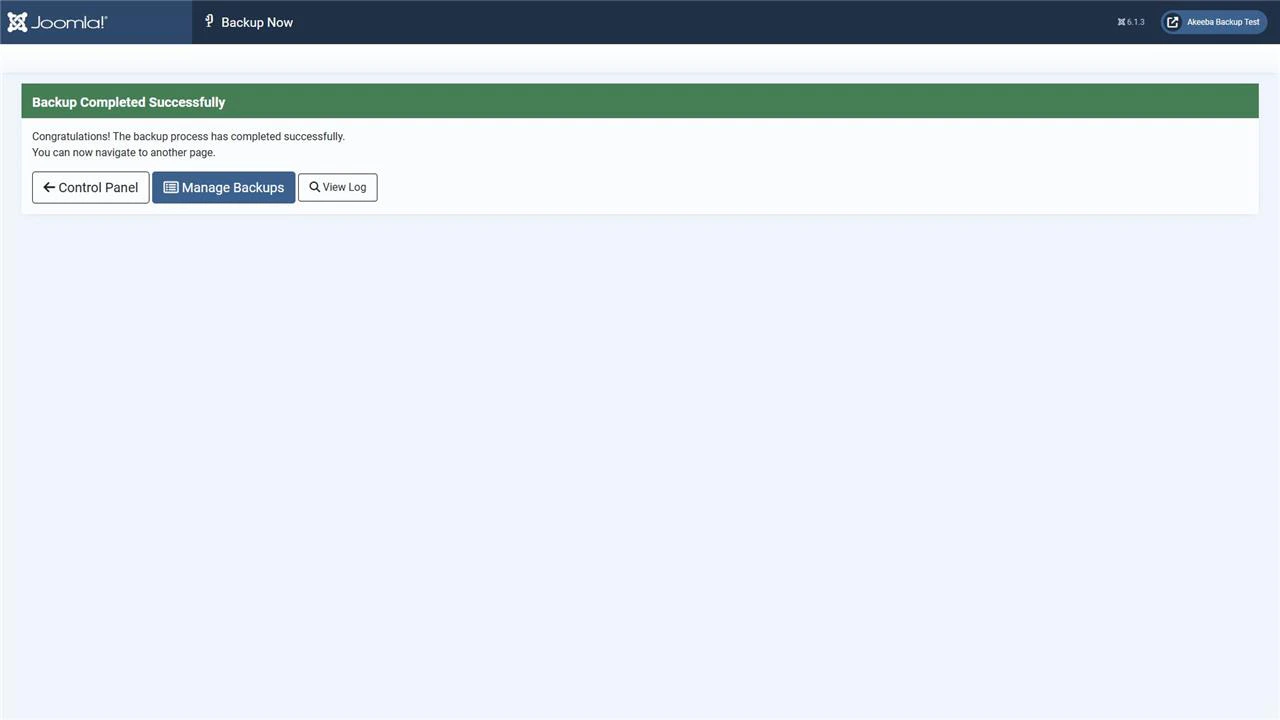
A success message means that archive creation has finished. If warnings appear, investigate them in the log: some files may have been unreadable or omitted.
Downloading and storing the archive
Open Manage Backups and locate the relevant entry. An archive may consist of several files.
A split JPA archive uses a main .jpa file and parts named .j01, .j02 and so on. Restoration requires every part of the same archive. Do not rename individual parts or mix files from different backups.
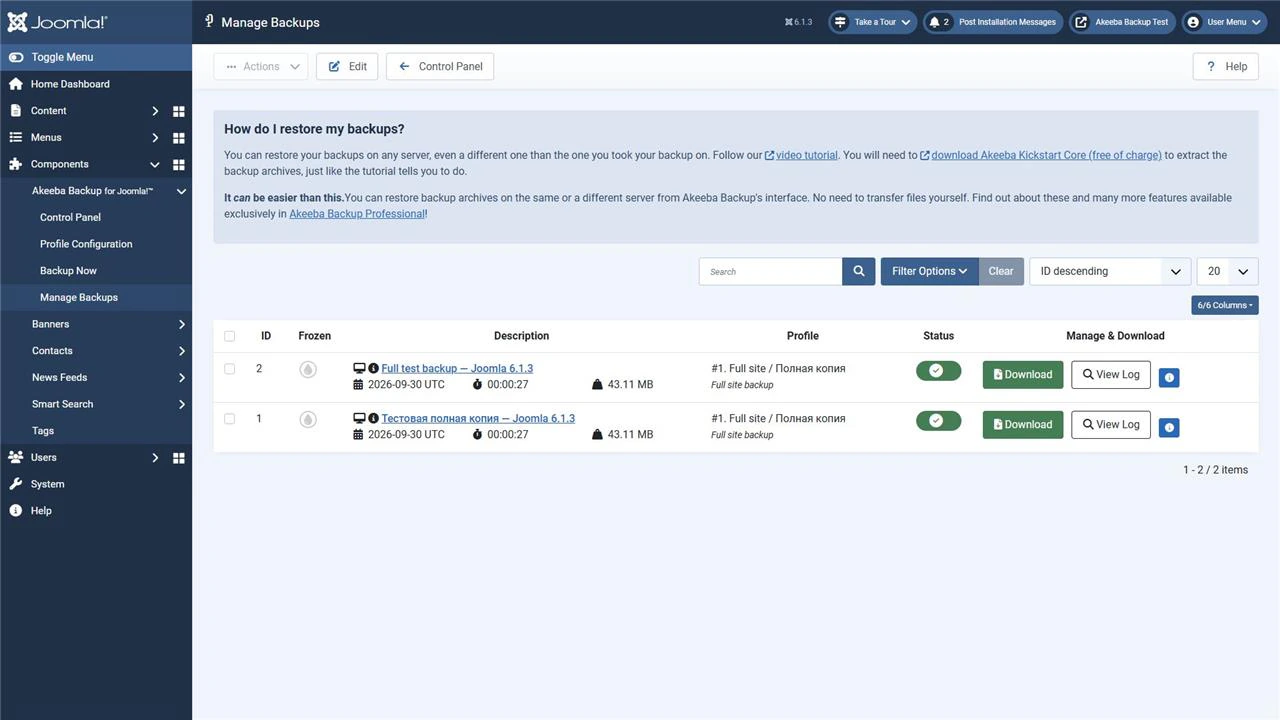
Transfer the complete set to your computer, a separate server or independent cloud storage. For large archives, use a suitable file transfer method such as SFTP. After transferring, compare the number of parts and file sizes; compare checksums where possible.
In Professional, configure a supported remote storage method and separately confirm that every archive part reached the destination. An OK backup status does not, by itself, confirm a successful cloud upload.
JPA and ZIP archives are not encrypted. A full backup may contain personal data, database connection details and other website secrets. Restrict access to storage and do not leave the archive available at a public URL.
An encrypted Professional JPS archive requires its password. Store the password separately: without it, the archive cannot be extracted.
Do not delete the previous tested backup simply because a new entry has an OK status.
What Akeeba Kickstart does
Kickstart is a standalone application that extracts an archive on the server. It is not installed through Joomla’s extension manager.
Kickstart extracts the files, after which you run the restoration script included in the Akeeba Backup archive. In version 10.4.0, this is Akeeba Backup Restoration Script. The restoration script restores the database and prepares Joomla’s configuration.
Archive extraction and website restoration are therefore separate stages. You do not need to install a fresh Joomla website in the destination directory before restoring a full archive.
In Kickstart 9.1.0, running a file with a common name containing kickstart, ks or akeeba is blocked unless password protection has been configured. Configure the provided protection or use a different filename, such as restore-demo.php.
Renaming the script does not protect the archive or restoration directory. On an Internet-accessible server, restrict access to the restoration location through your hosting controls.
Restoring with Kickstart
Perform your first restoration test on a separate test website with its own database. Do not enter the production database details in the wizard: restoration may replace its tables.
Prepare a compatible PHP version, an empty destination directory and a new database.
- Upload every archive part and the Kickstart PHP file to the destination directory.
- Open the Kickstart file in your browser.
- Select the main
.jpa,.zipor.jpsfile. - For JPS, enter the archive password.
- Start extraction and wait for it to finish.
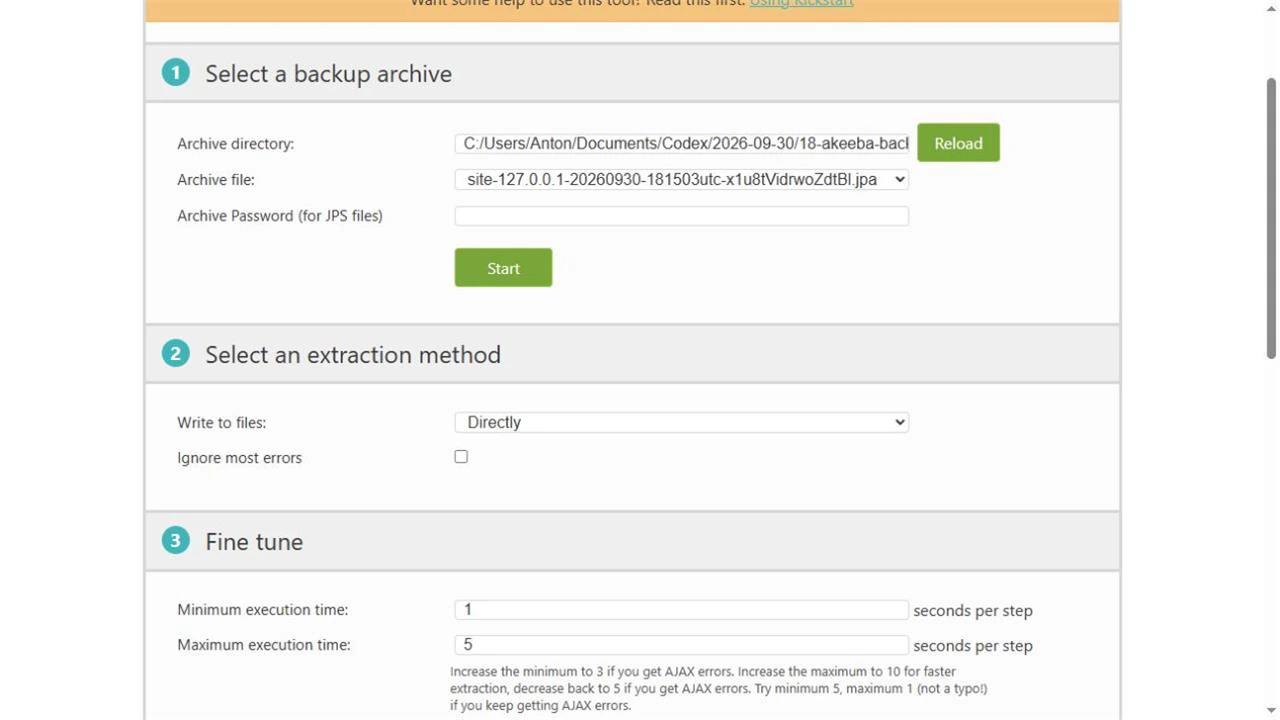
If extraction fails, resolve the cause first. A missing archive part cannot be compensated for by continuing restoration and ignoring errors.
After extraction, click Run the Restoration Script and keep the Kickstart tab open. Extraction being complete does not mean that the database has been restored.
In the restoration wizard:
- Check the environment requirements and any differences between the source and destination servers.
- Enter the new test database details: server, database name, username and password.
- Start database restoration and wait for confirmation.
- Check the website settings, temporary and log directory paths, website address and HTTPS settings.
- Finish the wizard and return to the Kickstart tab.
- Click Clean Up, then verify that the
installationdirectory, Kickstart file and uploaded archive parts have been removed from the destination directory.
Keep the backup stored in independent storage.
If automatic cleanup leaves installation files behind, remove them manually. Until the installation directory is removed, Joomla may open the restoration wizard again instead of the website.
On the test copy, also disable email sending and tasks that could contact production services. A restoration test must not send real notifications or process payments.
Why a successful archive does not prove recoverability
An OK status describes the completed backup process. It does not test the entire path from storing the archive to running the restored website.
Restoration can fail if:
- an archive part is missing or damaged;
- important files or tables were excluded from the profile;
- a remote upload did not finish;
- the JPS password was lost;
- the destination server does not meet Joomla’s or its extensions’ requirements;
- incorrect paths, addresses or extension settings remain after migration.
Comparing file sizes and checksums tests the transfer. Extraction tests whether the archive can be unpacked. Only a trial restoration followed by functional checks demonstrates that the files, database and website can be recovered in the selected environment.
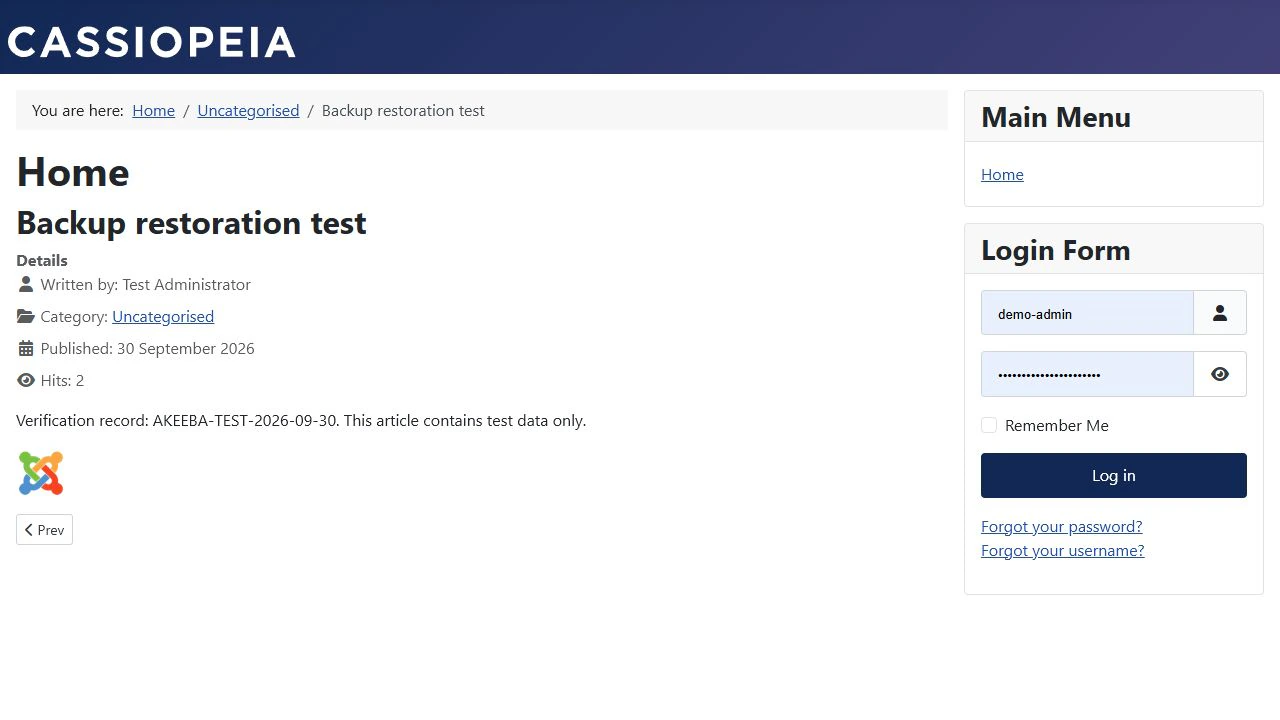
After restoration, open several articles, check images and documents, sign in to the administrator area and check important extensions. For an online shop, check products and orders separately. For a website with forms, test them without sending real notifications.
For this guide, a separate test installation used Joomla 6.1.3, PHP 8.4.19 and Akeeba Backup Core 10.4.0. A full JPA archive containing five parts was restored with Kickstart Core 9.1.0 into a different directory and a separate database.
The checks covered two test articles, an image, administrator sign-in and opening Akeeba Backup. The article contents and image checksum matched the originals. This result applies to the test website; a production website with different extensions needs its own restoration test.
Conclusion
A usable backup is a complete set of files kept in accessible, independent storage and tested through restoration. Akeeba Backup creates the archive, Kickstart extracts it, and the restoration script restores the database and Joomla settings. Complete this cycle before a failure occurs, and repeat the test after significant website changes.


