

Table of contents
A step-by-step guide to updating a website from Joomla 4 to Joomla 5: checking the server and extensions, creating a backup, running a test update, and verifying the live website.
Which version should you start with?
Before moving to Joomla 5, update the website to the latest available Joomla 4.4 release. If the website runs Joomla 3, migrate it to Joomla 4 first.
Joomla 4 is no longer supported. As of 25 September 2026, the supported Joomla 5 branch is 5.4. According to the Joomla release schedule, regular bug fixes for Joomla 5 are planned until 13 October 2026 and security fixes until 12 October 2027. These dates may be revised.
Joomla 6 has already been released. Moving to Joomla 5.4 can be treated as a stage toward a later update, but compatibility with Joomla 6 must be checked separately. This guide covers updating from Joomla 4 to Joomla 5.
Preparation and backup
Before making any changes, create a complete backup of the website, including its files and database. Store it outside the website directory and make sure that you can restore the website from the archive.
Deploy the backup in a separate test environment with its own database. Restrict access to it and disable real payments, mailings, and other actions that could affect visitors. Where possible, use the same PHP and database versions that will run on the live website.
Server requirements
You can find the installed PHP and database versions under System → System Information. The table below lists the minimum versions for Joomla 5.4. See the Joomla system requirements article for more details.
| Component | Minimum version |
|---|---|
| PHP | 8.1.0 |
| MySQL | 8.0.13 |
| MariaDB | 10.4.0 |
| PostgreSQL | 12.0 |
| Apache / Nginx / Microsoft IIS | 2.4 / 1.21 / 10 |
You need one supported database and one web server. PHP requires the json, simplexml, dom, zlib, and gd extensions together with the appropriate database driver. Joomla recommends allocating at least 256 MB of memory to PHP.
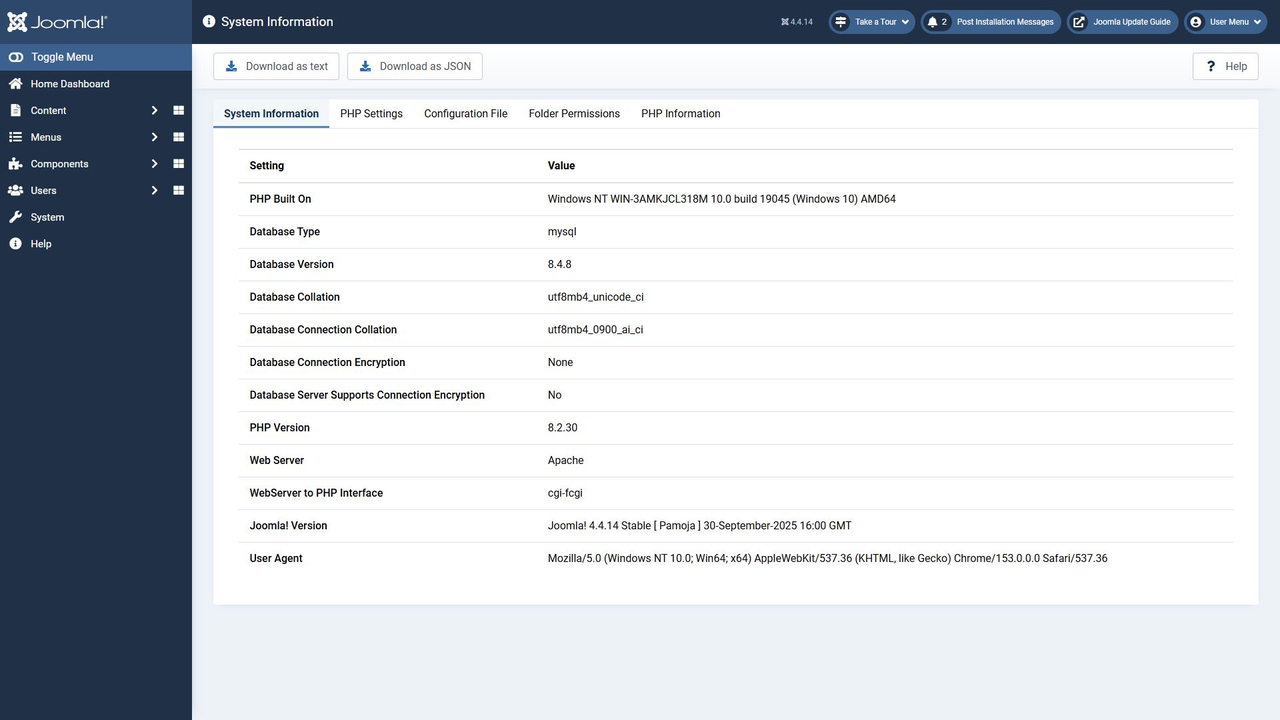
Hosting control panels differ. If the required PHP or database version is unavailable, ask the hosting provider how to switch to it. Updating the database software does not always require moving to another server. If the provider moves the database and changes its host name or credentials, update the Joomla connection settings, for example in configuration.php.
Extension and template compatibility
Make a list of the installed components, modules, plugins, and templates. For every version in use, check whether its developer supports Joomla 5 and provides any special update instructions. Review custom code and template overrides as well.
Before updating the CMS, install extension versions that are compatible with the current Joomla 4.4 website and intended by their developers for the transition. Do not assume that the newest extension release will run on the older Joomla version. If no compatible release exists, choose a replacement or agree to remove the feature in advance. Preserve the extension's data before uninstalling it.
The Behaviour - Backward Compatibility plugin helps some Joomla 4 code run on Joomla 5 and is enabled during the update. It does not guarantee compatibility with every extension. Disable it only after testing all dependencies on the website copy.
Run the pre-update check
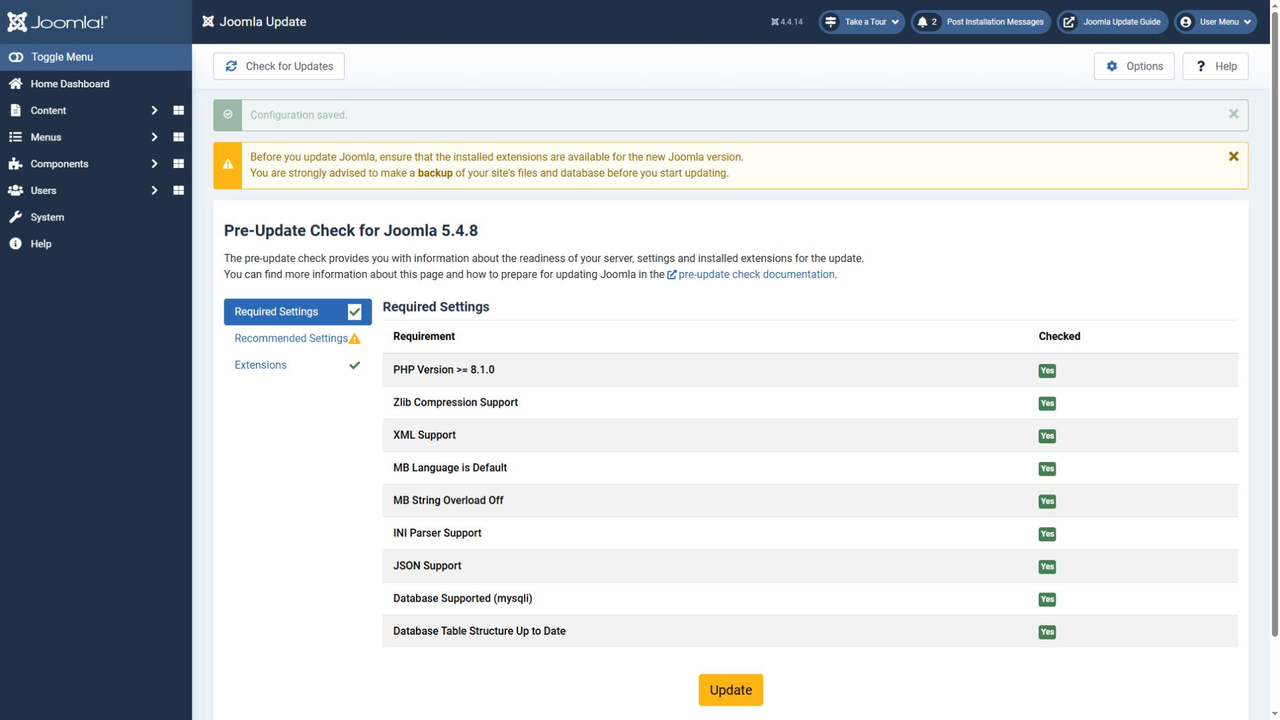
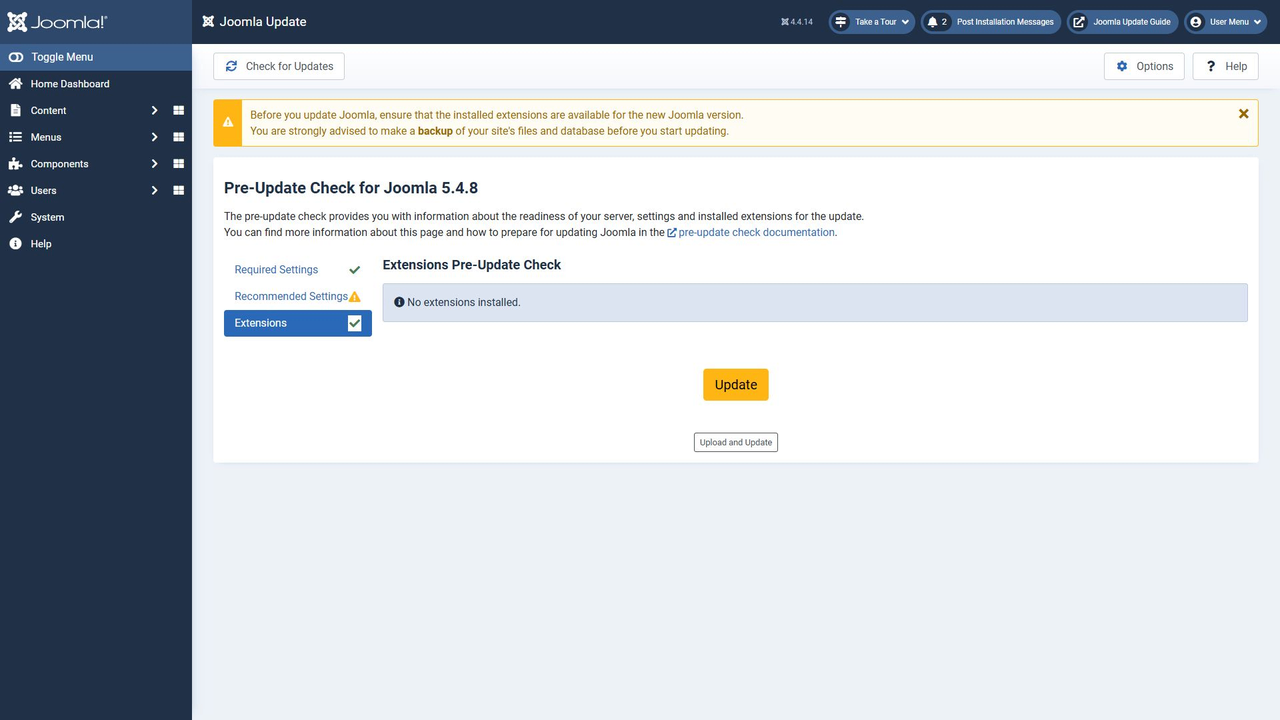
On the Joomla 4.4 test copy, open System → Update → Joomla. In the component options, select the Joomla Next update channel, save the settings, and check for updates again. Depending on the language pack, the field may be labelled Update Channel or Update Server.

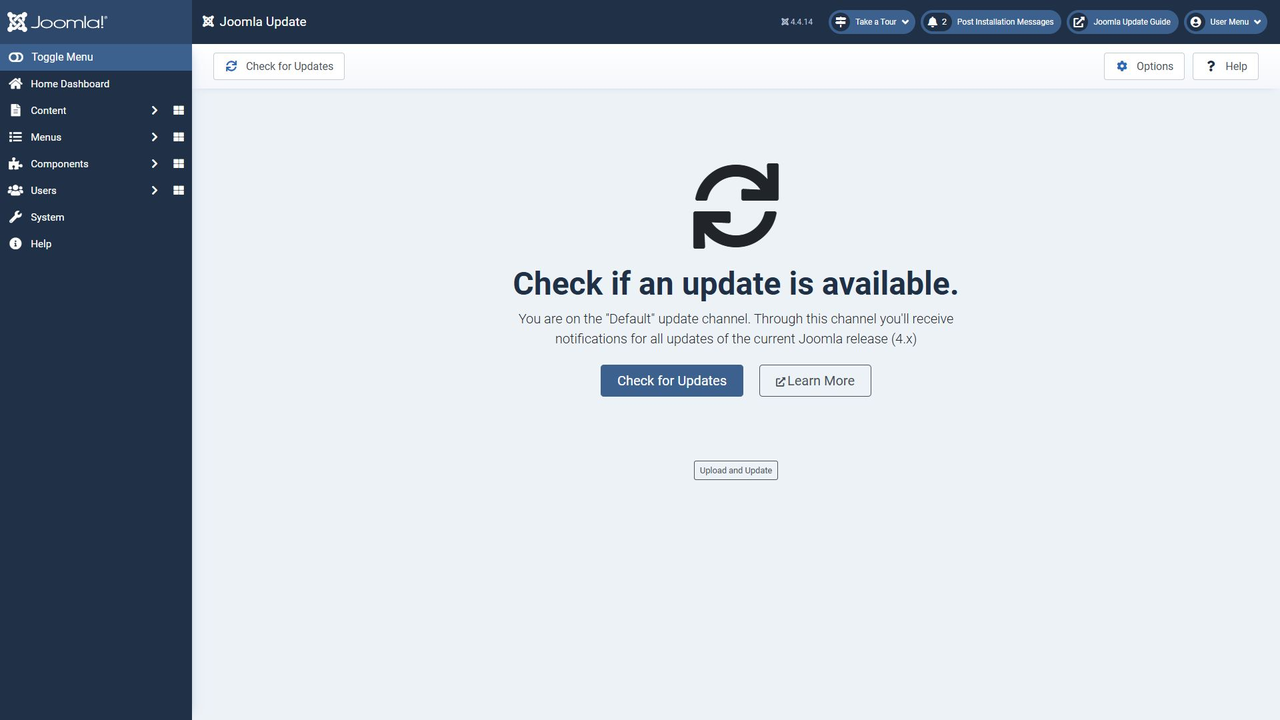
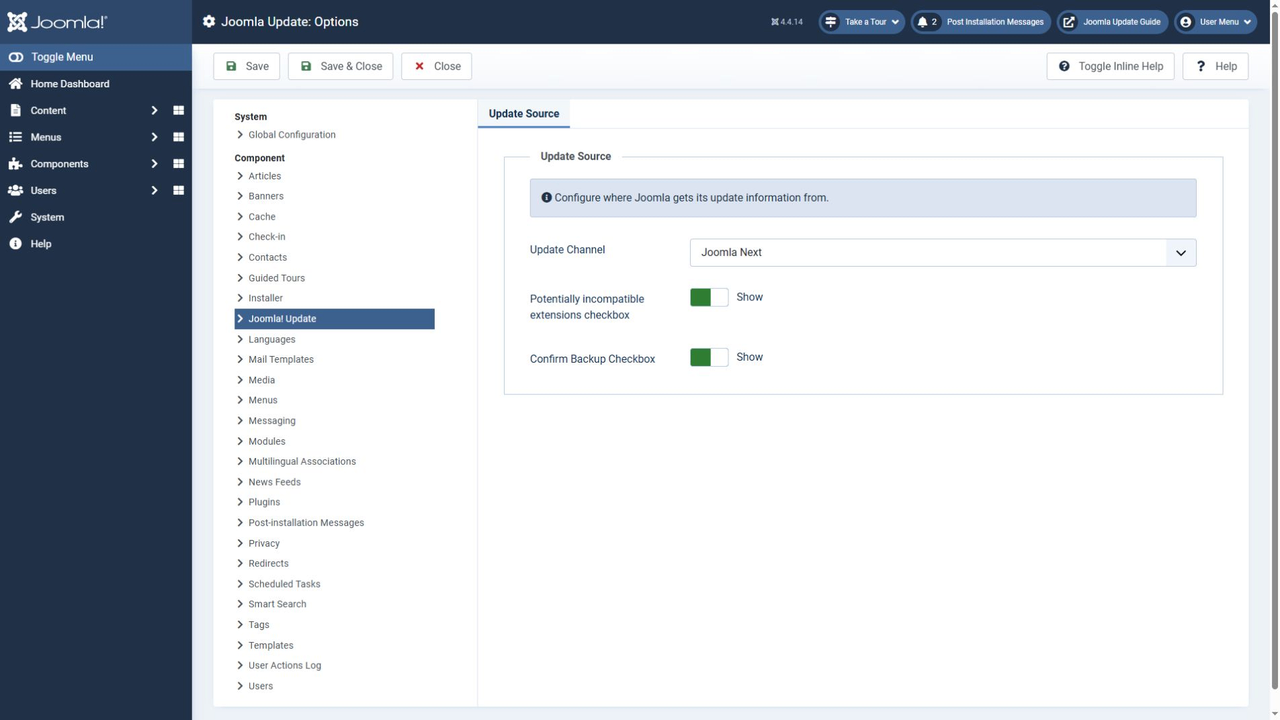
Make sure that the component offers a stable Joomla 5 release. Do not continue if it shows another major version or a pre-release build. If Joomla 5 is not offered, check the Joomla 4.4 version, server requirements, selected update channel, and connection error messages.
Review the Pre-Update Check results. Extension information depends on data supplied by each developer. Missing information does not prove incompatibility, and the absence of warnings does not prove that the website will work correctly. Do not dismiss a warning until you understand its cause.
Update and verify the result
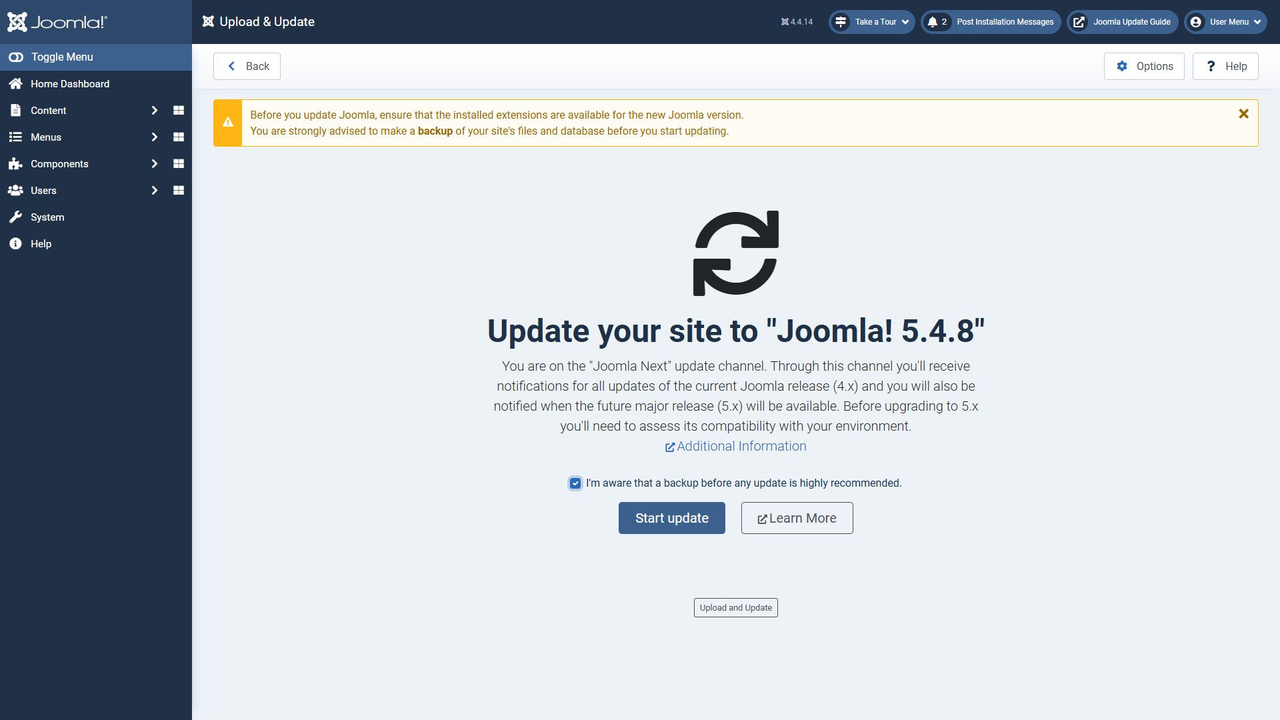
After preparation, update the test copy. Record the procedure so that you can repeat it on the live website.
- Make sure the backup can be restored and resolve all known compatibility problems.
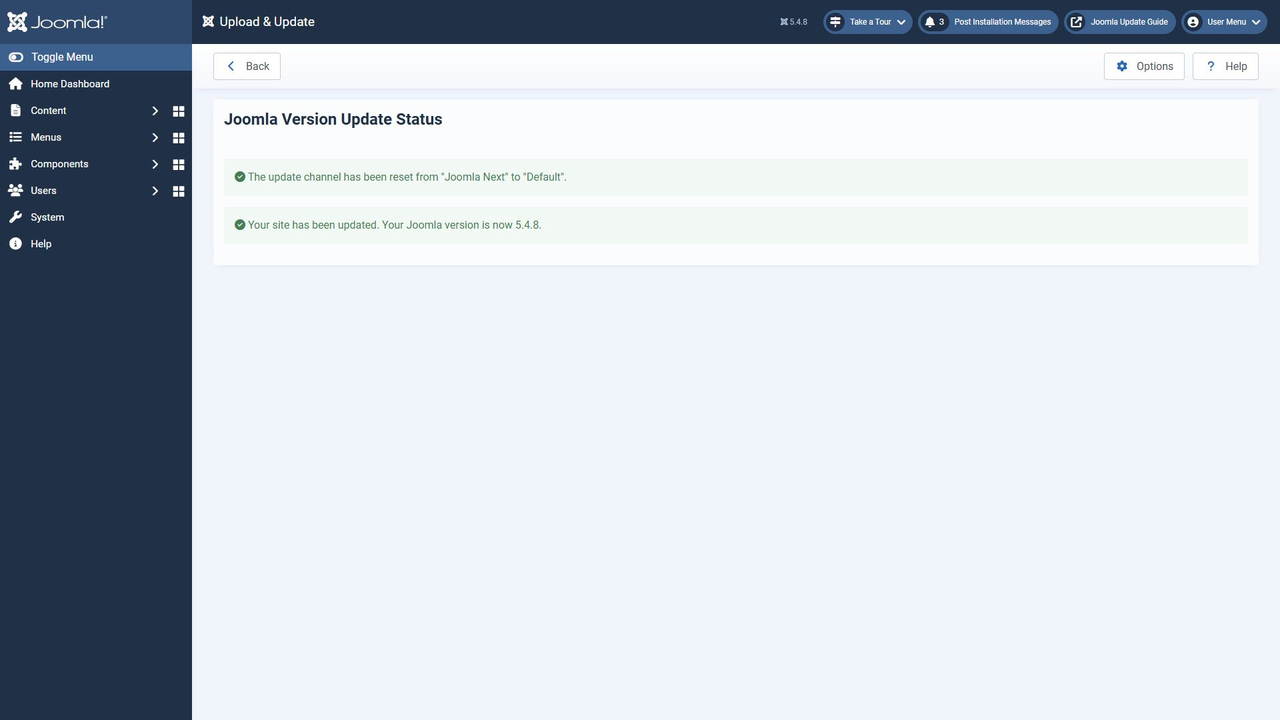
- Start the update in the Joomla component and wait for the completion message.
- Check the installed version, the home page and several articles, administrator login, and article saving.
- Test search, forms, registration, email notifications, and third-party extension features. For an online store, test the cart and checkout without creating a real transaction.
- Open System → Maintenance → Database and check the database structure. Investigate any errors before updating the live website.
- Clear the website and browser caches, check the layout on a computer and a phone, and disable debugging if it was enabled for troubleshooting.

For the live website, choose a maintenance window, pause new data entry if necessary, create a fresh backup, and repeat the tested procedure. Do not replace the live database with an outdated test database because this can remove new orders, registrations, and content changes. Test the main website functions again after the update.
If the update fails
Save the exact error message and the update log. First identify the stage that failed: retrieving the version list, downloading the package, extracting it, or updating the database. Do not diagnose the cause solely from the country where the server is located.
If the server cannot download the package, the Joomla update component supports manual upload. Full and update packages are available on the Joomla download page. Choose the update package for the required Joomla 5 release and follow the component's instructions. Having the archive does not remove the server and compatibility requirements.
If the live website does not work after the update and the problem cannot be resolved quickly, restore the agreed backup of both files and the database. Reproduce the problem in the test environment. Do not try to downgrade Joomla by copying old files over an updated database.
Expected result
The update is complete when the website runs the selected stable Joomla 5 release, its data is intact, and its main functions have been tested. A successful installation message confirms that the CMS update finished; the template and third-party extensions still require separate verification. Keep a working backup and plan the next transition before Joomla 5 support ends.
Joomla update service
If you need help preparing and updating the website, you can order our Joomla update service. Extension compatibility and the required development work are determined after we inspect the website.


