

Table of contents
- What robots.txt does
- Where robots.txt belongs
- What Joomla's default file contains
- Editing robots.txt from the Joomla dashboard
- How to read the rules
- Checking CSS, JavaScript and images
- Adding a sitemap
- When to use noindex in Joomla
- Handling duplicates and parameters
- Checking your changes
- Common mistakes
- Conclusion
The robots.txt file controls how search engine crawlers access your site. This guide explains Joomla's default rules, how to check access to stylesheets and scripts, how to add a sitemap address, and when to use noindex or canonical instead of blocking crawling.
What robots.txt does
Before crawling a site, a search engine crawler requests its robots.txt file. The rules identify which URLs it may crawl and which it should skip.
Blocking crawling and preventing indexing serve different purposes. If you block a page in robots.txt, the crawler cannot read its content. However, the URL may remain in search results or be discovered through links from other pages.
| Task | Suitable method | What to consider |
|---|---|---|
| Limit crawling of unwanted URLs | Disallow in robots.txt | Blocking crawling does not guarantee removal from search results |
| Keep an accessible page out of search results | noindex in a meta tag or HTTP header | The crawler must be able to access the page to read the instruction |
| Identify the preferred version among duplicates | rel="canonical" | This is a signal to the search engine, not an unconditional command |
| Move a page to a different address | A permanent redirect | Visitors and crawlers are sent to the new URL |
| Protect confidential information | Authentication and access restrictions | robots.txt does not prevent people from viewing information |
Where robots.txt belongs
The file must be accessible at /robots.txt in the site root. Use a lower-case filename.
If Joomla is installed in a subfolder such as /joomla/, place the file in the domain root anyway. Include the subfolder in the rule paths:
User-agent: *
Disallow: /joomla/administrator/
A file at /joomla/robots.txt does not replace the root /robots.txt.
The rules apply to the combination of protocol, hostname and port from which the crawler retrieved the file. Do not assume that the main domain and a subdomain share the same restrictions.
Check the public /robots.txt URL. Seeing the file in a file manager does not prove that the server serves it to visitors and crawlers.
What Joomla's default file contains
Joomla includes a robots.txt.dist file containing the original rules. Search engines request robots.txt, so that is the file whose contents you need to check.
Joomla 6.2.0's default rules block crawling of system directories, including /administrator/, /api/, /cache/, /components/, /libraries/, /modules/ and /plugins/. These rules do not block /images/, /media/ or /templates/.
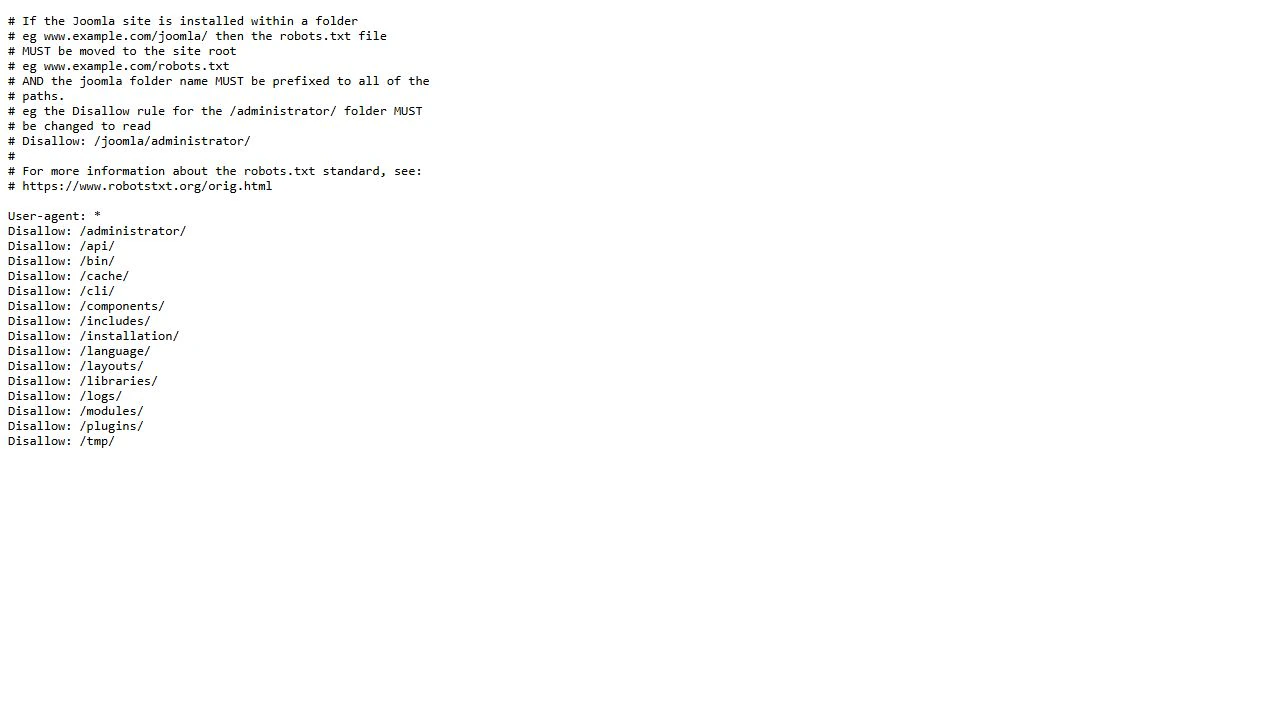
It is therefore incorrect to say that modern Joomla blocks crawlers from seeing all images, stylesheets and scripts by default. A particular site may have a problem because of an old robots.txt file, additional restrictions or the location of extension assets.
Start with these three steps:
- Back up the current robots.txt file.
- Compare it with robots.txt.dist from the distribution of your Joomla version.
- Review the differences and the purpose of each additional rule.
Do not automatically replace the existing file. It may contain necessary restrictions for a shop, filters, internal search or other site features.
Editing robots.txt from the Joomla dashboard
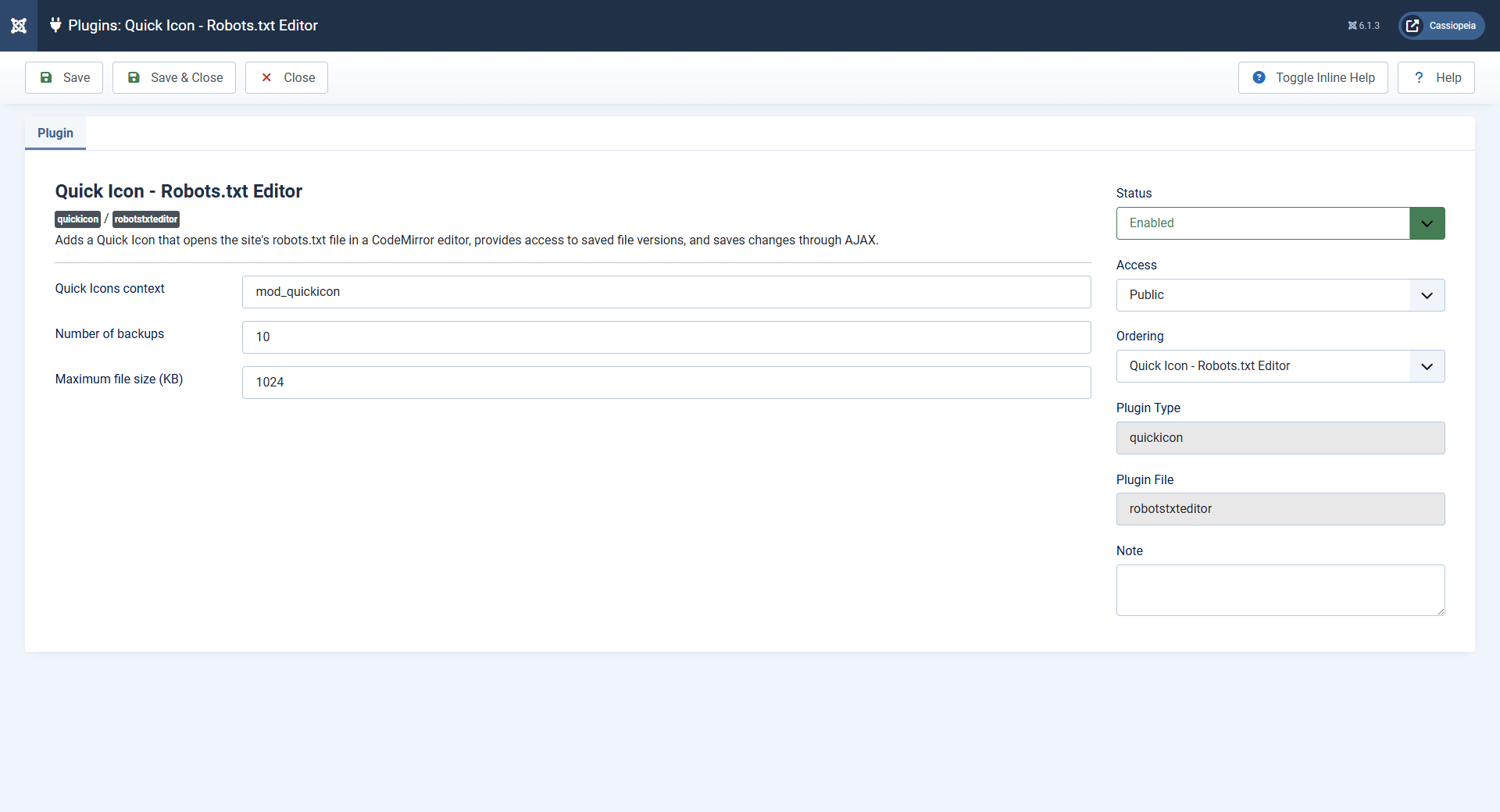
To edit the file from the Joomla administrator area, you can use the Robots.txt Editor plugin. It adds a quick-access icon to the main dashboard and opens robots.txt in a modal window.
The CodeMirror editor provides syntax highlighting, and changes are saved without reloading the page. The plugin keeps file versions and lets you restore an earlier version or the default robots.txt supplied with Joomla.
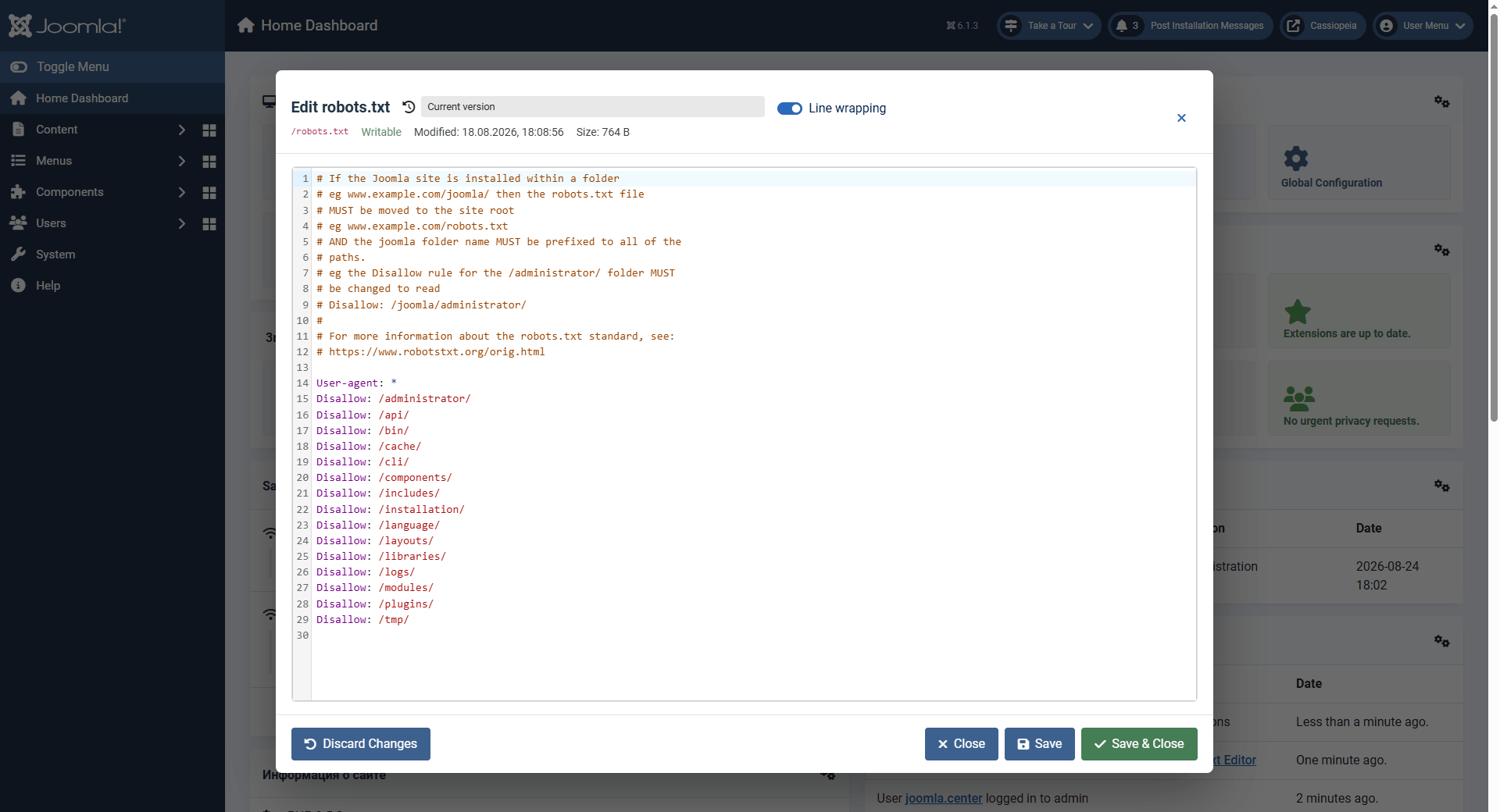
Before restoring the default file, back up your current rules so you do not lose restrictions added for your site. After editing, open the public /robots.txt URL and check the result using the steps below.
How to read the rules
A single general group is often sufficient. For example:
User-agent: *
Disallow: /administrator/
Disallow: /tmp/
User-agent identifies a crawler or group of crawlers. The asterisk denotes the general group. Disallow blocks crawling of URLs that match the specified path. Allow permits crawling and can create an exception within a blocked path.
If a URL is not covered by a restriction, you do not need a separate rule to allow it.
Paths are case-sensitive. Rules for /Images/ and /images/ are not equivalent. An asterisk within a path acts as a wildcard, while $ marks the end of the URL.
Note the difference between these two rules:
Disallow:An empty value does not block crawling.
Disallow: /This rule blocks crawling of the entire site for crawlers in the applicable group.
Do not create separate Googlebot and Yandex groups unless you need them. In particular, when Googlebot has a matching specific group, it does not add restrictions from the general User-agent: * group.
Checking CSS, JavaScript and images
Crawlers need the resources that determine a page's appearance and content. These may include stylesheets, scripts, images and responses to requests that load content.
In Joomla, assets are often stored under /media/, /templates/ and /images/. However, an extension may load assets from its own directory, which a default or additional rule blocks.
Check the actual URLs:
- Open an important page on the site.
- Open the browser's developer tools and select Network.
- Reload the page and find the CSS, JavaScript and image requests.
- Check the resource URLs against the robots.txt rules.
- Make sure the server returns the required files without errors or a login requirement.
Suppose a component loads public assets from /components/com_example/assets/, but the entire /components/ path is blocked. You can add a more specific permission:
User-agent: *
Disallow: /components/
Allow: /components/com_example/assets/
The name com_example is illustrative. Use an existing path that you identified when checking your site.
Do not open every extension directory to crawling for the sake of one file. First identify the resources needed to render the page.
Adding a sitemap
The Sitemap directive tells a search engine where to find a sitemap. It does not create one or guarantee that the listed pages will be indexed.
First, find the working XML sitemap generated by your site. Check that its URL opens without authentication and returns XML rather than an HTML error page.
Then add a line containing its full address. This example uses a placeholder domain:
Sitemap: https://example.com/sitemap.xmlReplace the example with the real address. The filename does not have to be sitemap.xml. If your site uses a sitemap index, specify its address.
Include the preferred URLs of pages that should appear in search results. Do not add known duplicates, redirects or pages marked noindex.
You can also submit the sitemap address through Google Search Console and Yandex Webmaster.
When to use noindex in Joomla
Use noindex when a page should remain available to visitors but should not appear in search results. For an HTML page, this can be a meta tag inside the <head> section:
<meta name="robots" content="noindex">Joomla provides a Robots setting in Global Configuration and in the metadata settings of individual articles and several menu item types.
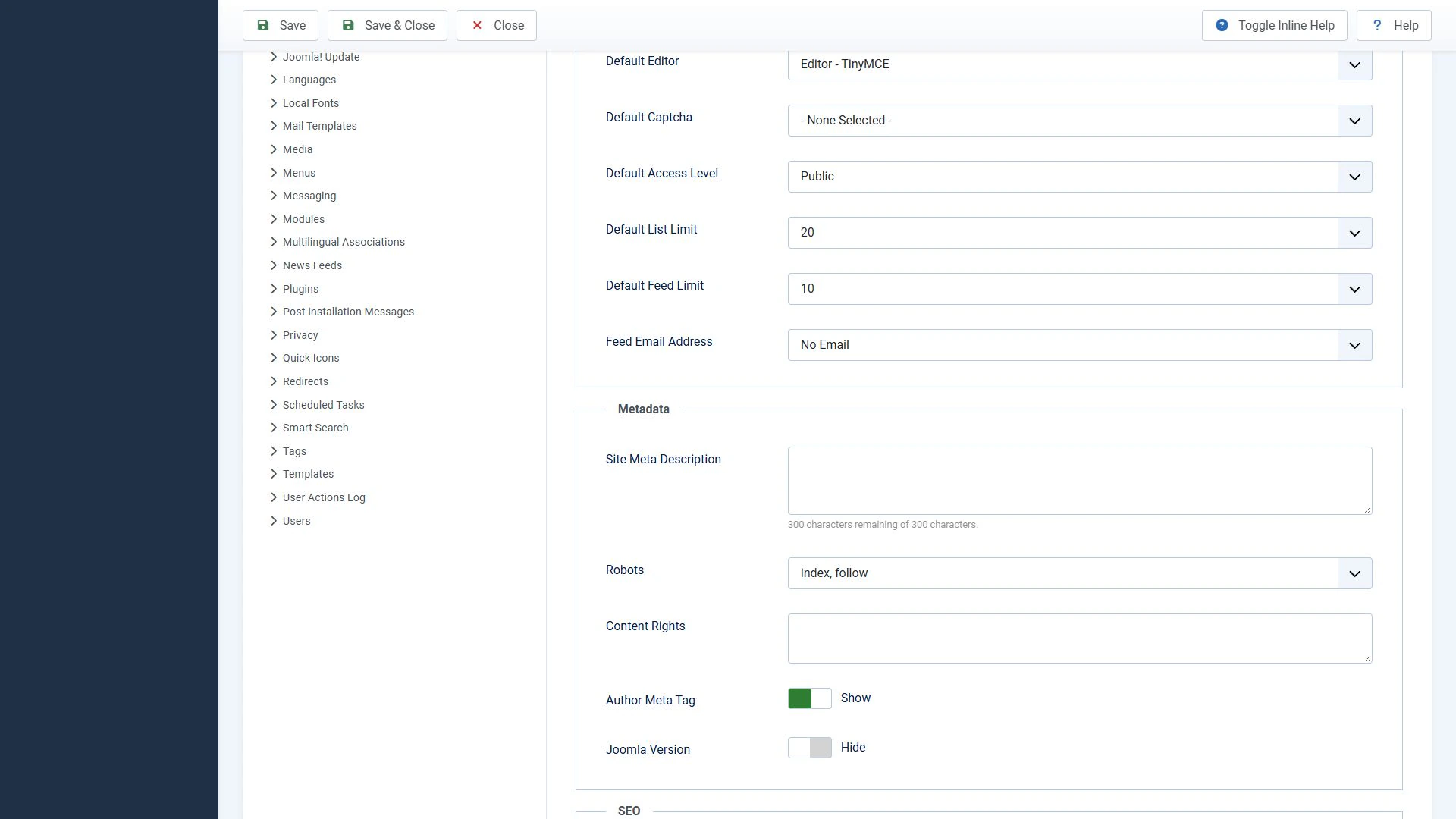
For an individual article, open its metadata settings and select noindex, follow if you want to keep the page out of search results without separately instructing crawlers not to follow its links.
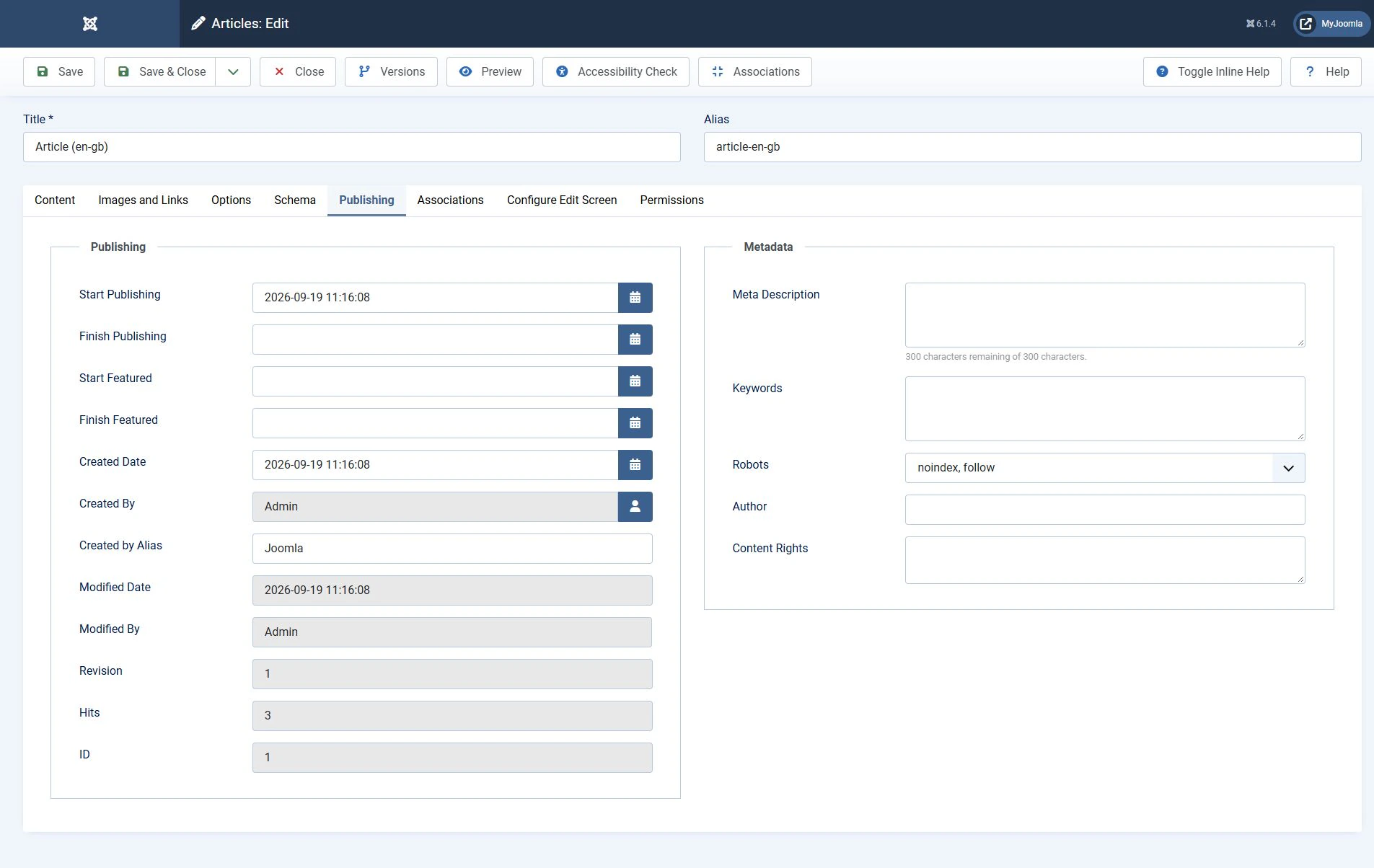
Do not enable a site-wide noindex setting for a single article. This could affect other pages.
After saving, check the public page:
- The HTML contains the intended robots meta tag.
- Crawling of the URL is allowed.
- HTTP headers contain no unexpected instructions.
- The cache is not serving the previous version.
A Noindex: entry in robots.txt does not replace a meta tag. Google does not support this method of preventing indexing.
Handling duplicates and parameters
A Joomla page may be accessible at several addresses. However, a shared path or the presence of parameters does not prove that the pages are duplicates.
First, compare their content and purpose. If visitors no longer need an alternative address, consider a permanent redirect. If the variants must remain available and contain identical or very similar content, use canonical.
A crawler cannot fully examine a duplicate blocked by robots.txt, including its canonical declaration. Do not treat a crawl restriction as a universal way to select the preferred URL.
These rules are particularly risky when added without checking their effects:
Disallow: /*?
Disallow: /index.php
They may block useful pages with parameters, pagination and site URLs that do not use URL rewriting.
Yandex provides the Clean-param directive for parameters that do not change page content. Use it only after checking the specific parameters. Do not apply it to a parameter that selects a different article or changes a significant part of the page.
Checking your changes
Check both the file and the pages it is intended to control.
- Open /robots.txt without signing in. Make sure the server returns the rules as text with a 200 status, rather than a login or error page.
- Check the format. Use a plain UTF-8 text file. Watch for an accidental .txt.txt extension.
- Check important URLs. Include the homepage, a category, an article and a page with parameters if your site uses them.
- Check resources. Stylesheets, scripts and images needed to render the page must be accessible to the crawler.
- Check Sitemap. The specified address must lead to a working sitemap.
- Use the search engines' tools. In Google Search Console, use the robots.txt report and URL Inspection. In Yandex Webmaster, analyse robots.txt and check page accessibility.
- Check again after recrawling. Search engines cache robots.txt and may not apply changes immediately.
Local checks help identify rule errors, but they do not prove that Googlebot or Yandex's crawler can access the live site.
Common mistakes
Most problems come from overly broad restrictions or confusion between crawling and indexing.
- Disallow: / remains after launch. Check whether a restriction was carried over from the test environment.
- Required stylesheets and scripts are blocked. Check actual asset paths and add specific exceptions.
- A page is blocked in robots.txt and also contains noindex. The crawler may not see the instruction to exclude it from search results.
- Every URL with parameters is treated as a duplicate. Establish what each parameter does first.
- Sitemap points to an invented address. Adding a line to robots.txt does not create a sitemap.
- The file is placed in a subfolder. The active robots.txt must be at the root of the relevant host.
- Robots.txt is used to protect data. Private documents and backups need server access controls and authentication.
- Settings are checked only inside Joomla. Extensions and caching may affect the final HTML, headers and server responses.
Conclusion
When configuring robots.txt in Joomla, start with the active file and your version's default rules. Add restrictions for specific purposes, keep page resources accessible and check the sitemap address.
The Robots.txt Editor plugin lets you edit the file and restore earlier versions directly from the Joomla administrator dashboard.
Use robots.txt to control crawling, noindex to exclude accessible pages from search results, and canonical or redirects to handle alternative URLs. Verify the result using real URLs and the search engines' tools.
Terms used:
CSS, HTML, JavaScript, XML, Authentication, Sitemap, Menu, Redirect


