

Table of contents
The Joomla administrator dashboard may warn that your PHP branch is approaching the end of support or is already outdated. This guide explains what the message means, which PHP version to choose and how to upgrade without losing data.
What the warning means
PHP runs Joomla's server-side code. Each PHP branch has a support lifecycle. Its developers initially fix bugs and security issues, then provide security fixes only. Once support ends, the branch no longer receives official fixes.
Joomla distinguishes between two main messages:
- Support is ending soon. The branch still receives security fixes, but you should plan an upgrade.
- Support has ended. The branch no longer receives official updates from the PHP project. Upgrade as soon as possible after checking compatibility.
The warning does not by itself mean that your site has been hacked or will immediately stop working. However, a working site is not necessarily secure just because it has no visible errors.
When Joomla displays the message
The notification comes from the Quick Icon - PHP Version Check plugin. Its translated name may vary between language pack versions.
In the checked Joomla 5.4 and 6.1 implementation, the approaching end-of-support warning appears roughly three months before support ends. The unsupported-branch message appears after the end-of-support date recorded in the plugin.
The check runs for a signed-in administrator on a normal HTML dashboard component page when the quick icons trigger it. The plugin must be enabled.
The dates come from data bundled with your installed Joomla version. An old CMS release can therefore display outdated recommendations. The plugin does not check whether your template and extensions are compatible with the suggested PHP version.
Which PHP branches are supported?
The dates below are current as of 30 September 2026 and refer to official support from the PHP project.
| PHP branch | Active support until | Security fixes until | Status on the review date |
|---|---|---|---|
| 8.2 | 31 December 2024 | 31 December 2026 | Security fixes only |
| 8.3 | 31 December 2025 | 31 December 2027 | Security fixes only |
| 8.4 | 31 December 2026 | 31 December 2028 | Active support |
| 8.5 | 31 December 2027 | 31 December 2029 | Active support |
PHP 8.1 support ended on 31 December 2025. PHP 8.0 and all PHP 7 branches are also no longer supported by the PHP project.
Use the latest maintenance release within your chosen branch. Seeing PHP 8.4 in your hosting panel does not mean the latest 8.4.x release is installed.
Which PHP version should you choose for Joomla?
Keep three different concepts in mind:
- Minimum version is the technical lower limit required to run the CMS.
- Recommended version is the version the Joomla project recommends for that release series.
- A branch supported by the PHP project is one that still receives official fixes.
Joomla 6 documentation also specifies a minimum supported environment version. For PHP, this matches the technical minimum.
| Joomla series | Minimum PHP version | Joomla documentation recommendation | What to consider |
|---|---|---|---|
| Joomla 5.4 | 8.1.0 | 8.3 | PHP 8.1 is no longer supported by the PHP project |
| Joomla 6.x | 8.3.0; also the minimum supported version | 8.4 | PHP 8.3 receives security fixes only |
Joomla 5 and 6 are supported series on the review date. Under the current roadmap, security fixes are planned until 12 October 2027 for Joomla 5 and 16 October 2029 for Joomla 6. Keep your installation up to date within its series.
Joomla's minimum requirement is not a recommendation to keep using old PHP. For Joomla 5.4, choose a supported branch after checking compatibility; the documentation recommends PHP 8.4 for Joomla 6. Choose a newer branch, including PHP 8.5, only after checking your installed Joomla release, extensions, template and custom code.
If your site runs Joomla 3 or 4, also plan a move to a supported CMS series. Changing PHP alone does not resolve an outdated Joomla installation.
How to check the PHP version your site actually uses
In the administrator dashboard, open System → Information → System Information. Find the PHP Version row. The same page also shows your Joomla version.
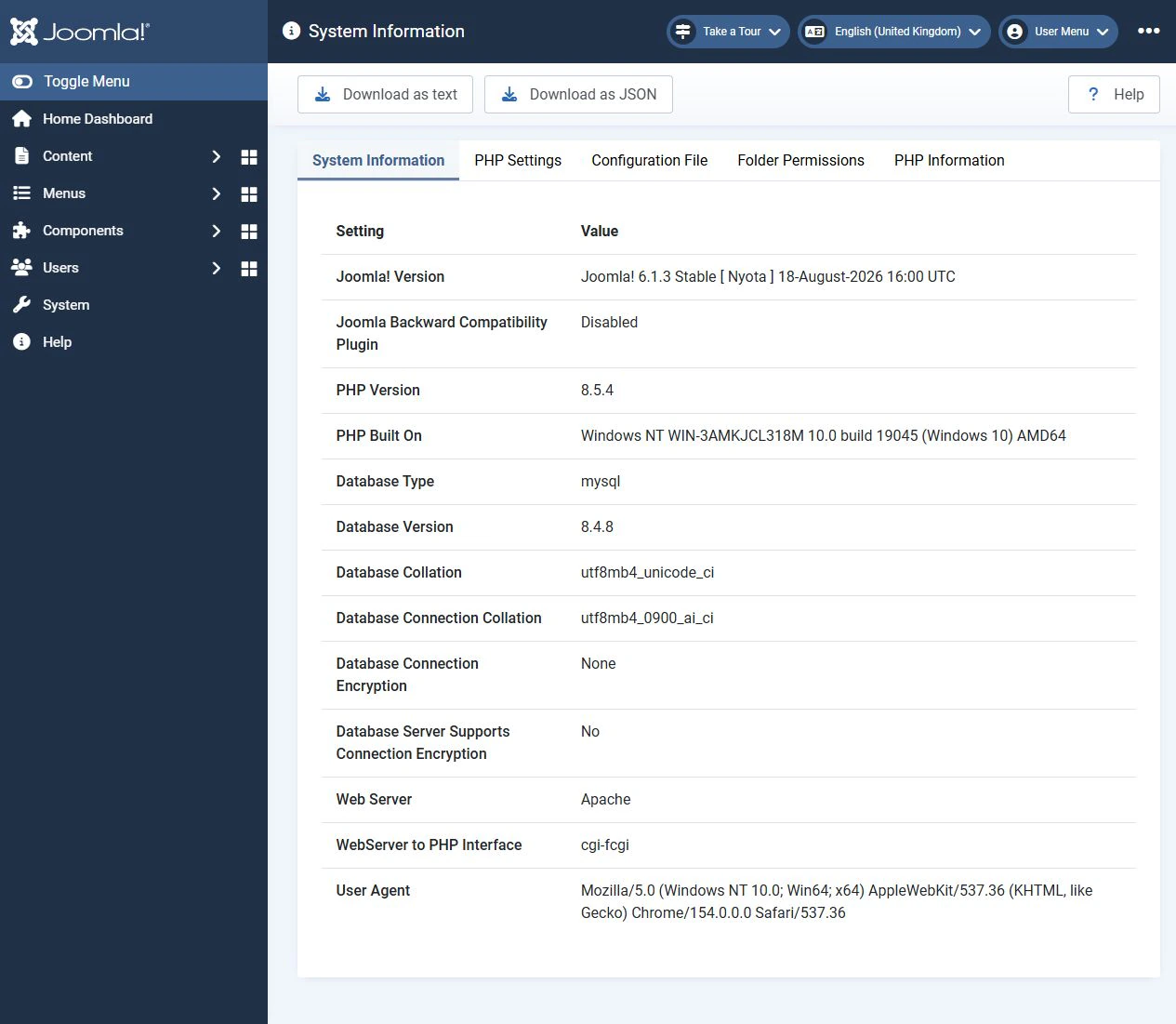
Checking PHP on a local Joomla 6.1.3 site. The version shown is an example, not a recommendation for a specific maintenance release.
Use the value reported by the site itself. The default PHP version in your hosting panel or the version reported in a terminal may differ from the one assigned to your domain. Scheduled jobs can also use a separate PHP runtime.
How to change PHP safely
You normally choose the PHP version for a specific site in your hosting control panel. If this option is unavailable, contact your hosting provider. Joomla itself has no PHP version switch.
- Record your current setup. Note the Joomla and PHP versions, PHP handler and important settings. Find out how to restore the previous configuration if the upgrade fails.
- Create a backup. Back up both the site files and database and store them outside the site being changed. Check that you can restore the backup, ideally by deploying it to a separate test environment.
- Check compatibility. Review the requirements of your components, modules, plugins and template. Include template overrides and custom PHP code. Prepare compatible updates or replacements for unsupported extensions where needed.
- Test the upgrade. Enable the target PHP version on a copy of your site. Match the production hosting settings as closely as possible. Prevent the test copy from sending real emails, processing payments or triggering other production integrations.
- Check the environment. Verify that the required PHP extensions, database connection, memory limits and upload limits are available. PHP settings can change when you switch branches.
- Test the site. Open the main pages and administrator area. Test user login, search, forms, email, saving articles and uploading images. For a shop, also test the basket and checkout in test mode. Review error logs and scheduled jobs.
- Switch the live site. After successful testing, create a fresh backup and select the same PHP version for the production domain. Repeat the main functional checks and verify the PHP Version value in Joomla.
If an error occurs after switching, follow your rollback plan. Returning to outdated PHP should only be a temporary recovery measure: resolve the incompatibility and complete the upgrade afterwards.
Why the warning remains after switching PHP
First, reopen Joomla System Information.
If the reported version has not changed, check which domain or subdomain the setting applies to. You may have changed PHP for the command line or another site. Ask your hosting provider whether additional steps are needed to apply the handler settings.
If the version has changed, check the new branch's support dates: switching to another outdated branch does not solve the problem. Also install current Joomla updates so the CMS uses updated PHP support data.
Can you hide the warning?
Disabling the PHP version check plugin removes its notifications, but it does not upgrade PHP, fix vulnerabilities or extend the branch's support. Hiding the message is therefore not a solution.
You should normally leave the plugin enabled and address the warning by moving to a suitable supported branch. Changing PHP error reporting settings is not a substitute for upgrading either.
What to do next
Check your actual PHP version and its support deadline, choose a compatible branch, test the upgrade on a copy and then switch your live site. Judge the result by the PHP version, functional checks and error logs, rather than simply whether the notification disappears.


