


Table of contents
Modals by Regular Labs opens images, videos and website pages over the current Joomla page. This guide covers compatibility, the differences between Free and Pro, installation, configuration and ways to add modal windows to articles. It also explains keyboard operation and mobile considerations.
What Modals can do
A modal window displays additional content without taking visitors away from the current page. For example, it can enlarge a photograph, play a video or show instructions. A regular page is often more convenient for a long article or a complex form.
In Joomla, the extension processes tags such as {modal ...}...{/modal} or links with a specified CSS class. The editor button helps insert a tag, and the system plugin turns it into a working link.
Modals has two editions. Both have open source code licensed under the GPL. Free costs nothing, while Pro adds features and access to individual support and updates under the subscription terms. The free edition does not include ticket support.
| Feature | Free | Pro |
|---|---|---|
| Open images, videos and pages by URL | Yes | Yes |
| Open a Joomla article by its URL | Yes | Yes |
| Insert tags and convert links by CSS class | Yes | Yes |
| Light and dark themes | Yes | Yes |
| Select an article by ID, alias or title with the article attribute | No | Yes |
| Inline text and HTML without a separate article | No | Yes |
| Galleries, modal groups and slideshows | No | Yes |
| Automatically convert images | No | Yes |
| Automatically open and close windows | No | Yes |
| Convert links by file type, URL or target="_blank" | No | Yes |
Free is usually sufficient for a single photograph or an article opened by a link. Choose Pro when you need a gallery, inline content or automatic opening.
The screenshots in this guide show Modals 17.1.0 Pro in Joomla 6.2.0. Check the table above to see whether a feature is available in Free.
Compatibility and versions
As of 12 November 2026, the current release is Modals 17.1.0, dated 5 October 2026. The developer lists compatibility with Joomla 4, 5 and 6, with PHP 8.2 as the minimum.
Check the requirements of both the extension and Joomla. For example, Joomla 6 requires PHP 8.3 or later, so PHP 8.2 is insufficient for that website. Compatibility between Modals and Joomla 4 does not mean that the Joomla project still supports that older CMS branch.
The current Modals release should not be treated as a solution for Joomla 3. Support for that branch was removed in Modals 13. For an older website, first plan the upgrade of the CMS, template and extensions. The current Joomla distribution is available in the Joomla downloads section.
Before installing or updating, create a backup and test the extension on a copy of your website. Listed compatibility does not replace checks with your particular template, editor and JavaScript optimisation tools.
Installation and activation
Download the Modals package for your chosen edition from Regular Labs. Do not extract the ZIP before uploading it to Joomla.
- In Joomla administration, open System → Install → Extensions.
- Upload the ZIP package and wait for the installation success message. Alternatively, install it through Regular Labs Extension Manager.
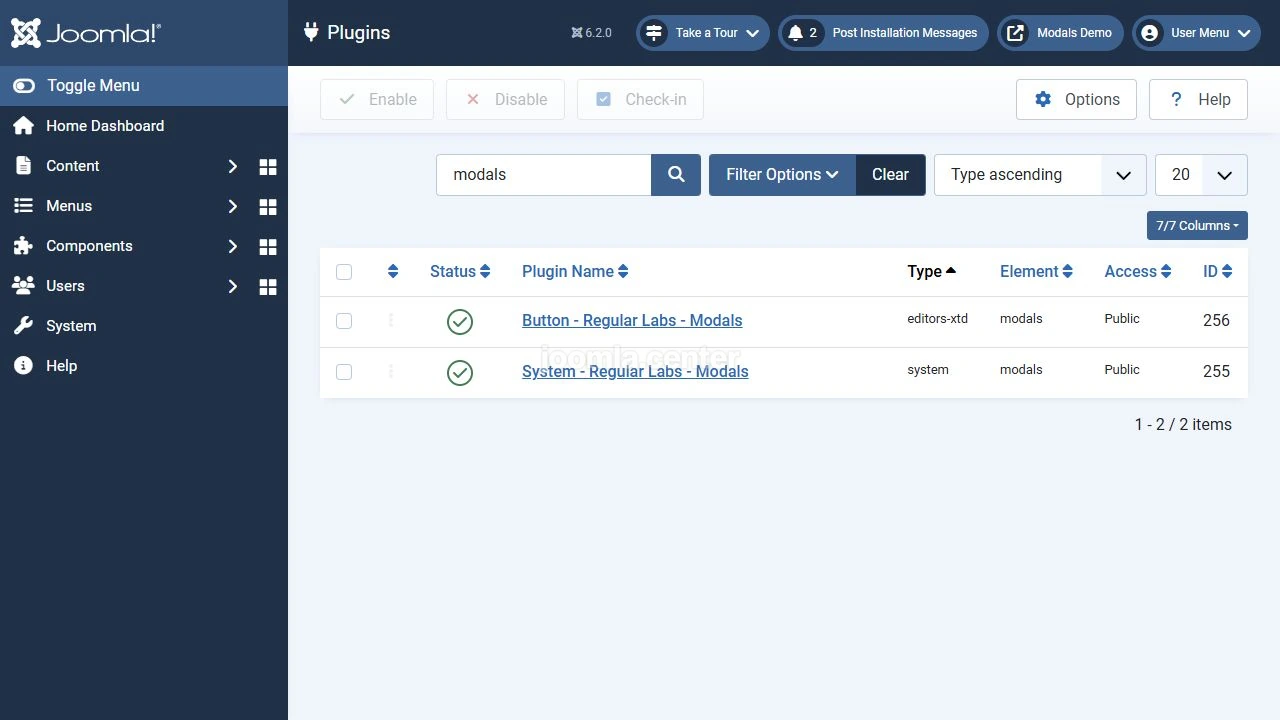
- Open System → Manage → Plugins and search for Modals.
- Check that the Modals system plugin is enabled. You also need the Modals editor button plugin to insert tags through the button. The Regular Labs system plugin must be enabled as well.
For a normal update, install the new package over the existing installation or use the update system. You do not need to uninstall Modals first. Uninstalling the package removes its saved configuration. Pro updates through Joomla use a valid Download Key.
Essential settings
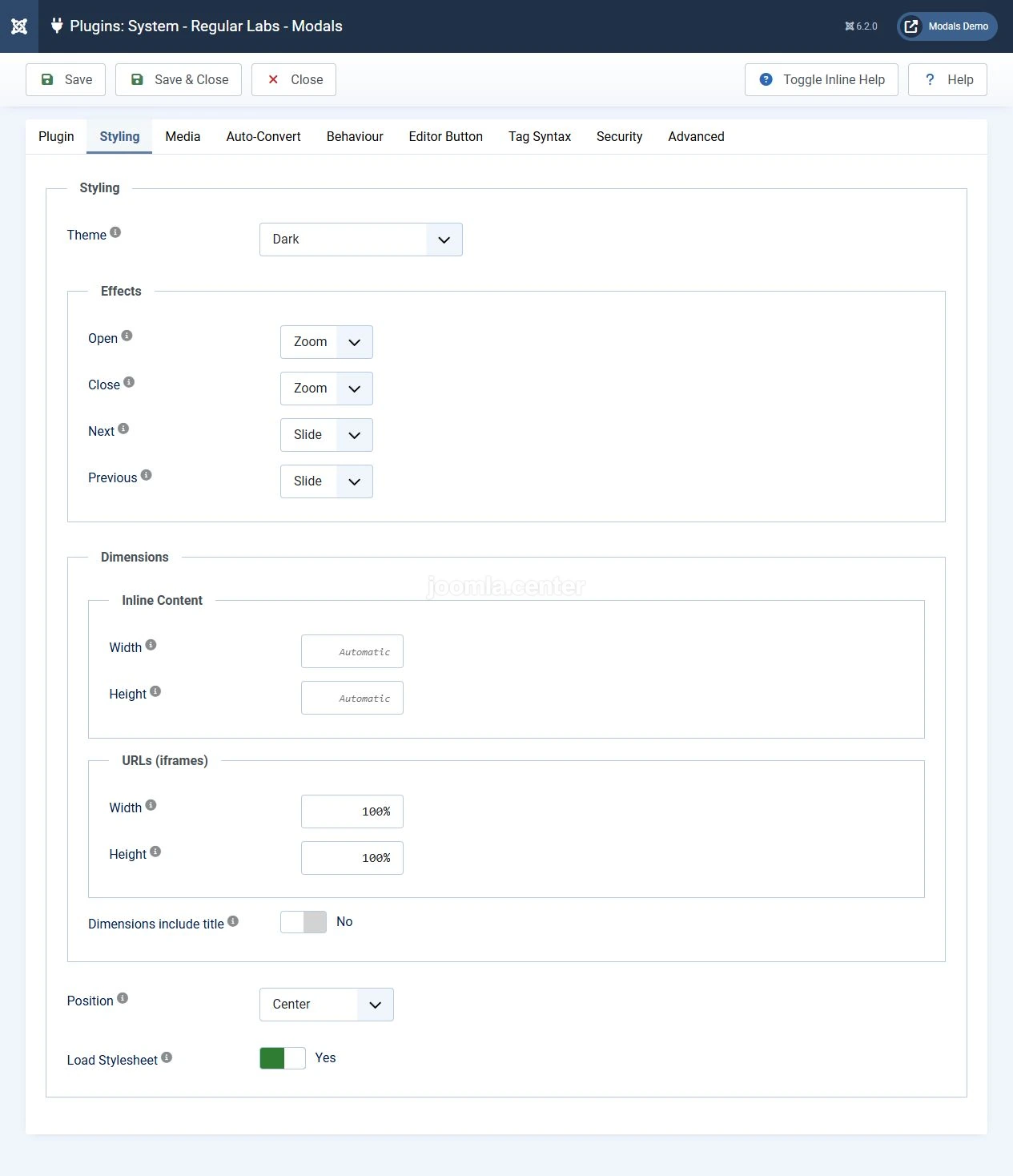
Open the Modals system plugin. Start with styling and behaviour, then adjust the remaining options for your task. Section names depend on the interface language.
Choose a light or dark theme under Styling. Leave width and height empty for automatic sizing, or enter pixel or percentage values. Try automatic sizing first, especially for pages containing text.
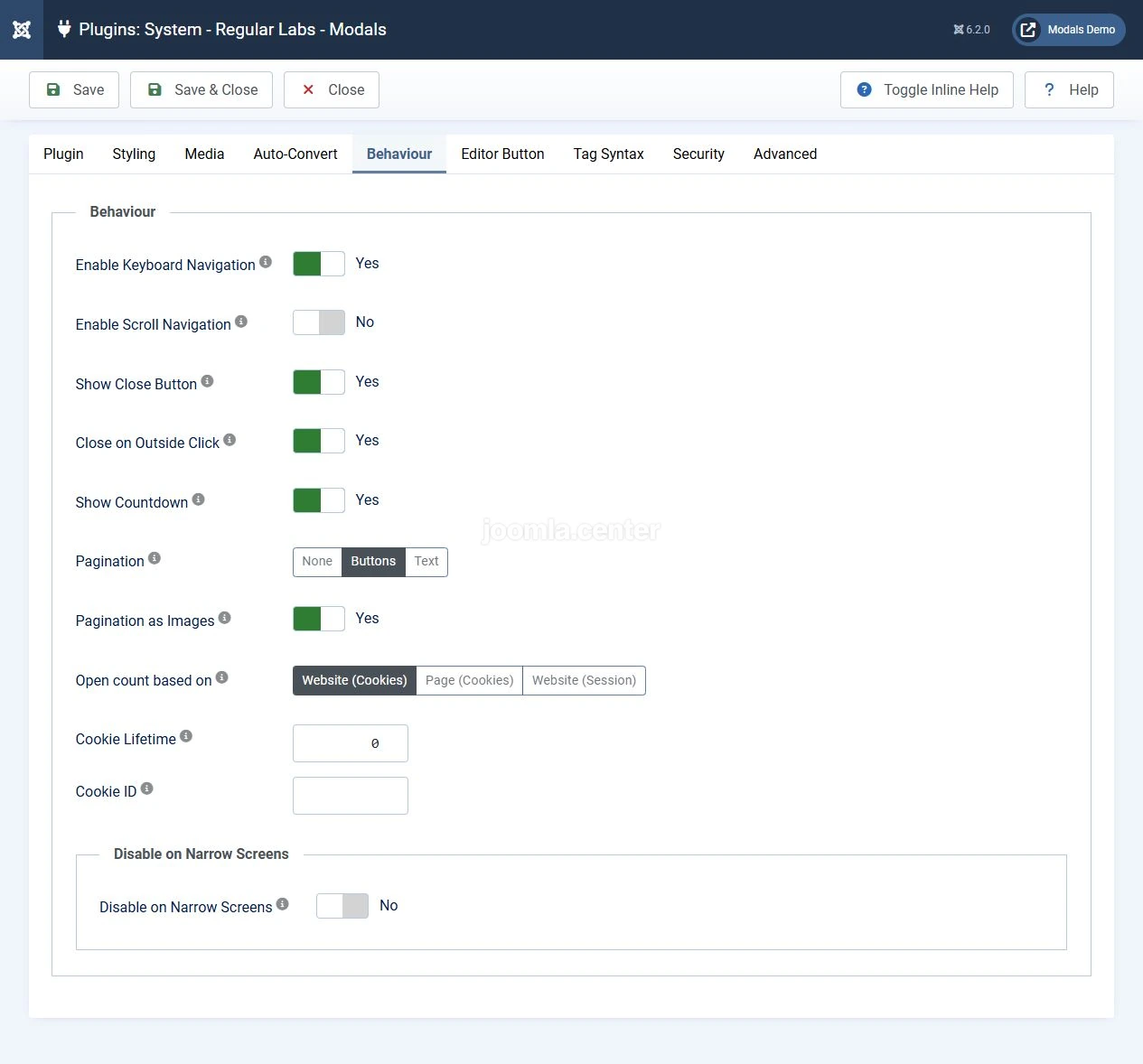
Under Behaviour, keep a visible close button and enable keyboard navigation. Modals supports closing with Escape and moving between grouped items with the arrow keys. Subtle effects or no effects are preferable for users who are sensitive to motion.
The editor button settings let you change its label and availability in the frontend. Avoid changing the tag syntax unnecessarily. Changing the word modal or its surrounding characters means that existing tags will need updating.
Enable automatic link conversion selectively. A dedicated CSS class lets you identify the links you want to convert. Pro offers broader rules, but converting every external link or every link with target="_blank" should be done only after checking the result.
How to add a modal window
You can enter tags manually or use the extension's editor button. In the standard TinyMCE editor in Joomla 6, open CMS Content → Modal. The button's location and label may differ in other editors.
- Place the cursor where you want the link in the article.
- Open CMS Content → Modal.
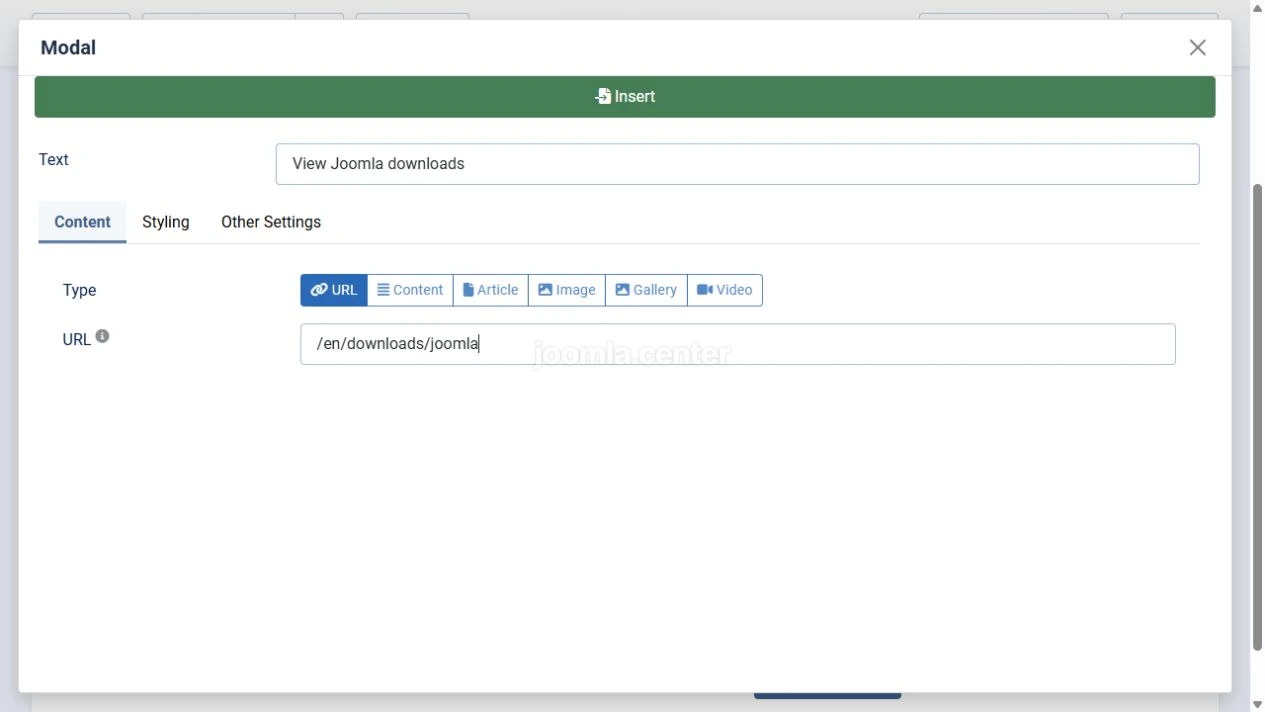
- Choose a content type, such as URL.
- Enter the link text and page address.
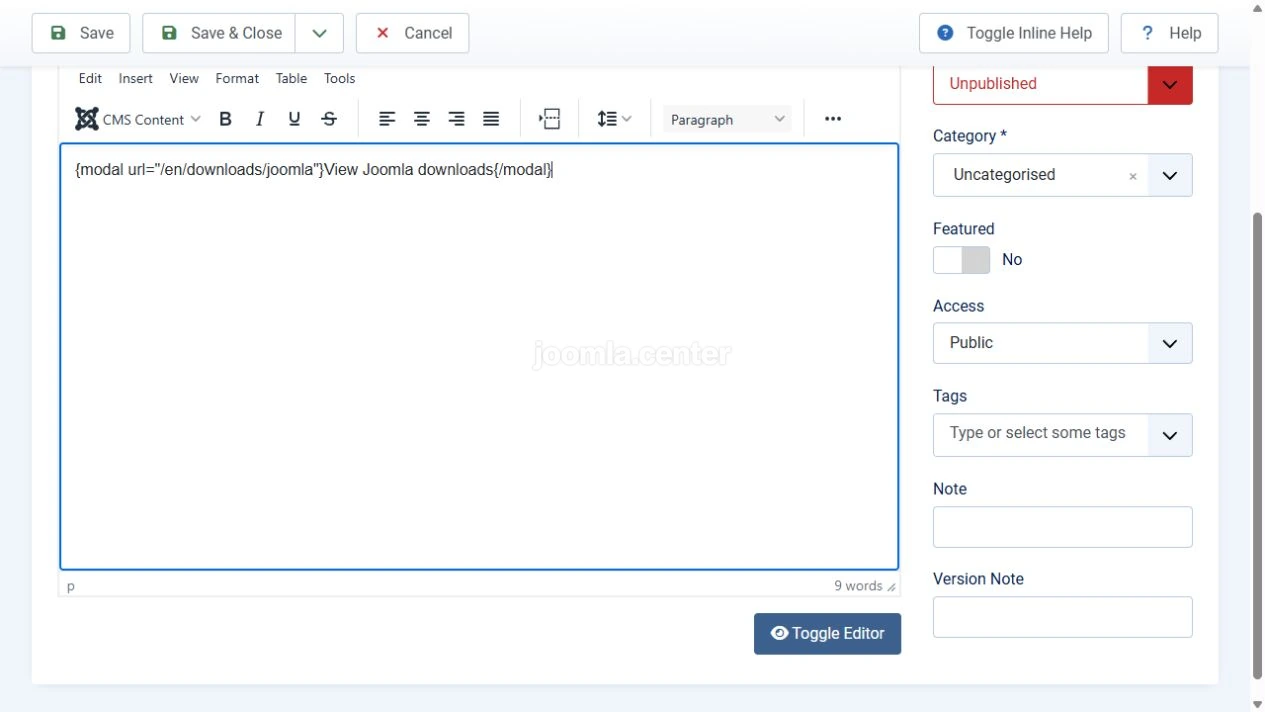
- Select Insert. A Modals tag appears in the editor.
- Save the article and check the modal window on the website.
An article or another page
A regular article URL works in both Free and Pro. Copy the address of the page and put it in the url attribute.
{modal url="/en/downloads/joomla" title="Joomla downloads"}View Joomla downloads{/modal}This example uses an internal website page. Replace the address and link text for your own website.
For an internal page, Modals displays the component area without the surrounding modules by default. Use fullpage="true" if you need the full layout, including modules. Check the result with your template.
In Pro, the article attribute lets you select an article by its ID, alias or title. This is a shortcut for selecting an article, rather than the only way to open one in a modal.
An image
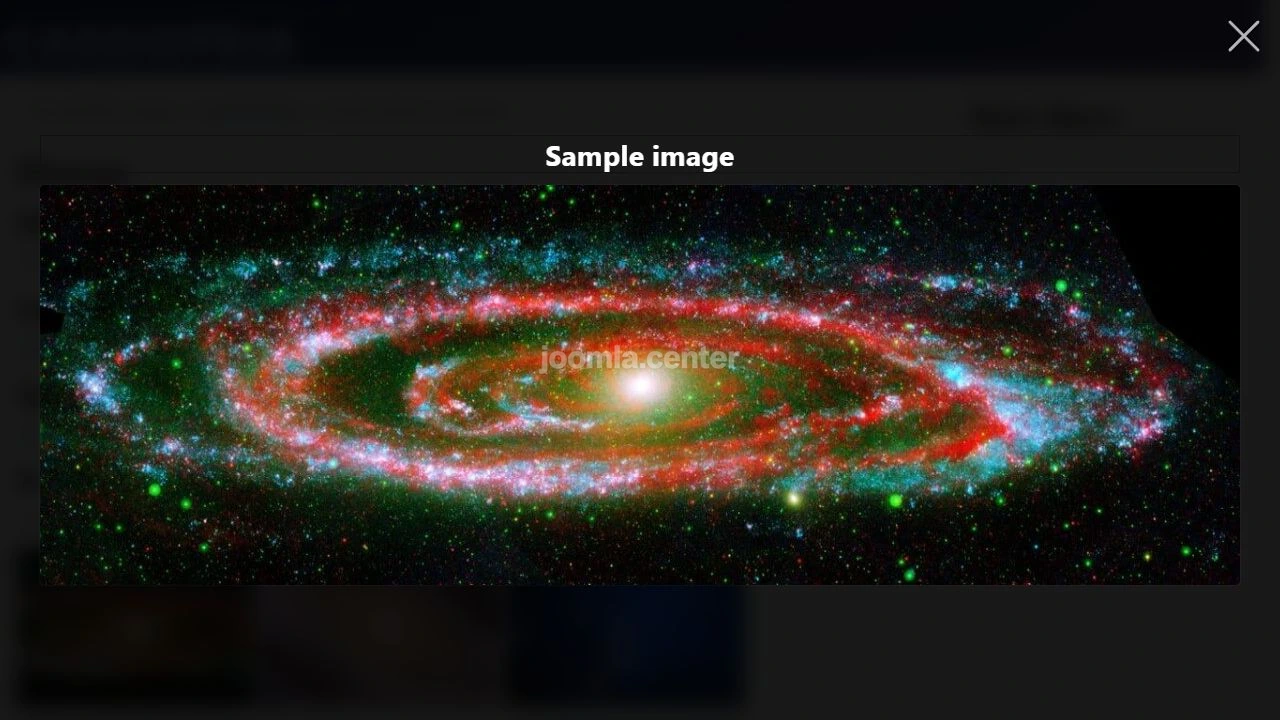
To open a photograph, specify the path to an existing file and give it a meaningful title.
{modal url="/images/example/photo.jpg" title="Product photograph"}Enlarge the photograph{/modal}Replace the sample path with a real one. The text between the tags becomes the link. In Pro, the image attribute can generate a thumbnail automatically. Do not use a filename such as img-001 as the image's only description.
A video
Choose the appropriate content type in the editor button and use the address of the embedded player. The Modals documentation requires HTTPS on the website for this scenario. Pro provides the shorter youtube and vimeo attributes for video IDs. Playback also depends on the video service settings and embedding restrictions.
Avoid starting sound and playback automatically without a clear need. Check that visitors can control the video and close the window using a keyboard.
Inline content and galleries in Pro
For a short note without a separate article, use inline content.
{modal html="You can collect your order after confirmation from our team." title="Order collection"}How to collect your order{/modal}For a larger block, use paired modalcontent tags and a link with the content attribute. The content remains in the same page, so do not use this method to conceal confidential information.
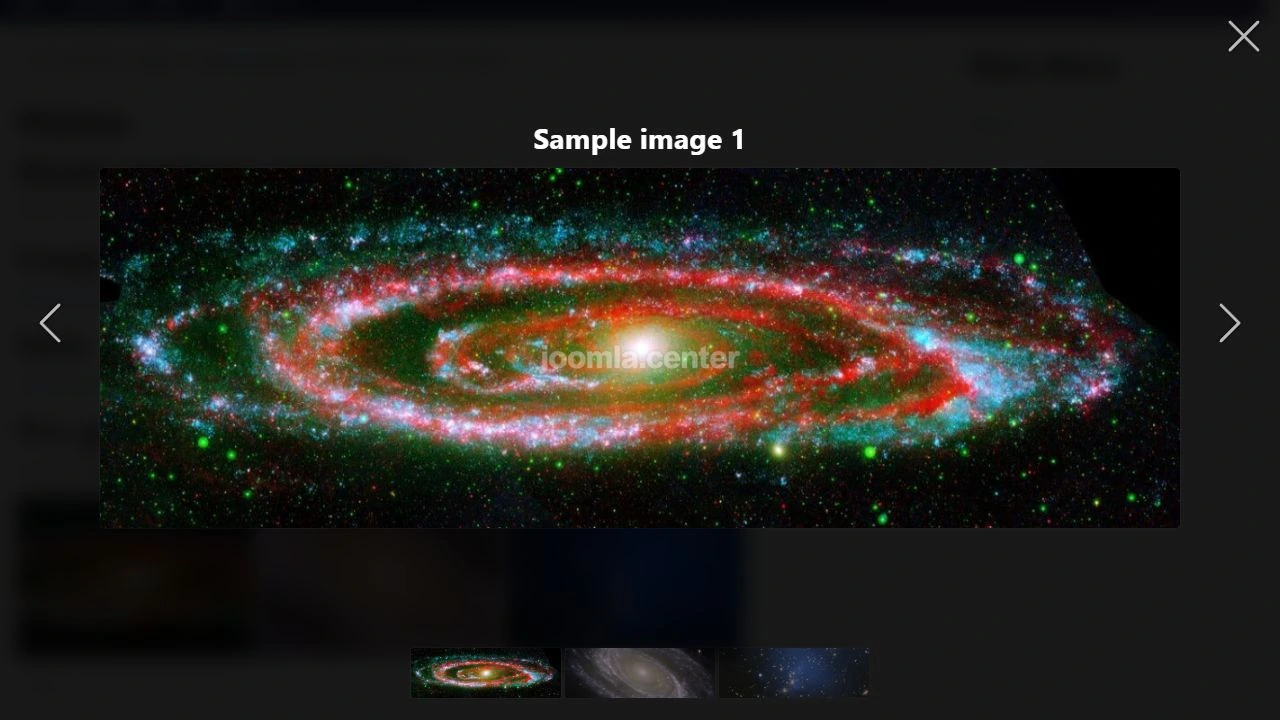
You can create a Pro gallery from a folder of images.
{modal gallery="images/example/gallery" thumbnails="all"}View photographs{/modal}Replace the folder with an existing one. Galleries let you control image selection and order, thumbnails and slideshows. Provide meaningful captions and alternative descriptions. Enable automatic slideshows only when they help visitors and can be controlled.
Keyboard and mobile use
Installing the extension does not by itself establish that your website is accessible. Check the finished modal together with its content, template and settings.
- Move to the link with Tab and open the window using the keyboard.
- Check that focus moves into the window and remains visible.
- Navigate with Tab and Shift+Tab. Focus should not move to the obscured page while the modal is open.
- Close the window with Escape and with a separate visible button. Focus should return to the original link after closing.
- Check the window title and button names with a screen reader. Give an iframe a meaningful title. Modals provides the
iframe-titleattribute for this purpose.
On a phone, check both screen orientations, scrolling through long text, access to the close button and video controls. For forms, check what happens when the on-screen keyboard appears. There should be no horizontal scrolling, hidden fields or controls outside the window.
Modals adapts the window to the available space, but a fixed-width table, image or form inside it can still make reading difficult. Pro has an option to disable modals on narrow screens. After enabling it, check separately how visitors can access the original content.
Updates and troubleshooting
Modals versions 16 and 17 introduced changes to the secure processing of content. Version 17.0.0 fixed vulnerabilities involving JavaScript links and events. Version 17.1.0 introduced Process Tags settings for processing areas, with trusted JavaScript Events sources in Pro.
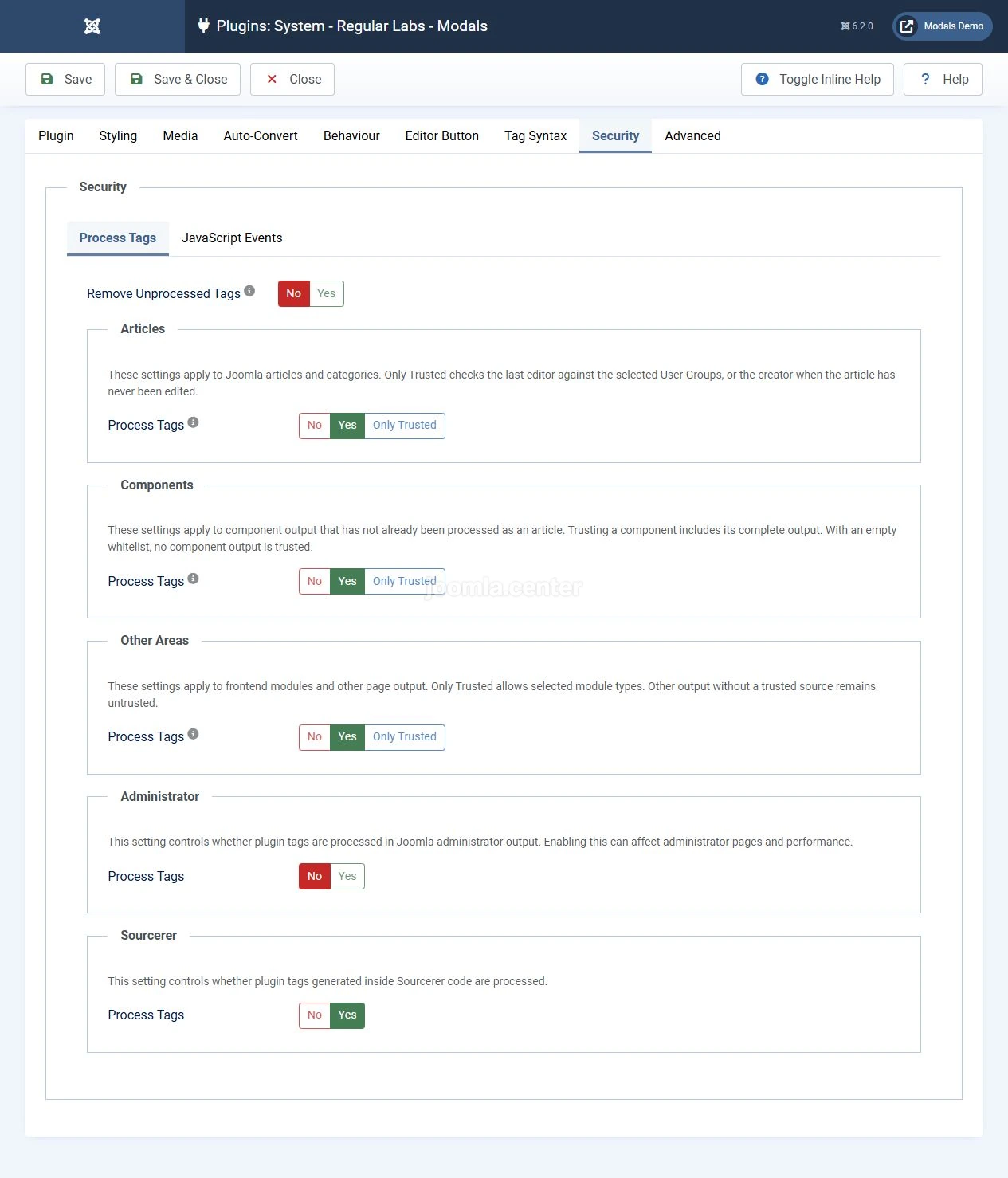
After updating, first check author permissions and the permitted processing areas. Do not restore JavaScript execution for all editors simply to make an older example work again. Opening an image or article does not require custom JavaScript.
If the raw tag appears instead of a modal link, check the system plugin, syntax and permission to process tags in that area. If a link appears but the window does not open, check JavaScript errors and the effect of script combining, deferral and minification. Perform these checks on a copy of your website.
For image processing errors, read the whole message. If it mentions Fileinfo or Exif, check that the corresponding PHP extensions are installed and enabled on the server. Changing the Modals tag will not resolve that cause.
If an external page does not load in an iframe, it may prohibit embedding. An HTTPS page can also block HTTP content. Modals cannot override these restrictions. Use a regular link for a page that cannot be embedded.
Conclusion
Modals helps you add windows for photographs, videos and supplementary articles to Joomla. Start with one link and the Free features. Choose Pro when you need inline content, galleries or automation, and check every scenario with a keyboard and on a phone.


