

Table of contents
The Joomla dashboard is more than a fixed collection of links. You can adapt it to your website: remove unnecessary icons, add frequently used sections, organise shortcuts into separate panels and include icons from third-party extensions.
These panels are provided by the Quick Icons administrator module. Some icons come from the module itself; others are added by Quick Icon plugins.
This article explains how the system works, how to configure it with Joomla’s built-in tools and how Quick Icons Manager brings these settings together.
How quick icons work in Joomla
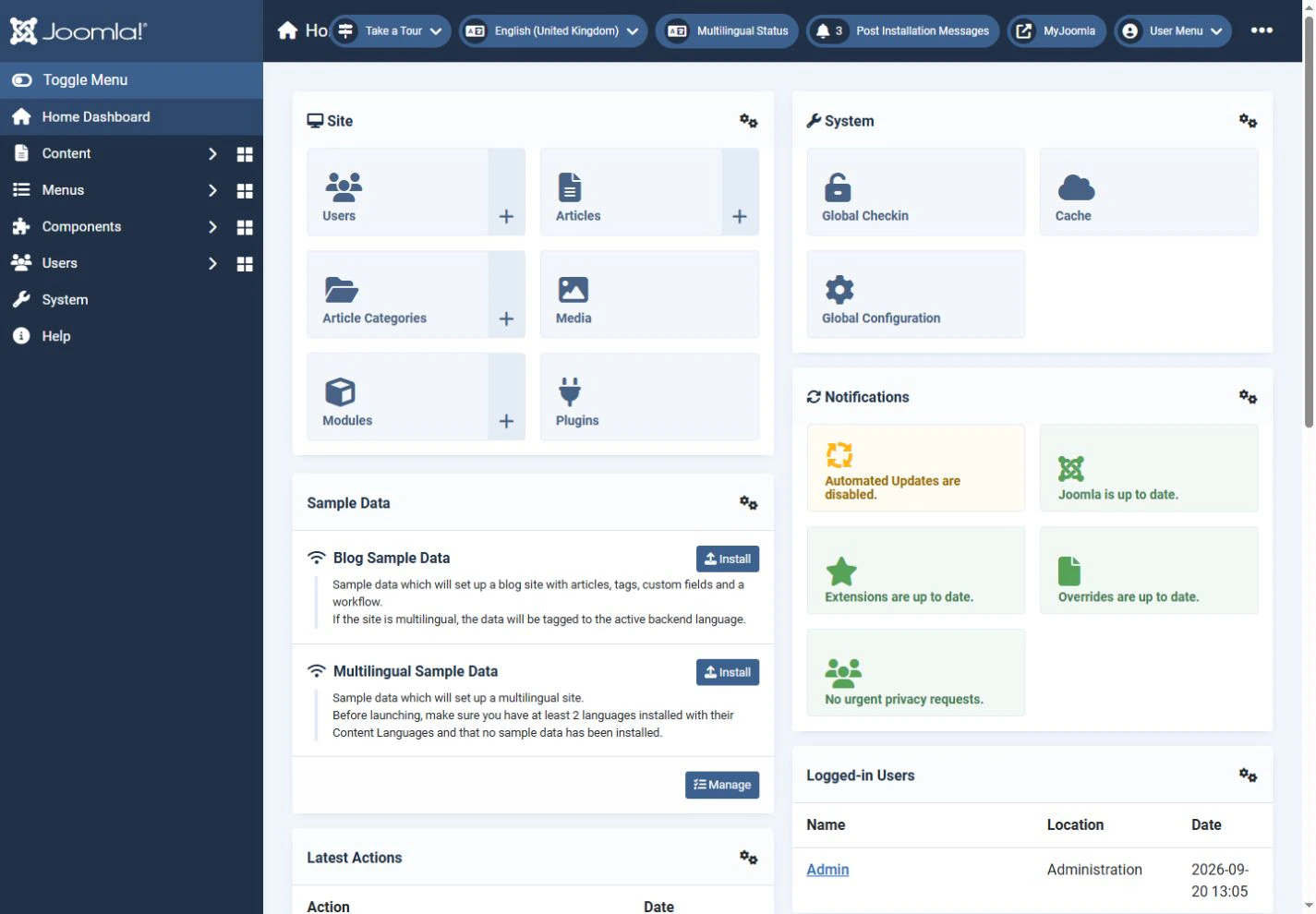
The Home Dashboard contains panels with links to articles, categories, users, Global Configuration, update checks and other administrative tools.
Each panel can be a separate instance of the mod_quickicon administrator module.
A standard Joomla installation includes modules named Site, System, Notifications and 3rd Party. Their groups are site_quickicon, system_quickicon, update_quickicon and mod_quickicon, respectively. A panel may be absent from the dashboard when it has no icons to display.
Icons can appear in a module in two ways.
Built-in module options. The mod_quickicon settings let you enable links to standard Joomla sections.
Quick Icon plugins. Joomla loads enabled plugins in this group and passes them the current module’s context. A plugin checks that value and adds its icon when the group matches. Joomla’s core and extension update notifications work this way.
The relationship is:
Quick Icons module → group (context) → Quick Icon plugins using that group.
Understanding this relationship makes it easier to organise the dashboard.
Configuring a Quick Icons module
Open System → Manage → Administrator Modules.
Filter the list by the Quick Icons module type to find the instances of mod_quickicon.
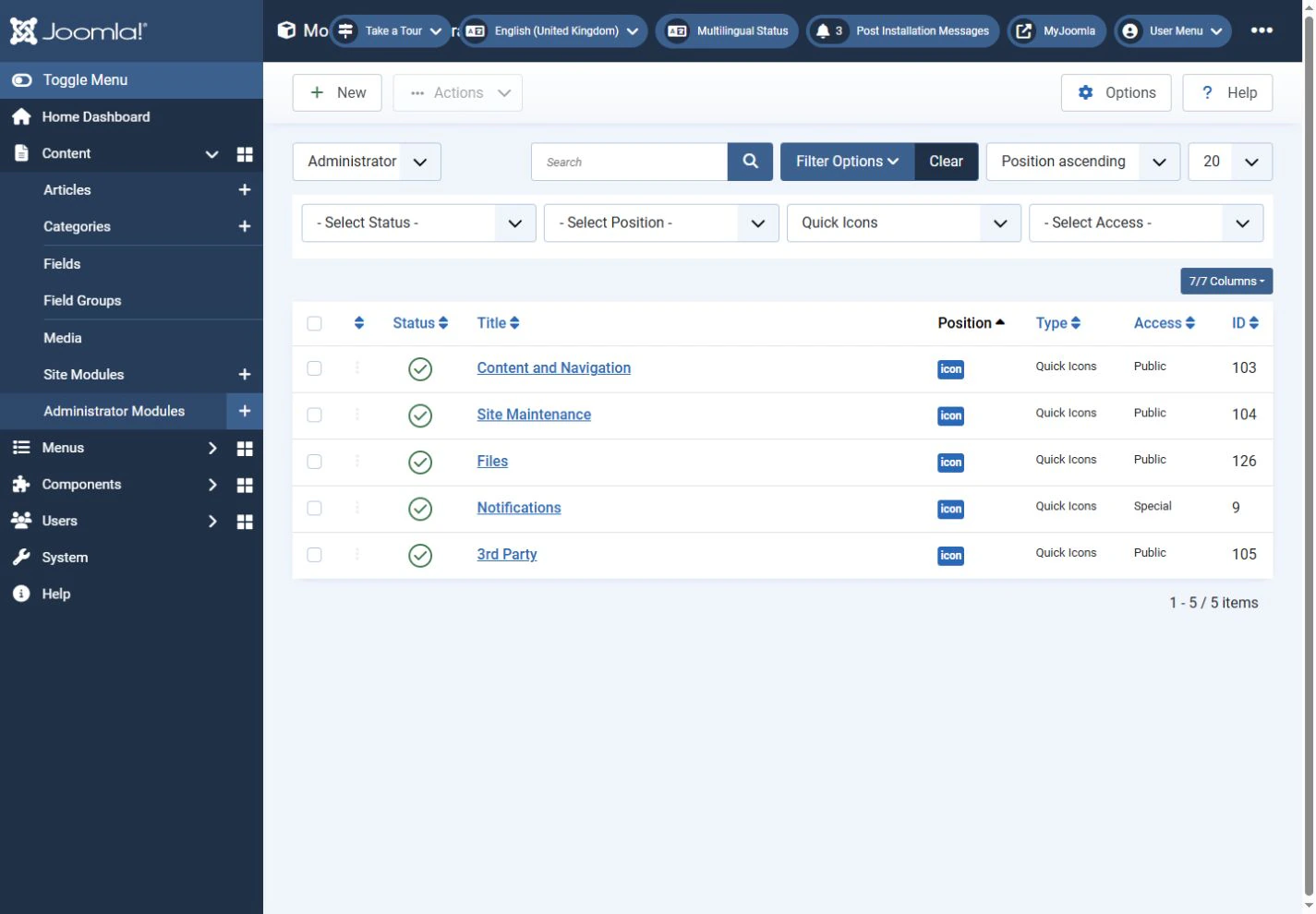
Standard module settings control the title, publication status, ordering, position and access level. Use them to disable an unnecessary panel, rename it or change its position.
Quick Icons also has settings for the icons inside the panel.
Built-in icons
Current versions of mod_quickicon provide links to many administrative sections without additional plugins, including:
- Articles and featured articles.
- Categories.
- Media.
- Users.
- Menu items.
- Modules and plugins.
- Tags.
- Contacts and banners.
- Redirects.
- Content languages.
- Template styles and template files.
- Global Configuration.
- Cache.
- Global Check-in.
Some icons can display an item count alongside the link. Others appear only when the corresponding component is installed and enabled.

You can therefore build a useful dashboard panel without installing an extension. For example, create a Content panel containing only articles, categories, media and tags.
What the Group setting does
The Group setting connects the module to Quick Icon plugins. Its underlying parameter is named context.
In the screenshot above, the Content and Navigation module uses site_quickicon. Position and publication settings appear on the right.
The default group value is mod_quickicon, but you can enter your own, such as my_quickicon.
A group name does not add an icon by itself. It identifies the module that should receive icons from plugins using the same group.
If a plugin uses my_quickicon, its icon should appear in the module whose Group value is also my_quickicon.
This is how third-party icons can be distributed across separate panels.
What Quick Icon plugins do
Alongside the built-in links in mod_quickicon, Joomla supports plugins of the quickicon type.
These plugins may be included with Joomla or installed by third-party extensions. Their purpose is to add an item to a Quick Icons panel.
For example, Joomla’s standard plugins provide notifications about core and extension updates. A third-party component can install a Quick Icon plugin that links to its own dashboard.
An extension does not need to modify mod_quickicon or the administrator template. Its plugin uses Joomla’s event system to provide the module with the information needed to display an icon.
Managing plugins with Joomla’s built-in tools
Open System → Manage → Plugins and set the Type filter to quickicon.
The list contains both Joomla’s standard plugins and those installed by extensions.
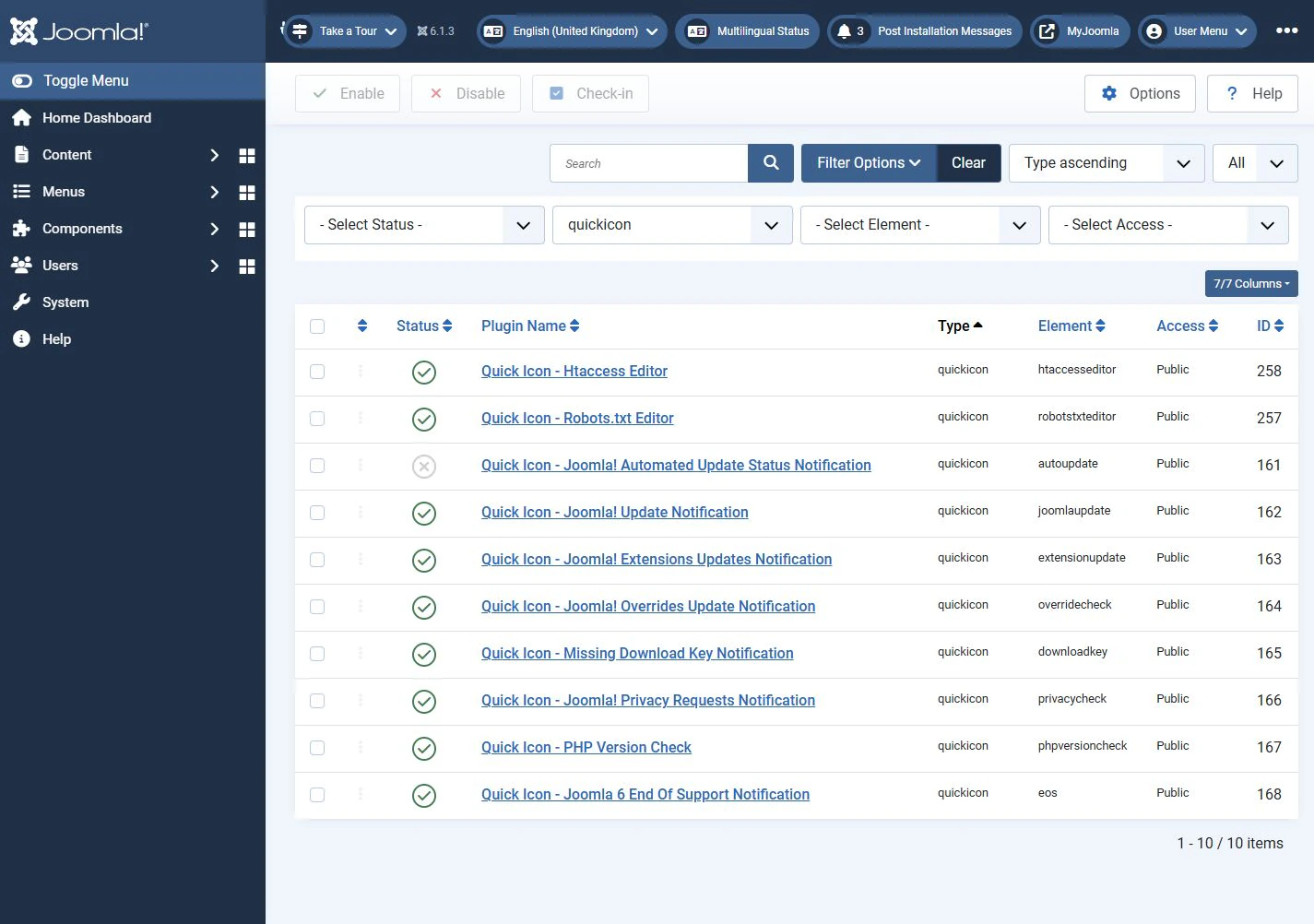
Disable a plugin to remove the icon it provides from the dashboard.
If the plugin has a Group setting, changing its context can move its icon to another Quick Icons module.

The main limitation of the standard interface is that modules and plugins are configured in different places.
To find out why an icon appears in a particular panel, you may need to:
- Find the corresponding Quick Icon plugin.
- Open its settings and check its group.
- Open Administrator Modules.
- Find the
mod_quickiconmodule with the same group. - Return to the plugin if further changes are needed.
This becomes cumbersome when a site has many plugins.
It is also difficult to see which plugins belong to a panel, or which plugin groups have no matching published module.
Quick Icons Manager
We developed Quick Icons Manager, or com_quickicons, to simplify this work.
The component uses Joomla’s existing administrator modules and plugins. It brings their management together without replacing the Quick Icons system.
The main list shows:
Plugin | Group Name | Module | Status
You can immediately see which group a plugin uses and which mod_quickicon module displays that group.

Changing a group directly in the list
The Group Name column contains a dropdown for each plugin. Select a group to save the new value through AJAX without opening the plugin’s settings.
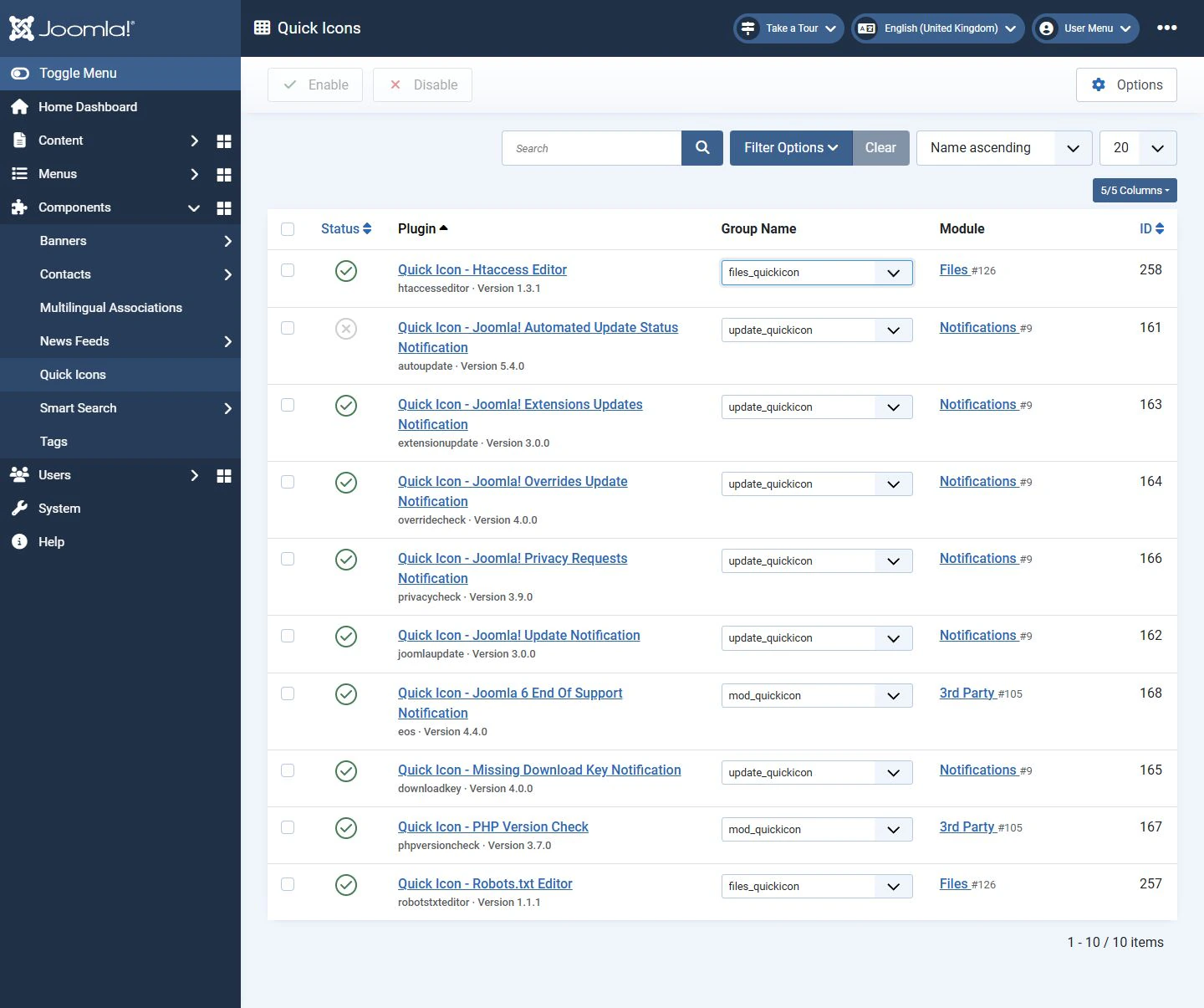
Moving an icon between panels takes only a few seconds.
For example, a third-party plugin may initially use mod_quickicon. If you create a separate administrator tools panel using tools_quickicon, select that group for the plugin.
The icon will appear in the corresponding module, provided the plugin supports the standard context mechanism.
Seeing the associated module
A separate column shows the Quick Icons module whose group matches the plugin’s group.
This helps identify a common configuration problem: a plugin has a group, but no module uses that group.
The standard Joomla plugin manager does not make this relationship as easy to see.
The associated module’s name is a link. Open it to view or change the module’s settings.
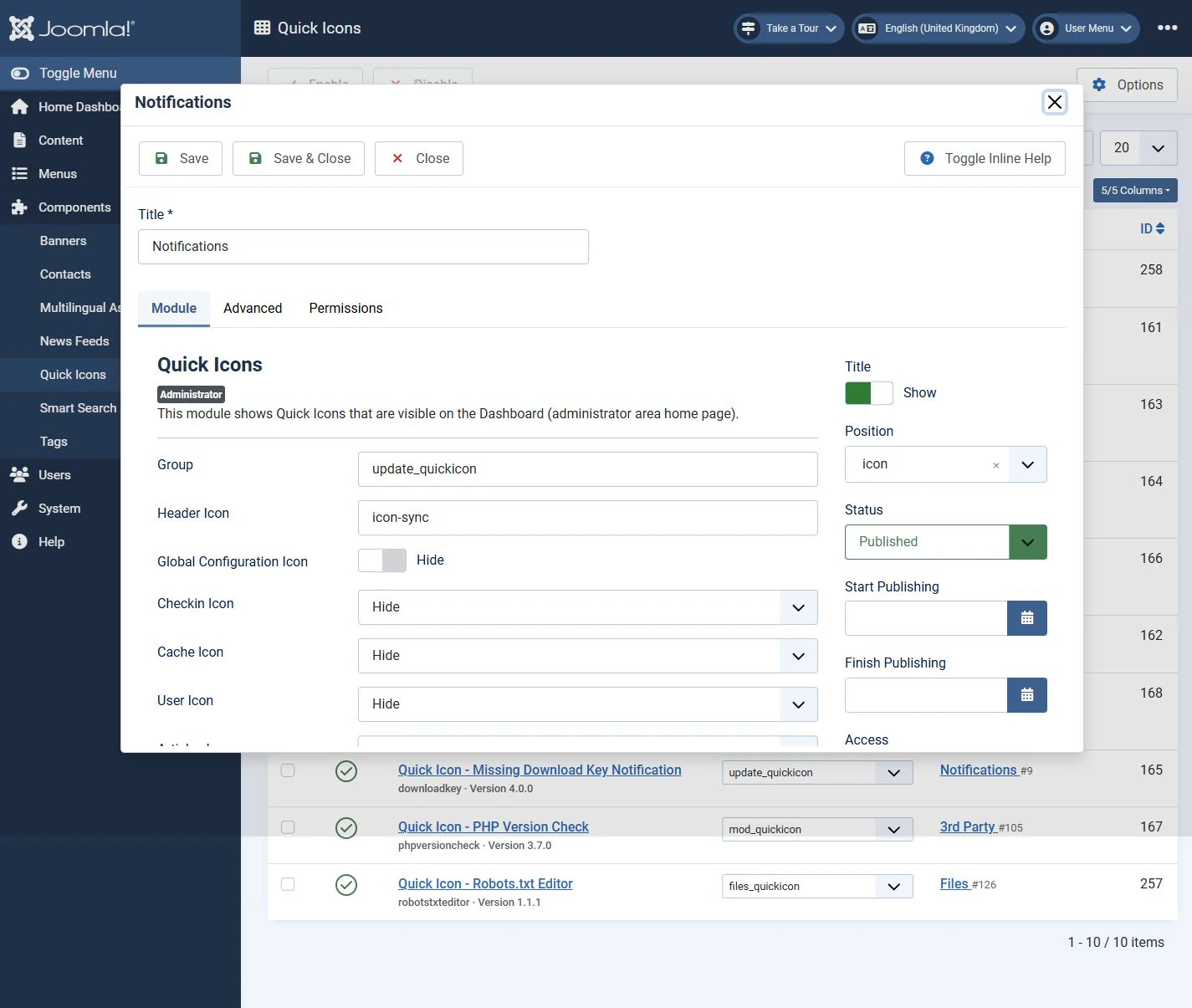
Filtering by group
Quick Icons Manager collects the groups used by installed plugins and provides a Group Name filter.
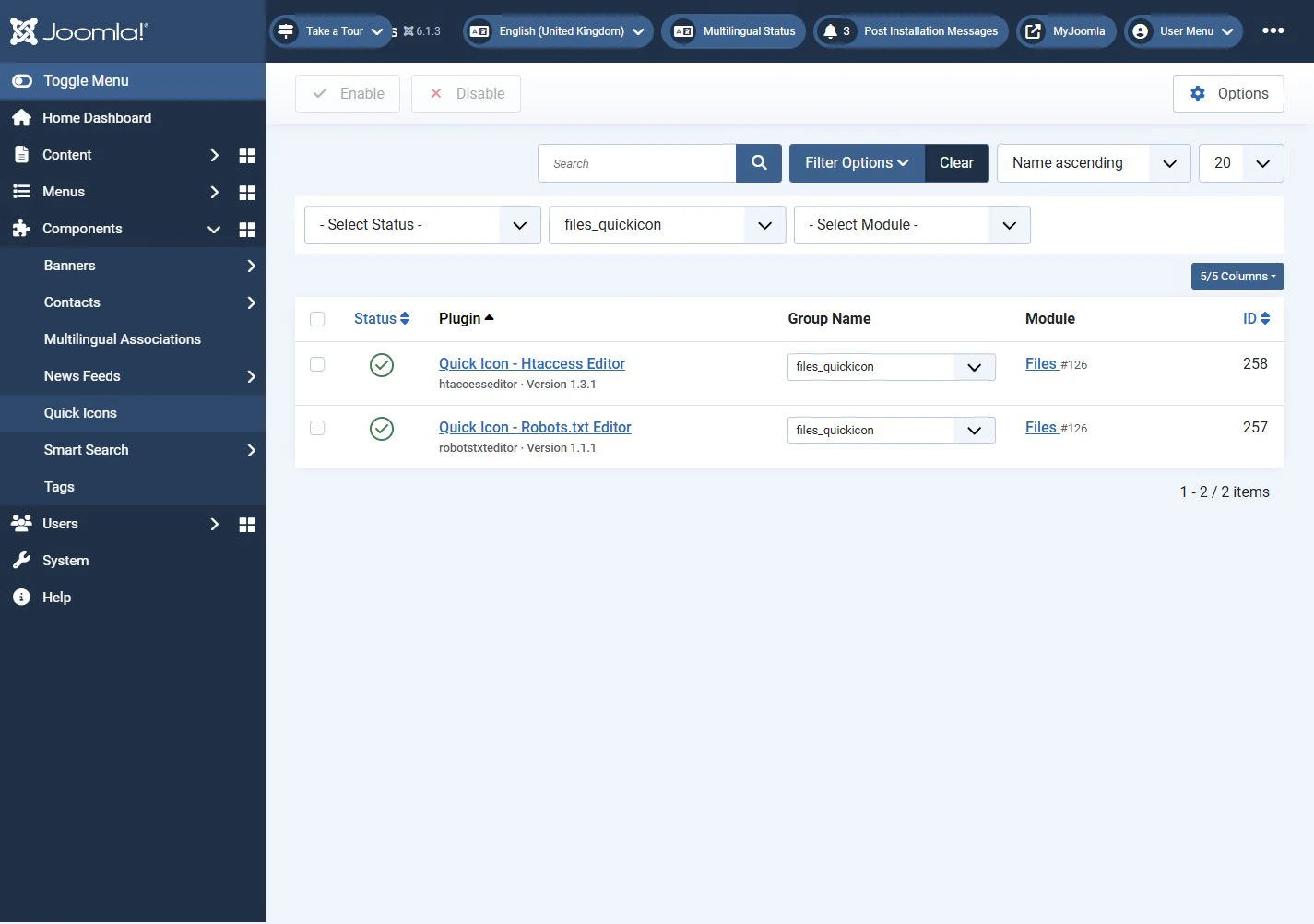
A group remains available in the filter even when no corresponding mod_quickicon module exists.
This helps find misconfigured groups or groups left behind after a module has been removed.
Filtering by module
The Module filter selects a particular instance of mod_quickicon.
The component then shows plugins whose context matches that module’s group.
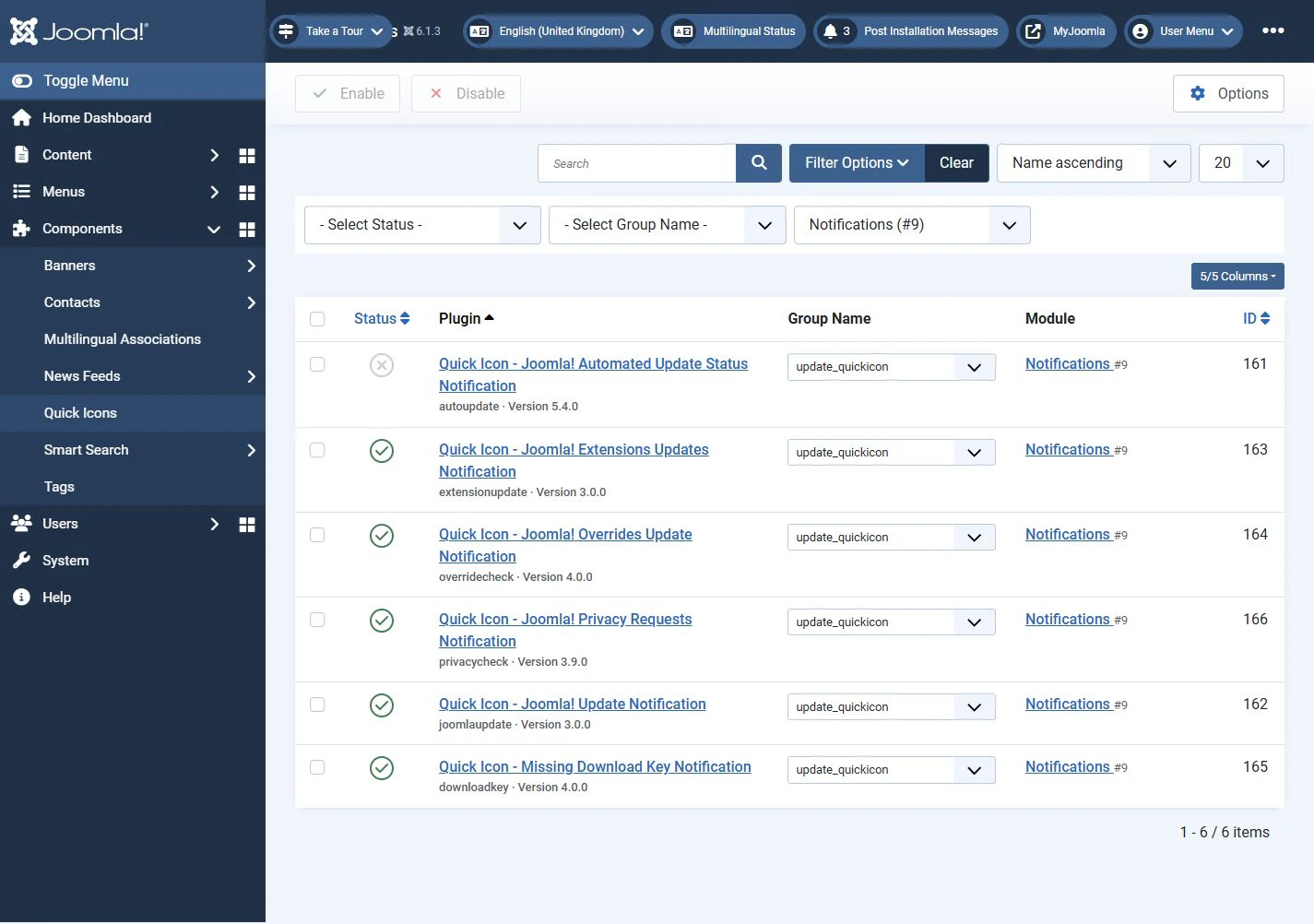
This gives you a direct answer to the question: which plugins provide the icons in this panel?
Enabling and disabling plugins
You can also manage plugin status directly in Quick Icons Manager.
Change an individual plugin’s status or select several plugins and use the Enable or Disable toolbar buttons.
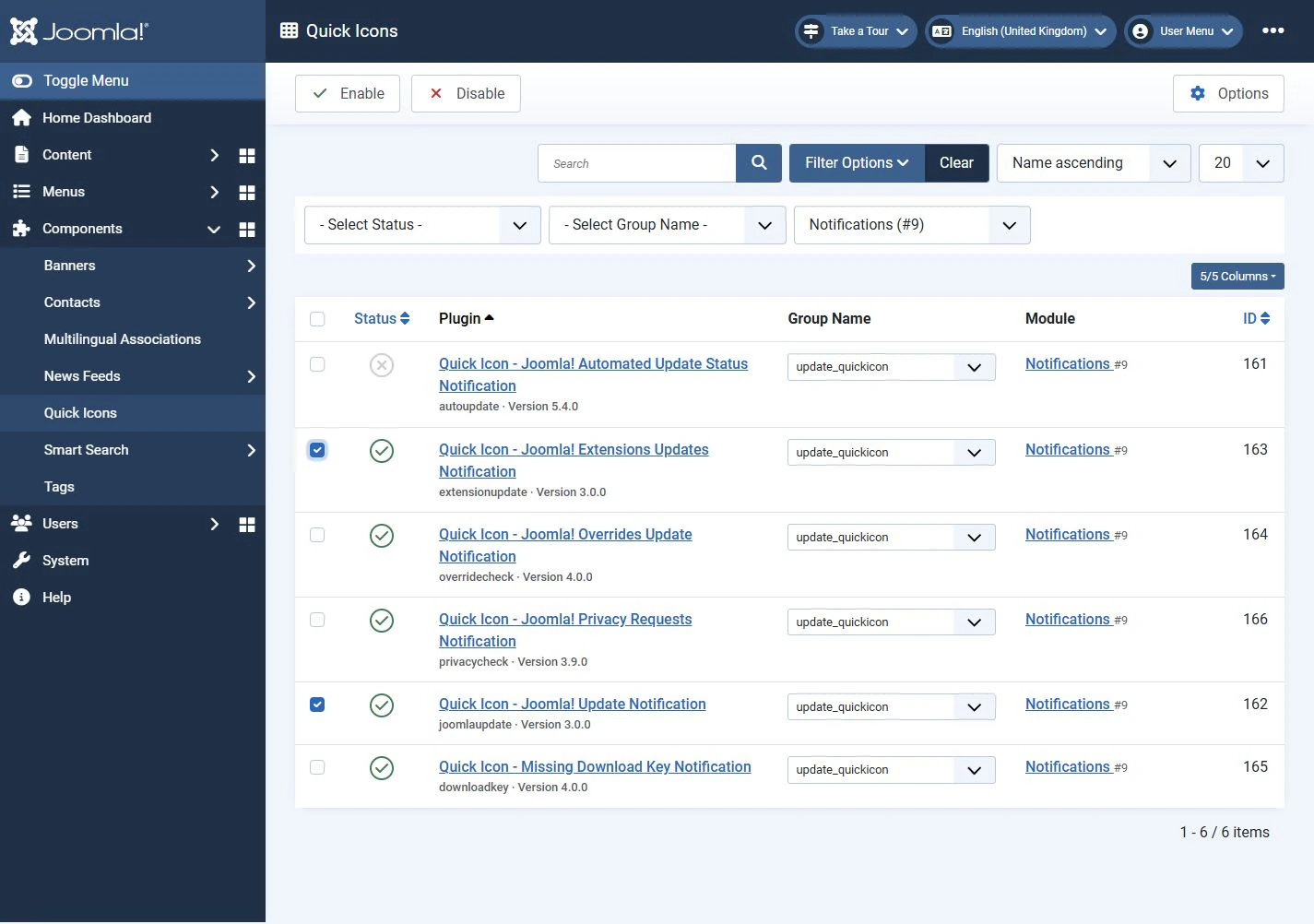
This is useful when the dashboard has accumulated too many notifications or third-party icons.
Searching, sorting and opening settings
Quick Icons Manager follows Joomla’s standard list layout and provides familiar tools:
- Search.
- Filters.
- Sorting.
- Items-per-page selection.
- Pagination.
- Bulk actions.
Click a plugin or module name to open its settings in a standard Joomla modal window. You can change additional settings without repeatedly navigating between extension managers.
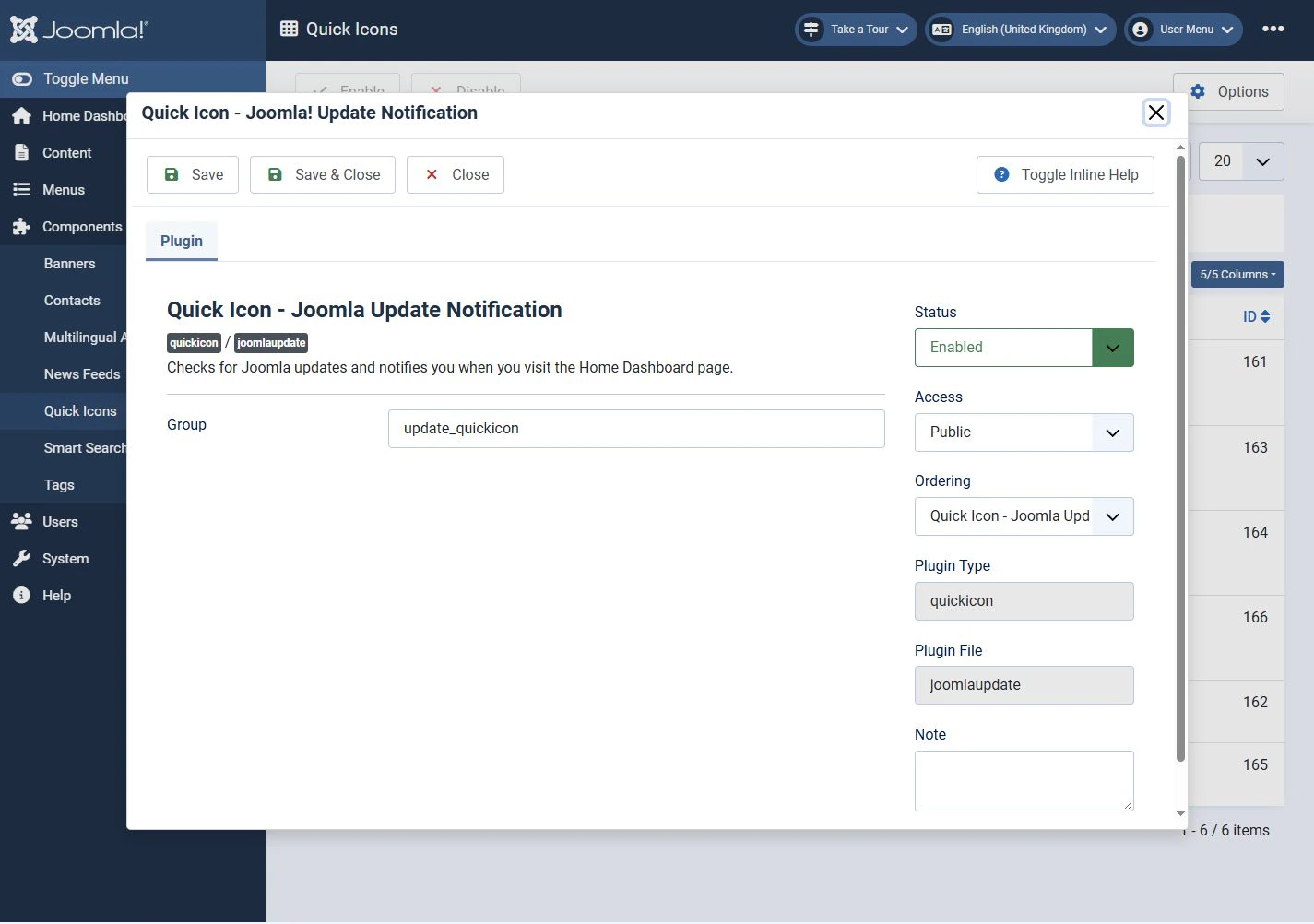
When the window closes, the list refreshes to show the current settings.
Organising your own dashboard
There are two main steps.
First, create the Quick Icons modules you need. For example:
- Content: articles, categories, media and tags.
- System: Global Configuration, cache and Global Check-in.
- Extensions: icons for third-party components.
- Maintenance: updates and other maintenance tools.
Each panel can use its own group.
Next, open Quick Icons Manager and assign the installed Quick Icon plugins to those groups.
Keep the dashboard focused on tools you use regularly. Less frequently used sections can remain in the main menu.
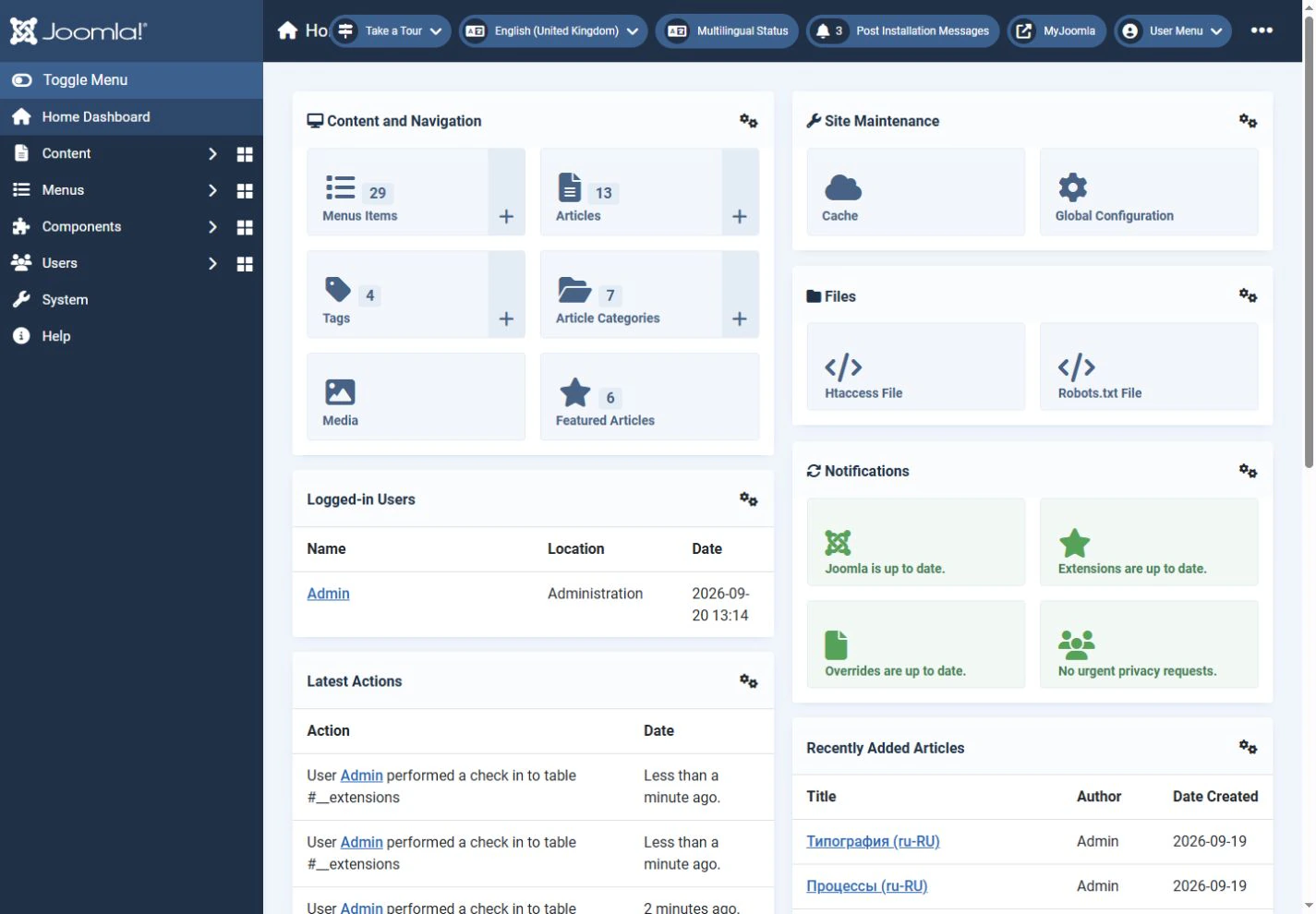
The customised example at the beginning of this article focuses on content management. Content and Navigation hides the user, module and plugin icons and adds menu items, tags and featured articles. Counts are enabled for articles, categories, menu items, tags and featured articles. The Media icon has no count option.
Site Maintenance contains Cache and Global Configuration. The Robots.txt Editor and Htaccess Editor icons are placed in a separate Files module using files_quickicon. The same group is configured in both plugins.
The Sample Data module and the automated update status notification icon are disabled.
These changes make the panels more informative: counts are visible immediately, and unnecessary icons no longer take up space. Hiding an icon does not disable the Joomla feature it links to.
When to use modules or plugins
Both mechanisms have a role.
If mod_quickicon already provides the link you need, enable it in the module. This covers many standard Joomla sections.
Use a Quick Icon plugin when an extension provides its own icon or needs additional behaviour, such as checking for an update and changing the notification state.
Quick Icons Manager makes the relationships between plugins, groups and modules easier to manage from one screen.
Conclusion
The Joomla dashboard can be adapted to the work you do on a particular website.
Quick Icons modules provide separate panels with standard administrative links. Quick Icon plugins add their own icons and use groups, or context, to associate them with modules.
Joomla’s built-in tools can configure all of this, but managing many plugins involves repeated visits to the module and plugin managers.
Quick Icons Manager brings these tasks together. It shows each plugin’s group, associated module and status, lets you change groups and plugin states, and provides filters and direct access to settings.
Use these tools to build a dashboard that gives you quick access to the tasks that matter for your website.