

Table of contents
An HTTP 500 error in Joomla means the server could not complete a request. The message Whoops, looks like something went wrong tells you that a failure occurred, but does not explain its cause. Here is how to find the details, check extensions and server settings, and investigate without exposing technical information to visitors.
What the Whoops message means
Whoops, looks like something went wrong is a generic error message. It may be caused by an incompatible extension, a template error, a database issue or a server configuration problem. There is no universal fix for this phrase: you need the specific error message first.
The appearance of the error page does not identify the cause either. Joomla may show a system error page with a red background or an error page within the template. The server can also return its own 500 page before Joomla starts, in which case the CMS debugging settings will not help.
A 404 error means the requested resource was not found. A 500 error indicates an internal failure while processing the request. These are different situations, even if the error pages look alike.
Where to start troubleshooting
Before changing settings, collect the details needed to find the relevant log entry:
- Record the page URL, the time of the error and the time zone.
- Identify the action: opening a page, signing in to the administrator, saving an article or installing an update.
- Check the scope: one page, a particular section, the entire website or the administrator as well.
- Review recent changes: Joomla, extension or template updates, a PHP version change, a site migration, file edits or hosting configuration changes.
- Back up the files and database before making repairs. Test possible causes on a private copy with an environment similar to production.
If the failure happens during a payment, email delivery or another action with consequences, do not repeat it multiple times. First check whether the action has already completed.
Where to find error logs
Start with the domain's error log in the hosting control panel. If necessary, ask support for the PHP, PHP-FPM and web server logs covering the relevant time. The access log can help match the request URL to its response status.
In Joomla, the log location is shown under Global Configuration → Logging → Path to Log Folder. It is also stored in the $log_path property in configuration.php. Do not assume a particular folder: the path depends on the installation.
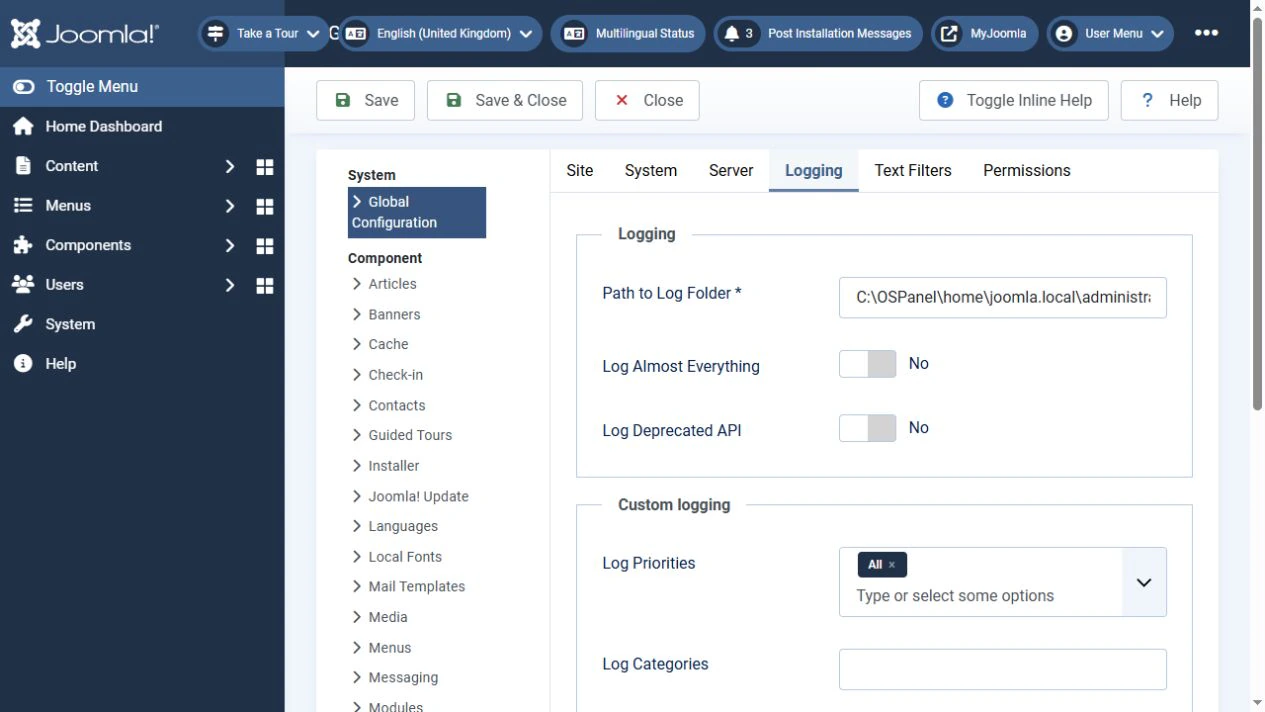
Joomla and PHP logs are separate sources. Joomla logs contain events recorded by the CMS or an extension. A failure before the logging system starts may appear only in the PHP or web server log. The User Actions Log is not a substitute for technical error logs either.
Match entries to the time and request. An old warning from another request does not explain the current 500 error. If no new entries appear, check whether logging is enabled and the log directory is writable.
Do not post complete logs in comments. Before sharing an excerpt, remove passwords, tokens, cookies, personal data and other information that is not needed for troubleshooting. Keep the error type, message and names of the extensions involved.
How to enable detailed diagnostics safely
If the logs are insufficient, reproduce the problem on a private copy of the site. If you must investigate on the production server, first restrict access at the hosting level, for example to your IP address or through HTTP authentication.
Record the original values before making changes. Detailed diagnostics should be enabled only for the duration of the investigation.
If the administrator is accessible
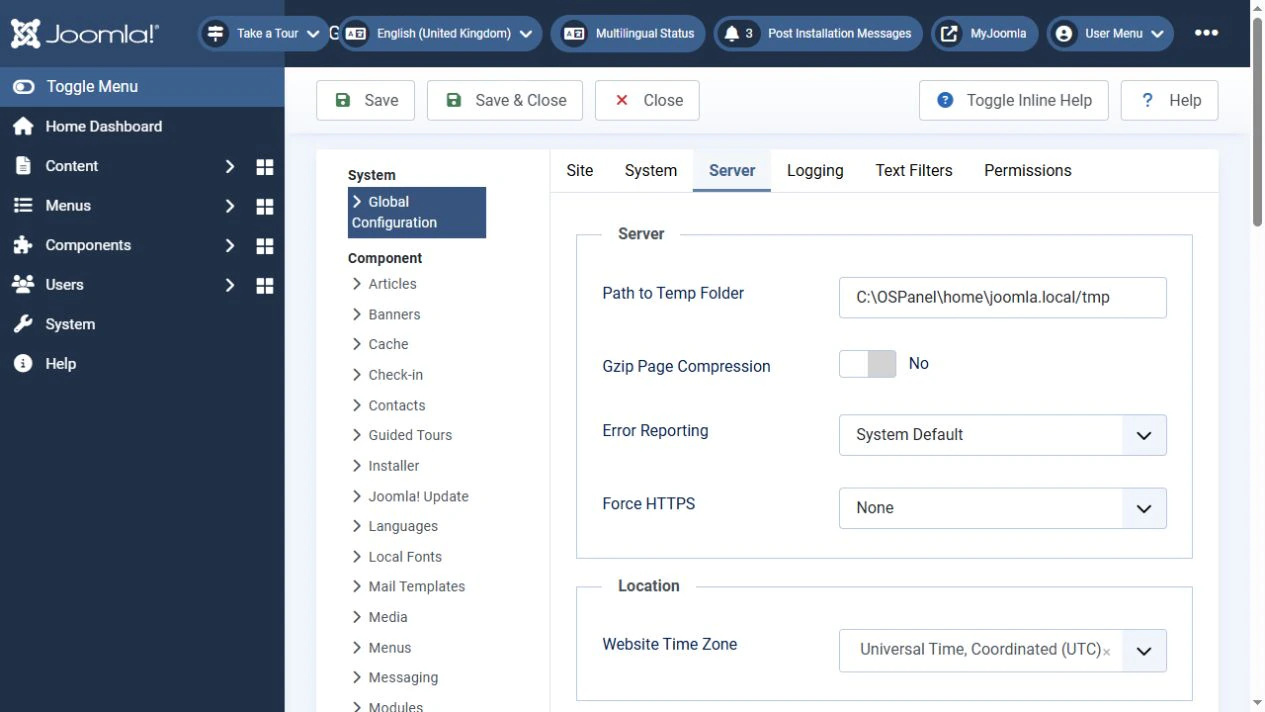
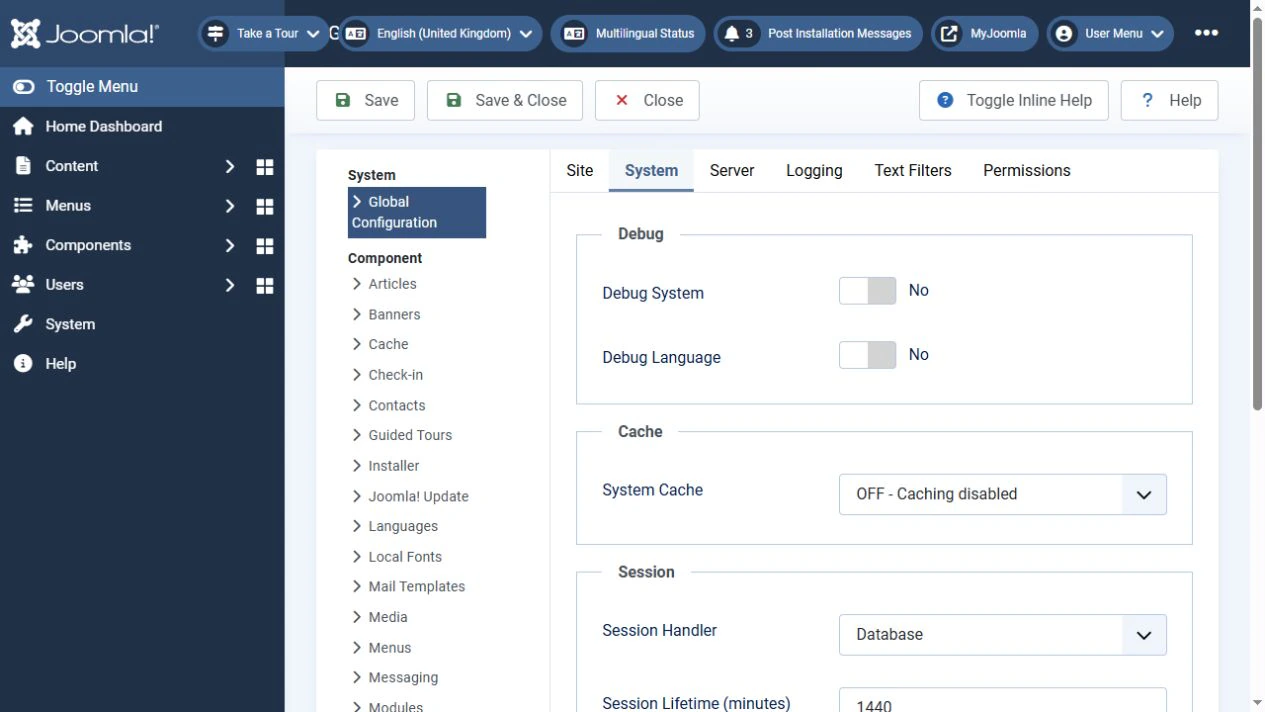
Open Global Configuration:
- On the Server tab, set Error Reporting to Maximum.
- If you need a stack trace and additional Joomla details, enable Debug System on the System tab.
- Save the settings and repeat the failing request on the private site.
- Record the specific message, file, line and relevant part of the stack trace.
You do not need to enable Debug Language for this task.
If the administrator is inaccessible
After restricting access, you can change the existing properties in the configuration.php file in the site root:
public $debug = true;
public $error_reporting = 'maximum';
This is a fragment of the configuration class, not a standalone PHP file. Find the corresponding lines and replace their values; do not add duplicate properties.
Keep the configuration backup outside the publicly accessible directory. It contains database connection details and other sensitive settings. Do not leave a configuration.php.bak file accessible through the browser.
Do not assign 777 permissions to files. If editing is restricted, use the method provided by your hosting service and restore the original secure permissions afterwards. 644 is not a universal requirement for every server.
If no details appear, return to the server logs: the failure may occur before configuration.php loads or before Joomla's error handler starts.
How to interpret the specific message
Start with the error type and message, then examine the file, line and call stack. For example:
Call to undefined methodorClass ... not foundsuggests checking code compatibility and whether the installed package has all its files.Allowed memory size ... exhaustedmeans PHP has used its permitted memory. Identify the operation consuming it and whether the limit is appropriate for the workload.Maximum execution time ... exceededmeans an operation exceeded its time limit. Check slow queries and requests to external services.Unknown columnorTable ... doesn't existmay indicate a database schema that does not match the code version, an incomplete update or an incorrect query.Permission deniedmeans you should check the specified path, ownership and access permissions.
Warning and Deprecated messages need attention, but do not by themselves prove the cause of a 500 response. Look for the error or exception that interrupted the relevant request.
The first file in the trace shows where the error was detected. The cause may be in the calling code: for example, an extension passed invalid data to a Joomla library. Do not edit core files just because one appears first.
Check extensions and the template
If the problem started after an update, first check compatibility between the specific Joomla, PHP, extension and template versions. Include plugins, libraries and template overrides in the investigation.
Change one condition at a time on the test copy:
- Disable the extension indicated by the error message and recent changes.
- Repeat the same request.
- If that makes no difference, restore the original state and test the next possibility.
- For a frontend error, test the page with the standard Cassiopeia template, taking menu item style assignments into account.
If the page works with the standard template, inspect the third-party template's code and overrides. This narrows the investigation but does not yet prove a specific fault.
If the administrator is inaccessible, a known problematic plugin can be disabled in the database as an emergency measure: set its enabled field to 0 in #__extensions. Here, #__ represents the actual table prefix. Back up the database first and identify the exact record by its type, element and plugin group. Do not disable records in bulk: you could lose login access or break dependencies.
Test an update, replacement extension or rollback on the copy first. If an update changed the database schema, restoring only the old files may not be enough.
Check server settings
If the message points to the environment, or the error started after a site migration, check:
- the PHP version serving this website and the required PHP modules;
- free disk space, the disk quota and, where applicable, the inode limit;
- memory and execution time limits;
- database availability and connection settings;
- file ownership and permissions, and access to log, cache and temporary directories;
- recent changes to
.htaccess, web server configuration and the PHP handler.
The command-line PHP version can differ from the version used by the website. Check the settings for the correct domain and handler.
Do not raise limits or delete .htaccess at random. Find the relevant message first. On Apache, an invalid or prohibited directive in .htaccess can cause a 500 response; nginx does not use this file.
When contacting support, provide the failure time and time zone, request URL, Joomla and PHP versions, recent changes and a sanitised log excerpt.
Restore settings after troubleshooting
Turn off detailed diagnostics as soon as you have the information you need, even if the final fix has not yet been found.
- Disable Debug System:
$debug = false. - Restore the agreed production Error Reporting level.
- Check the PHP settings:
display_errors = Off,display_startup_errors = Off,log_errors = On. - Confirm that errors are still written to a protected log but are not displayed to visitors.
- Remove temporary diagnostic files and restore any changed access permissions.
Check the site while logged out: the affected page, login and relevant operations. If a diagnostic response could have been cached, clear the relevant Joomla, proxy or CDN cache. Remove the access restriction after verifying that technical details are no longer displayed. There is no need to deliberately trigger a new error on the production site.
Conclusion
A 500 error is the result of a failure, and Whoops is its generic message. Record the request and time, check the logs, obtain details on a private copy, test one possible cause at a time and verify the fix. After troubleshooting, always turn off public error display while keeping error logging enabled.
Terms used:
Frontend, Package, Apache, CMS, PHP, Authentication, Backup, Menu, Cassiopeia


