


Table of contents
Icons help identify actions, find sections and distinguish elements on a page. This guide explains which formats suit a Joomla website, where to find consistent icon sets and how to keep an interface understandable.
Why websites use icons
An icon provides a short visual cue. A magnifying glass accompanies search, an envelope represents messages and a calendar helps readers spot a date.
Common uses include:
- navigation, alongside section names;
- buttons for searching, saving, downloading and other actions;
- page content, to identify services and features;
- supporting information, such as dates, authors and comment counts.
You do not need an icon beside every paragraph. If it does not help readers distinguish elements or understand an action, the page may work well without it.
Avoid replacing a clear label with a symbol simply to save space. People may interpret the same symbol differently. A downward arrow, for example, could mean downloading a file, expanding a list or moving to the next section.
Icon formats
The format determines how an icon is stored and displayed. Its visual style, such as outline, filled, coloured or three-dimensional, is a separate choice.
| Format | Suitable uses | Points to consider |
|---|---|---|
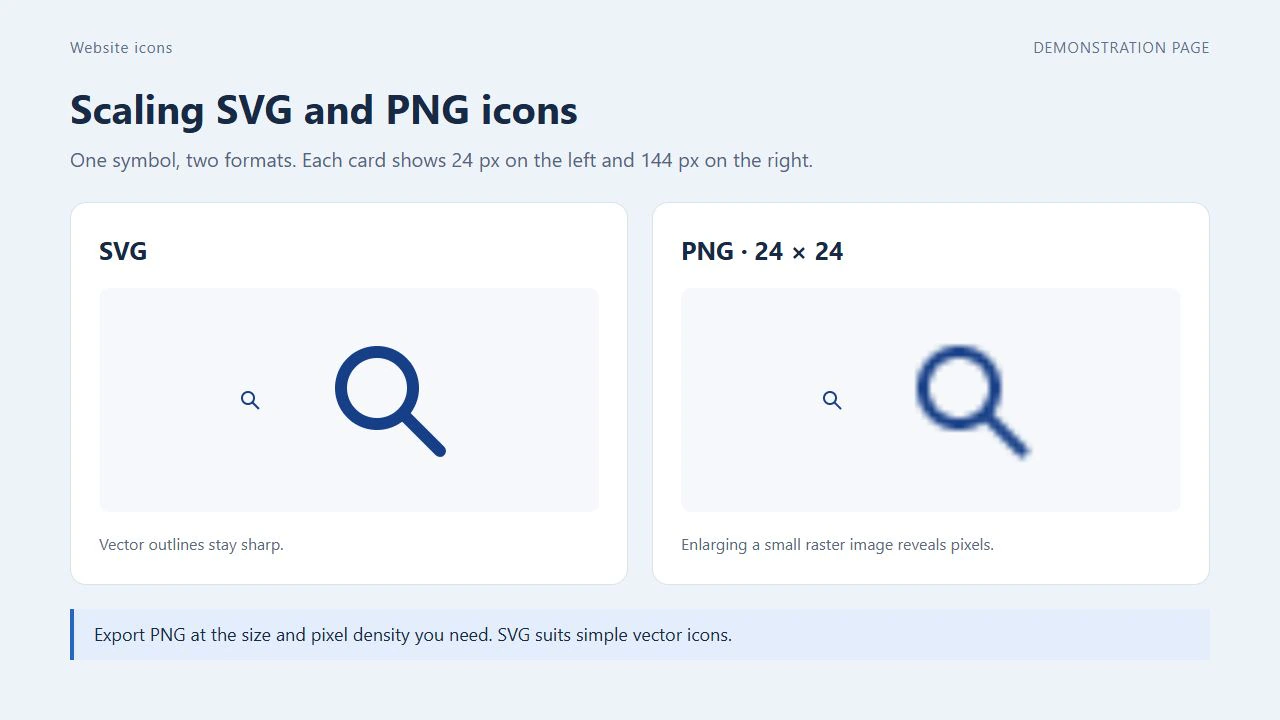
| SVG | Simple symbols, logos and interface elements | Vector outlines remain sharp when scaled. An SVG containing an embedded raster image does not turn that image into a vector |
| PNG | Raster icons with transparency and clearly defined edges | The source dimensions should suit the display size and screen pixel density |
| WebP | Coloured and three-dimensional raster icons | Supports transparency and lossy or lossless compression. Check the exported result |
| Icon font | A collection of symbols already used by a template or interface | Requires the font and its styles. Available icons depend on the particular collection and version |
For a simple magnifying glass or arrow, SVG is a useful starting point. For a detailed three-dimensional illustration, compare PNG and WebP. Choose based on quality at the intended display size and the actual file size, rather than the filename extension alone.
Avoid enlarging a small raster icon into a large illustration. A 24 × 24 pixel file displayed at 144 pixels wide, for example, will lose sharpness.
Where to find icons
Start with a library containing all the symbols you need in a consistent style. This makes it easier to maintain matching stroke widths, proportions and visual character.
| Source | What it offers | What to check |
|---|---|---|
| Bootstrap Icons | SVG files, an SVG sprite and an icon font | The MIT licence and required notices. The library can be used without Bootstrap |
| Lucide | Mainly outline SVG icons | The ISC licence and MIT notices for some icons inherited from Feather |
| Material Symbols | Google icons available as SVG, PNG and a font | The Apache 2.0 licence, selected style and appearance settings |
| Font Awesome | Free and paid collections, SVG files and fonts | Whether the icon belongs to Free or Pro, its version and the terms for the selected file type |
Font Awesome offers more than an icon font. In the Free package, SVG and JavaScript icons use CC BY 4.0, fonts use SIL OFL 1.1 and code uses MIT. Do not assume that the terms for one file type apply to the entire package.
The earlier Russian version of this guide used Iconfinder. When checked in November 2026, its address redirected to the Magnific icon catalogue. The old instructions describing filter positions and an Open in Icon Editor button therefore no longer apply.
Stock catalogues can be useful for coloured or three-dimensional images. Before downloading a particular set, check the available formats, usage terms and attribution requirements. A free download can still have conditions attached.
Choosing a consistent set
First, list the actions and concepts you need to represent. These might include search, contact details, delivery, payment and a customer account. Then check whether the selected library contains all the required symbols.
Consider the following:
- Meaning. The symbol should match the action or content.
- Consistency. Outline and filled icons can be combined deliberately, for example to show different states. Random combinations can look untidy.
- Legibility. Check each icon at the size visitors will actually see.
- Typography. Compare the icon’s stroke weight with the surrounding type.
- Contrast. The icon should remain distinguishable against its background.
- Licence. Keep the usage terms and source information with the project files.
For company logos, use the relevant brand’s official assets. A logo’s inclusion in an icon library does not replace the brand’s usage rules.
Downloading an individual SVG
If a page only needs a few icons, you may be able to use individual SVG files instead of loading an entire library.
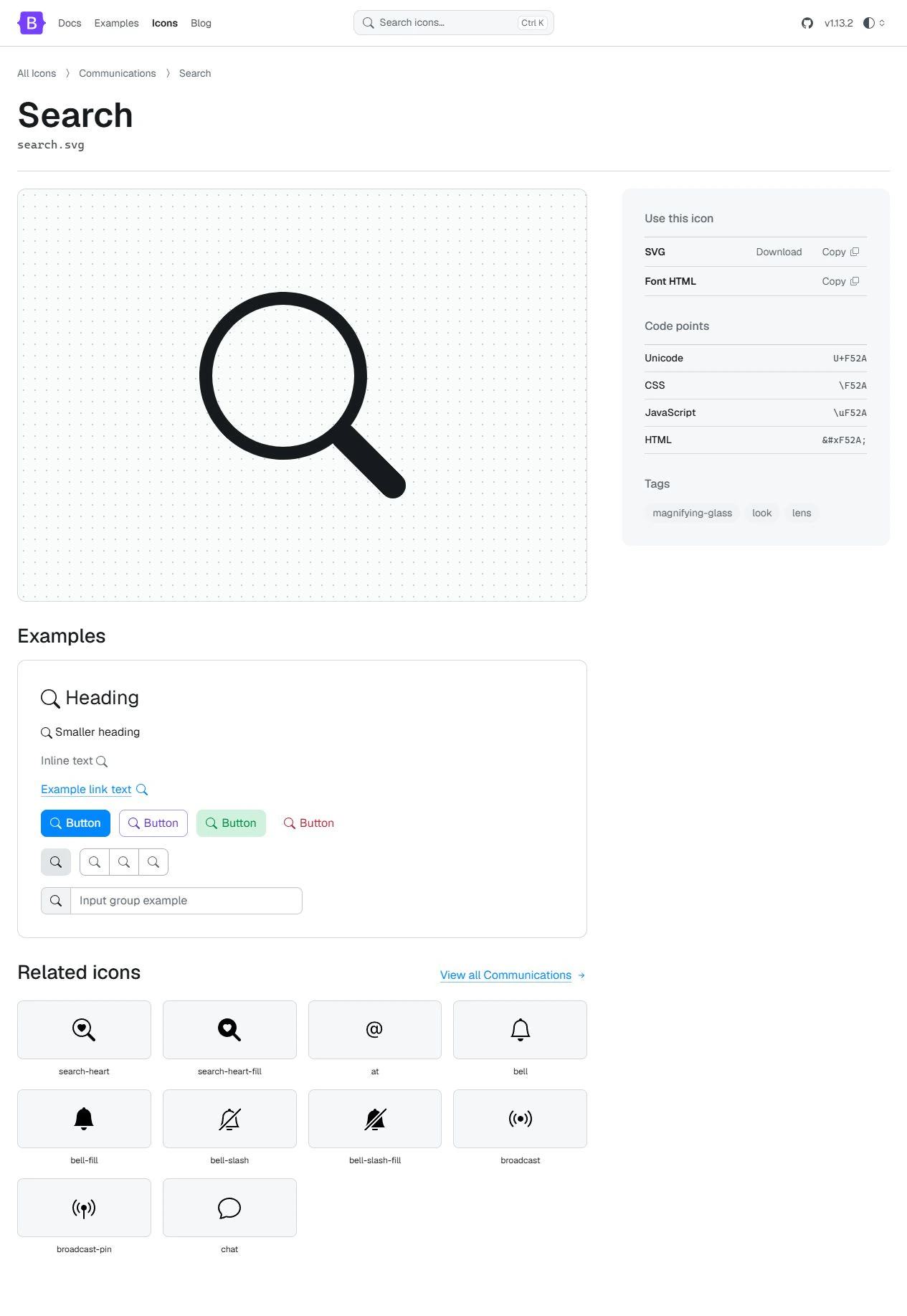
Using Bootstrap Icons as an example:
- Find the
searchicon in the catalogue. - Open its Search page.
- In the Use this icon panel, find the SVG row.
- Select Download to obtain
search.svg. - Keep the library’s licence and required notices with the project resources.
The Copy button beside SVG copies its markup. This is a different approach: the SVG code is inserted into HTML rather than loaded as a separate image.
Choose a method supported by your editor and template. For an ordinary image, a separate file is often easier to maintain than SVG markup embedded in an article.
Using icons in Joomla
In Joomla, the method depends on where the icon is needed. An image inside an article, a menu item icon and a symbol on an extension’s button may use different settings.
For an article or content block, you can use an individual image. Upload a supported file through the Media Manager, insert it using the editor and set its display dimensions. If SVG uploads are restricted, first establish why and how the site is intended to handle SVG files. Avoid disabling file checks simply to upload one icon.
For a menu item or button, first check the template’s and extension’s features. If an icon class field is provided, use a name from the documentation for the library actually loaded by the site. If an image selector is provided, select the appropriate file.
Joomla uses free Font Awesome icons, but this does not mean every icon on the Font Awesome website is available in every installed template. The collection, version and loaded styles all matter.
Check a class name before copying it from someone else’s example. An empty space or square in place of an icon can have several causes: an incorrect name, a missing style, an unloaded font or an icon belonging to a paid collection.
After saving, check the public page. The article editor and the website may use different styles.
Making icon buttons understandable
Icons should help people use the site, including those using a screen reader.
If a button already contains visible text beside an image, its image description usually does not need to repeat that text. For example, a decorative image beside the word “Search” can have an empty alt="" attribute. A decorative inline SVG can use aria-hidden="true".
A button containing only an icon still needs an accessible name. This can be supplied by visually hidden text or an aria-label attribute on the button itself.
Name the action: “Search”, “Open menu” or “Download file”. Describing the image as “Magnifying glass” or “Three lines” does not explain what activating the button will do.
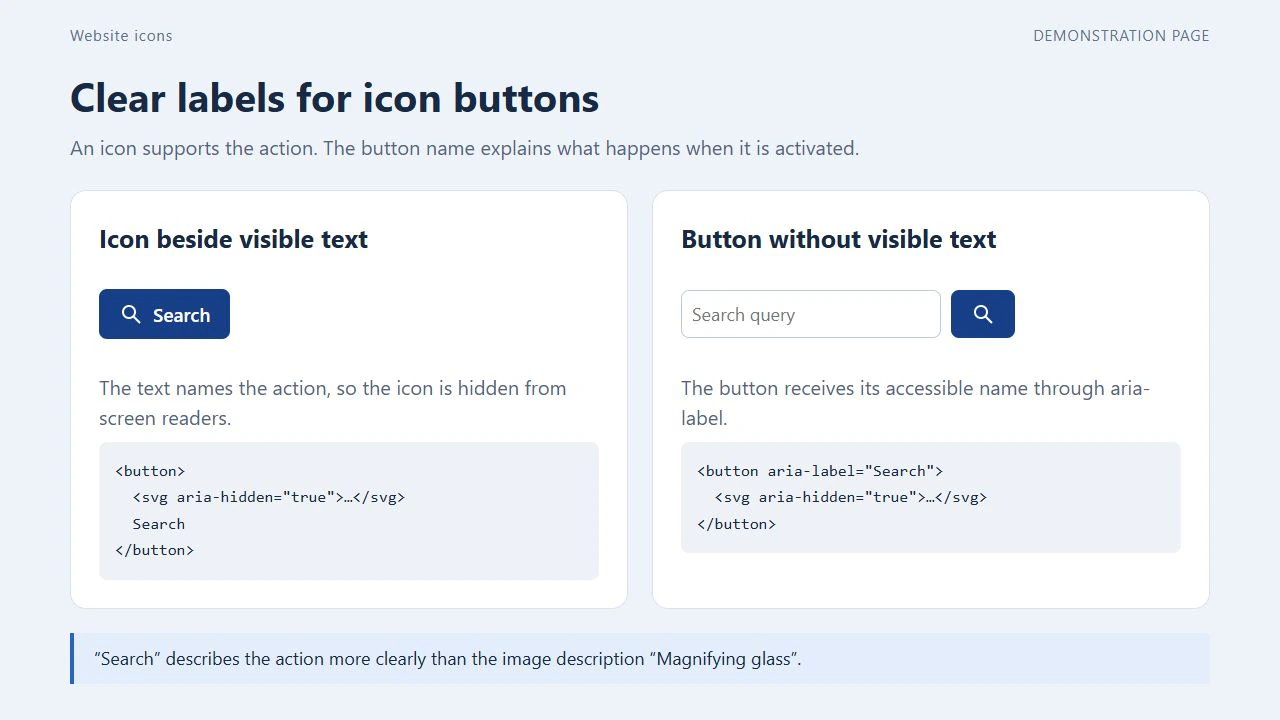
Keep the button itself available to assistive technologies. Hide the decorative icon while preserving the action’s name.
Use text for status messages too. For example, “Payment successful” communicates more clearly than a green tick alone.
Checks before publishing
Open the page on a computer and a phone. Check that:
- icons load correctly without empty squares;
- small details remain distinguishable at the actual display size;
- labels and icons do not overlap;
- buttons work with a keyboard and have a visible focus indicator;
- buttons without visible text have accessible names;
- raster files are not enlarged beyond a suitable size;
- the selected library’s licence requirements are met.
If a few icons require a large additional package, consider individual files or a smaller selection. Check the template’s existing resources before loading another copy of the same library.
Choosing icons for your website
For simple symbols, start with SVG and one consistent collection. For coloured raster images, compare PNG and WebP. If your Joomla template already provides suitable icons, explore its features before adding another library.
A useful icon makes sense in its context, remains legible at the intended size and has an appropriate label. These qualities help visitors use the website.
Terms used:
Media Manager, Package, Template, Apache, Bootstrap, HTML, JavaScript, Menu


