

Table of contents
This guide explains how to migrate a website from Joomla 3 to Joomla 4. Learn what to prepare, how to check your hosting environment and extensions, and how to test the upgrade before applying it to your live site.
Before Joomla 3.10 reached the end of support, its administrator dashboard displayed this warning:
Joomla 3.10 has entered security only mode. Support ends 17 August 2023. Start planning to migrate to Joomla 4 today.
This marked the final stage of the Joomla 3 lifecycle: development of new core features had stopped, and the remaining standard support focused on security. Standard support ended on 17 August 2023.
If your website still runs Joomla 3, start by assessing its extensions, template and hosting environment. Preparing these parts of the site is usually the most important part of the migration.
Why migrate from Joomla 3?
Joomla 4 introduced a new generation of the CMS, with an updated administrator interface, additional core features and a more modern technical foundation. Extension developers also released versions designed for the new platform.
Two common reasons for postponing migration are:
- The website already has all the features it needs and is used mainly for publishing content.
- The website depends on extensions or a template that do not support the next Joomla version.
A lack of new feature requirements does not remove the need to maintain the software. Compatibility problems require preparation: identify what can be updated, what needs replacing and what can be removed.
Why is this more than a routine update?
Three issues can prevent a straightforward migration:
- The installed Joomla version is older than 3.10.
- The server does not meet the requirements of the target Joomla version.
- Third-party extensions or the site template are incompatible.
Hosting settings can often be changed through the hosting control panel. However, changing PHP or other server software may affect the existing Joomla 3 website and its extensions.
Test those changes on a copy of the site first. Use an environment compatible with both the source site and the target Joomla version during the migration. If a change breaks the test site, restore the previous settings and investigate the cause.
Extensions need a separate review. Some Joomla 3 extensions were never adapted for Joomla 4. Check compatibility before starting the upgrade, including the compatibility of your template.
Pre-Update Check
Joomla 3.10 provides the Pre-Update Check tool to help assess whether the server and installed extensions are ready for the target Joomla version.
To access the migration checks:
- In the administrator menu, open Components → Joomla! Update.
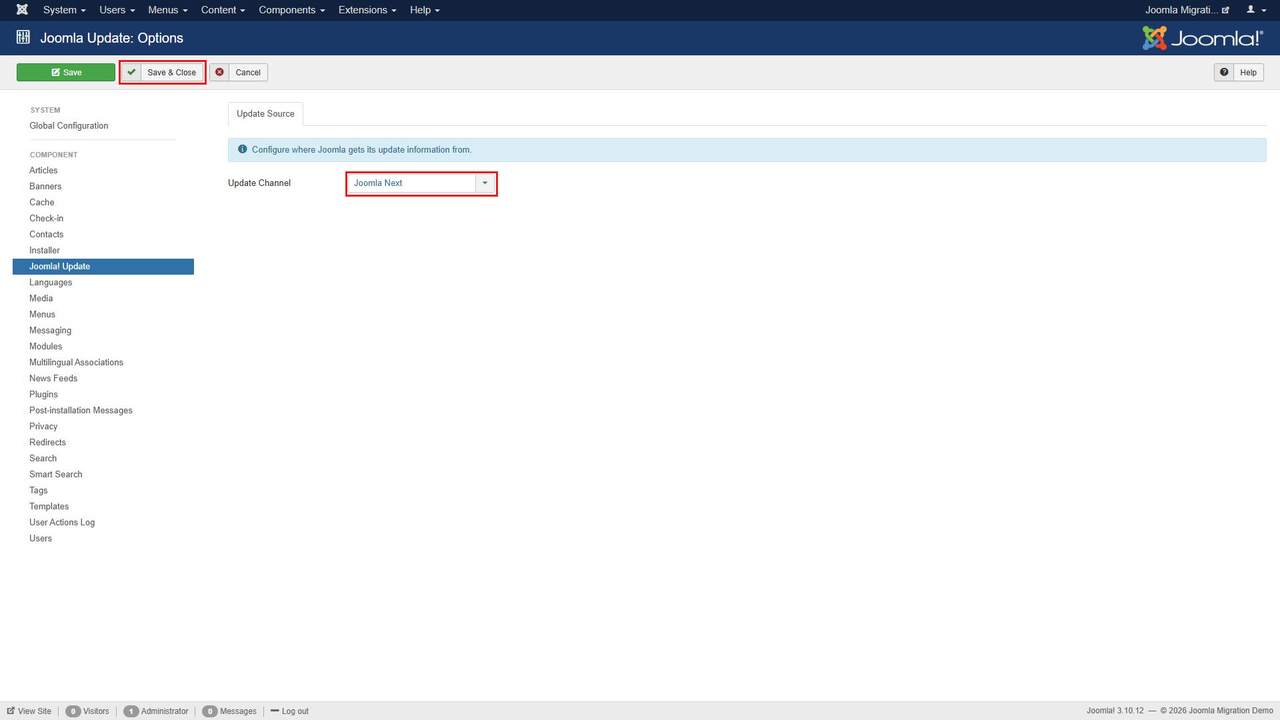
- Click Options.
- Set Update Channel to Joomla Next.
- Click Save & Close.
- When Joomla offers the Joomla 4 update, open Pre-Update Check and review the results.
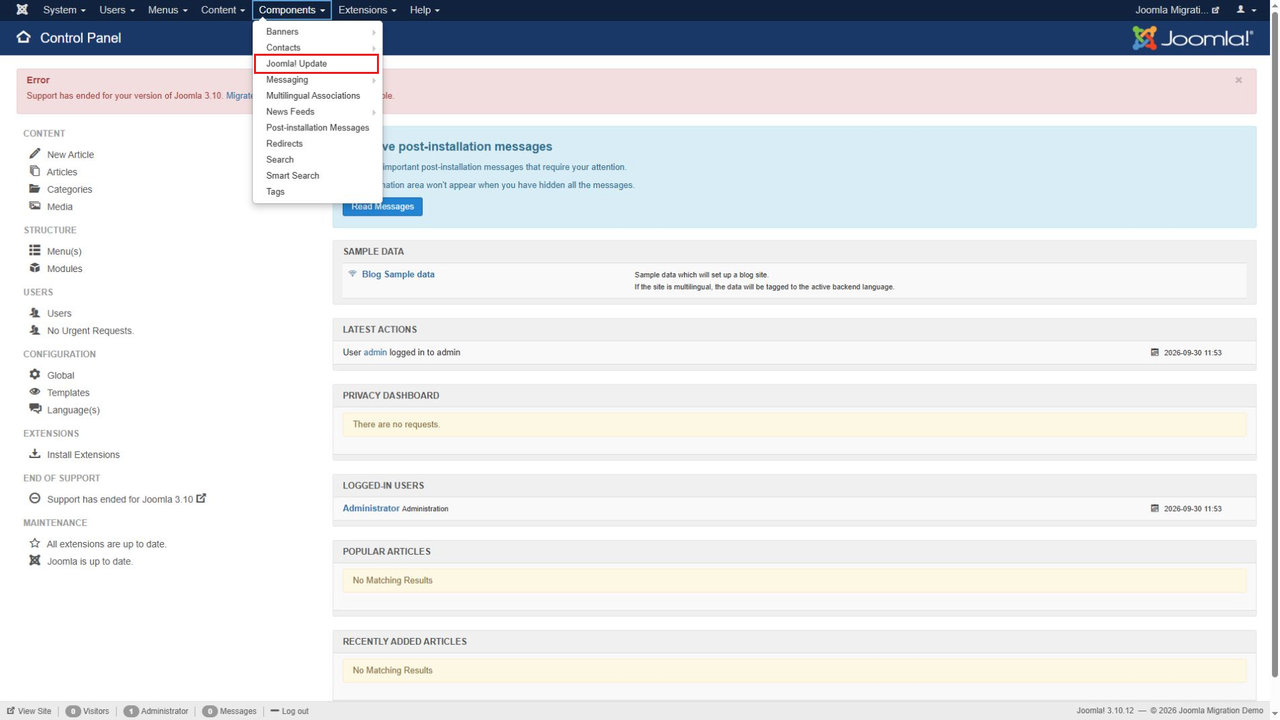
You can return to the update component through Components → Joomla! Update.
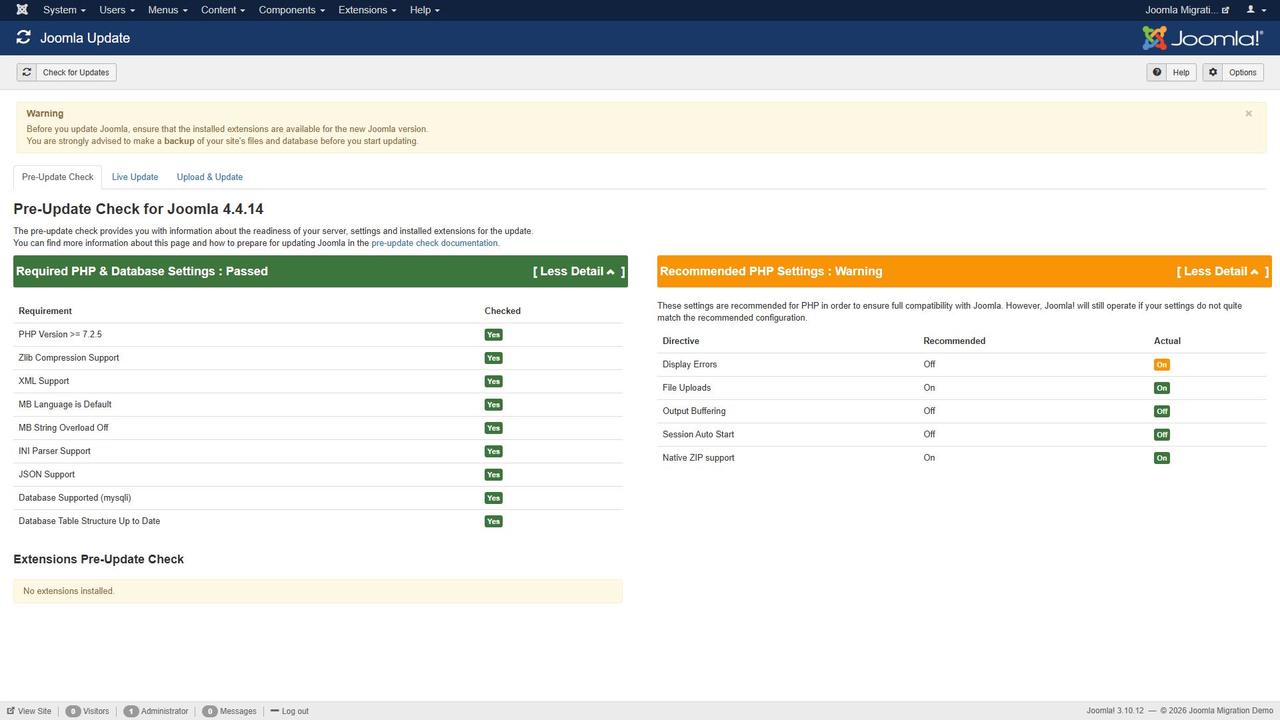
The checks cover three areas:
- Required PHP and database settings.
- Recommended PHP settings.
- Extension compatibility.
Click More Detail beside the relevant settings heading to see which items need attention.
Required PHP & Database Settings
These requirements must be met before proceeding.
The summary displays Required PHP & Database Settings : Passed when the checks pass, or Required PHP & Database Settings : Warning when something needs attention.
Review each reported issue. You may be able to change the relevant PHP settings or software version in your hosting control panel. If the required option is unavailable, contact your hosting provider or system administrator.
Recommended PHP Settings
These settings are recommended for compatibility, but a difference does not necessarily prevent Joomla from running.
The summary displays Recommended PHP Settings : Passed or Recommended PHP Settings : Warning.
Review the reported differences and adjust the settings where appropriate. As with the required settings, the changes are usually made through the hosting control panel.
Extensions Pre-Update Check
The Extensions Pre-Update Check section can require the most work, especially on websites with many third-party extensions.
The results are grouped under the following headings.
Pre-Update Checks Failed
Joomla could not complete the compatibility check. For example, the request to an extension’s update server may have timed out or returned an error.
This result does not prove that the extension is incompatible. Check the developer’s documentation and update service, then repeat the check.
Update Information Unavailable
Joomla has not received information identifying a compatible version for the selected target release.
The extension may not use Joomla’s update system, or the developer may not have supplied the required compatibility information. Check the developer’s website or the Joomla Extensions Directory.
Do not assume that an extension is safe simply because it is a language pack or a package. Verify the compatibility of the extension and any items it contains.
Update Required
An extension update is needed before upgrading Joomla.
Follow the developer’s migration instructions and install the appropriate version. Check that it supports the Joomla version on which you need to install it.
No Update Required
The extension developer reports that the installed version is compatible with the target Joomla release.
This is useful compatibility information, but it does not replace testing the extension after migration.
Some extensions may also display Potential Upgrade Issue. Open More Information beside the warning to review the details.
The warning indicates that the extension includes a plugin that could interfere with the upgrade. Joomla advises updating the extension to a compatible version or disabling the relevant plugins and checking again. Further plugin information is available on the Live Update tab.
For each affected extension:
- Check the developer’s migration instructions and compatibility information.
- If the extension supports Joomla 4, install the appropriate compatible version.
- Disable the relevant plugins before migration where instructed.
- After migration, enable only plugins confirmed to support the new Joomla version.
- If no compatible version exists, remove or replace the extension before proceeding.
Migrating to Joomla 4
Start with a test copy once the hosting environment and extensions are ready.
Follow these steps:
- Create a full backup. You can use a backup extension such as Akeeba Backup.
- Restore the backup to a test location. Use a subdomain or a local server. Configure the relevant PHP and database settings to match the intended migration environment; a subdomain does not necessarily inherit the live site’s settings.
- Sign in to the administrator area of the test site. Confirm that you are working on the copy.
- Run the compatibility checks again. Resolve outstanding requirements and follow the migration instructions for third-party extensions.
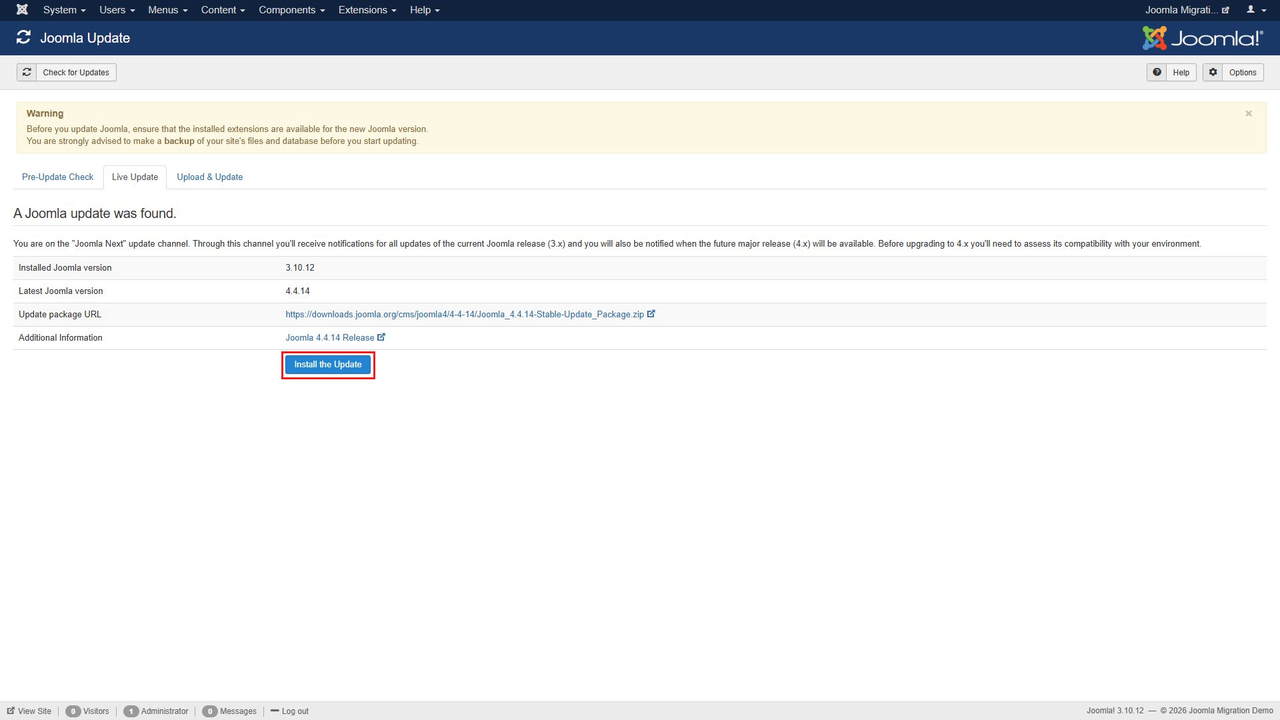
- Start the upgrade. Open Components → Joomla! Update → Live Update, review the offered version and click Install the Update.
- Wait for completion. Keep the update page open while Joomla processes the upgrade.
- Check the result. After a successful update, Joomla displays its new administrator interface and a confirmation containing the installed version number.
- Test the website. Check the frontend, administrator area, template, menus, forms and essential extension features. Resolve any problems before migrating the live site.
- Repeat the verified process on the live site. Take a fresh backup immediately beforehand and account for any content or configuration changes made since the test copy was created.
After completing this migration, plan the next upgrade steps to a supported Joomla release.
Video walkthrough
The original Russian-language video demonstrates the migration workflow. Use the English menu paths and interface labels in this article when following it in an English administrator interface.
Joomla migration service
If you would prefer help with the migration, we can assess your website, review extension compatibility and carry out the upgrade.
The work includes checking the existing installation, preparing a test copy, resolving compatibility issues and verifying the migrated website before applying the changes to the live site.
Learn more about the Joomla upgrade service.
Before you finish
A successful migration requires more than reaching the update confirmation screen. Verify that the site’s content, design and essential functions work correctly, keep a recoverable backup, and continue the upgrade path to a supported Joomla version.


