

Table of contents
- How the title tag differs from H1
- How to set an article's browser title
- How the menu item affects the title
- How to set a separate visible heading
- Examples of title priority
- Category and home page titles
- How to add the site name
- How to change the separator
- What makes a good title?
- How to check the result
- Final checks
The title tag sets the page name shown in the browser tab. In Joomla, its value depends on the article settings, the active menu item and the global site settings. This guide explains where to change the title, how it differs from H1 and how to check the result.
How the title tag differs from H1
The article title, page heading and title tag can contain the same text, but they serve different purposes.
| Element | Purpose |
|---|---|
| HTML title tag | The HTML document title inside head. It appears in the browser tab and provides the initial name for a bookmark. |
| H1 | The visible main heading inside body. Its markup is determined by the component layout or template. |
| Article title | The Title field in the Joomla article editor. It identifies the article in the article list, can appear on the page and can supply the title tag. |
| Page Heading | A menu item setting for the visible page heading. A separate setting controls whether it is displayed. |
| Browser Page Title | A field used to configure the title tag. Articles and menu items each have their own field. |
In the standard single article layout in Joomla 6, an enabled page heading is displayed as H1, with the article title as H2. If the page heading is disabled, the article title becomes H1, provided that displaying the article title is enabled.
Template overrides can change this markup. Do not automatically add an H1 to the article body: first check which heading the template already displays.
How to set an article's browser title
Open Content → Articles, select the article and open the Options tab. In the Layout section, fill in Browser Page Title.
For example, the article title can be “Installing Joomla”, while its browser title is “How to install Joomla — guide”. You do not need to change the article title.
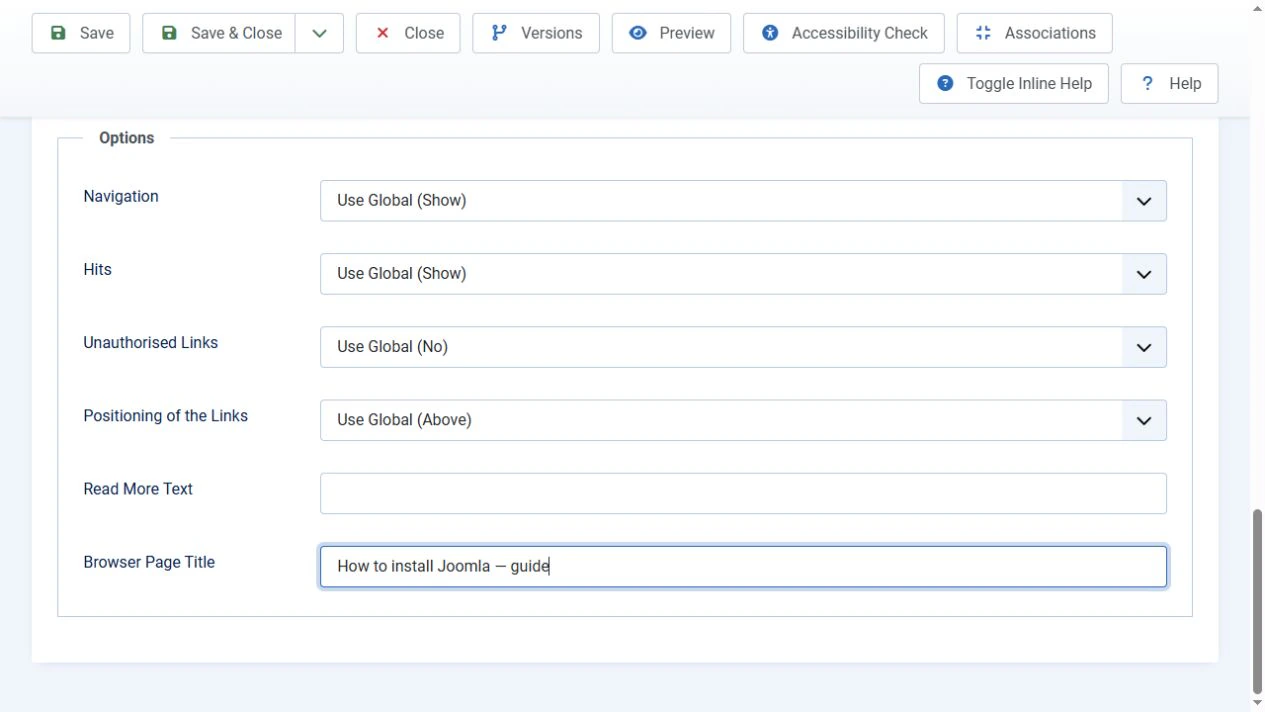
Save the article and open it on the site. If the result differs from the text you entered, check the menu item used to open the page.
How the menu item affects the title
For a single article page, the menu item Joomla considers active matters. In system URLs, this context is usually specified by the Itemid parameter. It may not be visible in an SEF URL.
The following order was verified for the standard single article view in Joomla 6.1.3:
- If the active Single Article menu item points to the article being viewed, Joomla uses that menu item's Browser Page Title, if filled in.
- If that field is empty, Joomla uses the article's Browser Page Title.
- If both fields are empty, Joomla uses the article title.
Do not assume that the menu item's name must supply the title of a single article page. In the test, the menu item was named “Start installation”, but with both browser title fields empty, the browser received the article title: “Installing Joomla”.
If the active menu item belongs to a category, blog or another article, the standard article view uses the current article's own browser title, falling back to its article title.
The existence of a menu item does not mean it controls the current request. Check the final URL after redirects. A system link without Itemid does not guarantee the absence of menu context either: the router can select it.
How to set a separate visible heading
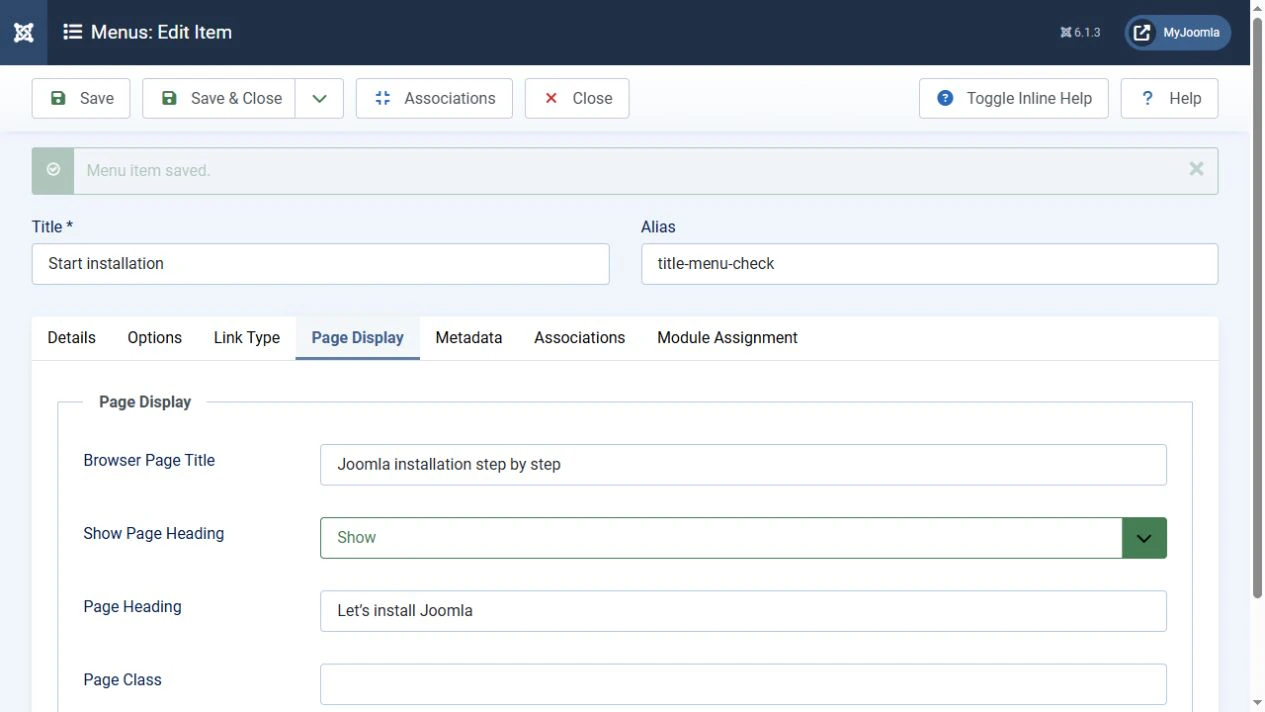
Open the relevant menu item and select the Page Display tab.
Browser Page Title controls the title tag. For a visible heading, set Show Page Heading → Show and fill in Page Heading.
The test example uses these values:
- menu item title: “Start installation”;
- browser page title: “Joomla installation step by step”;
- page heading: “Let’s install Joomla”;
- article title: “Installing Joomla”.
The resulting HTML contains three different titles and headings:
<title>Joomla installation step by step</title>
<h1>Let’s install Joomla</h1>
<h2>Installing Joomla</h2>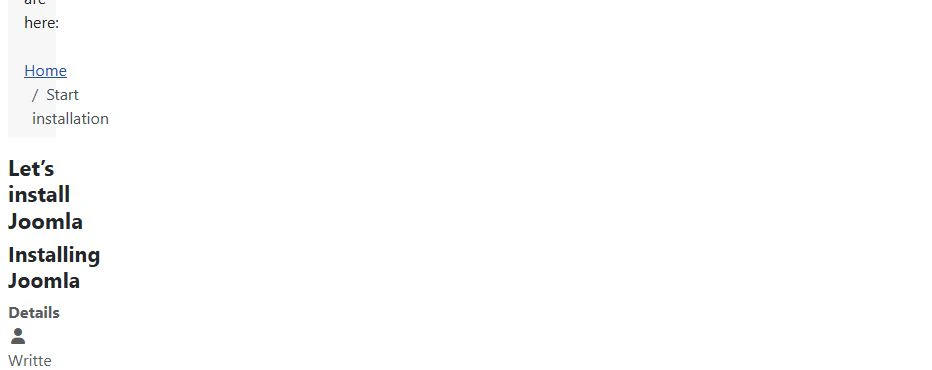
If you disable the page heading, the article title becomes H1 in the standard layout. This switch does not change the title tag itself.
If the visible heading field is empty, Joomla can use the menu item's browser title or its name. Set the visible heading explicitly for a predictable result.
Examples of title priority
The checks used a single article titled “Installing Joomla”. Adding the site name was disabled at this stage.
| Page context | Menu browser title | Article browser title | Resulting title |
|---|---|---|---|
| Article opened before its own menu item was created | — | How to install Joomla — guide | How to install Joomla — guide |
| Opened through its own menu item | Joomla installation step by step | How to install Joomla — guide | Joomla installation step by step |
| Same menu item, with its browser title cleared | Empty | How to install Joomla — guide | How to install Joomla — guide |
| Both fields cleared | Empty | Empty | Installing Joomla |
This sequence was confirmed by changing the settings and checking the resulting HTML. It applies to the standard com_content article component. Check the result separately when using a third-party component, an SEO extension or a template override.
Category and home page titles
A category and a single article are different pages. For a category blog or list, open the corresponding menu item and set Page Display → Browser Page Title. In the standard category view, the result also depends on whether the active menu item matches the category being viewed; without a suitable value, Joomla uses the category title.
For the home page, find the menu item marked as the home page and check its type. A home page can display featured articles, a category blog or a single article. Its type affects how the title is generated, so “the home page always uses the site name” is not a valid rule.
On a multilingual site, check the home menu item for each language separately.
How to add the site name
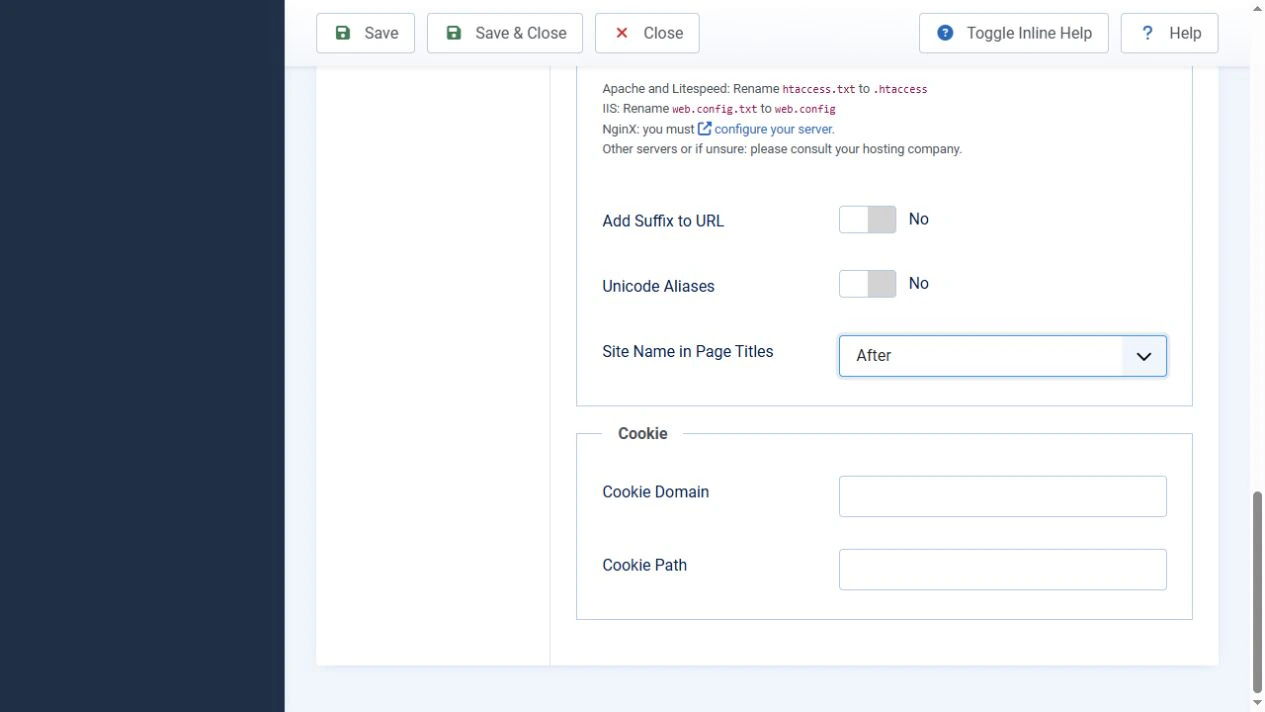
Open System → Global Configuration → Site. Under SEO, find Site Name in Page Titles.
This setting is applied after Joomla selects the main title. For a site named MyJoomla, the local checks produced the following results.
| Setting | Resulting title |
|---|---|
| No | How to install Joomla — guide |
| Before | MyJoomla - How to install Joomla — guide |
| After | How to install Joomla — guide - MyJoomla |
Do not add the site name manually to every field if it is already added automatically: this can produce a duplicate.
How to change the separator
The standard separator between the two parts is a hyphen with spaces. Its format is defined by the JPAGETITLE language constant.
Open System → Manage → Language Overrides, select the required language and the Site client. Create an override for JPAGETITLE and enter, for example:
%1$s | %2$sKeep both placeholders: they represent the two parts of the title. The global site name setting determines their order. Create a separate override for the second language. There is no need to edit core files.
What makes a good title?
Write a clear title that accurately describes the specific page. Use distinct titles for different standalone pages so readers can understand how one result differs from another.
Do not make titles unique by adding random characters, and do not use a comma-separated list of keywords. Put important information near the beginning, use the page's language and avoid promises the article does not fulfil.
A guideline of around 50–60 characters can help with editing, but it is not a hard HTML limit or a universal search engine rule. The visible length also depends on character widths and the device.
A search engine can shorten or replace the title shown in its results, using the title tag, visible headings and other sources. A well-written title helps describe the page, but it does not guarantee unchanged wording in search results or a particular ranking.
How to check the result
Check the page at the URL your visitors use.
- Save the settings and open the page on the site.
- Find
<title>inside<head>in the HTML source. - Check H1 and H2 separately in the content area.
- Compare opening the article through its own menu item and through a category, if both routes are available.
- If the old result persists, check Joomla's cache, extension caches and external caching. Make sure you edited the correct language and menu item.
If the result still differs, check SEO plugins and template overrides: they can change the title after the standard settings have been processed.
Final checks
The title should accurately describe the page, the visible H1 should match its subject and the site name should not be duplicated. Check the relevant menu item, language and resulting HTML. This approach helps identify the source of the title and avoids editing the wrong field.


