

Table of contents
A table of contents helps readers understand a long article and jump straight to the section they need. In Joomla, Quick Index can generate it from the headings in your text. This guide explains article structure, index tags, the differences between Free and Pro, and how to display contents in a sidebar.
What Quick Index does
Quick Index builds a list of links from the headings in your content. When you add or rename a section, you do not need to update a separate list of contents manually.
This guide covers Quick Index 5.1.0. The developer lists support for Joomla 4, 5 and 6 and requires PHP 8.2 or later. Support for Joomla 4 does not make that branch a suitable choice for a new website. Joomla 3 used older releases of the plugin, which this guide does not cover.
The instructions focus on standard Joomla articles. For a page builder or another component, check how the plugin processes its tags and headings before applying the same setup.
Prepare your article headings
The table of contents should reflect the structure of your text. Use real H2 and H3 headings in the editor rather than ordinary paragraphs styled with large, bold text.
Your template usually displays the article title as H1. In that case, do not add another H1 at the start of the article body. Use H2 for main sections and H3 for subsections. Choose heading levels for their place in the structure, rather than their font size.
Example article structure:
<h2>Preparation</h2>
<p>What you need before you begin.</p>
<h3>Check your version</h3>
<p>How to identify the installed Joomla version.</p>
<h3>Create a backup</h3>
<p>Which data to save before making changes.</p>
<h2>Setup</h2>
<p>The steps to follow.</p>
You do not need to add IDs to headings manually for Quick Index. The plugin generates the anchors. Check the links on the page after changing its structure.
Numbering is optional. An ordered list can suit a step-by-step guide, while a bulleted list may suit a reference article. Clear labels and working links matter in either case.
Install and enable the plugin
Test the extension on a copy of your website first. Choose an installation package that supports your Joomla and PHP versions.
- Open System → Install → Extensions in Joomla.
- Upload the Quick Index installation ZIP package.
- Open the plugin list and find System - Regular Labs - Quick Index.
- Make sure the plugin is enabled.
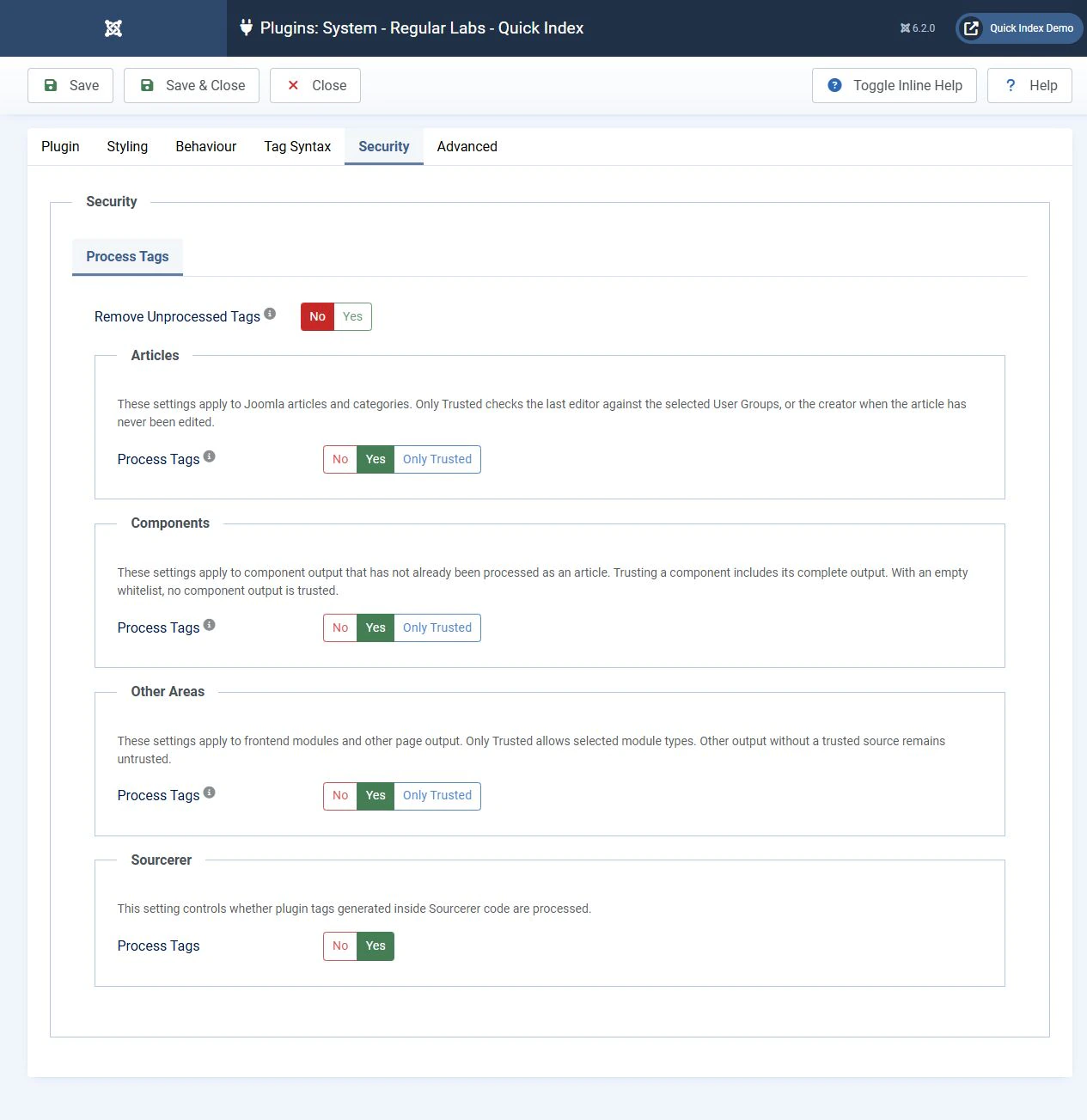
In Quick Index 5.1.0, open Security → Process Tags. These settings control tag processing separately for articles, components and other areas of the page. If a tag does not work, check the relevant area. Avoid enabling processing everywhere to resolve a single case.
Add contents to an article
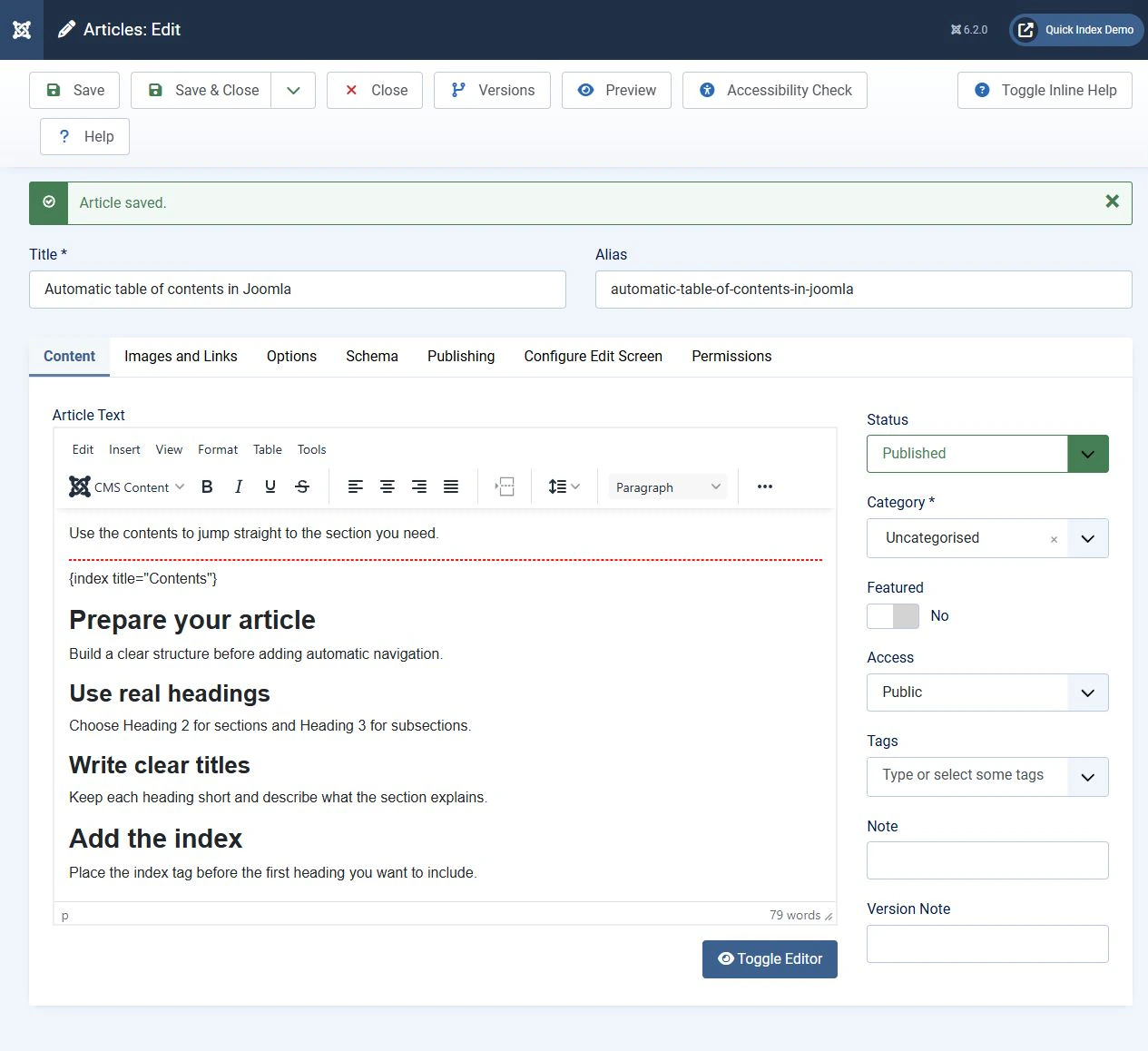
The Free version supports manually inserting a table of contents. Place {index} in its own paragraph before the first heading you want to include.
A useful position is after a short introduction and before the first section. To keep the contents out of the article preview, place the tag after the Read More separator.
<p>{index}</p>
<h2>Preparation</h2>
<p>Section text.</p>
<h2>Setup</h2>
<p>Section text.</p>
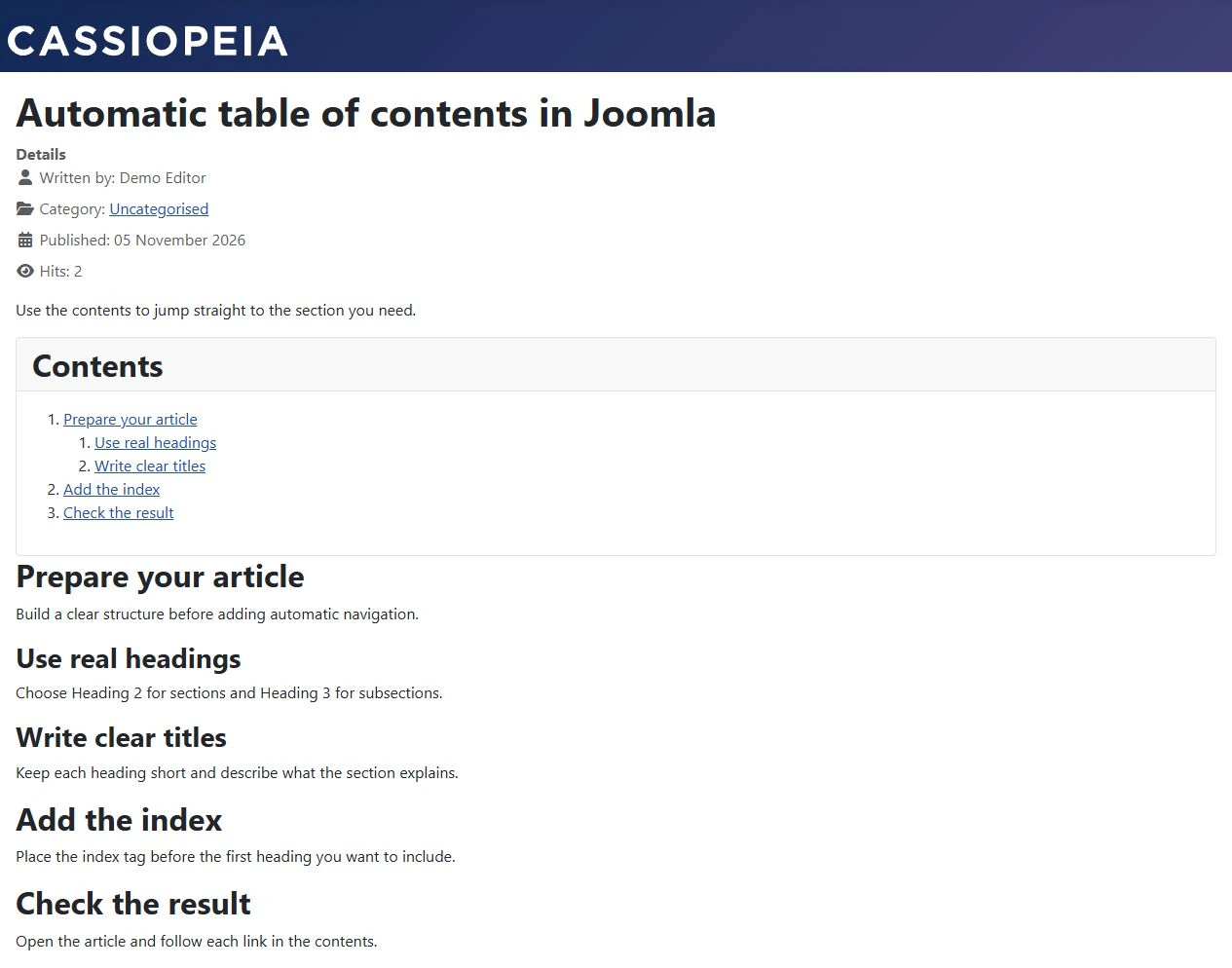
Quick Index collects headings that follow the tag. If you place it halfway through an article, earlier sections will not appear in that index.
To give the block a custom title, use the title parameter, for example {index title="Contents"}. The screenshots show this option.
Use {/index} to end the processing area. Another opening {index} tag also starts a new area. This is useful when a long article needs separate lists for different parts.
For a bulleted list, use {index ordered="false"}. To exclude an individual heading, give it the noindex class. To exclude a whole section of content, surround it with {noindex} and {/noindex}. This excludes content from the Quick Index table of contents. It does not prevent search engines from indexing the page.
Compare Free and Pro
The Free version is enough when an author inserts the index tag where it is needed. Pro adds automatic insertion and further display and styling options.
| Feature | Free | Pro |
|---|---|---|
Contents generated with {index} |
Yes | Yes |
| Ordered or bulleted lists | Yes | Yes |
| Exclude headings and content blocks | Yes | Yes |
| Styling with CSS classes | Yes | Yes |
| Automatic insertion with Auto Index | No | Yes |
| Display article contents in a module | No | Yes |
| Select a range of heading levels | No | Yes |
| Additional numbering styles | No | Yes |
| Automatic numbering of headings | No | Yes |
For example, in Pro, {index min="2" max="3"} limits the contents to H2 and H3 headings. Do not expect Pro parameters to work in Free.
Enable Auto Index for a category
Auto Index in Pro automatically adds contents at the start of articles. It can be useful for a category containing long guides with a similar structure.
Enable Auto Index in the Quick Index settings. Set Categories to Include and choose the required categories under Selection. Exclude does the opposite and leaves the selected categories out of automatic insertion.
Also on child items controls how child categories are handled:
- No includes only the selected category.
- Yes includes the selected category and its descendants.
- Only includes the descendants without the selected category itself.
Start with one test category. Check both the full article and the category blog page so that contents do not appear where a short introduction is enough.
Display contents in a module
Quick Index Pro can display the contents of the current article elsewhere on the page, such as a sidebar. The article must already have an index generated by {index} or Auto Index. You do not have to enable Auto Index specifically for module output.
- Create a Custom module.
- Insert
{index article="current"}in its own paragraph. - Assign the module to a suitable template position and the required menu items.
- Check the result on an individual Joomla article page.
According to the developer's documentation, this automatically hides the index inside the article. It moves the navigation into the module rather than displaying two identical lists at once.
To use a specific article, replace current with its ID, for example {index article="12"}. The number 12 is an example. Replace it with the actual ID of your article.
If the tag appears as plain text, check the processing areas allowed in Quick Index. Module content preparation settings and the plugin's processing restrictions are separate controls.
Check the navigation
A correctly generated list still needs checking in your website's template and on different screen sizes.
Each link should lead to the corresponding heading. A fixed header should not cover the start of the section. A long sidebar index should remain accessible without overlapping the footer. On a phone, it should not occupy almost the entire first screen.
Smooth scrolling and highlighting the current section are separate presentation features. A template using Bootstrap does not guarantee either behaviour. Check the actual page, including keyboard navigation.
When a setting asks for a CSS class, enter the name without a dot, for example table-of-contents. The dot belongs in a CSS selector such as .table-of-contents, rather than in the class name.
Troubleshoot missing contents
Start with a simple article containing {index} in its own paragraph and two H2 headings after it. This helps distinguish a plugin issue from a problem with your markup or template.
If the tag remains visible as text, check that Quick Index is enabled, that processing is allowed, and that the editor has not inserted HTML inside the shortcode. If a heading is missing, check its level, its position relative to {index}, and any noindex exclusions.
If the list appears but looks wrong, check your template styles and styling classes. Collecting headings and displaying the resulting list are separate parts of the setup.
Conclusion
To add contents to an individual Joomla article, start with a clear heading structure and the {index} tag. Consider Pro when you need automatic insertion by category, a specific range of heading levels, or module output. Check the links, mobile layout and long articles after setup. The contents should help readers reach a section faster without getting in the way.


