


Table of contents
A JoomShopping product can be available at several addresses, through different categories, menu items or an old URL. This guide explains how to check duplicate pages in Joomla, configure Product canonical and Product Seo, and keep useful catalogue pages accessible to search engines.
Which pages are duplicates?
Start with the page content rather than the length or appearance of its address. Two URLs displaying the same product may be duplicates. A second category page containing different products is a separate part of the catalogue.
Check three situations in your Joomla shop:
- A product belongs to several categories. For example, the sample URLs
/shop/shoes/model-aand/shop/sale/model-adisplay the same product. - An old address still opens after you change an alias or the menu structure.
- A category is accessible through different menu items or an alternative component route.
Segments such as product/view or category/view do not prove that a URL is a duplicate. Compare the content, final address and server response. On a particular site, the URL may display a page, redirect visitors or return an error.
What to check before making changes
Back up your shop and test changes on a copy before installing extensions. Record several working product and category URLs so that you can compare the results afterwards.
- Check the Alias field for products and categories. An alias helps create a readable address, but does not redirect old links by itself.
- Open Components → JoomShopping → Configuration → Other config. Auto save alias fills an empty alias when an item is saved. Enabling it does not immediately repair all existing records.
- In the same section, check the option for using the main product category and the main category selected in the product details. These settings affect link generation.
- Check the menu items that open your catalogue. An additional menu item can create another route to the same content.
- View the product page source and find
rel="canonical". First establish whether an existing SEO extension already generates this tag.
How to configure Product canonical
Product canonical adds a link to the product URL through its main category in the page HTML. This tells search engines which URL you prefer. Visitors remain on the page they opened, as the plugin does not perform a redirect.
The developer lists Joomla 4–6 and JoomShopping 5.0.0+ support for Product canonical 5.1.1. Packages for Joomla 3 and JoomShopping 4 belong to older branches for which the developer no longer provides support for this extension.
- Install the appropriate package through the Joomla extension installer.
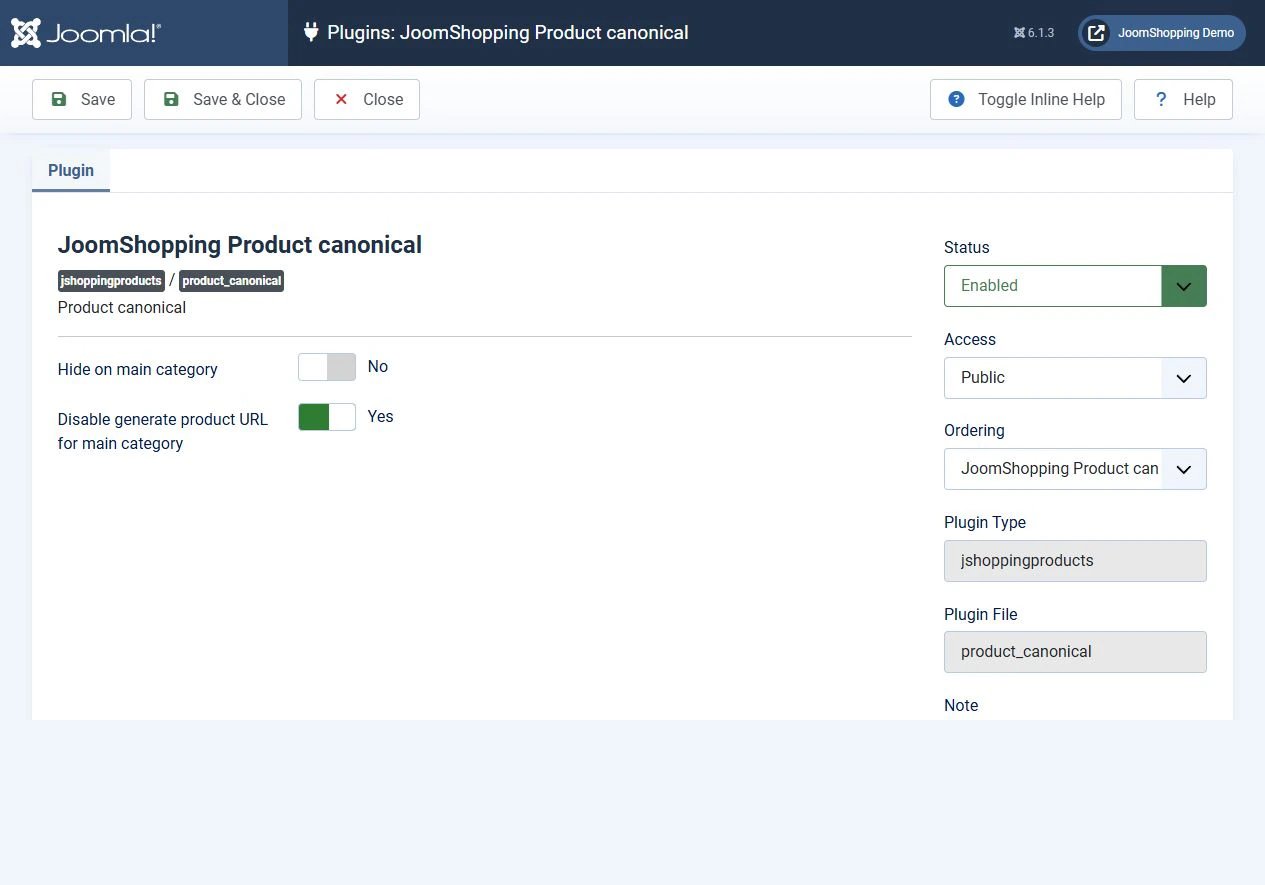
- Open the plugin list, find JoomShopping Product canonical and enable it.
- Check Hide on main category. When enabled, the plugin omits its canonical tag when the product is opened in its main category. Disable the option if you want the tag there too.
- Check Disable generate product URL for main category. When enabled, the plugin disables the use of the main category while preparing product links in lists. This option does not disable the canonical tag.
- Open the same product through different categories and compare the canonical tags in the page source.
Use the product's main category rather than its position in a visible list. Routing and shop menu items also affect the resulting URL.
When to use Product Seo
Product Seo changes product URL generation by removing the category segment. A sample address such as /shop/shoes/model-a may become /shop/model-a. The exact result depends on the menu structure.
The developer lists Joomla 4–6 and JoomShopping 5.0.0+ support for Product Seo 2.0.8. Install the add-on through JoomShopping → Install & Update, rather than as a standard Joomla plugin package. On a fresh installation, its installer creates and enables two JoomShopping Product Seo plugins in the jshoppingrouter and jshoppingadmin groups.
Check product, category and manufacturer aliases before installing it. The add-on checks some conflicts when items are saved, but does not replace a preliminary review of the existing catalogue.
After installation, check new links from categories and modules, then open the old URLs you recorded. A change to generated links does not mean that old addresses automatically receive a 301 redirect.
Product canonical and Product Seo serve different purposes. If you use them together, make sure the canonical tag points to your chosen working URL and does not conflict with another SEO extension.
How to handle category URLs
Product canonical works with product pages, while Product Seo changes product routes. They are not a complete solution for every category URL.
If two URLs display the same category and product selection, choose a preferred route. Use it in menus and internal links. Set up a permanent redirect for an unnecessary alternative address, or use a suitable canonical mechanism if that address must remain accessible.
Check pagination separately. When subsequent pages contain different products, do not point every page's canonical tag to the first page. Each pagination page should have its own canonical URL.
Filters and sorting also need separate decisions. A useful landing page with a product selection and a technical reordering of the same list are different cases.
Why robots.txt is not enough
The Disallow directive prevents crawling of matching URLs. It neither selects a canonical page nor guarantees that an address will disappear from search results. If crawling is blocked, a search engine cannot read the canonical tag on that page.
Do not block every address containing product/view or category/view based only on its appearance. First establish which pages these URLs open and how they should be handled.
How to check the result
Check specific URLs after each change so that you can identify what affected the result.
- The preferred URL displays the correct page with a 200 response.
- The page does not contain conflicting canonical tags.
- The canonical link points to an accessible page in the correct language, without errors or a redirect chain.
- Products open from both categories, modules and recorded old links.
- Navigation, filters, pagination and adding products to the basket still work.
- Internal links and the sitemap use the chosen preferred URLs.
After the pages have been crawled again, check the Google-selected canonical URL in Google Search Console. A canonical tag is a signal, not a guarantee. Do not assess the result solely with a site: search.
Conclusion
Handling JoomShopping duplicates starts with checking routes and content. Product canonical helps specify a preferred product URL, while Product Seo changes generated product links. Check categories, pagination and old URLs separately. Consistent internal links, canonical tags and redirects give your catalogue a clear structure without unnecessary crawl restrictions.


