

Table of contents
Updating Joomla fixes bugs and security issues, improves the CMS and adds features. This guide covers preparation, updates within a major version, upgrades to the next major version, post-update checks and troubleshooting.
Updates and major version upgrades
The preparation required depends on which parts of the version number change.
A patch update, such as 6.1.3 → 6.1.4, addresses bugs and security issues. A minor update, such as 6.0 → 6.1, may introduce features. In both cases, the site remains on the Joomla 6 major version.
A major version upgrade, such as Joomla 5 → 6, requires a separate review of the server, extensions and template. It may remove deprecated features that third-party code still uses.
Before upgrading to Joomla 5, prepare the site on Joomla 4.4. Before upgrading to Joomla 6, update it to Joomla 5.4. Sites running Joomla 3 or earlier need a separate migration plan. Installing the latest archive over an old site does not replace a migration.
What to check before updating
Start with the Joomla version, server configuration and installed extensions. Then prepare a backup and a test site.
PHP and database requirements
Check the current versions under System → System Information. Compare them with the requirements of the Joomla version you intend to install.
| Software | Joomla 5.x: minimum | Joomla 6.x: minimum / supported baseline |
|---|---|---|
| PHP | 8.1.0 | 8.3.0 / 8.3.0 |
| MySQL | 8.0.13 | 8.0.13 / 8.0.13 |
| MariaDB | 10.4.0 | 10.4 / 10.6 |
| PostgreSQL | 12.0 | 12.0 / 14.0 |
You need one of the listed database systems. For Joomla 6, the technical minimum for MariaDB and PostgreSQL is lower than the supported baseline. When preparing a server, use at least the supported versions.
The minimum is a compatibility threshold, not a recommendation for a new server. Consider support for PHP and the database system themselves, extension requirements and the versions offered by your host. The Joomla 6 documentation recommends PHP 8.4.
Also check the required PHP modules and memory limit: Joomla recommends at least 256 MB. Test a PHP version change on a copy of the site first.
Extensions and template
Review components, modules, plugins, the template and its framework. Include custom code and template overrides.
For each third-party product, establish:
- whether the installed version supports the target Joomla and PHP versions;
- whether it needs updating before the upgrade or additional work afterwards;
- whether it requires a backward compatibility plugin;
- whether a replacement is available if development has stopped.
Update extensions in the order specified by their developers. Replace or uninstall incompatible products after preserving any data you need.
Backup and trial update
Back up the site files and database from a consistent point in time. A files-only backup is insufficient.
Store the backup separately from the site being updated. Test restoration: an archive that has not been restored does not yet demonstrate that rollback will work.
Restore a copy on a local server or a private test URL. Where possible, match the production PHP version, database version and settings. Prevent the test copy from sending real emails, processing payments or triggering other external operations.
Run a trial update and record any extra steps. Take a fresh backup immediately before updating production. For sites with orders or registrations, plan how to avoid losing new data if restoration becomes necessary.
What the pre-update check tells you
Before a minor update or major upgrade, the update component may display a Pre-Update Check. A separate check screen may be absent for a routine patch update.
The check helps identify unsuitable server settings and reports extension compatibility information. Its results depend on the information supplied by extension developers.
Missing information does not prove incompatibility. A green result does not guarantee that every extension feature or custom modification works correctly either. Compare the results with developer documentation and tests on your staging site.
How to update Joomla
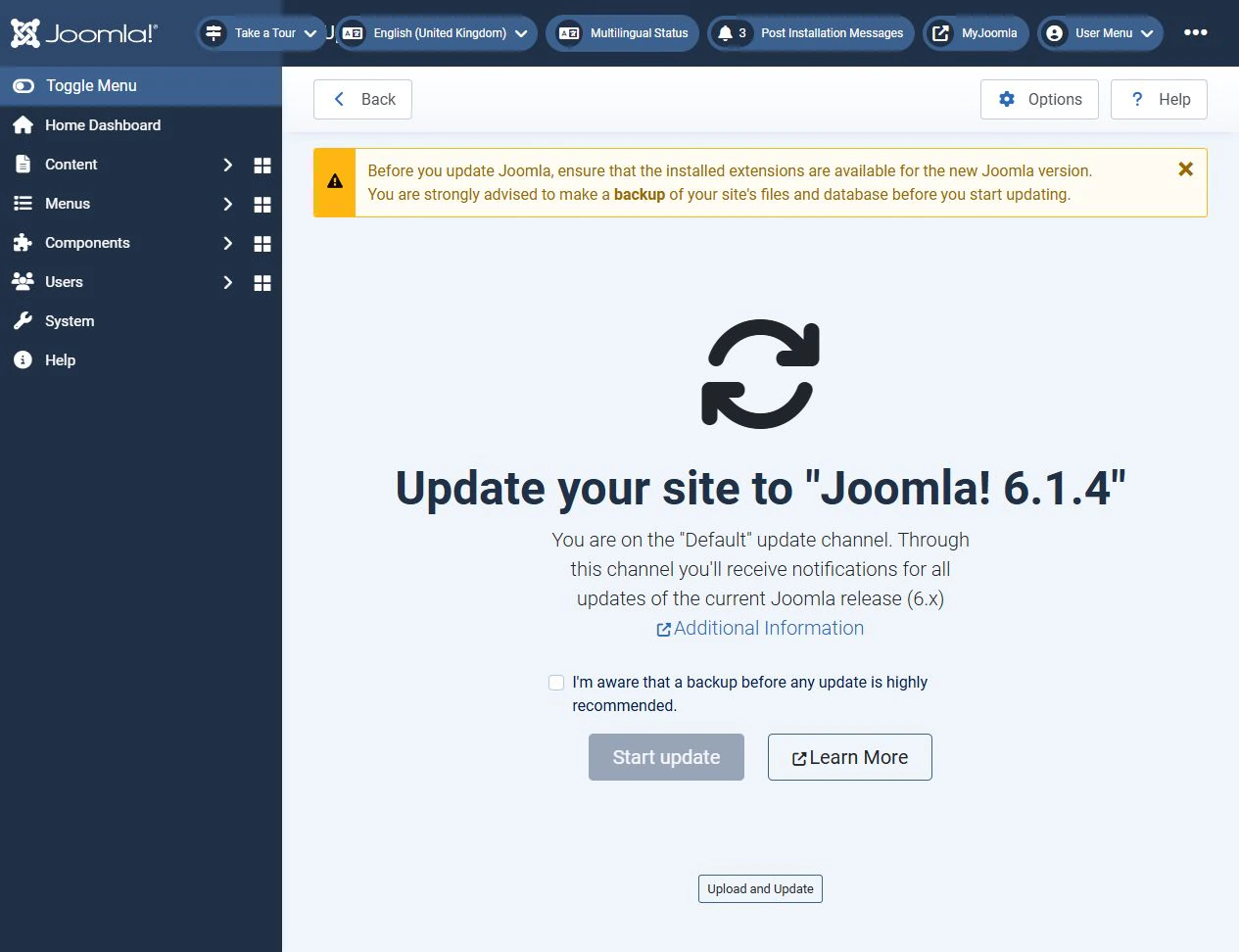
Use the built-in Joomla Update component. Open it through System → Update → Joomla or the notification on the Home Dashboard.
Let the server download the update
Check the proposed version and any pre-update results. Once you have created a backup and verified compatibility, select the confirmation checkbox and click Start update.
Wait for the completion message. Do not start another update or modify site files while installation is in progress.
Upload a package from your computer
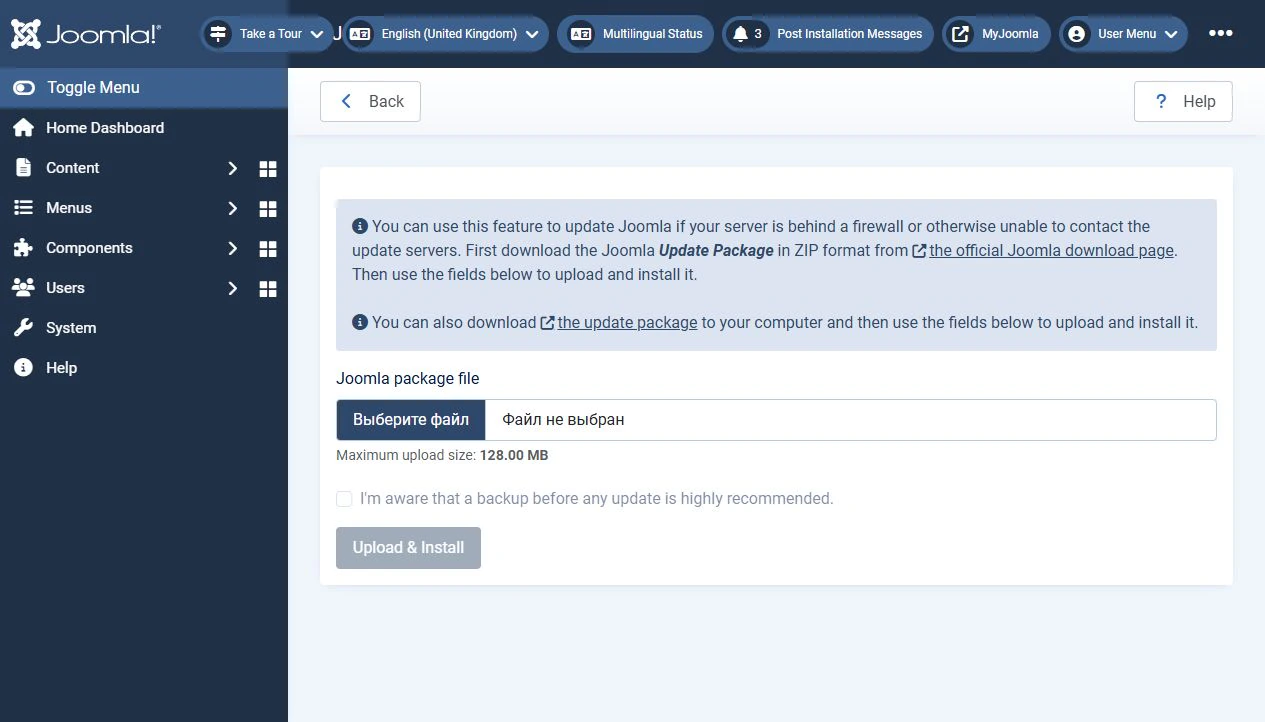
If the server cannot download the archive, open the Joomla Update component and select Upload and Update.
Download the ZIP update package for the required version and supported upgrade path from this site's Joomla downloads page. Select the archive in Joomla package file, confirm that you have a backup, then upload and install it.
Do not confuse an update package with the full package for a new installation. Uploading an archive does not bypass server or compatibility requirements.
Automated core updates
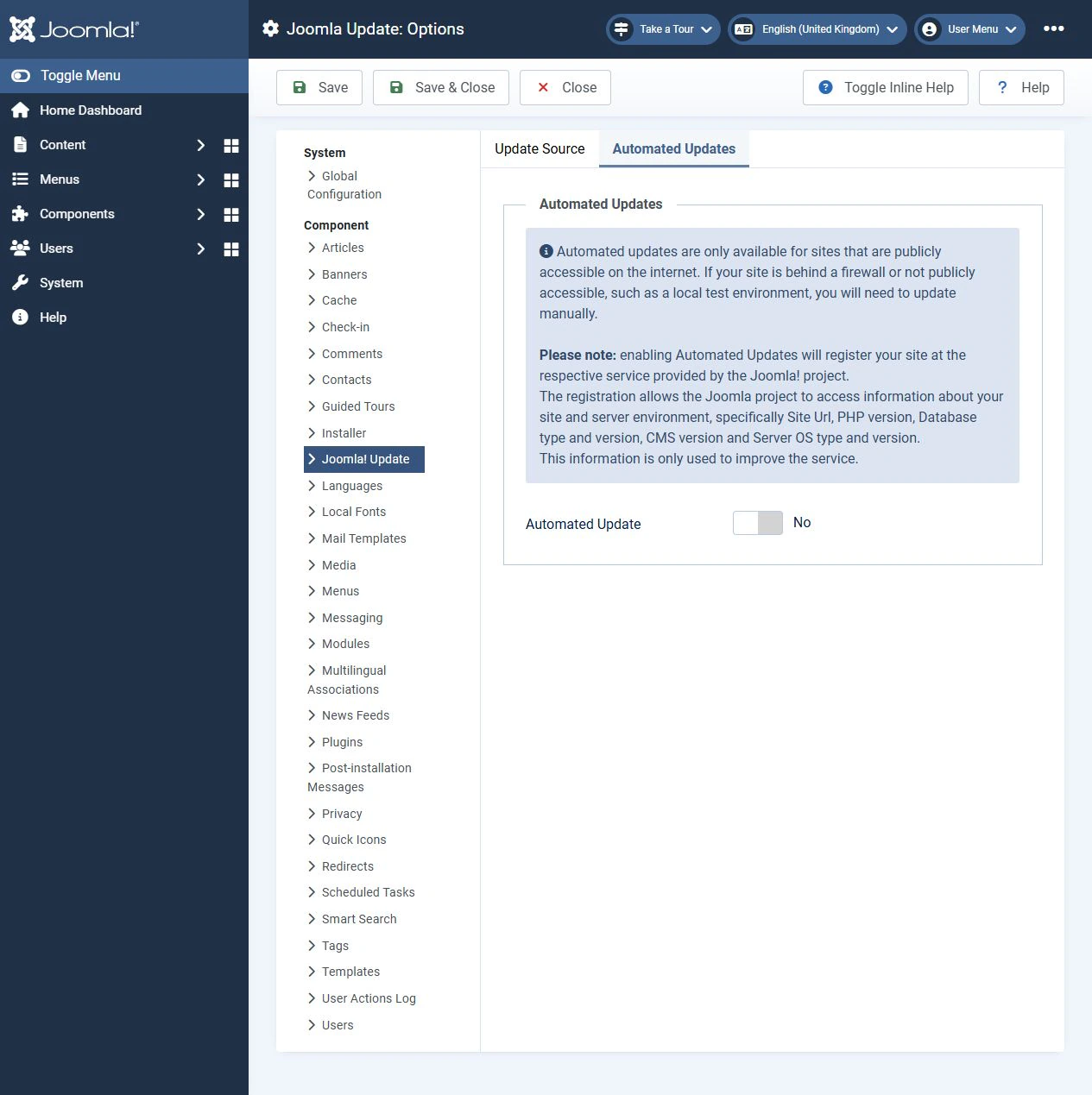
Joomla 5.4 and 6.0 introduced automated core updates. This feature handles updates within a major version, including security fixes.
It is a separate feature: clicking an update button manually does not mean automated updates are enabled.
Check the feature's status and its result notifications. It does not replace backups or checks that the site still works. The complete process requires a publicly accessible site; a private local site cannot be used to test the entire automated update process.
Preparing to upgrade from Joomla 5 to Joomla 6
Upgrade only after updating to Joomla 5.4 and successfully testing a copy of the site.
Pay attention to the two distinct compatibility plugins:
- Behaviour — Backward Compatibility supports legacy Joomla 4 code. It must be disabled before upgrading to Joomla 6. First verify on the test site that your extensions work without it.
- Behaviour — Backward Compatibility 6 helps Joomla 5 extensions work on Joomla 6. Whether it is needed depends on the extensions you use.
Do not disable both plugins together based on generic advice.
Once the site is ready, select Joomla Next as the update channel in the update component's options, save the settings and check for the available upgrade. Review the pre-update check and proceed only after resolving any obstacles.
What to check after updating
A successful installation message confirms completion of the procedure, not that every site feature works.
Check:
- the home page, menus and several types of content;
- sign-in, search, forms and visitors' main tasks;
- editing and saving articles;
- the template, mobile layout and custom overrides;
- third-party extensions and integrations.
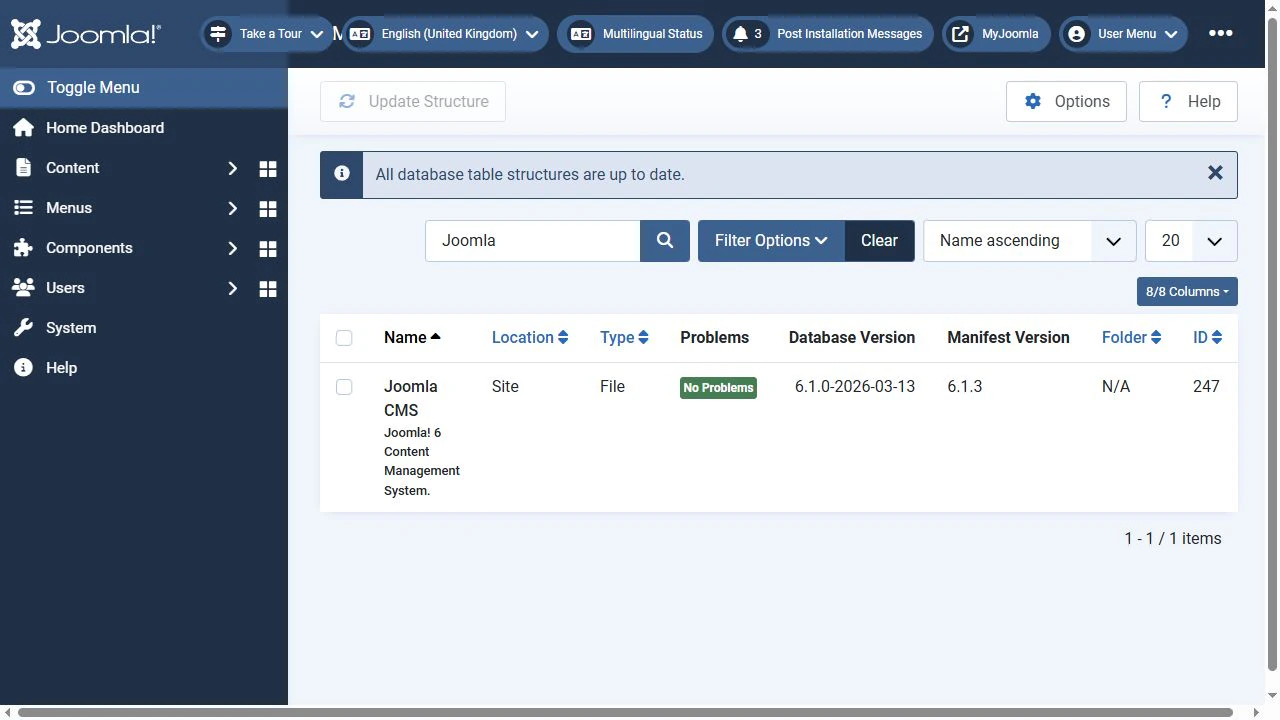
Check the database structure under System → Maintenance → Database. If Joomla reports discrepancies, select the affected item and click Update Structure, then check again.
If the display looks wrong, first force the browser to reload the page, then check the site's cache.
What to do if an update fails
Record the error message, time and stage of the failure. Check joomla_update.php in Joomla's configured log directory and the server's PHP error logs.
The archive cannot be downloaded or uploaded
Check the server's connection to the update source, including DNS, HTTPS, certificates and outbound request restrictions. Do not disable certificate verification to make a download work.
For uploads from your computer, check request and file size limits, free disk space, temporary directories and archive integrity. Manual upload can address a download problem, but it cannot fix insufficient space or write failures.
Files cannot be written
Check file ownership and the permissions of the account running PHP.
On Linux, 755 for directories and 644 for files are common, but appropriate permissions depend on the server configuration. Setting configuration.php to 444 is not a universal solution to update errors either.
Do not apply 777 permissions to the entire site. Windows uses a different permissions model: check the service account's access to the required directories.
The site stops working after installation
An HTTP 500 error or blank page is a symptom, not a diagnosis. Possible causes include an incompatible extension, an unsuitable PHP version or an incomplete update.
Examine the logs. Enable detailed error display on a private test copy so visitors do not see internal information.
If you cannot restore service quickly, restore the consistent backup of both files and database. Do not try to downgrade Joomla simply by uploading an archive of an older release.
Notifications and update channels
A new-version notification, an administrator email and automated installation are separate mechanisms. Disabling a notification does not fix vulnerabilities and does not necessarily disable automated updates.
For routine maintenance, use the stable channel for your current major version. Joomla Next is for a planned upgrade to the next major version.
A custom update server and test releases are unnecessary for a standard production update.
Completing the process
Keep Joomla up to date, starting with compatibility checks, a backup, a trial run and verification of the result. Plan major version upgrades separately.
If the site has complex integrations or undocumented customisations, begin with a technical review. This helps establish an upgrade path and identify incompatible parts in advance.


