


Table of contents
You can protect the Joomla administrator area with Multi-factor Authentication, an additional server password and restrictions on access to the login form. This guide explains which features are built into Joomla, which settings belong to your hosting environment and how to recover access if something goes wrong.
Which Joomla versions this guide covers
These recommendations apply to supported Joomla 5.4 and 6.x releases. As of 30 September 2026, the current releases are Joomla 5.4.9 and 6.1.4. The screenshots were taken on a local Joomla 6.1.3 site; some interface labels may differ in Joomla 5.4.
If your site runs Joomla 3 or 4, plan an upgrade to a supported version. Additional login protection does not fix vulnerabilities in an outdated core or its extensions.
Where to start
The standard Joomla administrator login form is in the administrator directory. Knowing this address does not, by itself, allow someone to compromise the site: security depends on user accounts, configuration and installed extensions.
Before adding restrictions:
- update Joomla and its extensions;
- use HTTPS with a valid certificate;
- give each administrator a separate account with a long, unique password;
- grant only the permissions each person needs: a content editor usually does not need Super User privileges;
- check your backup and confirm that you can access the hosting control panel independently of Joomla.
Do not assume that login attempt limits are already configured. Check protection for the password form, the MFA step and server request limits separately.
Built-in Multi-factor Authentication
MFA adds a verification step after login. With a standard login, the user enters a username and password, then confirms access using the chosen method. Joomla restricts access until the second step succeeds.
This is a built-in Joomla feature. You do not need Admin Tools to use it.
Choosing a method
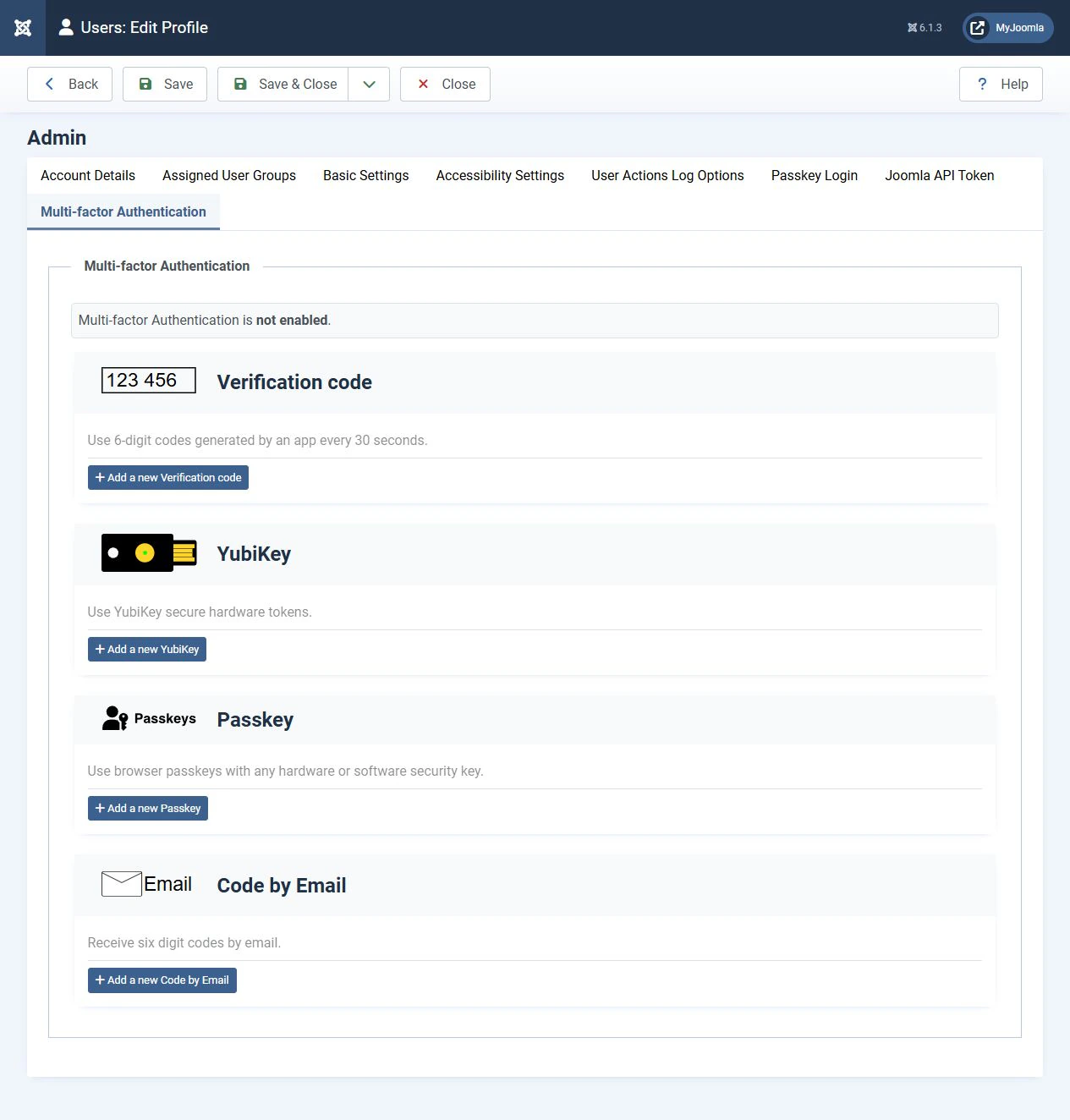
Depending on the enabled plugins, the available methods include:
- Verification Code. An authenticator app generates time-based one-time passwords (TOTP). The device and server clocks must be accurate.
- Passkeys / Web Authentication. A passkey on a device or a compatible hardware security key is used. Availability depends on the browser, device and HTTPS.
- YubiKey. A separate method for compatible hardware keys.
- Code by Email. A code is sent to the account's email address. This method depends on email delivery and the security of the mailbox.
For administrators, prefer Passkeys or an authenticator app. Also prepare a backup way to sign in.
The MFA plugin that uses a fixed code is intended for testing. Do not enable it on a production site.
Setting up MFA for your own account
Configure methods in your own user account:
- Open User Menu → Edit Account.
- Select the Multi-factor Authentication tab.
- Add your chosen method and complete the verification shown on screen.
- Store the backup codes from the MFA section securely, separately from your main device.
- Test a new login in a separate private browser window. Keep your current administrator session open until the test is complete.
Backup codes can be used only once. Do not publish them, the setup QR code or the TOTP secret in an article, message or screenshot.
Passkeys for login and Passkeys as an MFA second step are separate settings. Test both workflows if you use them together.
Making MFA mandatory
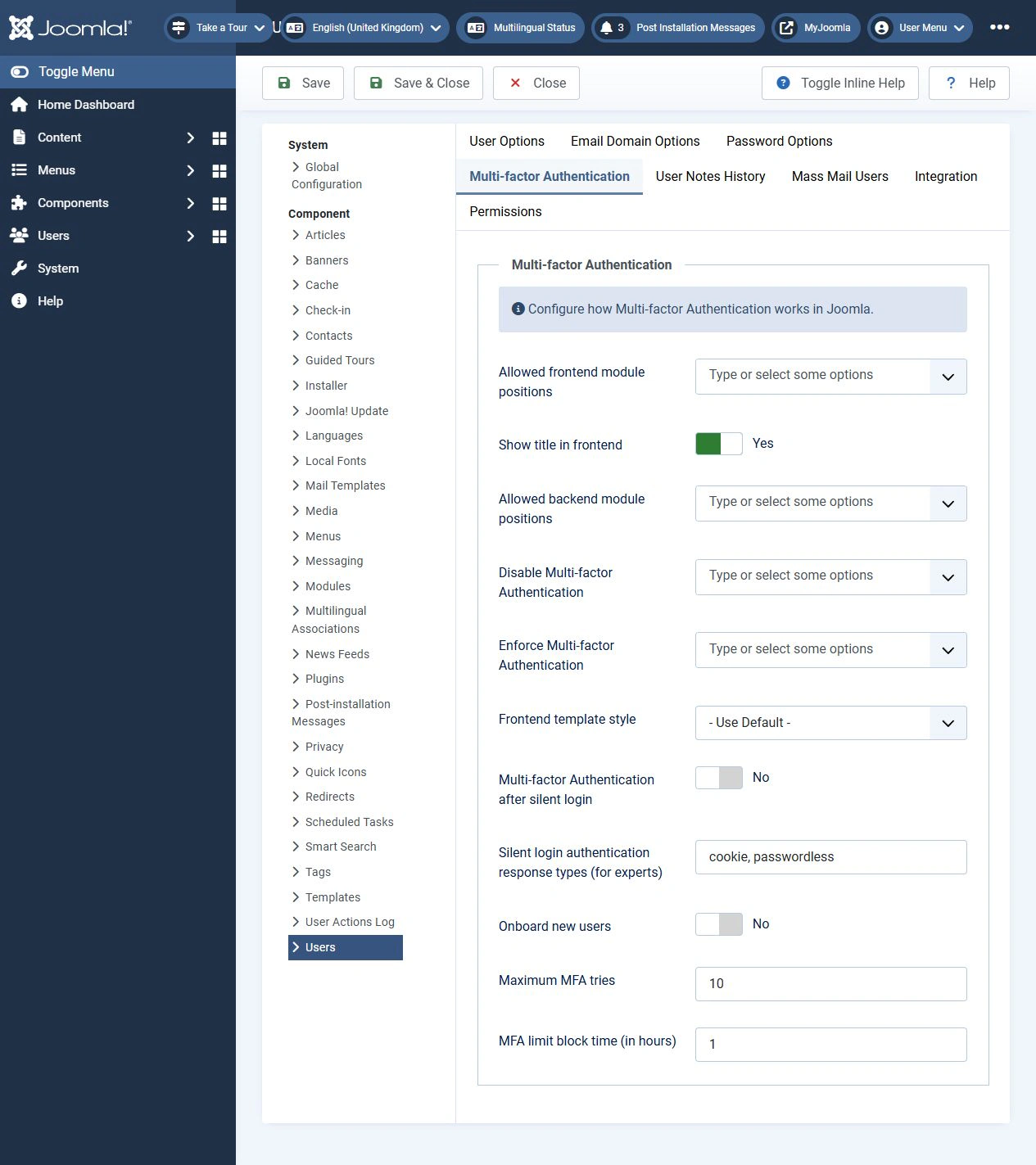
The site-wide rules are under Users → Manage → Options → Multi-factor Authentication.
First configure and test methods for your administrators. Then enforce MFA for groups that can access the administrator area, including any custom groups on your site.
Pay attention to these settings:
- Enforce Multi-factor Authentication. Requires users in the selected groups to set up MFA before continuing.
- Disable Multi-factor Authentication. Exempts the selected groups from MFA, even when a user has already configured methods. Check all of the user's groups and group inheritance.
- Multi-factor Authentication after silent login. Controls the additional check after automatic login, for example through Remember Me or Passkeys. If you require the second step in these workflows too, enable the setting and test the result.
- Maximum MFA tries and MFA limit block time (in hours). Where these fields are available, they limit attempts at the second step. Allow for temporary lockouts when testing and recovering access.
Redirecting users to the method setup page does not, by itself, make MFA mandatory.
An additional password on the server
HTTP Basic Authentication requests a separate username and password before the Joomla login form opens. It is a server-level protection layer and can be used alongside MFA.
Two passwords do not make a login multi-factor: both are the same type of check, based on knowledge of a secret.
On Apache, directory protection can be configured through the hosting control panel or server configuration. Where .htaccess is allowed, authentication directives and a .htpasswd password file are used. The file stores usernames and password hashes, rather than plaintext passwords.
nginx does not process .htaccess. Configure the HTTP password in nginx or through the hosting control panel. If nginx and Apache are used together, find out which server handles the requests you want to protect.
Before enabling protection:
- Prepare a separate password that differs from your Joomla password.
- Keep a copy of the original configuration and retain access to the hosting control panel.
- Protect the administrator directory.
- Test the Joomla form, login, MFA and administrator pages.
- Test the public site: extensions that load resources from
administratormay unexpectedly trigger password prompts for visitors.
Use HTTP password protection only over HTTPS. When configuring it manually, preferably store the password file outside the public site directory.
Restricting access by IP or through a VPN
An IP allowlist reduces the number of devices that can open the administrator area. Configure this on the server, in the hosting control panel, at an external gateway or in a third-party extension.
This approach works well with a static public IP or a VPN with a fixed exit IP. With mobile internet or a dynamic IP, an administrator may lose access when the address changes.
Before configuring it:
- identify the public IP address seen by the server;
- account for both IPv4 and IPv6;
- include the addresses of all authorised administrators;
- prepare an independent way to edit the rules through your hosting provider;
- test access from both an allowed and a blocked connection.
Behind a proxy or CDN, the server must determine the visitor's address through trusted proxies. Unconditionally trusting X-Forwarded-For allows an address to be spoofed and weakens the restriction.
Apache 2.4 uses the modern Require ip directive. Do not copy older examples using Order, Allow and Deny without checking them.
When combining an IP restriction and an HTTP password, check the logic: must both conditions be met, or is either one sufficient? These configurations provide different protection.
Third-party extensions and Admin Tools
Admin Tools is a third-party extension from Akeeba. It can add request filtering, blocking and extra access conditions. Features depend on the version and edition; do not assume that all security features are included in the free Core edition.
The original guide used Password-protect Administrator. This feature creates server protection through .htaccess and .htpasswd and requires a compatible web server. A button in the component does not prove that your hosting environment permits this configuration.
A secret URL parameter or an additional login address can reduce automated requests, but does not replace MFA, updates or a strong password. URLs can appear in browser history and logs.
Change extension rules one at a time. Test logging in again and ending a session: losing a secret parameter during a redirect can accidentally lock out an administrator.
Do not rename the physical administrator directory to hide the login page.
Recovering access
First identify the layer preventing login. An MFA problem, a server password, an IP restriction and an extension block each require a different response.
A lost phone or MFA key
At the second-step page, choose another configured method or use an unused backup code. After signing in, replace the lost method and regenerate backup codes if necessary.
Resetting the Joomla password does not recover the second factor.
A Super User can reset MFA for a user who does not have Super User privileges. Resetting another Super User's MFA through the normal interface is restricted.
If a Super User has neither a working method nor backup codes, emergency recovery through the hosting environment is required:
- Temporarily restrict administrator access at the server to a trusted connection while recovering the account.
- Back up the database.
- Identify the correct user ID and database table prefix.
- With a specialist's help, remove only that user's records from
#__user_mfa, replacing#__with the actual prefix and matchinguser_idto the verified ID. - Sign in and immediately configure MFA again. When MFA is mandatory, Joomla will require setup again.
Do not empty the entire table or disable MFA plugins for all users.
A forgotten server password
Use the hosting control panel to replace the protected directory's password. If the problem is a configuration error, restore the original settings or roll back only the HTTP authentication block you added.
Do not automatically delete the entire .htaccess file: it may contain other security rules. Deleting .htpasswd without correcting the configuration that refers to it does not restore access either.
Access blocked by IP
Use the hosting control panel to correct the allowed address or restore a working version of the specific rule. If you use a VPN, first check the connection and exit IP.
Do not open access to every address if correcting one entry will solve the problem. Behind a proxy, check how the real IP address is determined.
An extension has blocked an administrator
Check the log and the reason for the block. Ask another authorised administrator to correct the specific rule or unblock the address.
For Admin Tools, Rescue Mode can be used if it is enabled and the Super User's email is accessible. This mechanism does not remove an HTTP password or an IP restriction applied before Joomla runs.
If login is completely unavailable, follow the hosting-level emergency recovery procedure for the installed extension version. Temporarily disabling a security plugin must be accompanied by a server access restriction. After fixing the problem, enable protection and test it again.
Choosing protection for your site
Start with updates, HTTPS, separate accounts and MFA for administrators. Add a server HTTP password to restrict access to the login form itself. With a static IP or a VPN, consider an IP allowlist.
Introduce restrictions gradually and test a new login after each change. Protection for the Joomla administrator area should always include a tested way to recover access.
Terms used:
Database table prefix, Apache, Authentication, Backup, Redirect


