


Table of contents
Smart Slider 3 is a Joomla extension for building sliders with images, text, buttons and video. It comes in a free edition and a paid Pro edition. This guide explains their features, system requirements, how to create your first slider and how to display it in a module or article.
What you can build with Smart Slider 3
The component helps you present offers, showcase projects or display previews of Joomla articles. Its visual editor lets you add layers and adjust spacing, backgrounds, fonts and element placement.
You can also create a single information block without switching slides. This works well for a hero section with a heading and button when the content does not need to change. Keep essential information available outside the slider too, so visitors do not have to search for it on later slides.
Free and Pro compared
Start with Free for a standard slider or a single block. Choose Pro when you need a carousel, a showcase slider, individual layer animations or the built-in lightbox.
| Feature | Free | Pro |
|---|---|---|
| Slider types | Simple and Block | Simple, Block, Carousel and Showcase |
| Text, images and buttons | Included | Included |
| Settings for different screen sizes | Included | Included, with additional options |
| Individual layer animations | Not included | Included |
| Built-in lightbox | Not included | Included |
| Display in a Joomla module or article | Included | Included |
Simple shows one slide at a time. Block is designed for a single block. Carousel displays several complete slides side by side, while Showcase highlights the central slide and can show parts of the neighbouring slides. The old Accordion type is no longer part of the current selection.
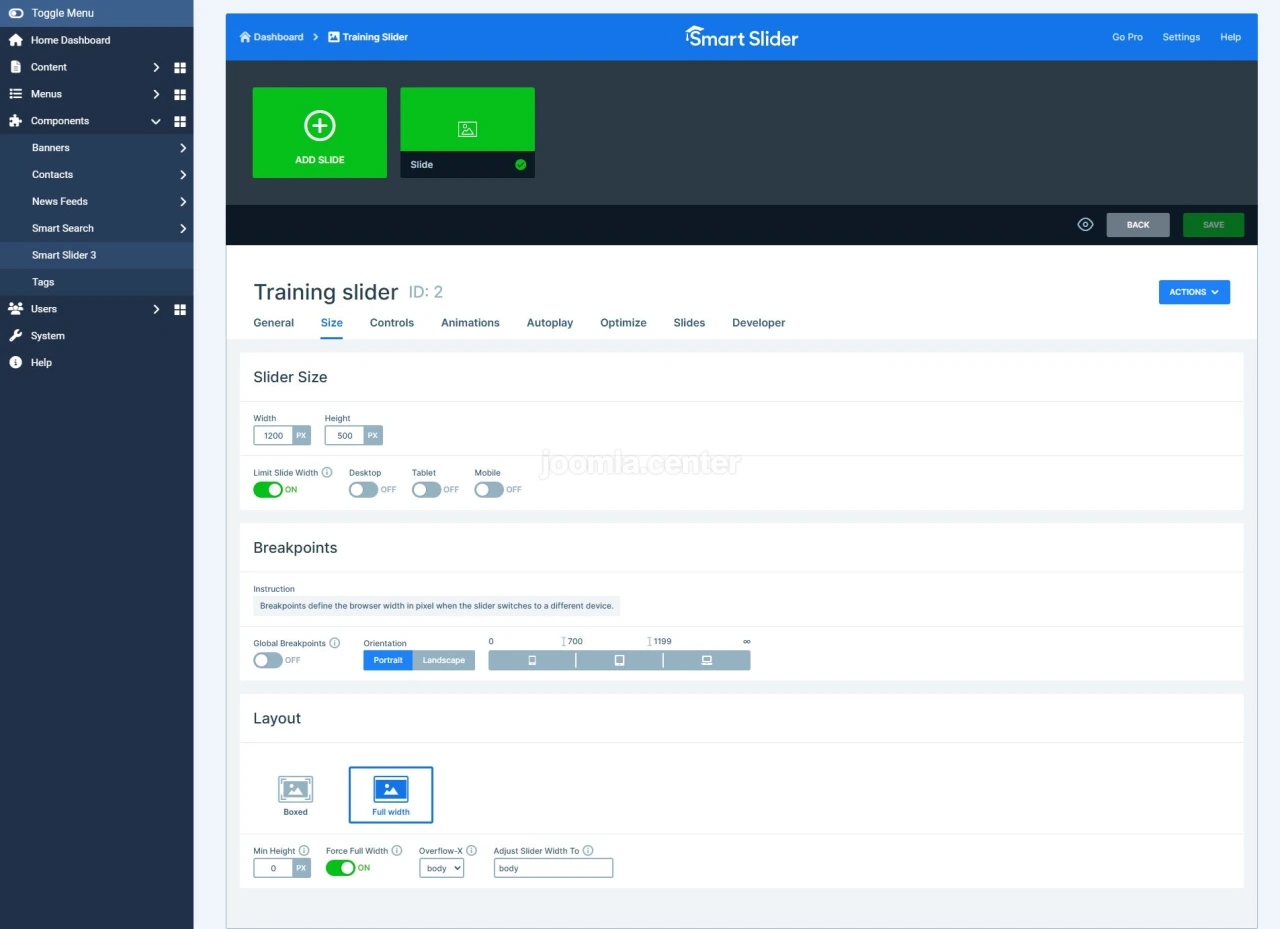
Do not confuse the slider type with its width. A Simple slider, for example, can fit inside a container or span the full width. The Fullpage layout is a Pro feature.
Pro plans use a one-time payment and limit the number of activated sites. Updates and support follow the selected plan's terms while the product remains in development. Before buying, check the domain allowance and activation transfer rules. Free can be used on an unlimited number of sites.
The manifest of the free Joomla installation package specifies the GNU GPLv3 licence. Check Pro activation, update and support terms separately from the software code licence.
Joomla and PHP compatibility
As of 12 November 2026, the developer's changelog lists 3.5.1.40 as the latest version. The documentation states compatibility with Joomla 4, 5 and 6. The changelog also records fixes for PHP 8.5.
The minimum requirements of the extension and Joomla are different. Smart Slider lists PHP 7.4, but Joomla 5 needs PHP 8.1 or later and Joomla 6 needs PHP 8.3 or later. Choose an environment that meets the requirements of the CMS and all installed extensions.
Image processing requires GD, while connections to the developer's services require cURL. Also check for SimpleXML and DOM, sufficient memory and suitable file upload limits. Smart Slider's requirements specify an upload limit of at least 8 MB for ZIP installation. Take Joomla's own higher requirements into account too.
The editor is intended for desktop browsers. Sliders can be viewed on phones, but the developer does not support editing on a touchscreen.
How to install the extension
Use the Joomla installation package. The WordPress package will not work. Obtain Free from the developer or download Pro from your account after purchase.
- In the Joomla administrator, open System → Install → Extensions.
- On the upload package tab, select the extension's ZIP file.
- Wait for the successful installation message, then open Components → Smart Slider 3.
If the package exceeds the server's upload limit, check the hosting settings first. The documentation also supports installation from a folder. Avoid increasing limits without checking the cause or placing diagnostic utility files in the site root.
How to create your first slider
Two slides with a heading and button are enough to get started. Set up the content and dimensions before adding animations.
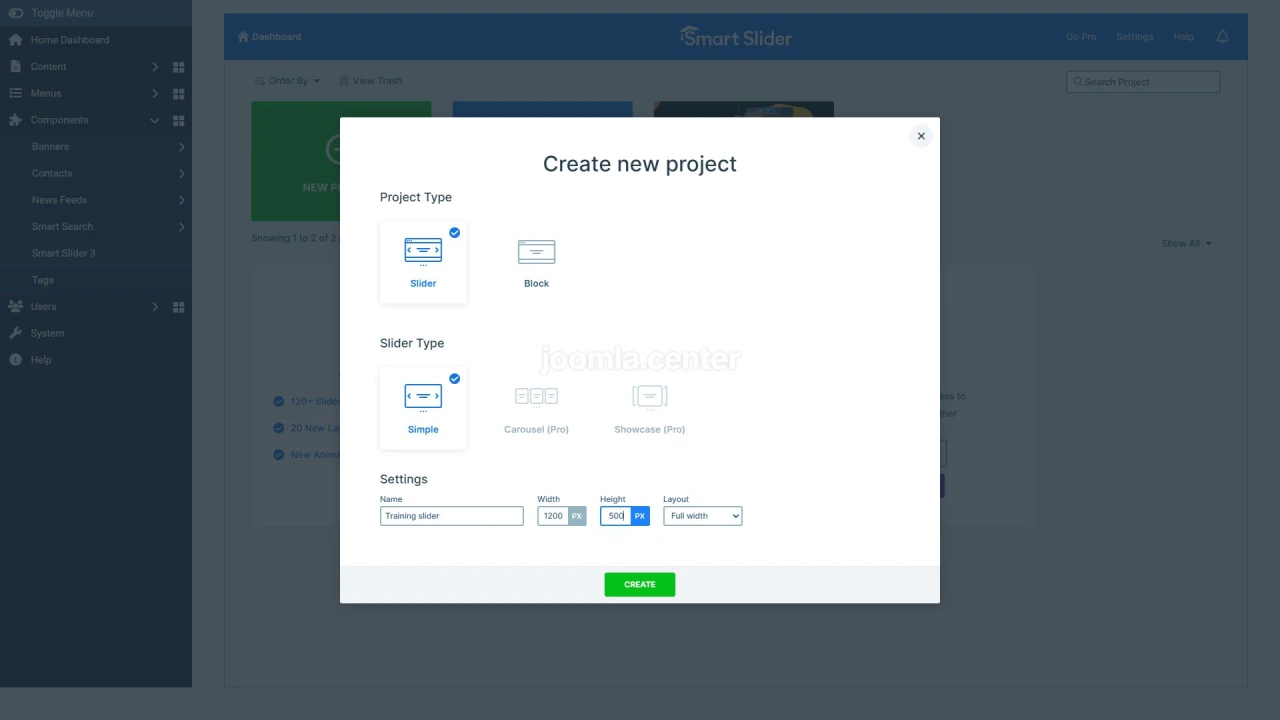
- Click New Project → Create a New Project to start from scratch.
- Enter a clear name. For a standard slider, choose Simple and set the initial dimensions.
- Click Add Slide, choose a blank slide or an image and open the editor.
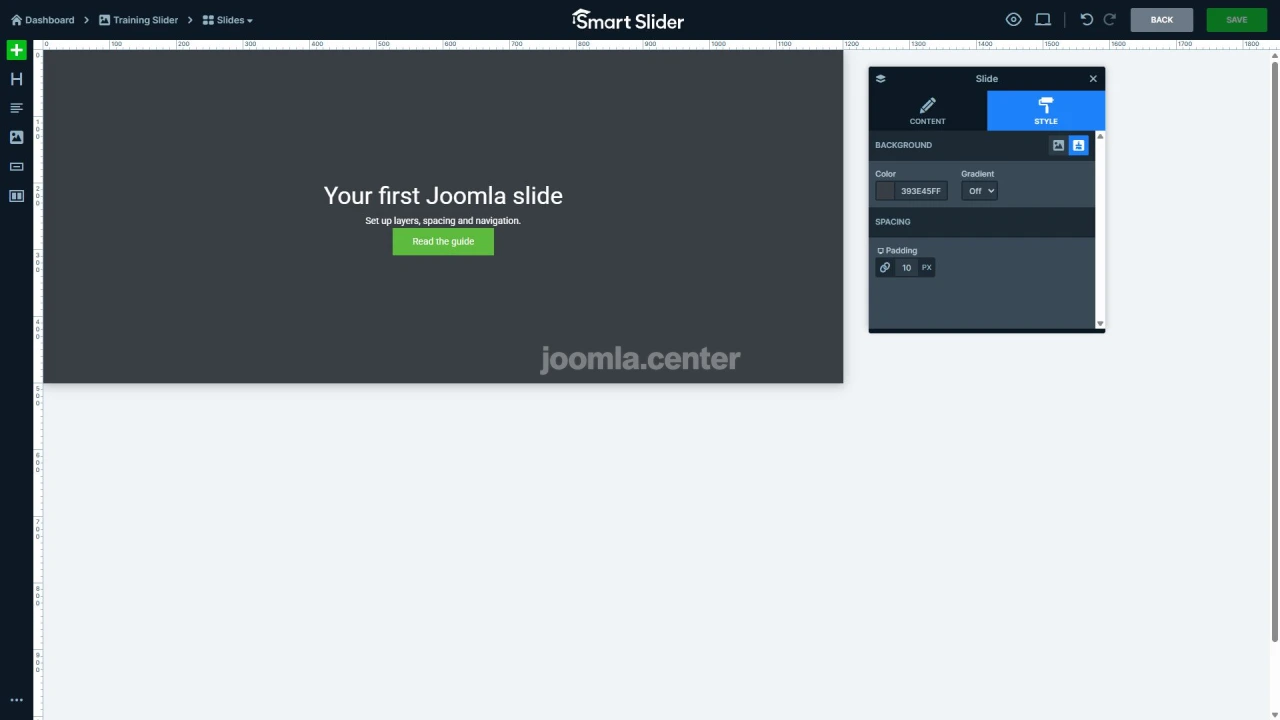
- Add a heading, text and a button. Set the spacing, alignment and button link.
- Save the slide and add a second one. Give each slide a name that describes its content.
- Check the dimensions, arrows and bullets in the slider settings. Leave autoplay off while setting up the slider.
For the main content, start with Default layer positioning, where elements take part in the shared layout. Use Absolute positioning for elements that need independent coordinates. Otherwise, adapting a complex scene to different screens will require more manual adjustments.
How to display the slider on your site
Smart Slider offers several publishing methods. Use a module for a template area or copy the article code from the selected slider's settings to insert it within text.
Using a Joomla module
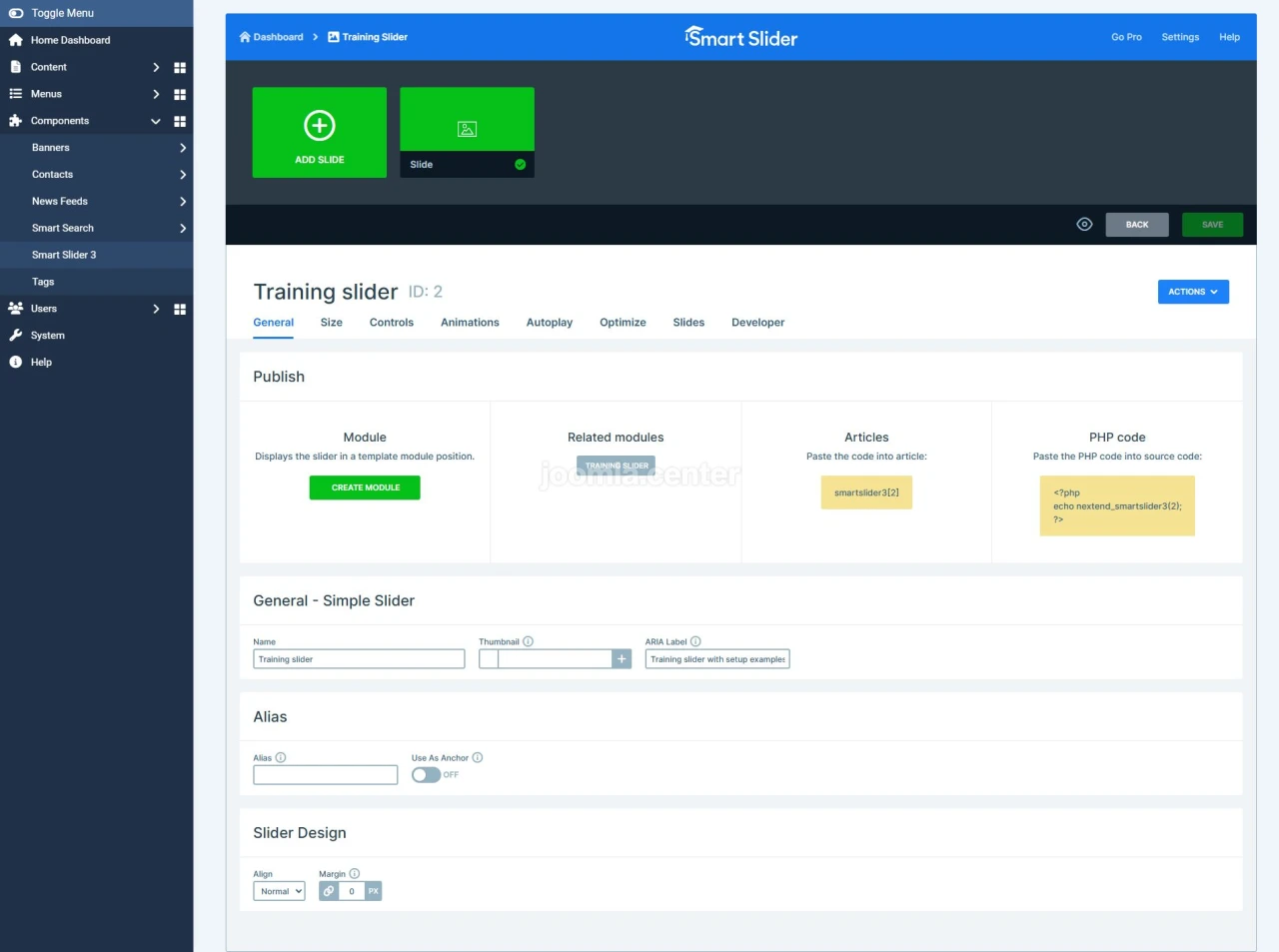
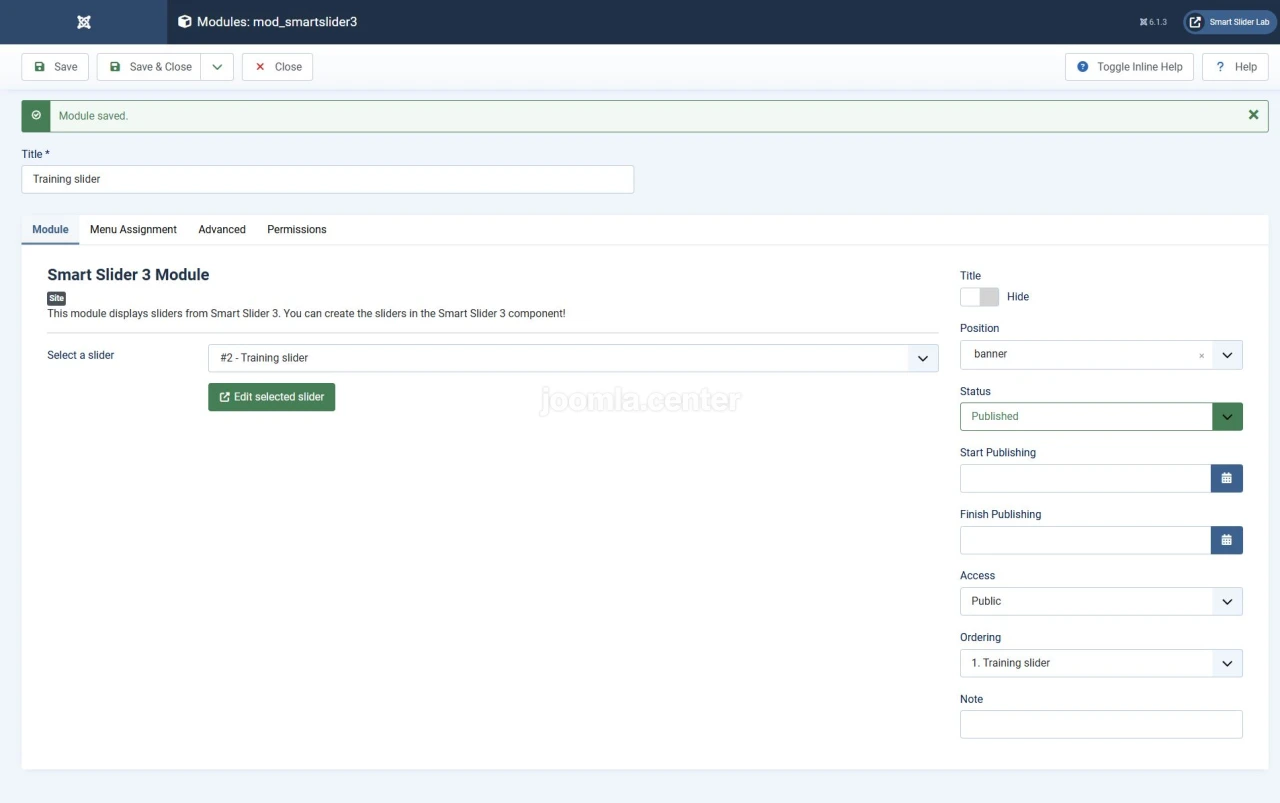
On the slider's General tab, find the Publish section and click Create module. This opens a Joomla module form with the slider selected. Enter a title and save the module. You can also create it from the site modules list by choosing the Smart Slider 3 type.
Select the slider and a template position in the module. Check its publication status, access level, language and menu assignments. If the slider does not appear, check those settings and make sure the selected position exists.
Inside an article
Copy the article code from the selected slider's publishing section and paste it into the article text. Use the code from your own installation to avoid an incorrect ID. After saving, open the site page and make sure the slider appears instead of the code.
If the editor changes the code or the slider does not appear, check that the code was preserved and that the installed Smart Slider system plugin is enabled. The component preview does not confirm that article embedding works correctly.
Dynamic slides
Generators build slides from site data. For example, the Joomla articles generator supplies an article's title, introductory text, image and link. Its settings let you choose categories, language, the number of records and their order.
You design one template, then populate it with values from the matching records. Generator data is cached, so changes may appear only after its cache is refreshed. Check access and language filters, along with the links to the resulting articles.
A generator for a third-party component does not guarantee compatibility with every version of that component. Check integrations and social network sources separately because APIs and authorisation requirements change.
Mobile devices and accessibility
Responsive settings help you adjust the layout, but you still need to check the result on the Joomla page. Pay particular attention to text, buttons, controls and slide transitions.
- Check a narrow screen and both phone orientations. Text must remain visible, buttons must not overlap and horizontal swipes must not interfere with normal page scrolling.
- Move through the slider with Tab and Shift+Tab. Make sure the current focus is visible and buttons and controls work with the keyboard.
- Provide a clear slider ARIA label and descriptive slide names. Give the previous and next arrows suitable labels and add appropriate alternative text to meaningful images.
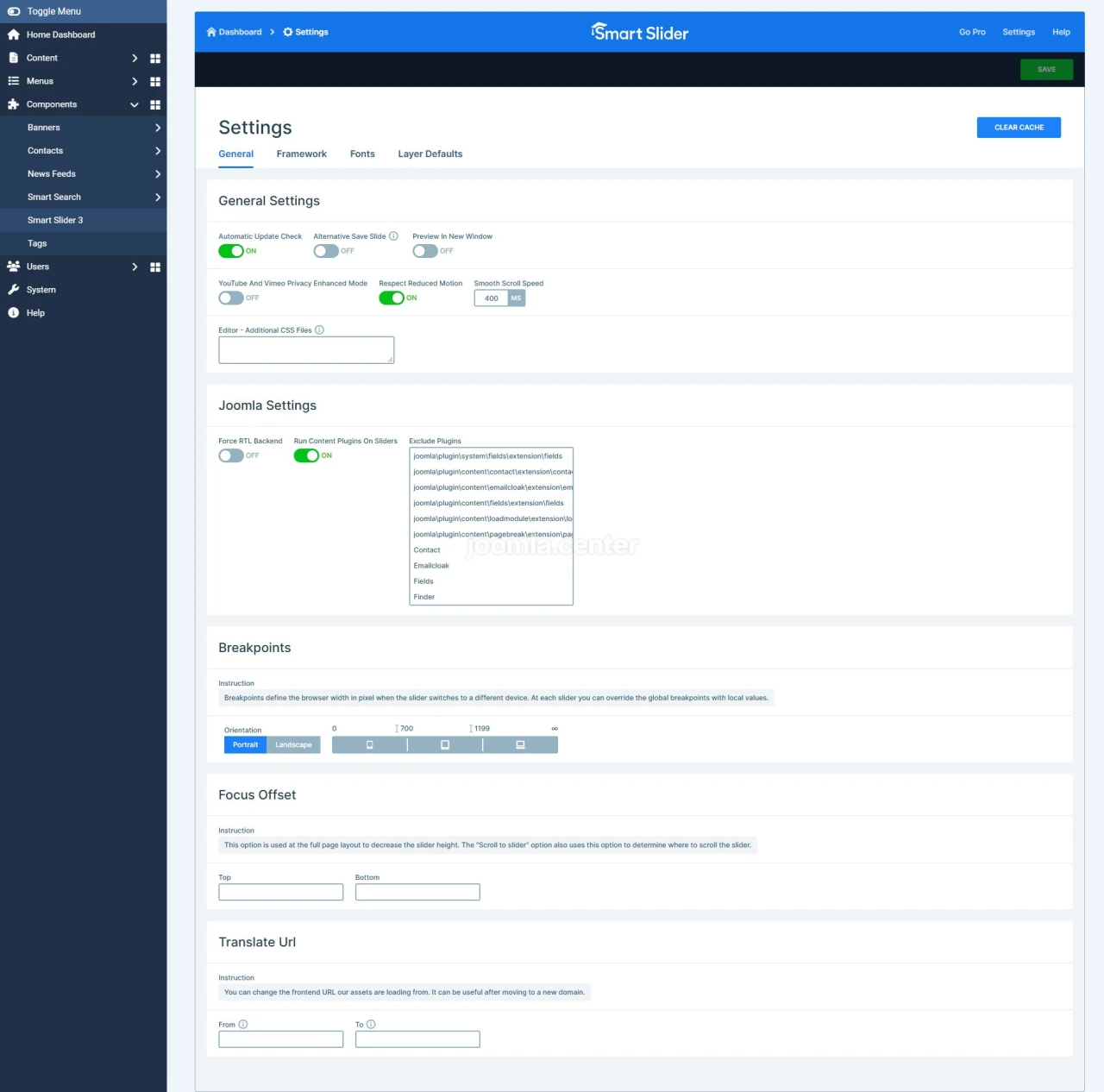
- If autoplay is enabled, provide an accessible way to stop it. In Smart Slider's global settings, check Respect reduced motion on the General tab for visitors who limit motion in their device settings.
- For the Pro lightbox, separately check keyboard opening, closing with Esc, focus movement within the window and focus returning to the triggering element. The close button must be available on phones.
These checks apply to your finished slider. The extension's ARIA attributes alone do not establish that the whole page is accessible. The built-in lightbox has limited settings, so assess its behaviour before choosing it for a particular task.
What to check before publishing
Open the page as an ordinary visitor. Check links, images, module visibility on the intended pages and behaviour after enabling caching and optimisation. Start with a small number of slides and avoid heavy video backgrounds or too many simultaneous effects.
Prepare images for their actual display size. Choose lazy loading settings according to the block's position, since a hero section and a slider near the bottom of a page have different needs. Measure the page itself before drawing conclusions about performance.
Conclusion
Smart Slider 3 lets you build a standard slider, a single block or a more complex composition in Joomla. Start with Free and a basic layout, then choose Pro for specific features. After setup, check the live output, mobile layout, keyboard controls and the ability to stop animation. These determine how usable the finished result will be.


