

Table of contents
Installing a Joomla template involves checking compatibility, installing the package, choosing a style and configuring module display. This guide explains those steps, menu assignments, Quickstart packages and updates to an existing template.
Templates and styles
A Joomla template controls page appearance, layout and available module positions. Site templates control the front end; administrator templates control the administration interface. This guide covers site templates.
A style is a saved set of template settings. For example, a template may offer light and dark colour options that you can save as separate styles. Styles belonging to the same template share its files: duplicating a style does not create an independent copy of the code.
Check compatibility first
Check the requirements for the specific template release. Confirm its supported Joomla and PHP versions, required plugins or framework, and installation instructions.
Joomla 5 requires PHP 8.1.0 or later; Joomla 6 requires PHP 8.3.0 or later. These are core requirements. A template and its dependencies may impose additional restrictions. The minimum PHP version is not necessarily the version you should choose.
Do not assume that a Joomla 3 package works with Joomla 4, 5 or 6. For Joomla 3 and 4, check the relevant requirements and plan a move to a supported CMS version. A successful installation alone does not establish compatibility: test both the front end and the template settings.
Before making changes:
- Back up the website files and database.
- Make sure you can restore the backup.
- Test on a copy using the same Joomla and PHP versions.
- Record the default style and assignments to specific menu items.
Choose the correct package
For an existing website, use the template installation package. Depending on the supplier, it may contain the template alone or include required extensions. Installing it does not necessarily recreate the supplier’s demo content and modules.
Quickstart is a package for deploying a separate demonstration website, including Joomla, the template, settings and sample content. Included extensions and demonstration images vary by supplier.
Do not upload Quickstart through the extension installer of an existing website. Prepare a separate empty directory and a new database, then follow the supplier’s instructions. Some packages use the Joomla installer; others may be distributed as backups with a separate restoration process.
Install the template package
The usual method is to upload the installation archive through the Joomla administrator interface. Obtain the package from its developer and read the supplied instructions.
- Open System.
- Select Extensions in the Install panel.
- Open Upload Package File.
- Drag the installation ZIP into the upload area or select it on your computer.
- Wait for the installation result.
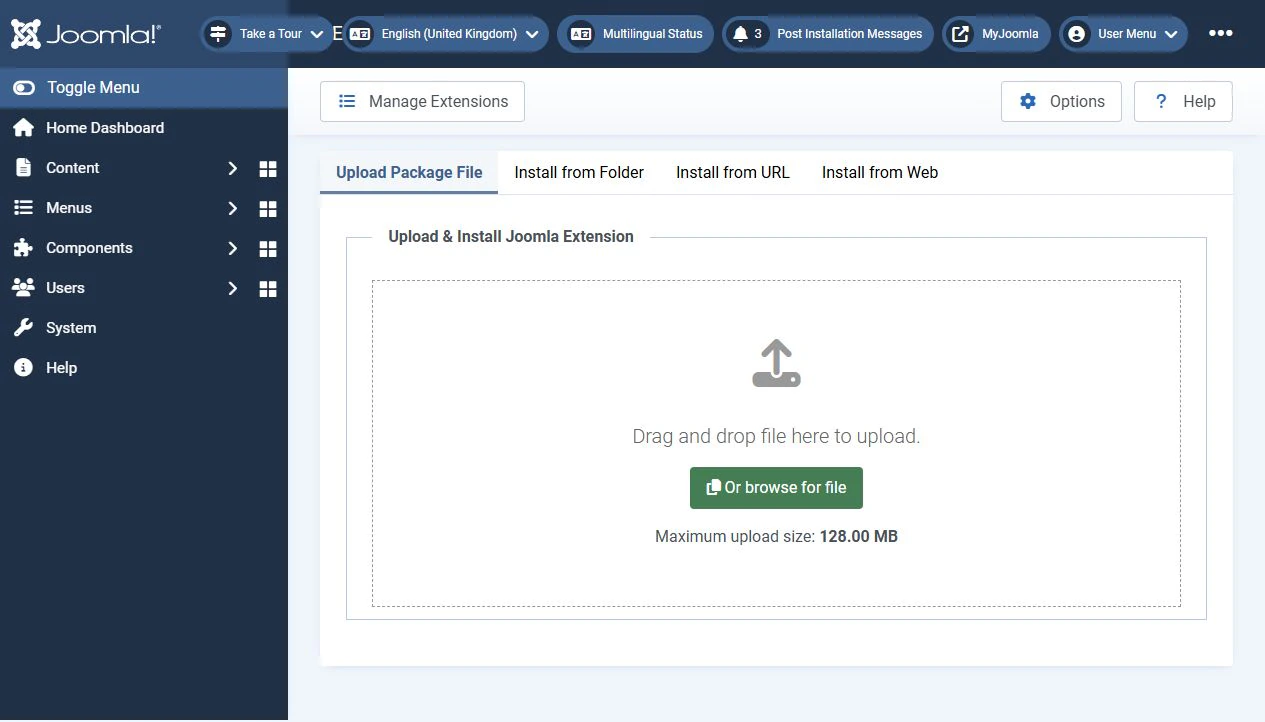
Normally, you should leave the installation ZIP compressed. If the download is a bundle containing documentation, Quickstart and several archives, extract the required installation package first.
In Joomla 3, the installer is under Extensions → Manage → Install. This is a reference path for the older series; the main instructions cover Joomla 5 and 6.
Other methods may be useful:
- Install from Folder: extract the package into a separate temporary directory on the server and specify its path.
- Install from URL: provide a direct package URL accessible to the server, rather than a download page.
- Install from Web: install available extensions supporting installation through the Joomla Extensions Directory. It is not a general template catalogue.
Available tabs depend on enabled installer plugins. Complete any additional steps required by the template developer.
Set the default style
Installing a template and selecting the website’s appearance are separate steps.
Go to System → Site Template Styles in the Templates panel. Find the required style and select the Set default icon in the Default column, or select the style and click Default. A star identifies the current default.
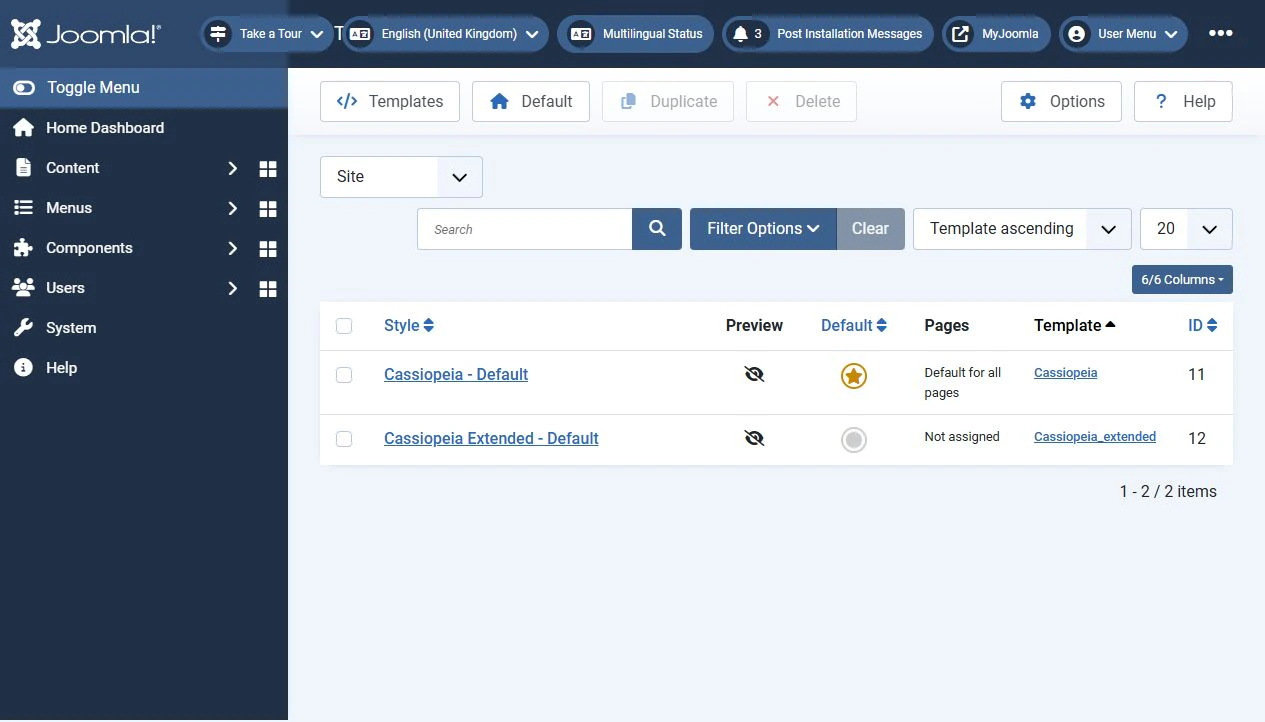
The default applies where no other style has been assigned. Existing menu assignments take precedence, so some pages may retain their previous appearance.
Check the home page and several internal pages. On a multilingual website, check every language and its style assignments.
Assign a style to menu items
Use a separate style when selected sections need different settings or appearance.
Open the style from Site Template Styles, select Menu Assignment, choose the required menu items and save.
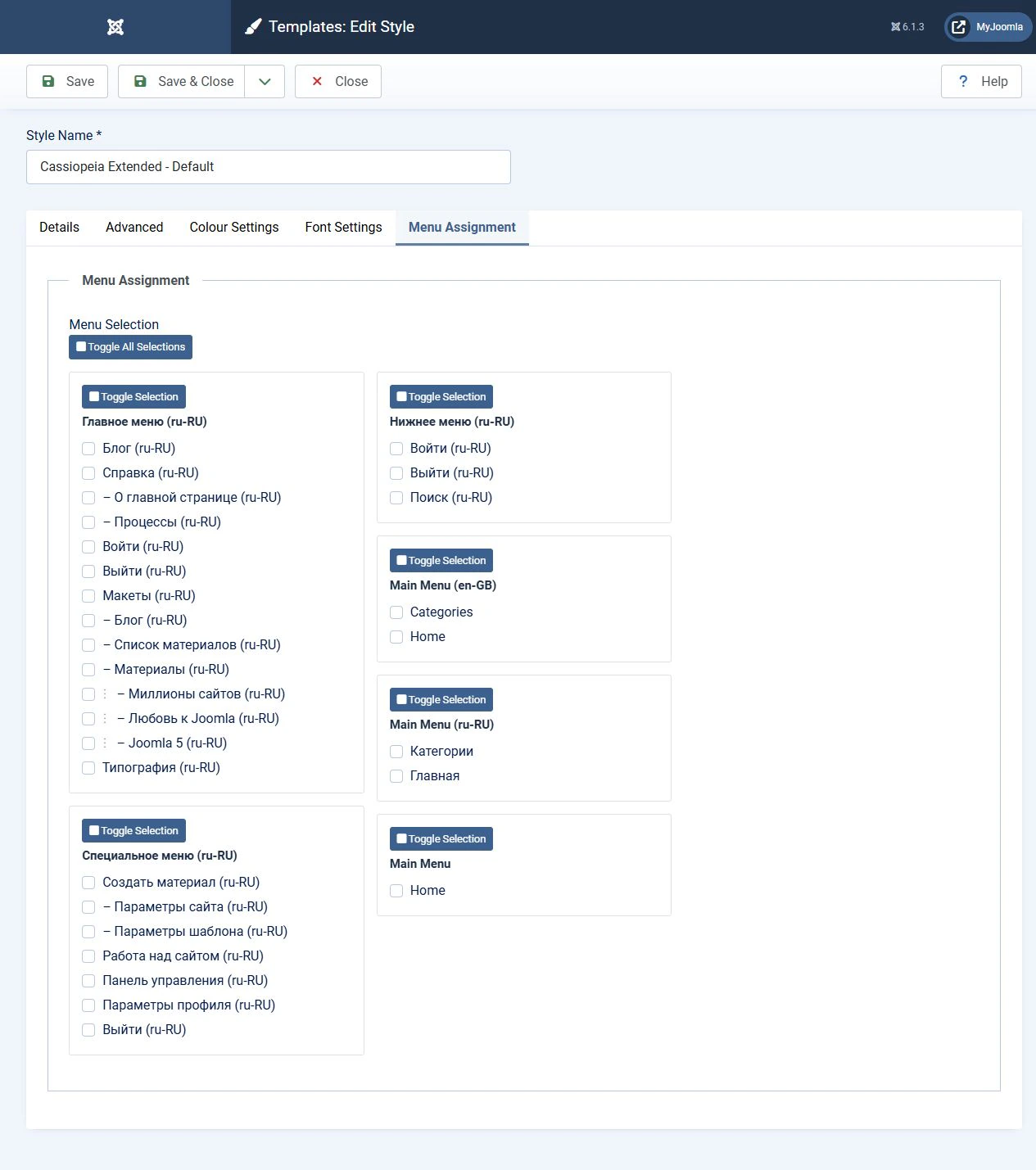
Alternatively, edit an individual menu item, select its Template Style and save. Both methods control the same assignment.
To use different settings from one template, duplicate its style, give the copy a descriptive name and adjust its options. You do not need to install the package again.
Test by following the relevant menu item: the assignment belongs to a menu item rather than directly to an article’s content.
Restore missing modules
Templates can provide different module positions. Changing templates does not automatically move modules into suitable locations.
Open System → Site Modules, edit the module and select a position offered by the new template. Also check its publication status, access level, language and menu assignment.
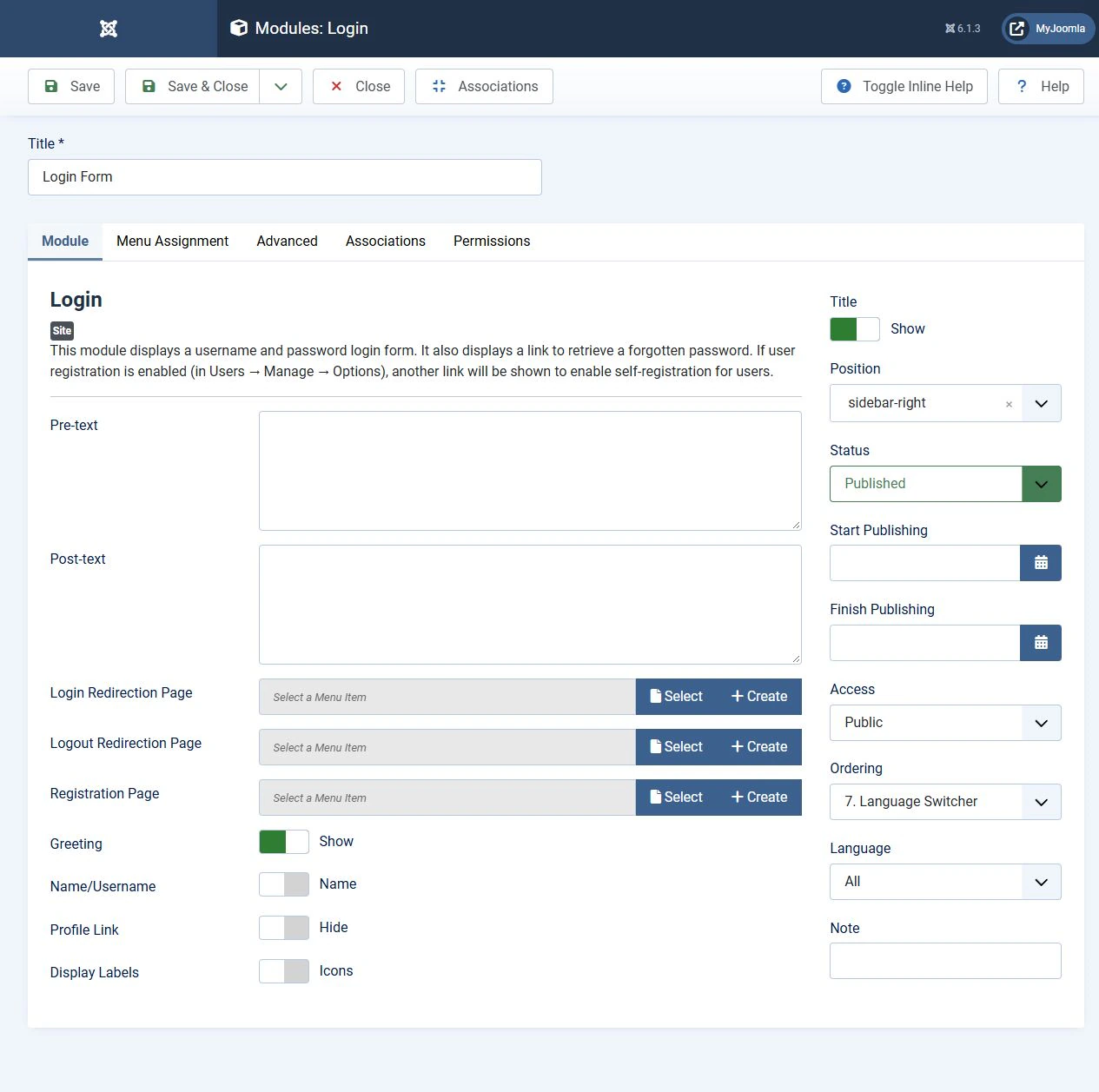
Identical position names do not guarantee identical placement. Consult the developer’s position diagram and check the result on desktop and mobile.
Installation versus updating
Installation adds a new template. Updating replaces the version of an existing template; it is separate from switching styles and does not require Quickstart.
Back up the website and review the release notes first. Use Joomla’s extension update system if the developer supports it, or install the update package using the supplier’s instructions.
Do not uninstall the template first unless its instructions explicitly require it: uninstalling may affect its styles and settings. Updates can overwrite direct edits to template files. Use the customisation methods supported by the developer; a child template is an option when supported by the parent.
After updating, check style settings, menu assignments, modules and modified overrides. Clear the Joomla and browser caches if necessary.
Common problems
Start with the exact error message to distinguish package problems from server limitations.
- Installation XML file not found: check that you have the installation package rather than Quickstart, an outer bundle or an incomplete archive.
- Upload or extraction fails: check archive integrity, PHP upload limits, free space and whether the temporary directory is writable.
- Installation succeeds but the appearance does not change: check the default style, menu assignments and caches.
- A PHP error appears: check compatibility and dependencies, inspect the error log and reproduce the problem on a test copy.
- The website differs from the demo: check modules, content, images and settings. Installing a template alone does not necessarily install demo content.
Do not address errors by assigning 777 permissions to every file or disabling security checks. Resolve the specific cause.
Complete the checks
Test the home page, articles, categories, search and forms. Check navigation, modules, mobile layouts and every language version. Installation is complete when the correct style appears on the intended pages, content displays properly and there are no related template errors in the log.


