


Table of contents
- How Local Fonts works
- Installation and preparation
- How to detect Google Fonts automatically
- How to configure a detected Google Font
- How to add a Google Font manually
- How to add your own local font
- What font-display does
- How to apply a local font on your website
- How to enable and disable fonts
- Local Fonts component options
- How to check that fonts are loaded locally
- What to do after changing your template
- Conclusion
Fonts on a Joomla website can be loaded with the template or from external services. One of the most common options is Google Fonts: a template or extension includes a stylesheet from fonts.googleapis.com, and the browser then downloads the font files from Google's servers.
You can replace this setup with local hosting: font files are stored on the same server as your website, so the browser no longer needs to contact an external service. This is useful when you want to control resource sources, reduce third-party connections or use your own WOFF2, WOFF, TTF and OTF files.
The free Local Fonts extension helps you manage these fonts. It includes an administrator component and a system plugin that processes pages on the frontend.
How Local Fonts works
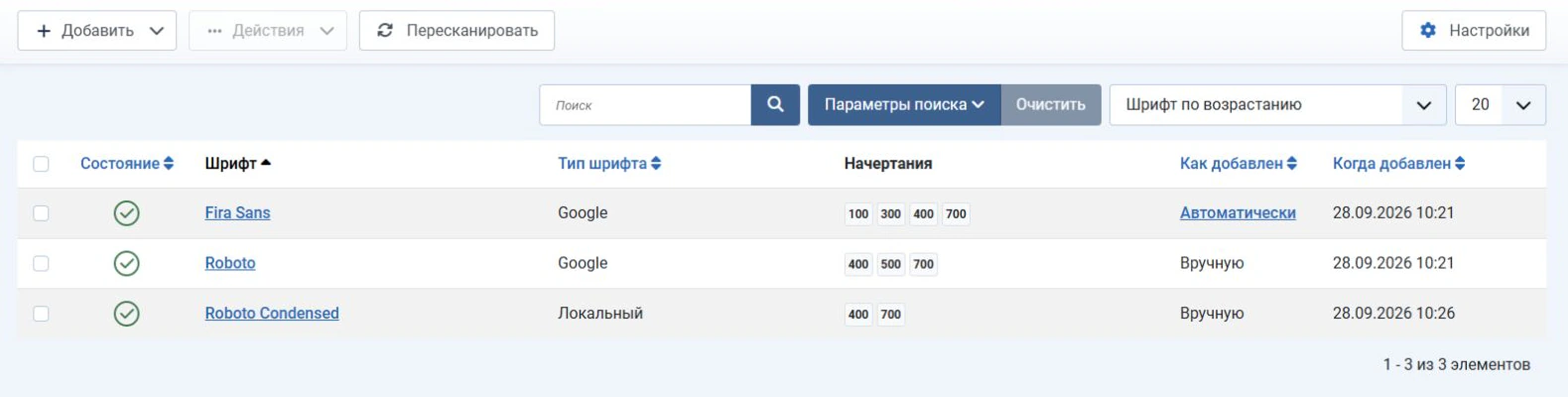
After installation, the Local Fonts component appears in the administrator panel. It stores a list of font families and their settings.
You can add a font in two ways:
- Google — detect an existing Google Fonts reference or add one manually by URL;
- Local — upload your own font files from your computer.
For each family, the component stores its enabled state, type, variants, how it was added and the date. Multiple files in one family, such as Regular, Bold and Italic, are grouped into a single record instead of appearing as separate fonts.
Installation and preparation
Install Local Fonts using Joomla's extension installer. The installation package contains the component and a system plugin.
After installation, open Components → Local Fonts. Also check that the System - Local Fonts plugin is enabled. It handles frontend page processing and loads local resources.
The plugin itself requires very little configuration: the main options are available in the component, so you can manage fonts in one place.
How to detect Google Fonts automatically
If your template or a third-party extension already loads Google Fonts, you do not need to find the URL manually. Local Fonts can detect these references when scanning the site.
Enable Automatic Google Fonts Detection in the component options, then click Rescan on the font list page.
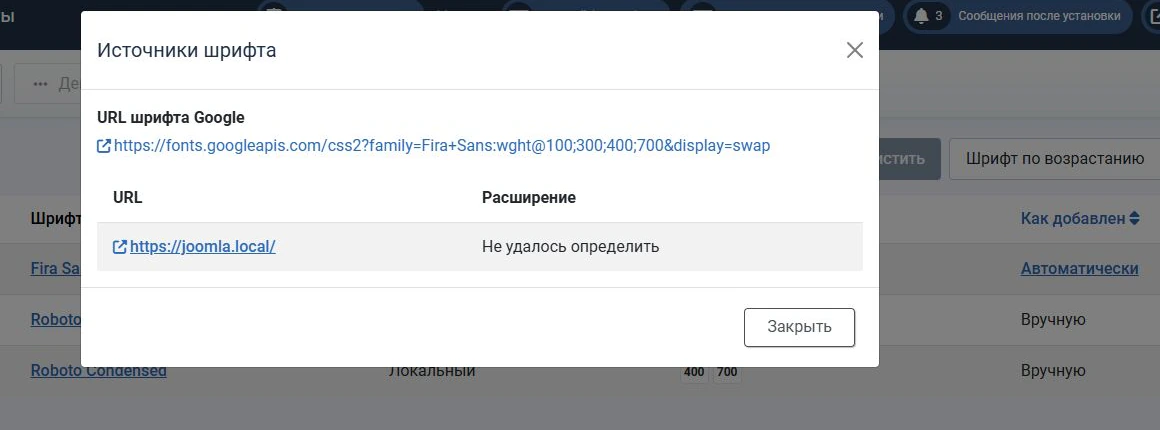
The component analyses Google Fonts references in HTML and local CSS files. Detected families appear in the list with the Automatic label.
If the extension identifies the source of a reference, you can view it in the detected font's information. This may be a page URL, CSS file, template, component, module or plugin. Sources that cannot be identified reliably are marked accordingly.
How to configure a detected Google Font
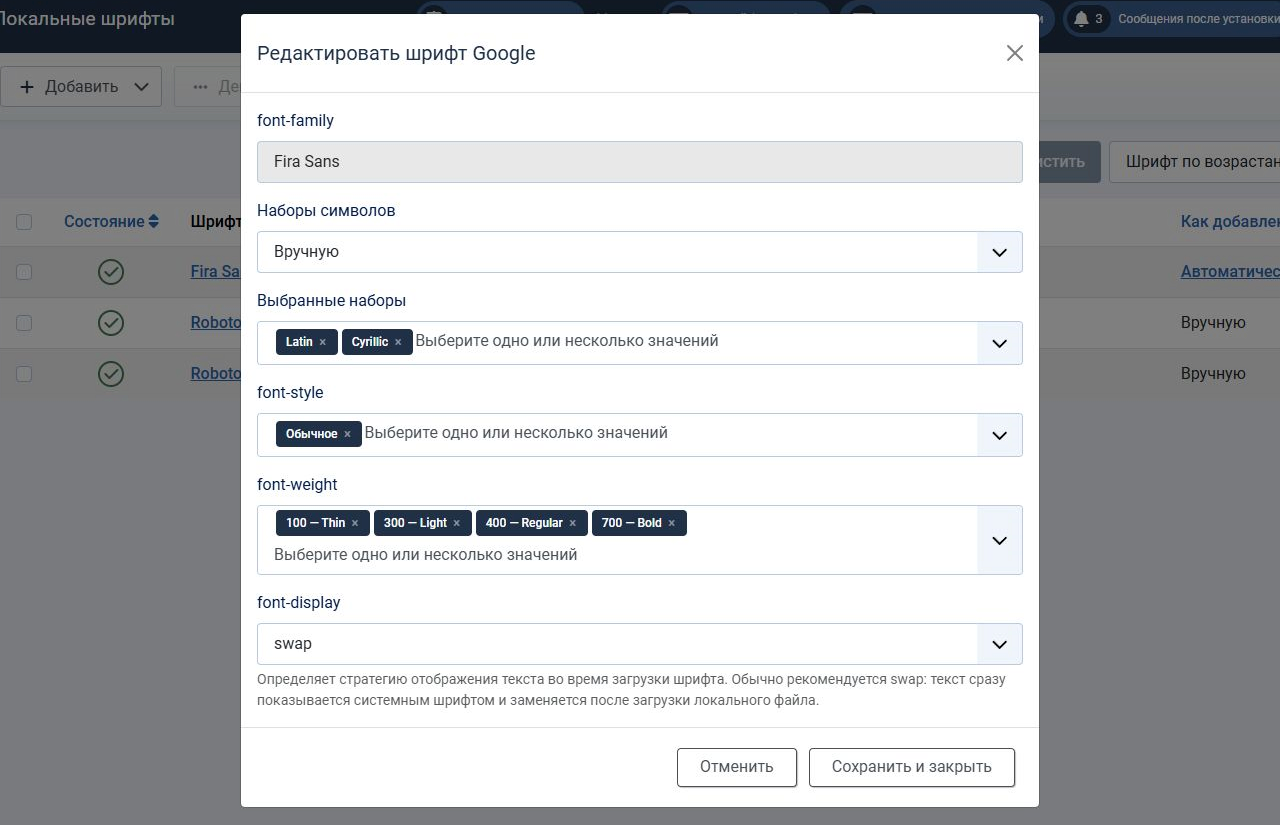
Click the family name in the Font column to open its settings.
For a Google Font, you can choose:
- character subsets;
font-style;font-weight;font-display.
Character subsets
Google Fonts often serves separate files for different Unicode subsets, such as latin, latin-ext, cyrillic and cyrillic-ext.
For a website using only Russian and English, Latin and Cyrillic are usually sufficient. Extended subsets provide additional characters used by European languages.
In Manual mode, select only the subsets you need. This avoids storing unnecessary font files.
Styles and weights
Use font-style to select normal, italic or oblique styles, and font-weight to select the required weights.
The interface shows a familiar name beside each numeric value:
- 100 — Thin;
- 200 — Extra Light;
- 300 — Light;
- 400 — Regular;
- 500 — Medium;
- 600 — Semi Bold;
- 700 — Bold;
- 800 — Extra Bold;
- 900 — Black.
There is no need to store every variant just in case. If your design uses weights 400, 500 and 700, keep those three.
How to add a Google Font manually
If the font you need is not already loaded on the site, you can add it yourself.
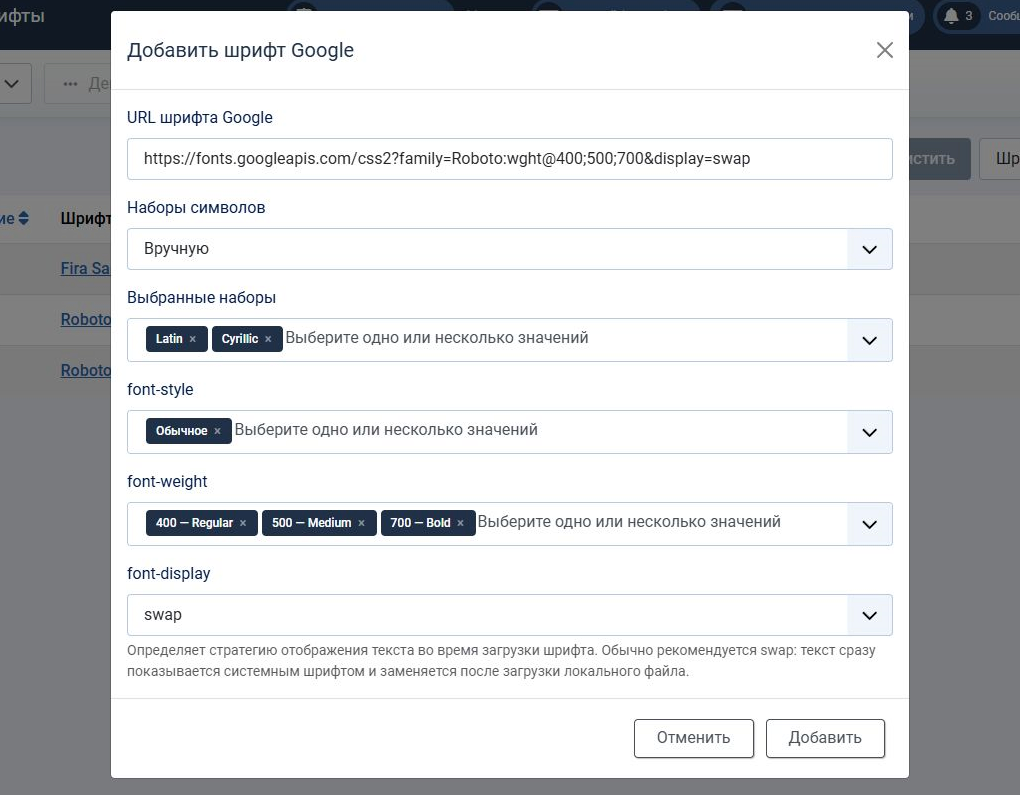
Click Add → Google Font and enter the Google Fonts stylesheet URL. For example:
https://fonts.googleapis.com/css2?family=Roboto:wght@400;500;700&display=swapThen select the required character subsets, styles, weights and font-display value.
The component downloads the Google Fonts CSS, stores the required files locally and serves them from your website.
How to add your own local font
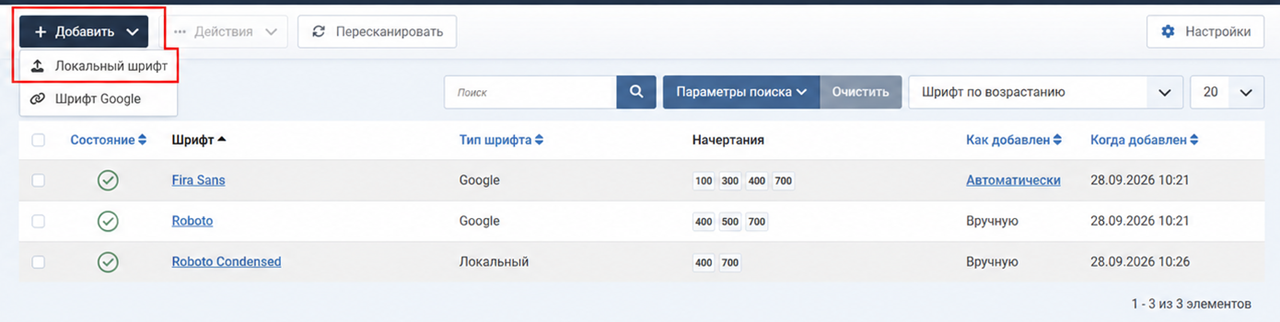
You can use Local Fonts without Google Fonts. If you have font files, click Add → Local Font.
Supported formats:
- WOFF2;
- WOFF;
- TTF;
- OTF.
WOFF2 is preferable for websites: it is designed for web fonts and usually produces smaller files.
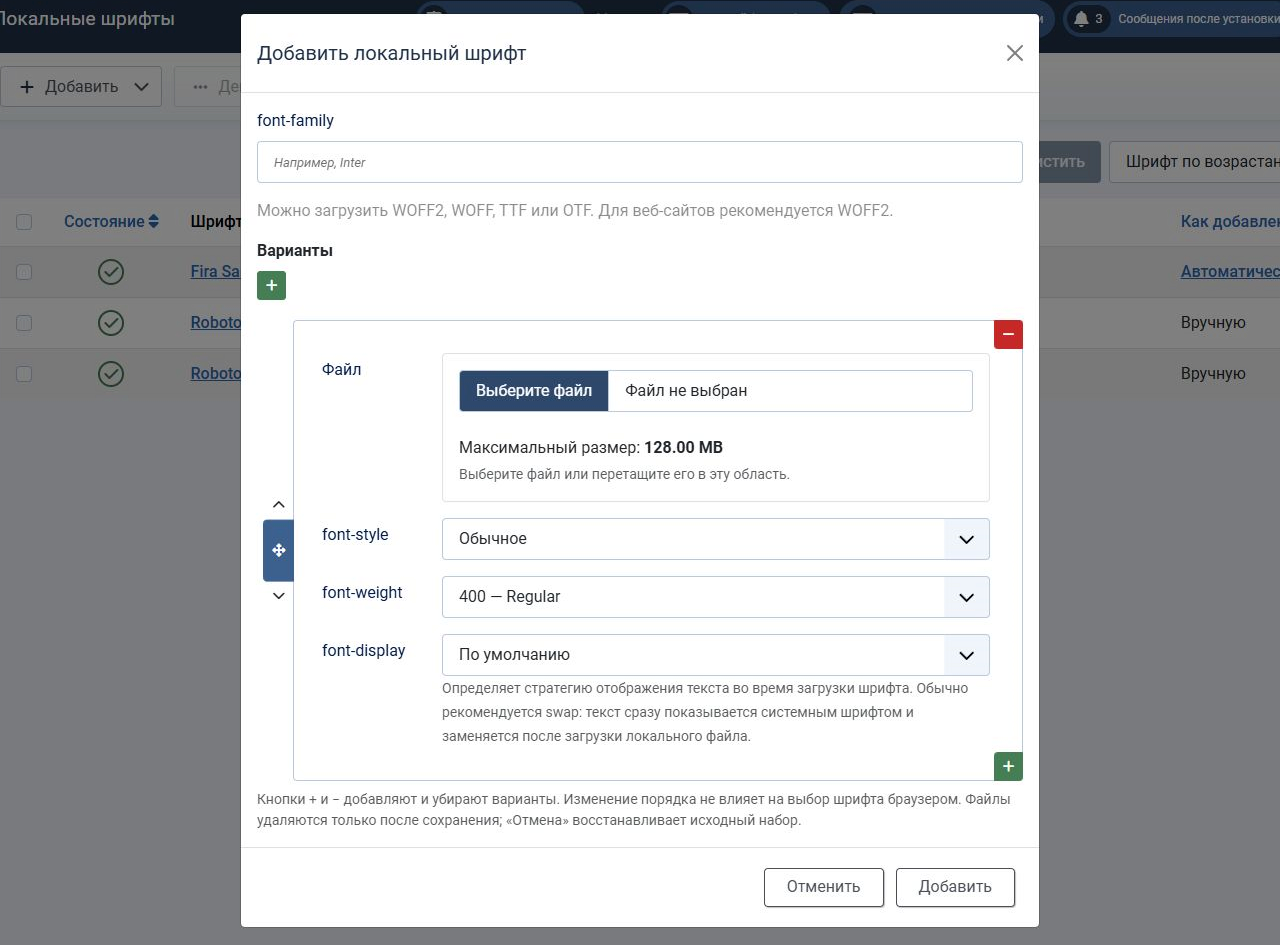
One family, multiple files
Do not add Regular, Medium, Bold and Italic variants of the same font as separate families. Create one family and add its variants to it.
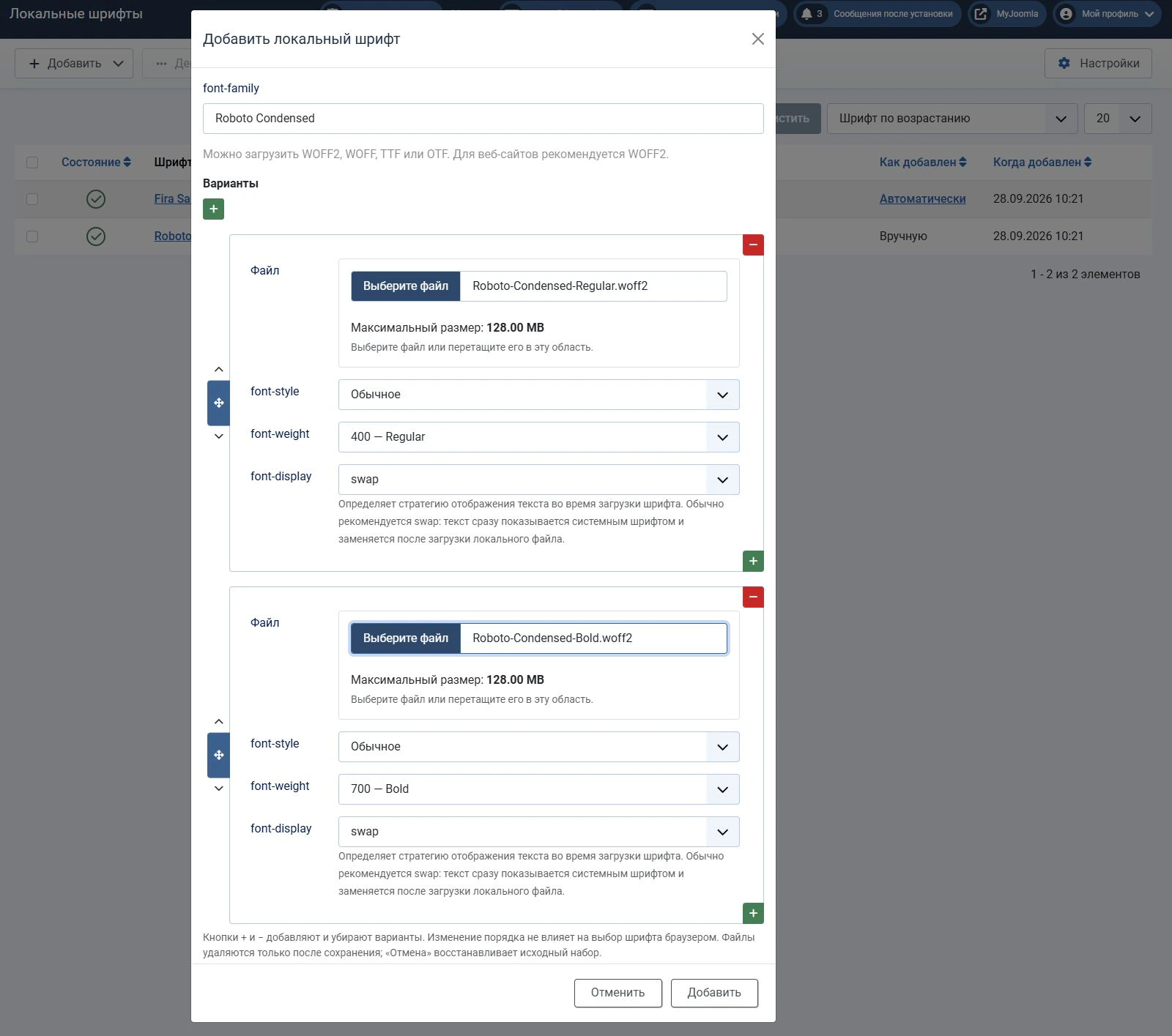
For example, an Inter family could contain:
Inter-Regular.woff2—font-style: normal,font-weight: 400;Inter-Medium.woff2—font-style: normal,font-weight: 500;Inter-Bold.woff2—font-style: normal,font-weight: 700;Inter-Italic.woff2—font-style: italic,font-weight: 400.
The edit dialog uses Joomla's repeatable field. Click + to add a variant, then choose its file, style, weight and font-display.
You can also drag and drop files into the upload area.
Variable fonts
A variable font file can contain a range of weights. For this type of file, you can specify a minimum and maximum value, such as 100 to 900.
The range must match the file's actual capabilities. A setting in Local Fonts cannot turn a static font into a variable font.
What font-display does
The font-display property determines how the browser displays text while a font file is loading.
The swap value suits most websites: the browser first displays text using a fallback font, then replaces it with the selected font once it has loaded.
Local Fonts lets you set a default for all new fonts and override it for an individual family or variant.
How to apply a local font on your website
Loading a font file and assigning it to page elements are two separate tasks.
Local Fonts registers a family through @font-face rules and makes it available to the browser. The component does not decide which font to use for body, headings, menus or individual modules.
If your template already used a Google Font and its font-family name stays the same after local hosting is enabled, you often need no further changes. The template continues to use the same family, with files now loaded locally.
For your own font, assign it in the template settings or CSS. For example:
body {
    font-family: "Inter", Arial, sans-serif;
}
You can use a different family for headings:
h1,
h2,
h3 {
    font-family: "Roboto Slab", serif;
}
The name in your CSS must match the font-family value in Local Fonts.
How to enable and disable fonts
The Status column shows whether a family is currently enabled. Change its state by clicking the standard Joomla status icon or using the Actions menu.
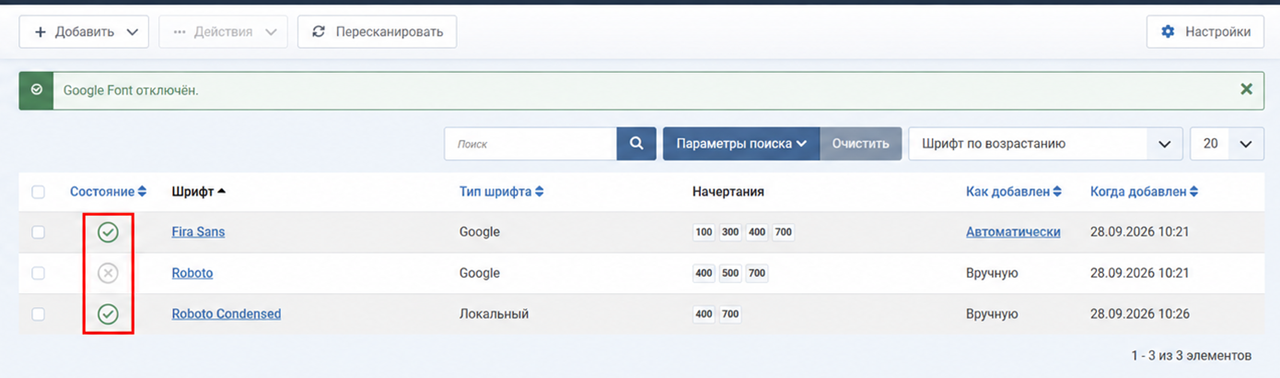
Disabling a font does not necessarily delete its files. A font can remain stored on the server while no longer being loaded on the site. This is useful when temporarily trying a different design.
To manage several records at once, select their checkboxes and use the batch actions to enable, disable or delete them.
Local Fonts component options
The main options are available on Joomla's standard component configuration page.
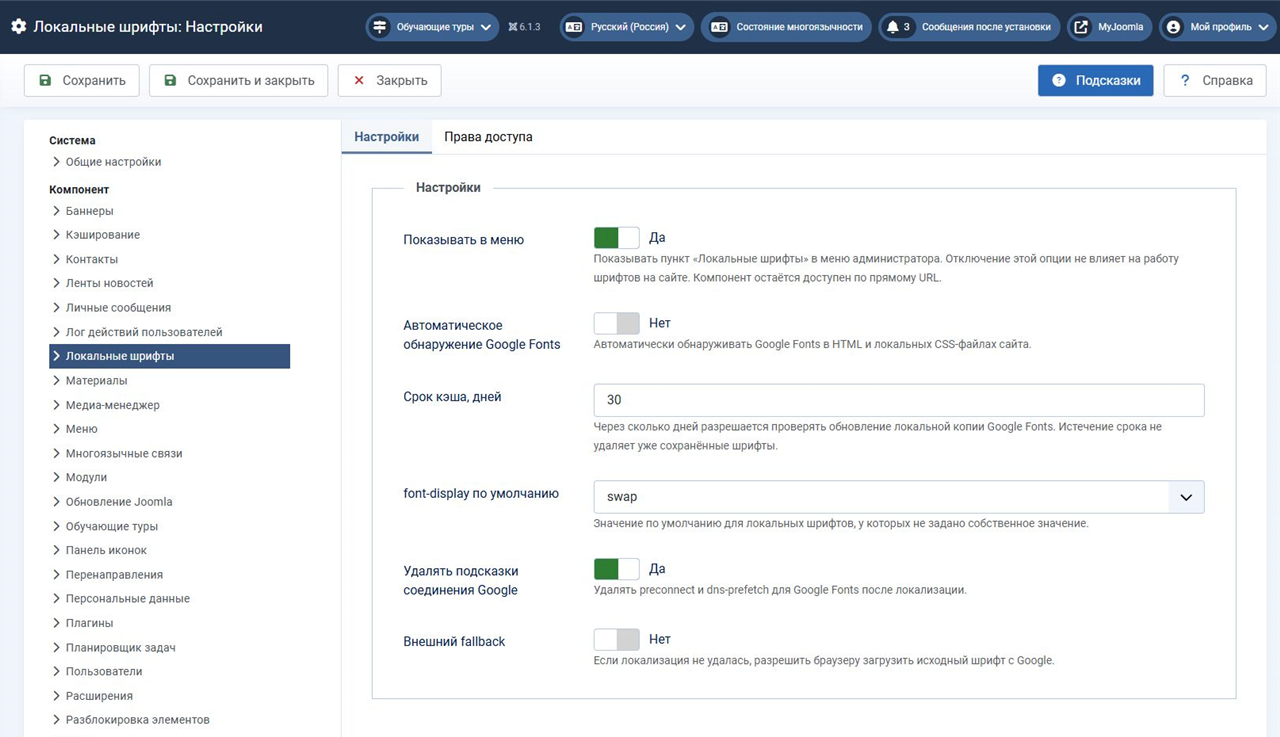
Show in Menu
This option only controls whether Local Fonts appears in the administrator menu.
If you turn it off after configuration, the component continues to work, saved settings remain active and the system plugin continues to load fonts on the site. You can still open the component using its direct administrator URL.
Automatic Google Fonts Detection
When enabled, the system plugin can record Google Fonts references found in the site's HTML and CSS.
Cache Lifetime
This determines how many days must pass before the local Google Fonts copy can be checked again.
Cache expiry does not delete a saved font. The downloaded local version continues to work even when the original Google reference is no longer present on the page.
Remove Google Connection Hints
Once fonts are served locally, connections to Google Fonts are no longer needed. This option removes browser hints such as preconnect and dns-prefetch for Google Fonts servers from the HTML.
Remote Fallback
If remote fallback is enabled, the browser may request the original Google resource when the local copy cannot be used.
If you want to eliminate external requests entirely, leave this option disabled.
How to check that fonts are loaded locally
After configuration, open your website and the browser's developer tools. On the Network tab, reload the page and inspect its requests.
For a Google Font served entirely locally, there should be no requests to:
fonts.googleapis.com
fonts.gstatic.com
Font files should be loaded from your own domain.
You can also use the Computed tab or the Fonts section in developer tools to check which family is actually being used by a selected page element.
What to do after changing your template
Updating or switching a template can change the fonts loaded by your website. If that happens, open Local Fonts and click Rescan.
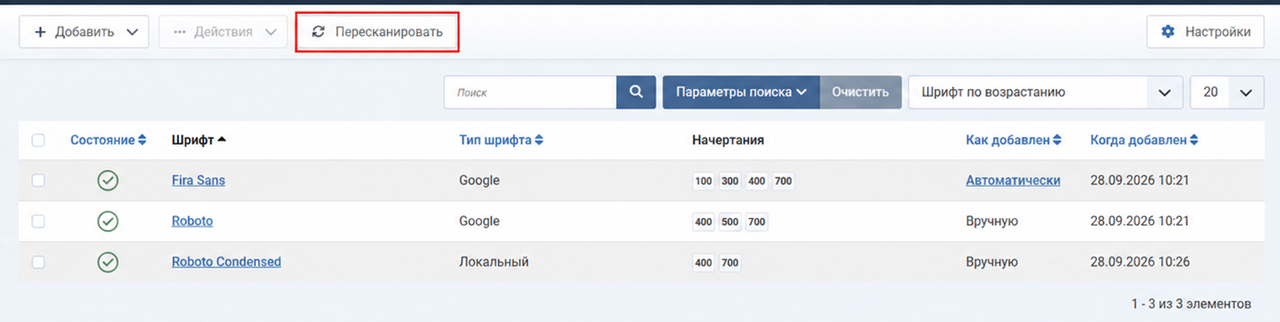
You do not need to recreate families that have already been saved. New external references appear in the list as automatically detected fonts, ready for you to review and adjust their settings.
Conclusion
Local Fonts separates font management from your Joomla template. You can detect Google Fonts and store them locally, or combine your own files into families with multiple styles and weights.
After adding a font, assign it to the required elements through your template settings or CSS. The files, variants, enabled state and loading options are managed centrally in the component.


