


Table of contents
Minification reduces the size of HTML, CSS and JavaScript by removing unnecessary characters. This guide explains how it differs from compression and file combining, how to configure JCH Optimize in Joomla, and how to check that the optimised pages still work correctly.
What minification does
A browser downloads the page HTML, stylesheets and scripts. Transferring more data can increase loading time, particularly on a slow connection.
A minifier processes code according to its syntax. It removes unnecessary indentation, some comments and other redundant elements. For example, this CSS:
.article-title {
    color: #333333;
    margin: 0;
}
can be shortened to:
.article-title{color:#333;margin:0}The heading keeps the same appearance.
The benefit depends on the original files. If an extension already supplies minified resources, further processing may provide little additional saving. The .min.css or .min.js suffix usually identifies a minified file, but its name alone does not prove that the content is optimised.
Minification does not fix slow database queries, oversized images or lengthy JavaScript execution. Its purpose is to reduce code size.
Minification, combining and compression
These options often appear together in optimisation tools, but they perform different tasks.
| Method | What changes | What to consider |
|---|---|---|
| Minification | HTML, CSS or JavaScript source becomes shorter | Processing must preserve the meaning of the code |
| File combining | Several files become one or a few shared files | Resource loading and reuse from the browser cache change |
| Gzip or Brotli | Less data is transferred over the network | The browser decompresses the response |
| Removing unnecessary code | Resources or sections that are not needed are excluded | Check every relevant page and interface state |
Minification can be used with Gzip or Brotli. The code is shortened first, then a compressed version is sent to the browser.
Evaluate file combining separately. Fewer requests do not automatically mean a faster page. The size of the combined files, their loading order and their reuse across pages also matter.
Where to start in Joomla
Before installing an optimiser, find out what the template, extensions and server already do. Otherwise, several tools may process the same resources repeatedly.
Check the following:
- Whether the template can minify and combine files.
- Whether another HTML, CSS or JavaScript optimiser is installed.
- Whether text resources are served with Gzip or Brotli.
- Which large files the pages being tested load.
- Whether JavaScript errors exist before optimisation.
Do not assume that the template’s optimisation features are insufficient. The resources they process depend on the particular template and version.
If you choose JCH Optimize, disable duplicate processing of the same files in other tools. Make changes on a copy of the site first and keep the original settings.
Joomla uses the Web Asset Manager to load resources and their dependencies. Extensions may already include minified files, so an additional optimiser is not necessary for every site.
How to configure JCH Optimize
JCH Optimize is distributed as a package containing an administration component and accompanying extensions. Older instructions that put all configuration inside a single plugin do not reflect the modern interface.
Before installation, check the selected release’s Joomla and PHP requirements. For example, the developer lists JCH Optimize 9.4.3 as compatible with Joomla 5 and 6. This does not mean that the same package supports Joomla 3 or 4.
Initial configuration
Configure the extension gradually so that you can identify the effect of each change.
- Install a suitable package on a test copy of the site.
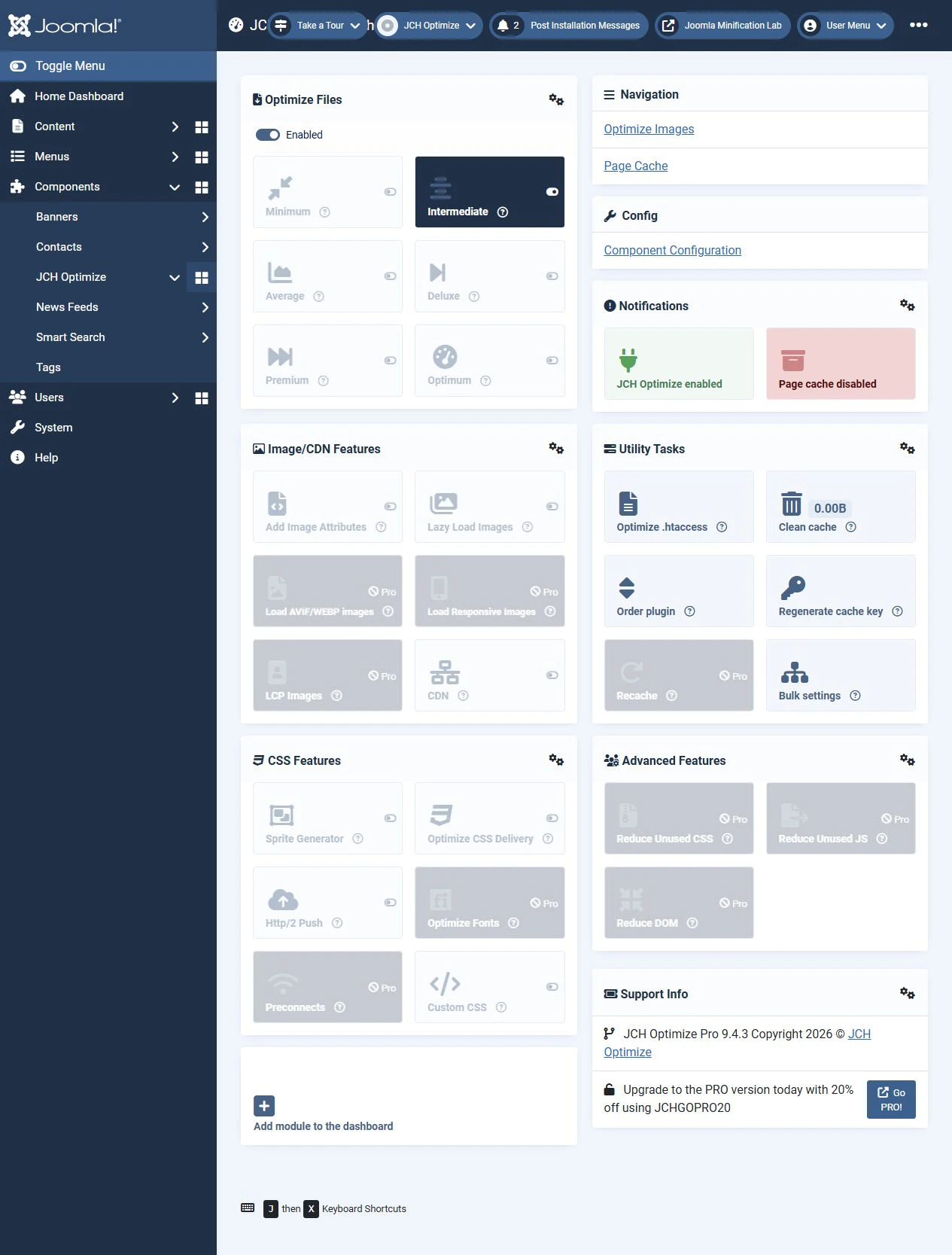
- Open Components → JCH Optimize → Dashboard. The component name may include Pro in that edition.
- Find the automatic settings in the Optimize Files group.
- Start with Minimum and check the site’s appearance and main functions.
- Try Intermediate if the previous check succeeds. This preset enables CSS and JavaScript minification.
- After changing settings, clear the JCH Optimize cache and reload the pages being tested.
- Compare the result with the original state.
A preset’s name does not replace checking its contents. Each automatic preset changes several options, so read the descriptions in the installed version.
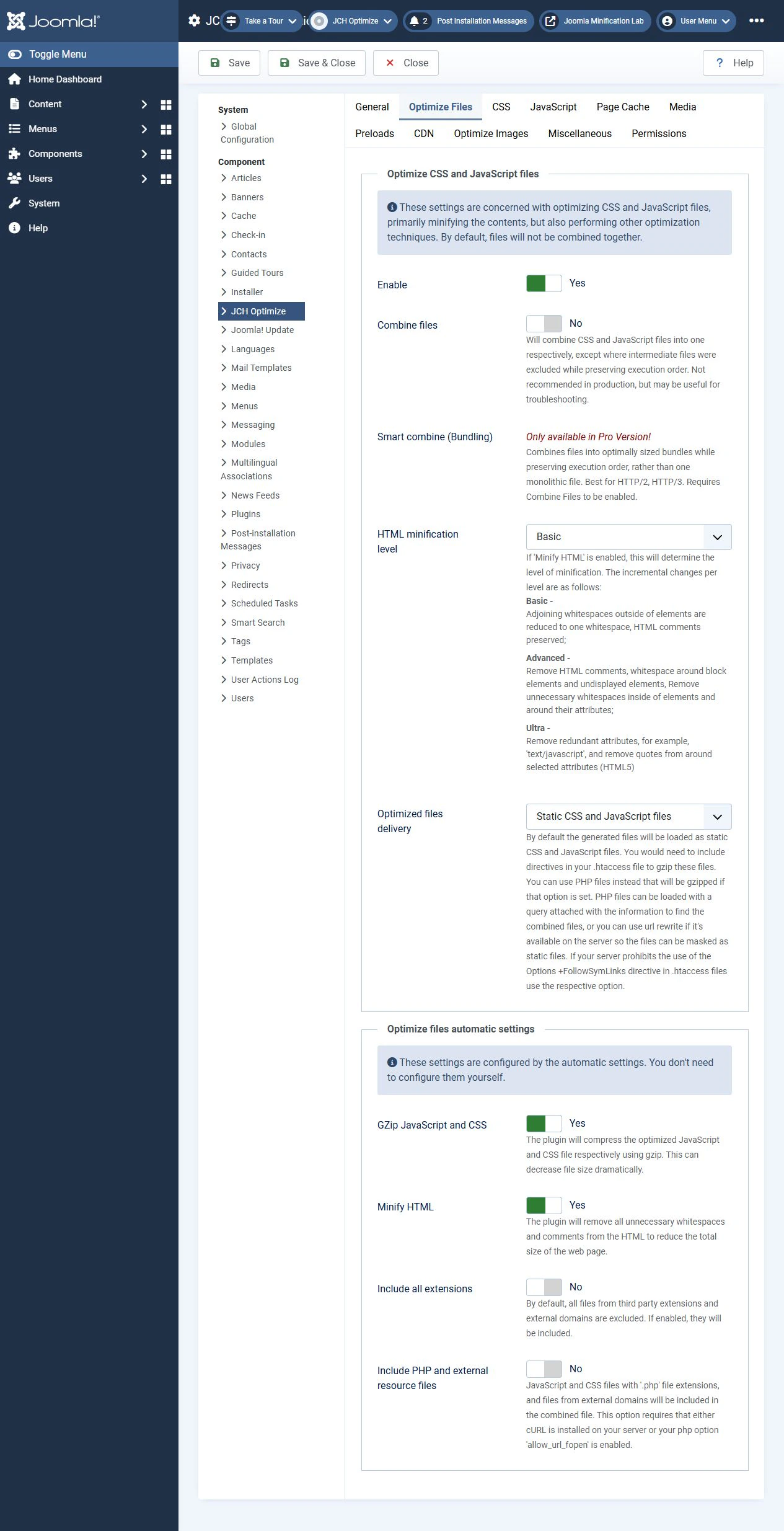
In JCH Optimize 9.4.3, file combining is disabled by default. It is a separate option and does not have to be enabled for minification. Some new dashboard labels may remain in English when using a translated interface.
Initially, leave additional features such as deferred script loading and unused resource processing disabled. Check them separately after completing the basic configuration.
HTML minification
Open Component Configuration → Optimize Files. HTML processing is controlled by Minify HTML and HTML minification level. Three levels are available: Basic, Advanced and Ultra.
Start with Basic. Higher levels make additional changes, so move to them only after checking the results.
Review pages containing ordinary text, buttons, forms, inline scripts and code examples. Make sure that spaces between words remain, forms work and the appearance is unchanged.
Ultra is optional. If a less aggressive level produces a satisfactory result, there is no need to increase processing simply to select the highest level.
How to resolve a conflict
After optimisation, a menu, slider, form or another interactive element may stop working. First establish whether the changed setting caused the problem.
Undo the latest change, clear the relevant cache and test again. If the problem disappears, enable features one at a time until you identify the cause.
Use the browser developer tools’ Console tab to investigate JavaScript errors. In Network, check that CSS and JavaScript files load successfully.
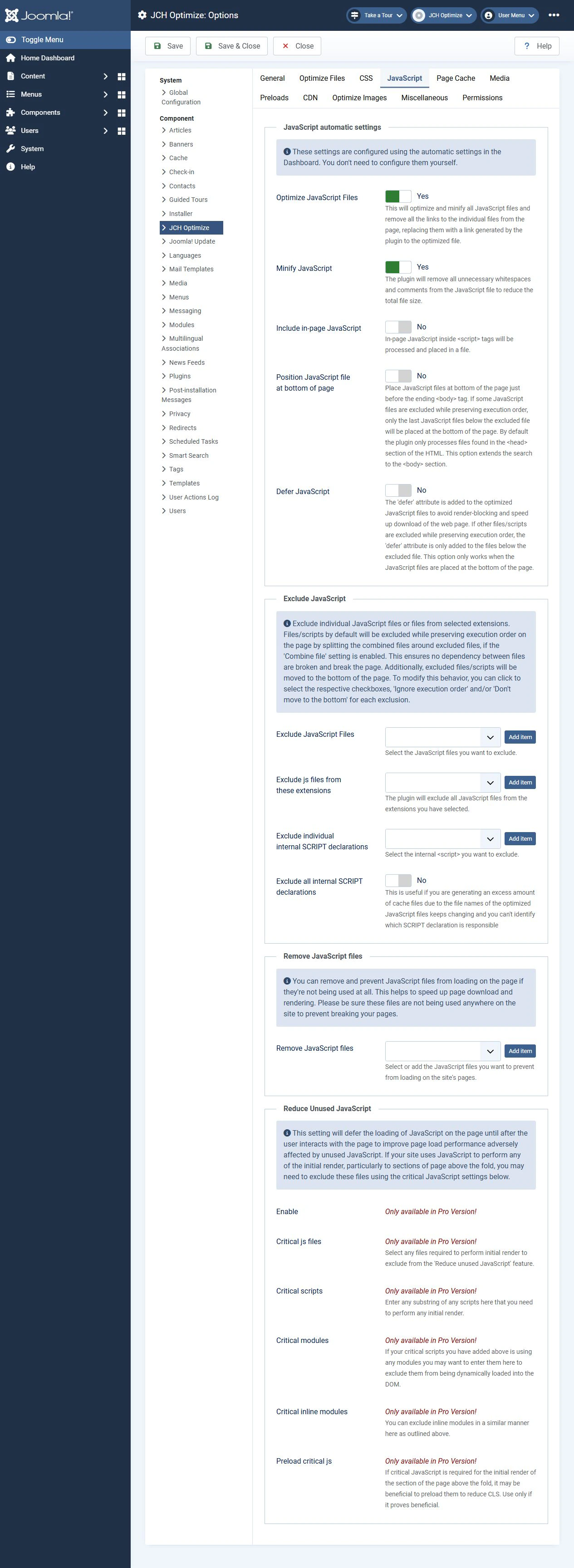
JCH Optimize can exclude individual files and inline code from processing. Add an exclusion for the resource you have identified, then check the page again. Do not automatically exclude every file belonging to an extension just because the problem appears in its interface.
Consider script dependencies. If one file uses functions from another, changing their execution order may break the site.
After configuration, test more than the home page. Check search, forms, the mobile menu and other important workflows. For an online shop, also test the basket and checkout in the test environment.
Do you need Gzip and caching?
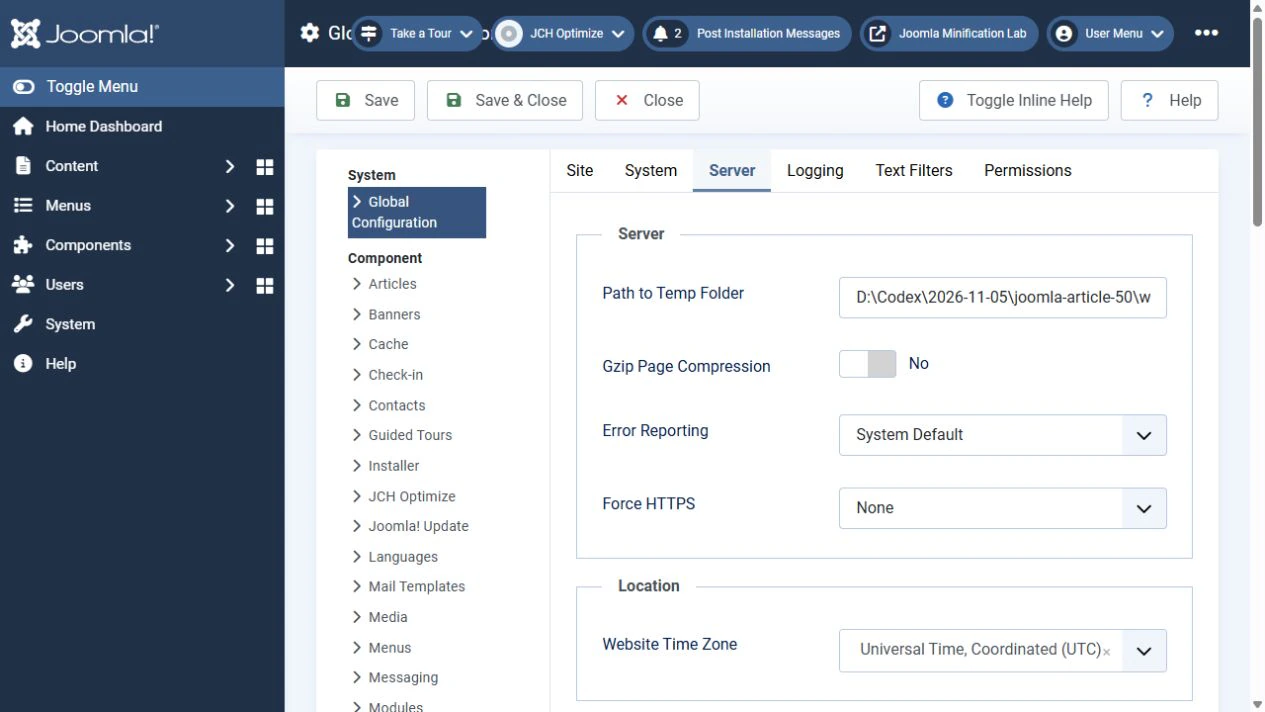
In Joomla, Gzip compression is configured under System → Global Configuration → Server → Gzip Page Compression. This feature applies to the generated HTML response. It does not replace server compression settings for separate CSS and JavaScript files.
First check whether the server or CDN already compresses responses. If compression is already configured, enabling Joomla’s Gzip option is usually unnecessary.
Caching performs a different task too. JCH Optimize stores processed resources in its own cache. Full-page caching and Joomla’s system cache are separate mechanisms.
The rule that Joomla caching must always be enabled before minification is therefore incorrect. Choose caching settings according to the site’s behaviour, personalised content and installed extensions.
When using page caching, coordinate its clearing and lifetime with those of the optimised resources. Otherwise, cached HTML may reference a CSS or JavaScript file that has already been deleted.
How to check the results
Compare the same pages under the same conditions. First visits and repeat visits produce different results because of caching.
You can check using the browser developer tools:
- Open Network before loading the page.
- Enable Disable cache to remove the browser cache’s influence from the comparison.
- Reload the page.
- Examine the main HTML document, CSS and JavaScript separately.
- Compare the transferred data size with the resource size after decompression.
- Repeat the same steps after optimisation.
Disabling the cache in developer tools does not disable Joomla, server or CDN caches. Account for these conditions separately.
To check response compression, open the response headers and find Content-Encoding. The value gzip indicates Gzip, while br indicates Brotli.
Use PageSpeed Insights to assess the page as a whole as well. Focus on specific issues and repeated measurements instead of a single change in the overall score.
A successful result means transferring less data while preserving the site’s appearance and functions. The saving and its effect on loading speed must be measured on the actual pages.
Conclusion
Start by reviewing the resources the site loads and the optimisation tools already in use. Then choose one tool to process the code, configure it on a copy of the site and compare the results.
JCH Optimize is an option for Joomla, but its highest preset is not a universal solution. Keep the configuration understandable, check exclusions and make sure visitors receive working pages with less data to download.
Terms used:
Package, CSS, HTML, JavaScript, PHP, Menu, JCH Optimize, Database, Caching, CDN, Web Asset Manager


