


Table of contents
JoomShopping lets you offer online payments, bank transfers or payment on collection or delivery. This guide explains when you need a separate payment module, how to check its compatibility with Joomla and which settings to review before launching your shop.
Payment methods and payment modules
A payment method is an option the customer selects at checkout. A payment module connects the shop to a service that processes the payment and reports the result.
For payment on collection or delivery, configure the corresponding method in your shop and explain the payment arrangements. To accept cards through a payment provider, you need a compatible integration and an active merchant account. Adding a payment method with the provider's name does not connect the shop to that provider.
Payment extensions are often called plugins. However, a JoomShopping payment package is not necessarily installed through Joomla's plugin manager. Follow the installation instructions for the particular package.
How to choose a module
First, check whether the payment provider can onboard your business. Then choose an integration for your installed versions of Joomla and JoomShopping.
Check five requirements:
- Merchant country and business status. Eligibility can differ for companies, sole traders and self-employed sellers. The ability to pay by card does not mean that every website owner can open a merchant account.
- Required payment methods. Check which card payments, Russia's Faster Payments System (SBP) and other options are available under your agreement and in your region.
- Package compatibility. Check the required Joomla, JoomShopping and PHP versions. Compatibility of the shop component with a newer Joomla release does not guarantee compatibility of every payment extension.
- Integration features. Check payment notifications, refunds, authorisation and capture, and receipt data if your shop needs them. A feature offered by the provider may not be implemented in the module.
- Maintenance. Review the last update, changelog and technical support arrangements.
A free module does not mean fee-free payment processing. Compare current provider terms for setup and running costs. Old fee figures in reviews are not a reliable basis for this comparison.
Integration examples
Modules differ in their supported versions and purpose. These examples illustrate what to check before installation. They do not replace a review of your shop's requirements.
YooKassa
YooKassa's integration page provides a separate free package for Joomla 5–6 and JoomShopping 5. Older versions use a different package, so choosing an archive solely because its name contains Joomla is not sufficient.
The official instructions use JoomShopping's Install & Update section. Provider settings are configured within the payment method. The documentation also covers receipt data and deferred payment settings.
PayPal Express
The JoomShopping developer's catalogue lists PayPal Express 3.2.14 for Joomla 4–6 and JoomShopping 5.0.0 or later. The extension can add a PayPal checkout button to the basket.
A compatible extension does not establish whether PayPal can onboard merchants in your country. Before purchasing it, check merchant eligibility, settlement currencies and the payment options available to your customers.
Older modules
For example, PayAnyWay publishes instructions for JoomShopping 4.19. That page does not establish support for JoomShopping 5 or Joomla 6.
If your version is not listed, ask the developer to confirm compatibility. Do not install an old archive on a live shop simply because the payment provider's name has stayed the same.
Where to find the settings
In the Joomla administrator, open Components → JoomShopping → Options → Payments. The page title is Payment list.
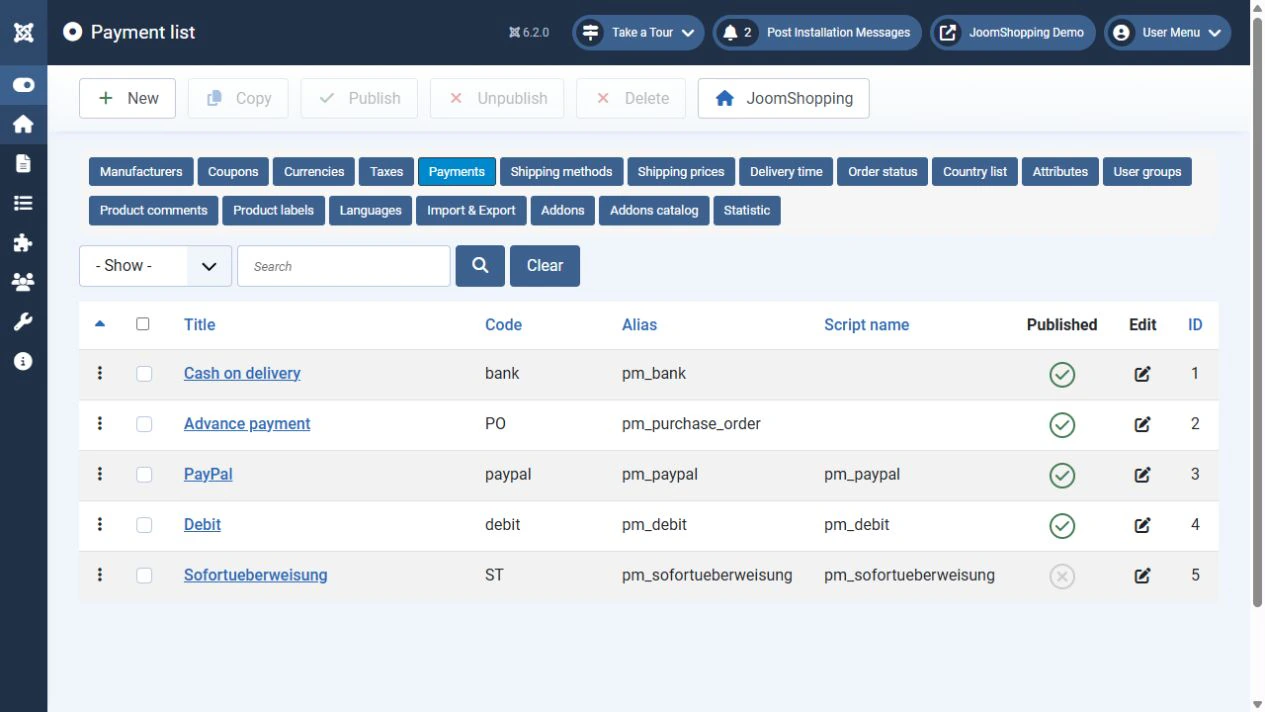
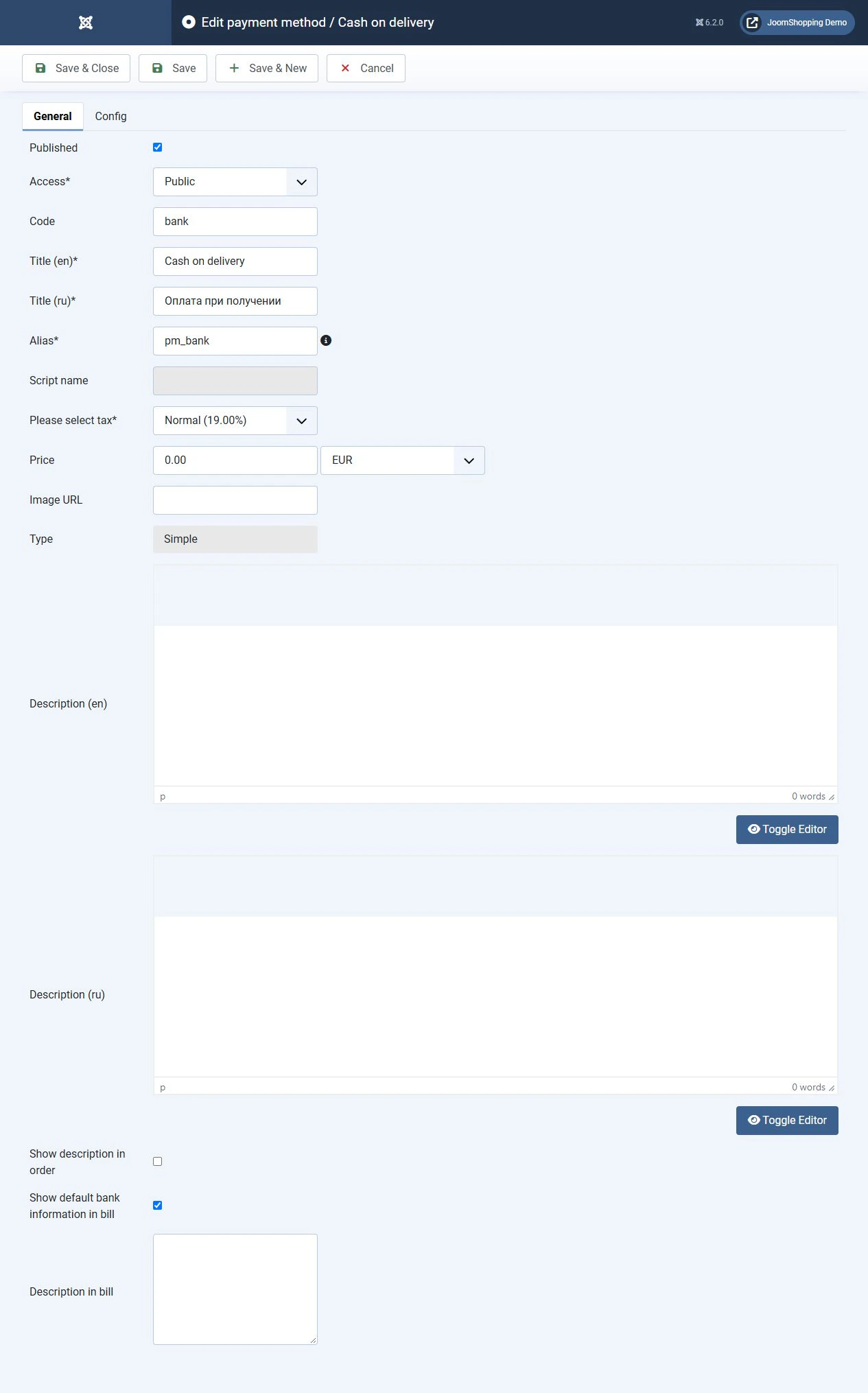
Open the required payment method. General settings are on the General tab, and integration settings are on the Config tab.
On the General tab, review publication, access, the customer-facing name, any additional payment charge and the description. The payment charge added by your shop is different from the processing fee the provider charges you.
Alias, Script name and Type are technical settings. Do not change them arbitrarily for an installed module.
How to connect online payments
Configure a new extension on a separate copy of the shop first. Back up the files and database before changing your live site.
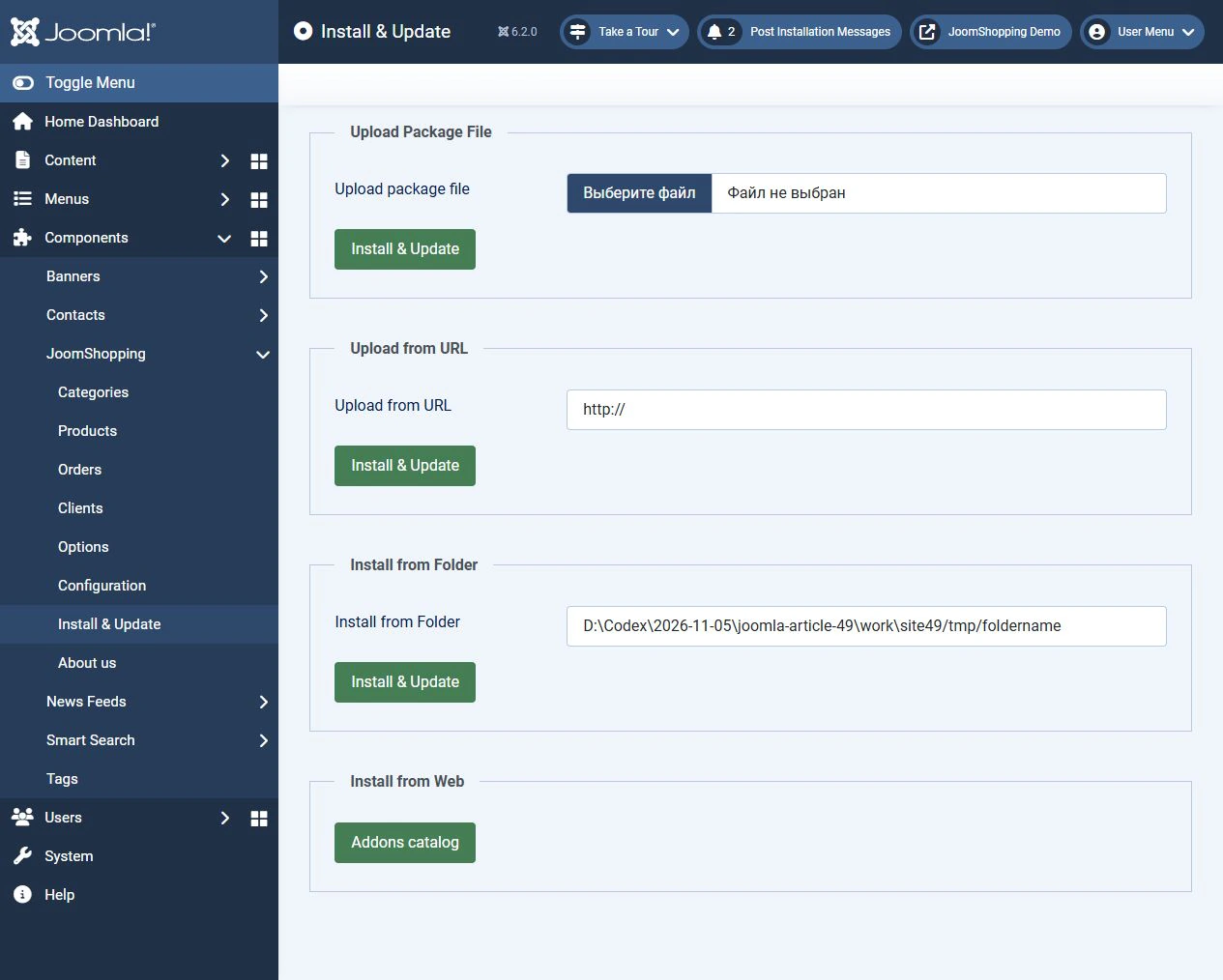
- Choose a package with stated support for your combination of Joomla, JoomShopping and PHP.
- Follow the developer's installation instructions. Many extensions use JoomShopping → Install & Update. Use the Joomla installer when the developer specifically instructs you to do so.
- Open the added payment method and configure its name, access and description.
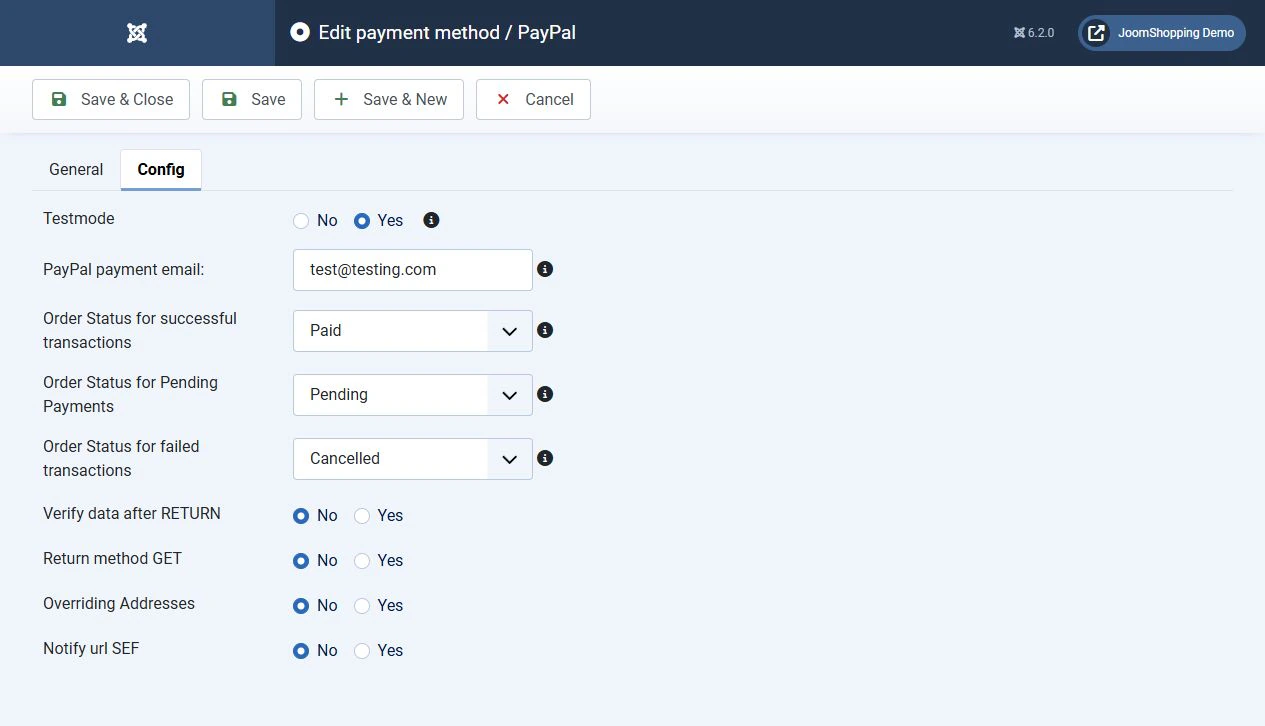
- Enter the connection settings on the Config tab. The fields depend on the module. Keep test and live merchant credentials separate.
- Configure the notification address according to the module and provider instructions. The customer return address and server notification address may serve different purposes.
- Review order status mappings. An order awaiting payment must not receive the same status as a successfully paid order. If you use authorisation and capture, also check the status used while capture is pending.
- Configure receipt data if required. Installing a payment module does not establish that this part of the integration is ready.
- Complete the test scenarios before enabling live mode according to the provider's instructions.
A local site is useful for checking the interface and checkout flow. However, an external payment provider cannot send notifications to an address available only on your computer. Local checks therefore do not replace testing the complete integration at a test address the provider can reach.
Payment on delivery and by bank transfer
These methods need clear customer instructions and an agreed process for handling orders.
For payment on collection or delivery, state where payment takes place and which options are available, such as cash at a collection point. Before offering card payment to a courier, confirm that the delivery company provides it.
For bank transfers, explain how customers receive an invoice, which payment reference to use and when order processing begins. A PDF invoice and confirmation from the bank serve different purposes. Issuing an invoice does not automatically verify that payment has arrived.
Do not mark an order as paid as soon as the customer chooses bank transfer or payment on delivery. Confirm payment when it has actually been received.
Checks before launch
Go through checkout as a customer. For online payments, use test mode if the provider and module support it.
Check:
- The methods available to guests and registered customers.
- Names and descriptions in each shop language.
- The total including delivery, discounts, taxes and any additional payment charge.
- Successful payments, failures and customer cancellations.
- Receipt of notifications and the resulting order status changes.
- Duplicate notifications, which must not cause the same payment to be processed twice.
- Receipt data if this feature is used.
Also check payment and delivery compatibility. Customers must not be offered payment on delivery when their selected delivery service does not support it.
Troubleshooting
Start with a reproducible test order and identify the step at which the problem occurs.
Payment method missing. Check publication, access and restrictions added by extensions. If the entire payment selection step is missing, check Hide payment step (use first).
Empty Config tab. A method without a provider integration may have no additional settings. This alone does not indicate an installation problem.
Payment received but order status unchanged. Check the notification address, handler availability, connection settings and module log. Do not mark all pending orders as paid without checking them against the provider's records.
Totals do not match. Compare products, discounts, delivery, packaging, taxes and additional payment charges. Review the whole order rather than just the product price.
Error after an update. Record the Joomla, JoomShopping, PHP and payment module versions. Reproduce the problem on a test copy and send the developer the failing step and error message without secret keys or payment data.
Conclusion
Choose payment methods to suit your customers and business arrangements. Check the specific module's compatibility, configure order statuses and complete the payment flow before launch. A Joomla shop needs a clear choice for customers and reliable confirmation of each payment.


