


Table of contents
Gantry 5 lets you control the appearance of a Joomla website: choose colours and fonts, build layouts from reusable elements and give different sections their own design. This guide explains how templates, outlines and particles work together, what the main settings do, and how to display Joomla content and modules in a layout.
What is Gantry 5?
Gantry 5 is an open-source framework used by compatible templates. A website needs both the framework and a template built for it. Installing Gantry does not add its layout builder to any Joomla template you already have.
The framework provides several main features:
- Style settings. Change colours, fonts and other options in the template administration panel.
- Layout builder. Arrange blocks in sections and rows by dragging and dropping them.
- Particles. Use ready-made elements to display a logo, menu, text and other content.
- Module positions. Create areas in a layout for standard Joomla modules.
- Multiple outlines. Give the home page and internal sections different layouts.
- Inheritance. Manage shared settings and elements from one place.
The available settings and particles depend on the template. A feature shown in one template's demo may not be available in another.
Versions and compatibility
As of 6 November 2026, the current stable release is Gantry 5.6.7. The developer's announcement lists support for Joomla 5 and Joomla 6 and recommends updating because the release includes security fixes. Version 5.6.7 replaces 5.6.6.
The Gantry 5.6 branch is not intended for Joomla 3 or Joomla 4. Older instructions requiring Joomla 3.4 or later describe earlier releases and should not be used to choose the current package.
Before installing or updating, check three things:
- Whether the Gantry release supports your version of Joomla.
- Whether the template and its additional particles are compatible with that combination.
- Whether the PHP version meets the requirements of Joomla, Gantry and the template.
The PHP 8.1 minimum stated in the Gantry announcement does not override the CMS requirements. For example, Joomla 6 requires PHP 8.3 or later. Updating the framework alone will not fix incompatible code in an old template.
Back up the files and database before making changes. Test the new combination on a separate copy of the website first.
Templates, outlines and particles
Gantry has three distinct layers. The template defines the available design tools. An outline stores a particular set of settings and a layout. Particles provide the elements within that layout.
Templates and outlines
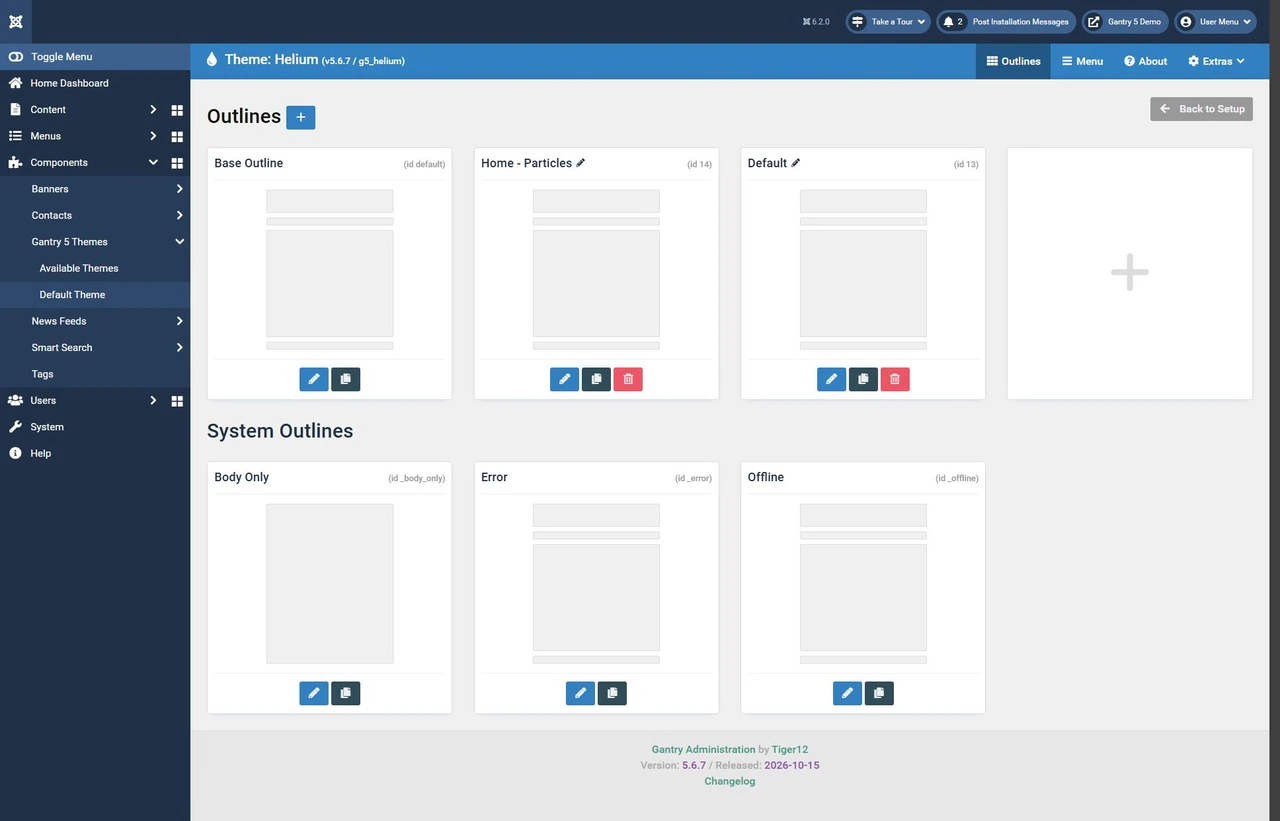
An outline combines appearance settings with the arrangement of elements. Standard outlines in Joomla use template styles. You can assign an outline to selected menu items to give those pages a different design.
For example, the home page may need a large introductory section, while a blog needs a layout with main content and a sidebar. You do not need an outline for every blog article: one style can serve many pages.
The Base Outline provides shared values that other outlines inherit. It is different from the Joomla template style selected as the default. The former provides the base settings, while the latter determines the design of pages without a separate style assignment.
Particles and Joomla content
A particle is an element in a Gantry layout. It might be a logo, menu, custom HTML block or area that displays CMS content.
Three elements are particularly important:
- Page Content displays the main content of the current page, such as an article or blog selected through a Joomla menu item.
- Module Position creates a position for Joomla modules. Modules assigned to the matching position appear there.
- Module Instance lets you place a specific module.
If you remove Page Content from an article page's layout, the article may stop appearing even though it remains published in Joomla. The particle controls where the content appears, while the content itself is still edited in the CMS.
Getting started
The free Helium and Hydrogen templates listed on Gantry's official downloads page are suitable for exploring the framework. Install the Gantry framework package for Joomla and a compatible package for your chosen template. The WordPress and Grav packages are not suitable for this task.
On an existing website, use the standard extension installation packages. A demo distribution, or quickstart, is intended for a separate installation and is not an update package for a live website.
After installation, open Components → Gantry 5 Themes and select the template. Before editing, check which outline is selected: changing the Base Outline and changing an individual outline have different effects.
A useful order is to configure the shared settings, prepare the outlines you need, build their layouts and assign them to menu items. Check the relevant website page after each stage.
Main administration sections
The Gantry panel combines tools shared across the template with settings for the selected outline. The names below follow the English labels used in the framework's documentation.
Shared tools
Outlines lists the available outlines. You can create, rename or copy an outline here. System outlines, such as the one for the error page, have separate restrictions.
Menu controls how menus are displayed. It supplements Joomla's standard menu manager and lets you adjust the appearance of menu items and dropdowns.
About shows information about the template, its version and its developer.
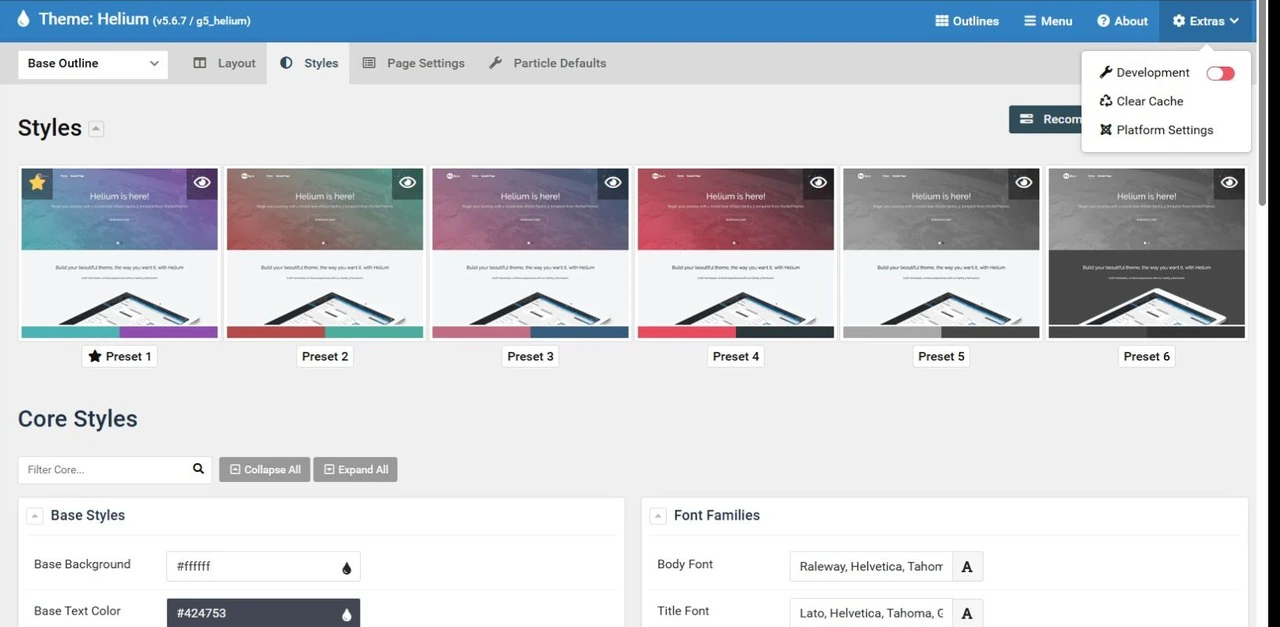
Extras provides maintenance tools. These include the Development/Production mode switch, Clear Cache for Gantry's cache and Platform Settings for the component's settings.
Outline settings
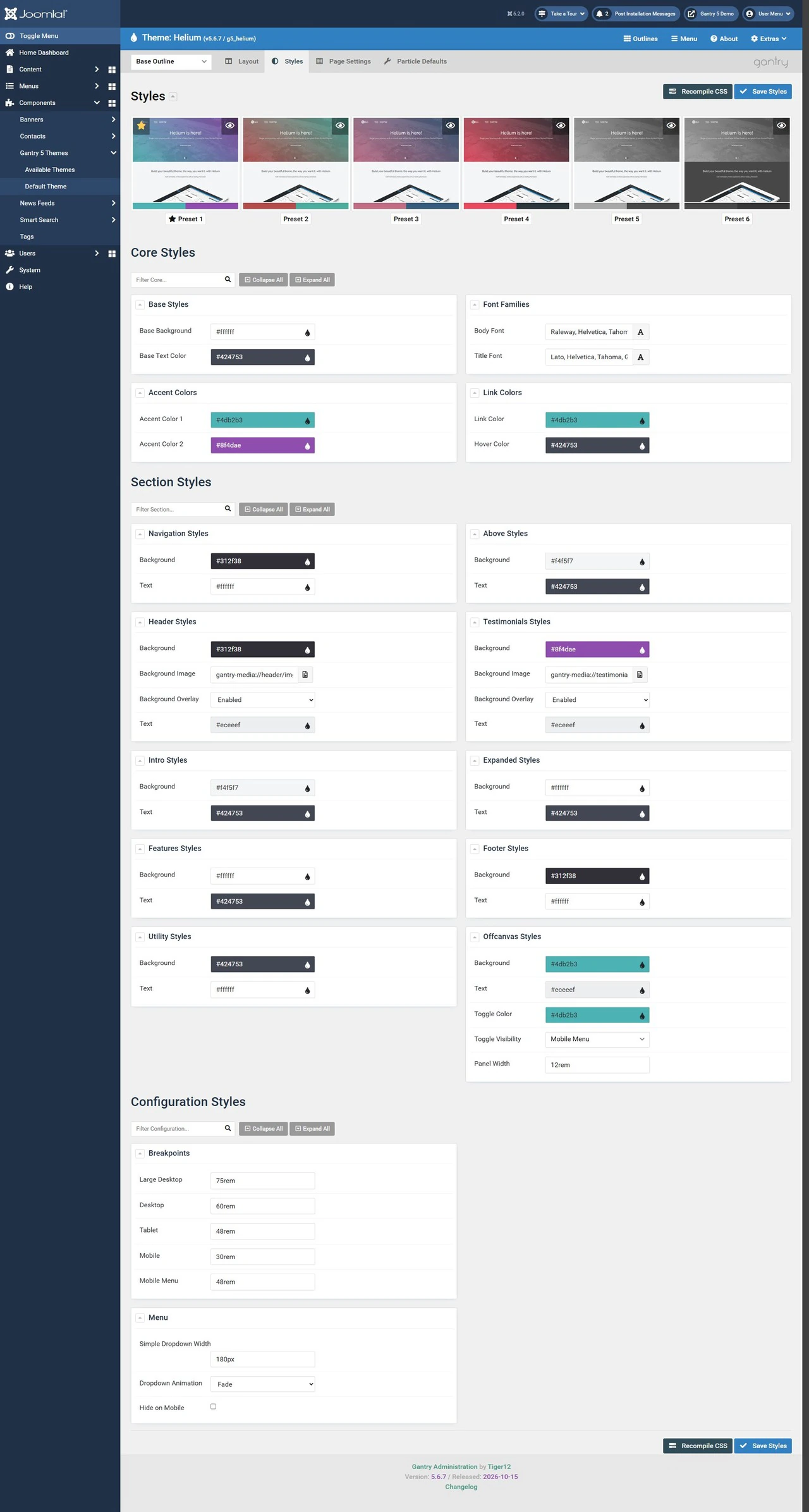
Styles controls appearance, including colour presets, fonts and settings for individual sections. The template defines which fields are available. Save Styles saves the settings and rebuilds the CSS.
Layout opens the layout builder. Use it to place particles, module positions and the main content, adjust block widths and configure sections. Save changes with Save Layout.
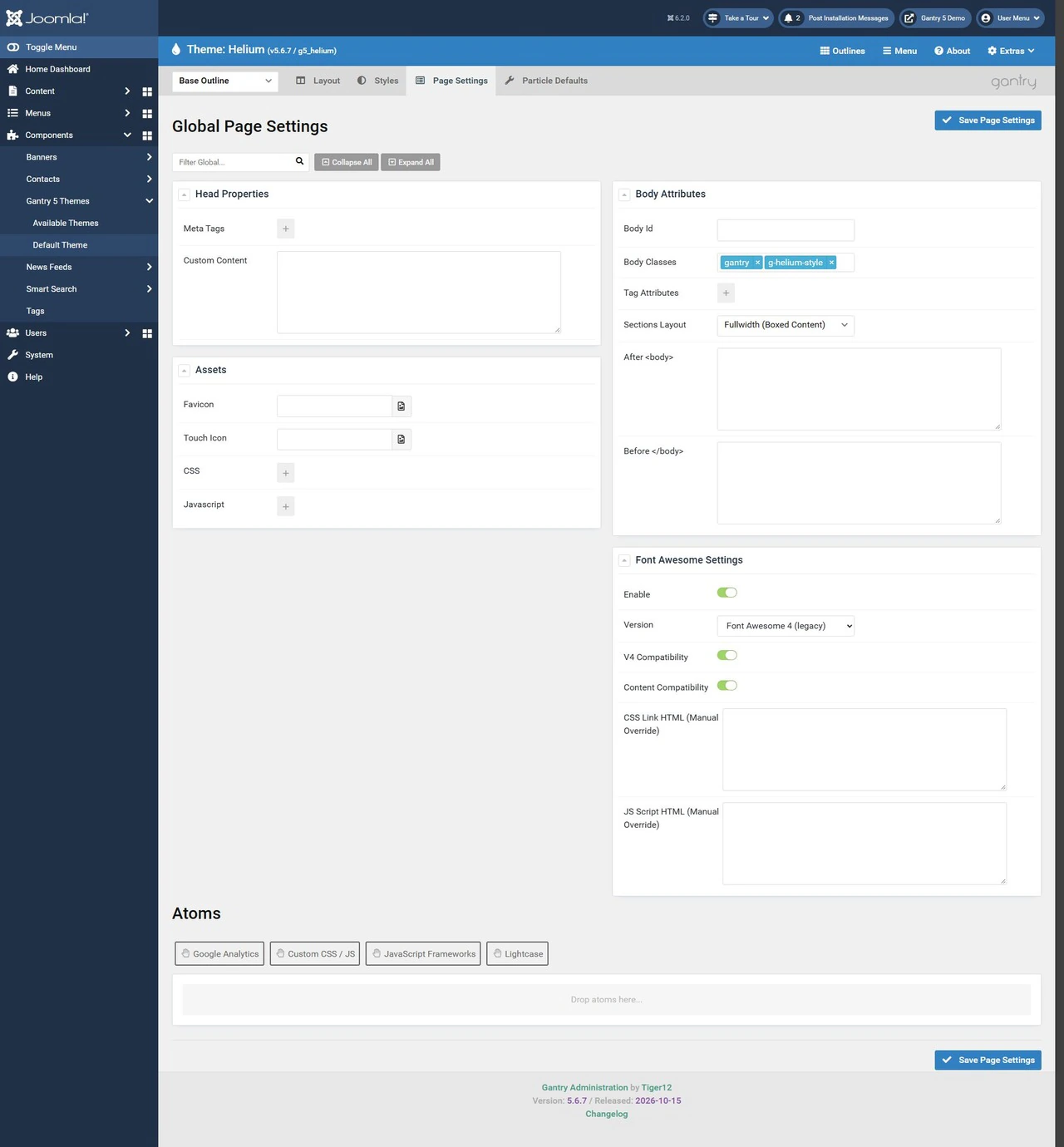
Page Settings contains page options, including the favicon, additional CSS and JavaScript, body attributes and utility elements called Atoms. These settings can be shared or overridden for an outline. Avoid duplicating meta tags and scripts already added by Joomla or another extension.
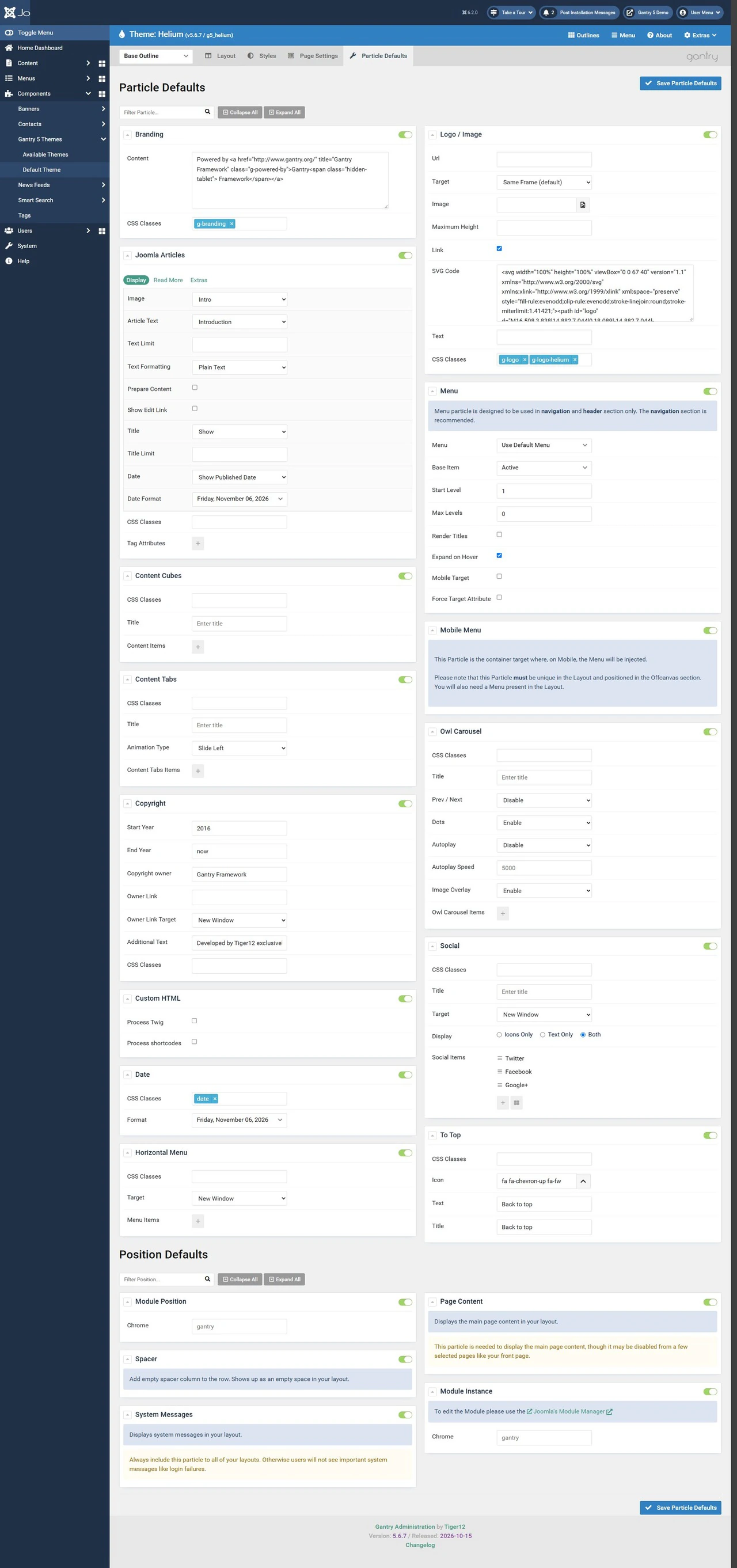
Particle Defaults sets the initial values and availability of particles. Configure shared values in the Base Outline, and adjust a particular instance in its settings in Layout.
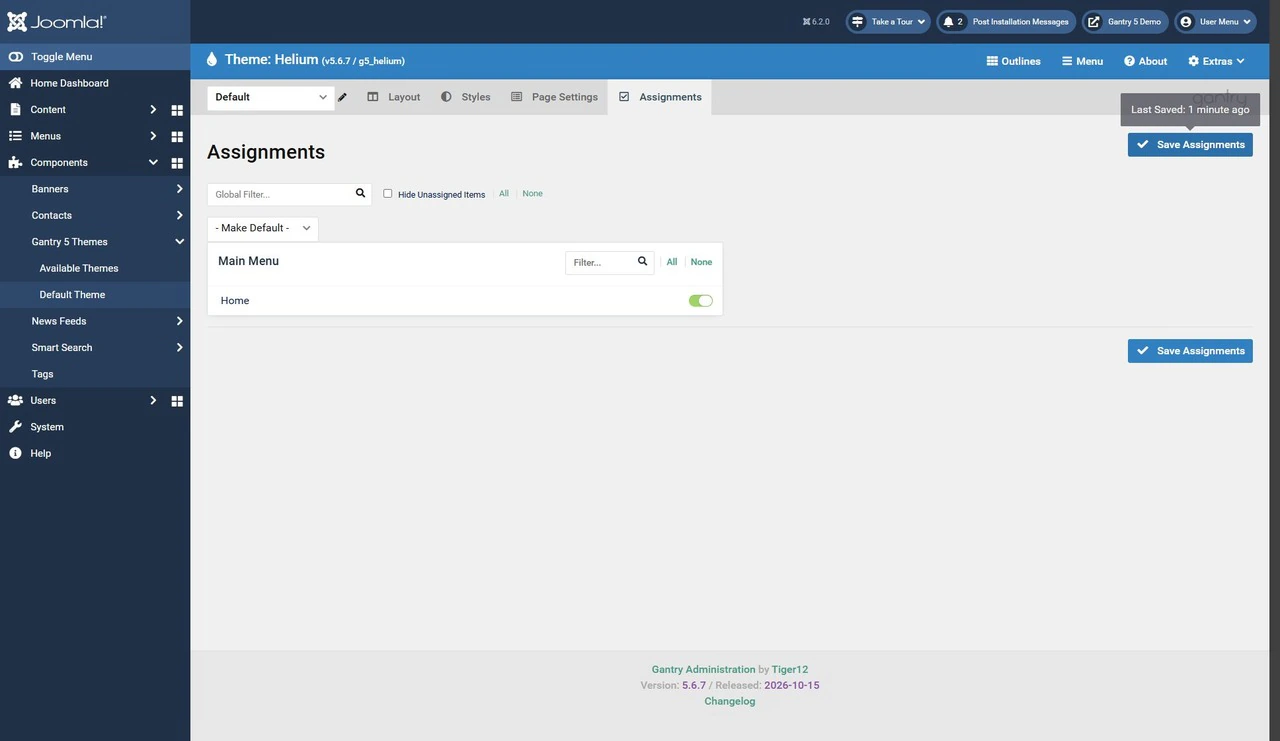
Assignments links a standard outline to menu items. If the required menu item does not exist yet, create it in Joomla first. The Base Outline does not need a separate page assignment.
Building a layout
Layout Manager lets you arrange page elements without editing template files. The selected template layout determines which sections are available.
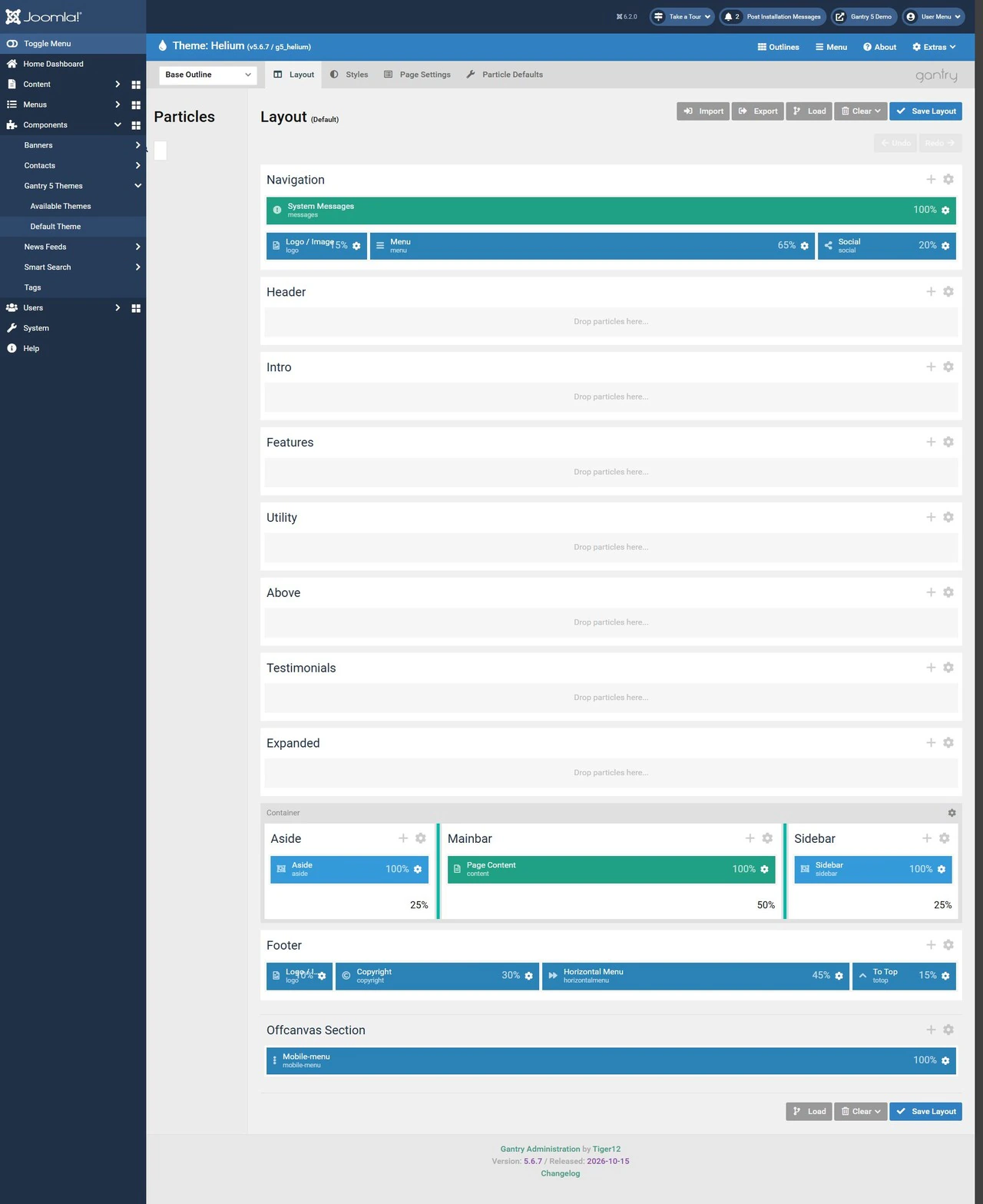
- Select the outline you want to edit.
- Open Layout and find the required section.
- Drag a particle into the section or row.
- Open its settings and fill in the required fields.
- Adjust the block's width and settings if needed.
- Click Save Layout and open a page assigned to that outline.
Load loads a predefined layout or the structure of another outline. This can replace the current arrangement, so save a separate copy of the outline before experimenting.
Clear removes the elements placed in the layout but does not remove existing inheritance. If some blocks remain, check the settings of the inherited sections.
After building the layout, check the page on a narrow screen. Look at the order of blocks, how columns wrap, the menu and any horizontal scrolling.
Adding a module position
Module Position connects a Gantry layout to Joomla's standard modules. For example, you can create an area for extra blocks below the main content.
- Open Layout for the required outline.
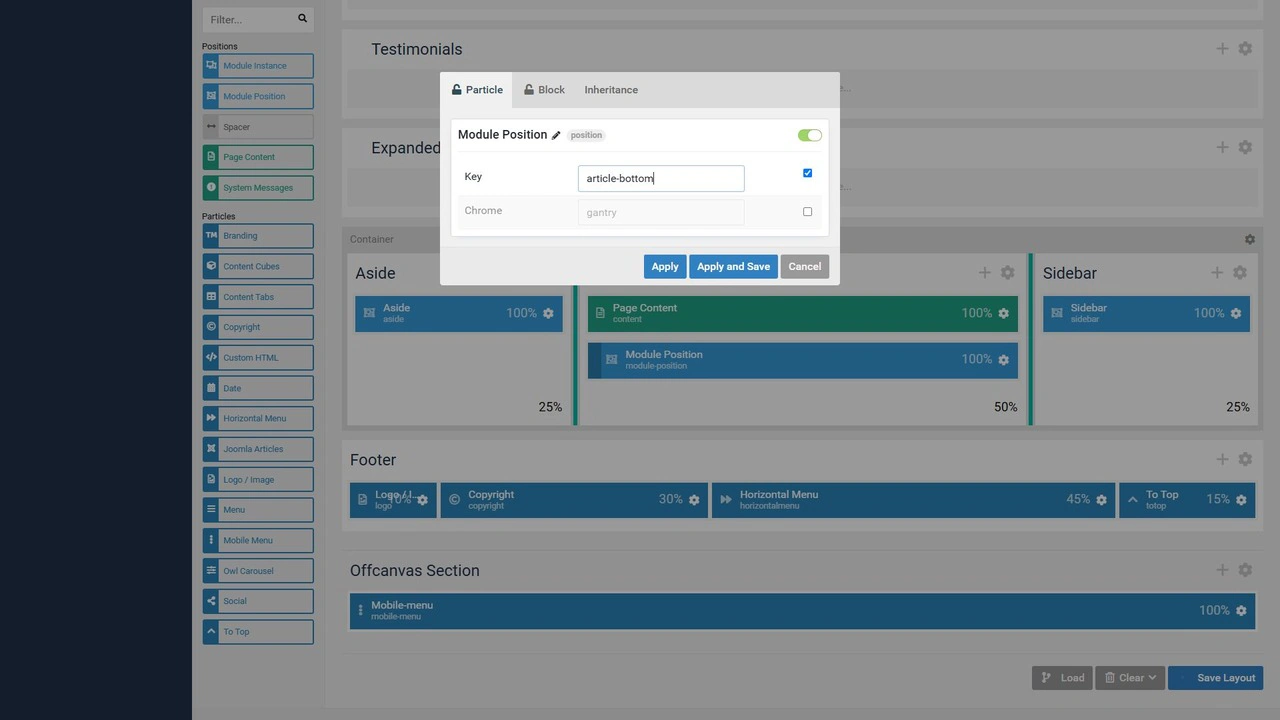
- If needed, add a row with the + button in the section header and drag Module Position into it.
- Set Key to article-bottom in the particle's settings.
- Apply the particle settings and save the layout.
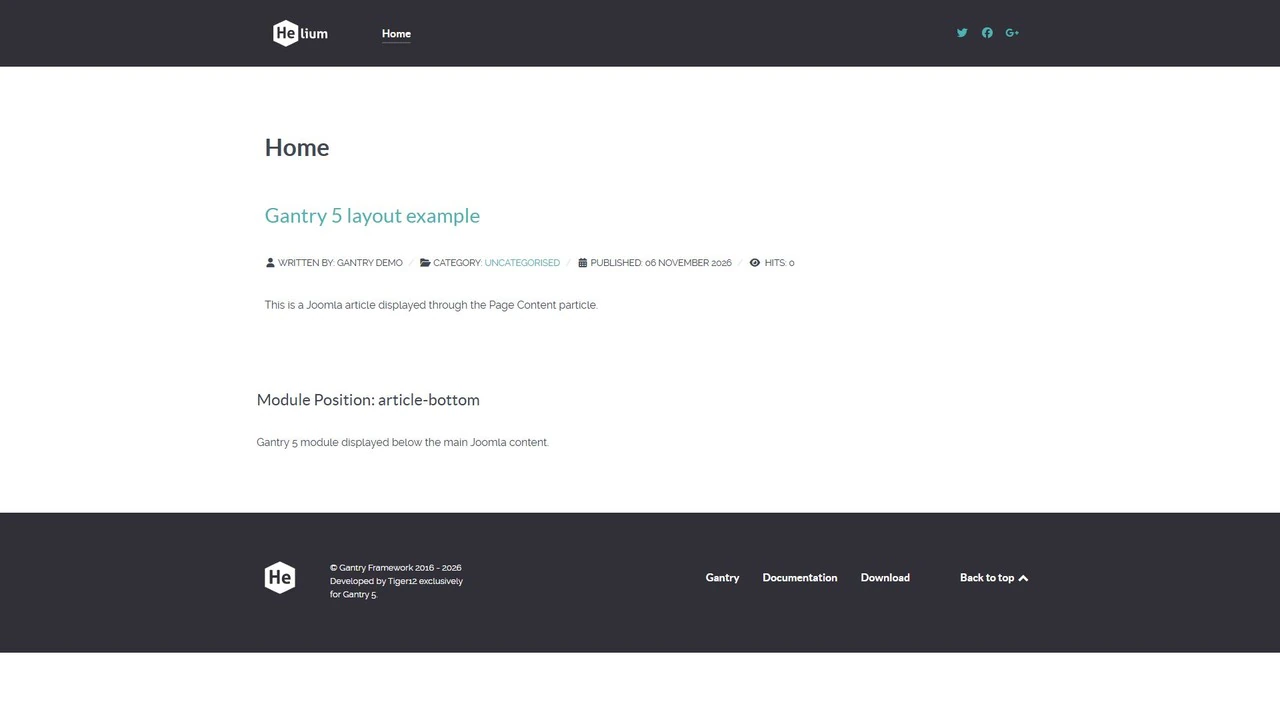
- Open the required Joomla module and set its position to article-bottom.
- Check the module's publication status, language, access level and menu assignments.
- Open a page that uses the outline.
The Key value must match the module position. Placing Module Position in the layout is not enough: Joomla must also allow the module to appear on the selected page.
When switching from another template, you can keep the previous position names. This reduces the number of modules you need to reassign, but you still need to check where each position appears in the new layout.
Inheritance and overrides
Inheritance helps you keep elements consistent across several outlines. For example, the home page and blog can share a header while the central parts of their pages differ.
In Styles, you can override an inherited field for the selected outline. After that, changing the original value will not necessarily change the local setting.
Layout inheritance is configured separately. You can link section attributes, child elements or particle settings to another outline through the Inheritance settings.
Keep these two actions distinct:
- Clone creates a one-time copy. Later changes to the source are not transferred automatically.
- Inherit keeps a connection. Changes to inherited elements come from the selected source.
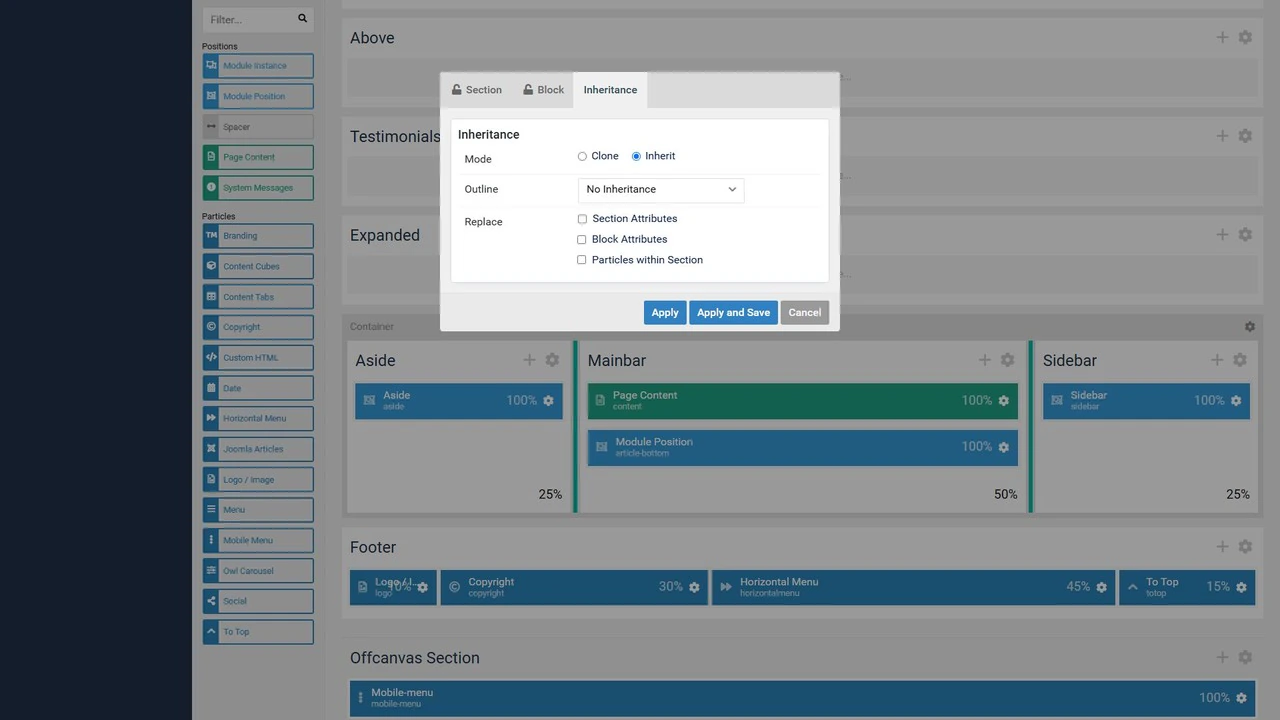
If a shared change does not appear on a page, first check the selected outline, inheritance source and local overrides. Copying the entire layout again can hide the cause and affect settings specific to that page.
Configuring the menu
Create menu items, choose page types and configure their main options in Joomla's menu manager. The Gantry editor controls how they appear in the template's menu.
In Menu, you can configure an icon, subtitle, dropdown direction and width. Additional elements and columns may be available depending on the template and menu structure.
The Menu editor is shared across the template. Changing the selected menu can affect every outline that uses it.
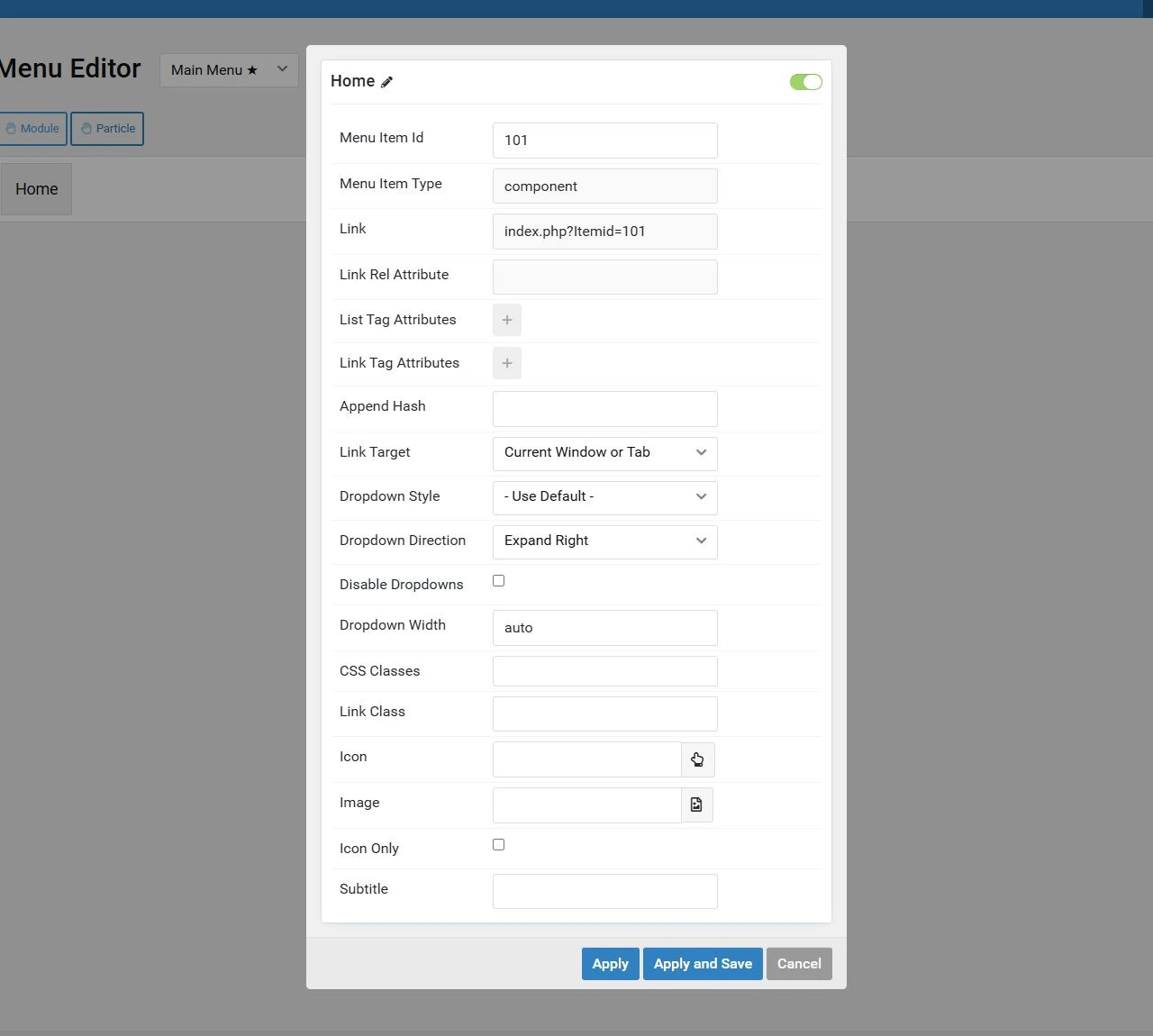
Selecting a menu in the editor does not assign it to the Menu particle. If the website displays a different menu, open that particle's settings in the active layout and check its selection.
After editing, check both the desktop and mobile menus. Test nested items, keyboard access to links and the behaviour of long labels.
Custom styles and caching
For small changes, start with Styles. If those options are not enough, Gantry lets you add a custom.scss file to the selected template's custom/scss directory. For Helium, the standard path is templates/g5_helium/custom/scss/custom.scss.
The file can contain SCSS and ordinary CSS. After changing it in Production mode, run Recompile CSS on the Styles tab.
Development is useful during configuration: Gantry detects changes to SCSS, Twig and YAML. Production is intended for a live website. After changing Twig or YAML in this mode, you may need to run Clear Cache.
Clear Cache in Gantry clears its own cache. If the result still looks unchanged, check Joomla's cache, the browser cache and any CDN separately.
Choosing a template
Helium and Hydrogen remain free options for exploring Gantry. For any other template, check its last update date, supported Joomla and PHP versions, included particles and availability of support.
Older references to RocketTheme as an active template shop are no longer accurate: the club, member downloads and support forum closed in 2025. Gantry development continues under Tiger12.
The name Gantry 5 in a template's description does not confirm that an old release is compatible with Joomla 6. Check the requirements for the specific template version you plan to install.
Conclusion
Gantry 5 suits websites that need shared style settings and several layout variations. Start with the Base Outline, keep only necessary differences in individual outlines and use inheritance for repeated elements.
Continue creating articles, menus and modules with Joomla, and use Gantry to arrange and style them. This makes it easier to know where to edit content, where to adjust appearance and what to check when an element does not appear on a page.
Terms used:
Demo, Quickstart, Module, Package, Override, Module position, Template style, Template, CMS, CSS, Favicon, HTML, JavaScript, PHP, Menu, Database, CDN, Layout


